
General Tools TS01
General Tools TS01 100’ Laser Measure User Manual
Brand: General Tools | Model: TS01
1. Introduction
The General Tools TS01 100’ Laser Measure is a versatile and precise tool designed for quick and accurate distance, area, and volume measurements. It features Bluetooth connectivity, allowing seamless integration with the free ToolSmart App for enhanced project management and material calculation. This manual provides detailed instructions for the safe and effective use of your device.
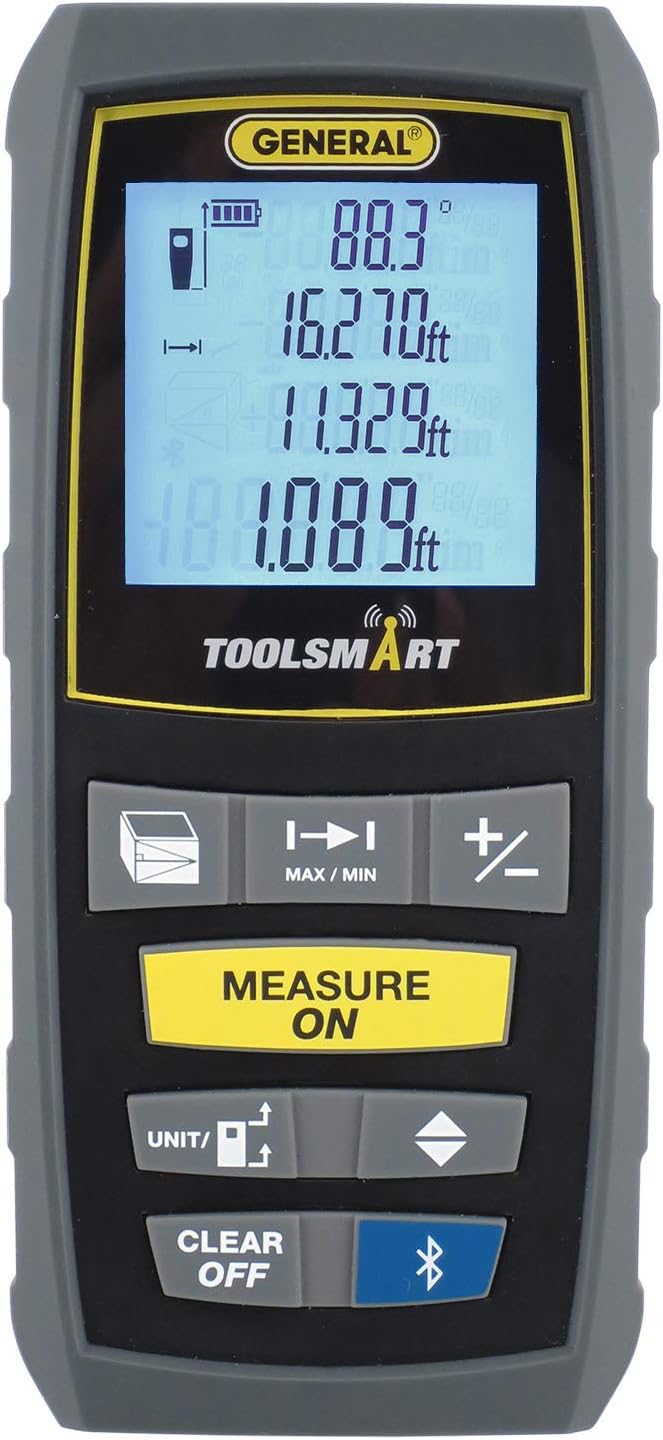
Figure 1: Front view of the General Tools TS01 Laser Measure, showing the display and control buttons.
2. Safety Information
Please read and understand all safety warnings and instructions before operating this device. Failure to follow these instructions may result in hazardous laser radiation exposure, electric shock, fire, or serious injury.
2.1 Laser Safety
This product is a CLASS II LASER PRODUCT with a power output of <1mW. Do not stare into the laser beam. Do not direct the laser beam at people or animals. Avoid direct eye exposure. Use of controls or adjustments or performance of procedures other than those specified herein may result in hazardous radiation exposure.
2.2 General Safety
- Keep the device away from water and moisture. The device has an IP54 rating, indicating protection against dust and splashing water, but it is not designed for submersion.
- Do not attempt to disassemble or modify the device. There are no user-serviceable parts inside.
- Use only specified AAA alkaline batteries. Ensure correct polarity when installing.
- Keep out of reach of children.
- This product contains chemicals known to the State of California to cause cancer and birth defects or other reproductive harm. Wash hands after handling.
3. Package Contents
Verify that all items listed below are included in your package:
- General Tools TS01 100’ Laser Measure
- Holster (soft pouch with a belt loop)
- Two (2) AAA alkaline batteries
- Small flat-head screwdriver (for battery compartment)
- User’s Manual
4. Product Overview
The TS01 Laser Measure is designed for ease of use and portability. Its compact size allows it to fit comfortably in your hand or pocket.
4.1 Device Components
- Laser Aperture: Emits the laser beam for measurement.
- Receiver Lens: Detects the reflected laser beam.
- LCD Display: Backlit display shows measurements, modes, and battery status. Saves and displays the last four measurements taken.
- MEASURE ON Button: Activates the laser and initiates measurements.
- UNIT/ Button: Changes measurement units (feet with decimal fraction, feet + fractional inches, inches, meters) and sets reference point.
- CLEAR OFF Button: Clears the last measurement or turns off the device.
- Function Buttons: Buttons for Area, Volume, Pythagorean, Max/Min, Addition/Subtraction, and Continuous Measurement modes.
- Battery Compartment: Located at the rear, secured by a screw.

Figure 2: The TS01 Laser Measure as packaged for retail, highlighting its key features and Bluetooth connectivity.
5. Setup
5.1 Battery Installation
- Locate the battery compartment on the rear of the device.
- Use the provided small flat-head screwdriver to loosen the screw securing the battery compartment cover.
- Remove the cover.
- Insert two (2) AAA alkaline batteries, ensuring correct polarity (+/-) as indicated inside the compartment.
- Replace the battery compartment cover and tighten the screw.
5.2 Connecting to the ToolSmart App (Bluetooth)
The TS01 Laser Measure can be used independently or connected to your smartphone via Bluetooth for enhanced functionality with the free ToolSmart App.
- Download the free ToolSmart App from your device’s app store (available for iOS and Android).
- Ensure Bluetooth is enabled on your smartphone.
- Turn on the TS01 Laser Measure by pressing the MEASURE ON button.
- Open the ToolSmart App and follow the on-screen instructions to pair your device. The app will guide you through the connection process.
- Once connected, measurements taken with the TS01 can be sent directly to the app for calculations, project management, and material estimation.
6. Operating Instructions
6.1 Basic Distance Measurement
- Press the MEASURE ON button to turn on the device and activate the laser.
- Aim the laser dot at the target point.
- Press the MEASURE ON button again to take the measurement. The distance will be displayed on the LCD screen.

Figure 3: A user demonstrating the TS01 Laser Measure to determine the length across a room, showing the visible laser line.
6.2 Changing Measurement Units
Press the UNIT/ button repeatedly to cycle through the available measurement units:
- Feet with decimal fraction (default)
- Feet + fractional inches
- Inches
- Meters
6.3 Measurement Modes (Area, Volume, Continuous, etc.)
The TS01 offers various measurement modes for different applications. Refer to the icons on the function buttons for specific mode selection.
- Area Measurement: Press the Area button (icon resembling a square). Take two consecutive measurements (length and width). The device will automatically calculate and display the area.
- Volume Measurement: Press the Volume button (icon resembling a cube). Take three consecutive measurements (length, width, and height). The device will calculate and display the volume.
- Continuous Measurement (Tracking): Press the Continuous Measurement button (often indicated by a running person or similar icon). The device will continuously measure and display the distance as you move it, similar to a tape measure. This is ideal for layout work or finding minimum/maximum distances.
- Addition/Subtraction: Use the +/- button to add or subtract measurements. Take a measurement, press the +/- button, take another measurement, and the device will perform the operation.
- Pythagorean Mode: For indirect measurements (e.g., height of a building). Follow the on-screen prompts to take the required measurements (e.g., hypotenuse and one leg) and the device will calculate the unknown side.

Figure 4: A close-up view of the TS01 Laser Measure being used to take a precise measurement, showing the laser dot on a wall.
7. Maintenance
7.1 Cleaning
To ensure optimal performance and longevity of your device:
- Wipe the device with a soft, damp cloth. Do not use abrasive cleaners or solvents.
- Clean the laser aperture and receiver lens gently with a soft, lint-free cloth to ensure accurate measurements.
7.2 Storage
When not in use for extended periods, remove the batteries to prevent leakage and store the device in its holster in a cool, dry place, away from direct sunlight and extreme temperatures.
8. Troubleshooting
If you encounter issues with your TS01 Laser Measure, refer to the following common problems and solutions:
| Problem | Possible Cause | Solution |
|---|---|---|
| Device does not turn on. | Low or dead batteries; incorrect battery installation. | Replace batteries with new AAA alkaline batteries. Ensure correct polarity. |
| Inaccurate measurements. | Laser aperture/lens dirty; unstable measuring surface; measuring beyond range. | Clean laser aperture and lens. Ensure stable measurement. Verify target is within 8 in to 100 ft range. |
| Bluetooth connection fails. | Bluetooth off on phone; app not updated; device not in pairing mode. | Ensure phone Bluetooth is on. Update ToolSmart App. Restart both device and phone. Follow app pairing instructions. |
| Display is dim or flickering. | Low battery. | Replace batteries. |
9. Specifications
| Specification | Detail |
|---|---|
| Model Number | TS01 |
| Measurement Range (Indoor) | 8 in to 100 ft |
| Measurement Accuracy | 1/16 in |
| Dimensions (L x W x H) | 2" x 1.3" x 4.5" |
| Item Weight | 0.31 Pounds (5 ounces) |
| Material | Plastic |
| Battery Type | 2 x AAA Alkaline batteries (included) |
| International Protection Rating | IP54 |
| Laser Class | Class II (<1mW) |
| Connectivity | Bluetooth |
10. Warranty and Support
For detailed warranty information and customer support, please refer to the documentation included with your product or visit the official General Tools website. You can also find more information and related products on the General Tools Store on Amazon.
Related documentsTS01


Ask a question about this manual
Ask about setup, troubleshooting, compatibility, parts, safety, or missing instructions. Manuals+ will review the question and use this page’s manual context to help answer it.