
Bios BBYCA10300783
BIOS Weather Indoor/Outdoor Wireless Thermometer & Hygrometer
Model: 312BC (BBYCA10300783)
Brand: Bios
Introduction
This manual provides detailed instructions for the setup, operation, and maintenance of your BIOS Weather Indoor/Outdoor Wireless Thermometer & Hygrometer. Please read this manual thoroughly before using the device to ensure proper function and longevity.
The BIOS Weather Indoor/Outdoor Wireless Thermometer & Hygrometer is designed to provide accurate readings of indoor temperature and humidity, as well as outdoor temperature. It features wireless connectivity for the outdoor sensor, a moon phase display, and the capability to connect with up to three sensors (additional sensors sold separately).
- Wireless range up to 30 meters (100 feet) from the outdoor sensor.
- Indoor monitor includes a hygrometer sensor for RH percentage readings (20% to 95%).
- Displays temperature from up to 3 sensors (Model No. 312TX, sold separately).
- Tracks relative indoor humidity and moon phase.
Package Contents
Upon opening the package, please verify that all components are present and in good condition:
- 1 x Main Display Unit (Indoor Monitor)
- 1 x Wireless Outdoor Sensor
- 1 x Instruction Manual (this document)

Image: The main display unit (left) and the wireless outdoor sensor (right). The main unit shows indoor temperature, humidity, moon phase, time, and outdoor temperature. The outdoor sensor displays its current temperature.
Setup Guide
1. Battery Installation
Both the main display unit and the wireless outdoor sensor require batteries (not included).
- Open the battery compartment on the back of both the main display unit and the outdoor sensor.
- Insert the required batteries (e.g., AA or AAA, refer to the battery compartment markings for correct type and polarity).
- Close the battery compartments securely.
Note:
- It is recommended to insert batteries into the outdoor sensor first, then the main display unit, to facilitate immediate pairing.
- Use high-quality alkaline batteries for optimal performance, especially in cold weather for the outdoor sensor.
2. Sensor Placement
Proper placement of both units is crucial for accurate readings and reliable wireless communication.
- Main Display Unit: Place indoors, away from direct sunlight, heat sources, or drafts that could affect temperature and humidity readings. Ensure it is within 30 meters (100 feet) of the outdoor sensor.
- Wireless Outdoor Sensor:
- Mount in a shaded area to avoid direct sunlight, which can cause artificially high temperature readings.
- Protect from direct rain and snow. An overhang or a weather-resistant enclosure is ideal.
- Avoid placing near large metal objects, electrical appliances, or thick walls that could interfere with the wireless signal.
- Ensure it is within the 30-meter (100-foot) wireless range of the main unit.
3. Initial Pairing
The main display unit and outdoor sensor should automatically pair upon battery installation. If pairing does not occur:
- Ensure both units have fresh batteries.
- Bring the outdoor sensor closer to the main display unit.
- Press the "CH" (Channel) button on the main display unit to cycle through channels or initiate a search for the sensor.
- If issues persist, remove batteries from both units, wait a few minutes, and reinsert them, starting with the outdoor sensor.
Operating Instructions
1. Display Overview
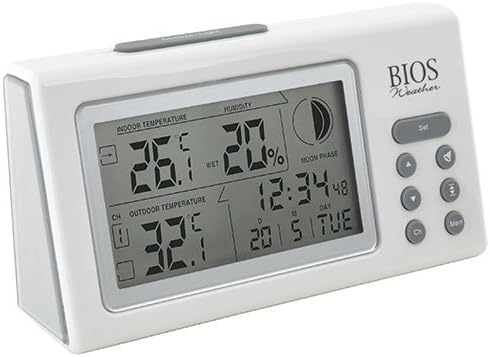
Image: Angled view of the main display unit, highlighting the various segments for indoor temperature, humidity, moon phase, time, and outdoor temperature.
The main display unit provides the following information:
- Indoor Temperature: Displays the current temperature inside the room where the main unit is located.
- Humidity: Shows the relative indoor humidity percentage.
- Outdoor Temperature: Displays the temperature from the connected wireless outdoor sensor.
- Time and Date: Current time and date.
- Moon Phase: An icon indicating the current moon phase.
- Channel Indicator: Shows which outdoor sensor channel is currently displayed (if multiple sensors are used).
2. Button Functions
The main display unit features several buttons for configuration and viewing data:
| Button | Function |
|---|---|
| SET | Enters setup mode for time, date, and other settings. Press to confirm settings. |
| ▲ / ▼ (Up/Down) | Adjusts values during setup. Cycles through channels for outdoor sensors. |
| CH (Channel) | Switches between outdoor sensor channels (1, 2, 3) or initiates a search for sensors. |
| MEM (Memory) | Displays maximum and minimum temperature/humidity readings. Press again to clear. |
3. Setting Time and Date
- Press and hold the SET button until the time display flashes.
- Use the ▲ or ▼ buttons to adjust the hour.
- Press SET to confirm and move to the next setting (minutes, year, month, day).
- Repeat steps 2 and 3 until all settings are configured.
- Press SET one last time to exit setup mode.
4. Viewing Max/Min Readings
Press the MEM button to view the maximum recorded indoor temperature, humidity, and outdoor temperature. Press MEM again to view the minimum readings. To clear the memory, press and hold the MEM button while the max/min readings are displayed.
Maintenance
1. Cleaning
To clean the display unit and outdoor sensor, use a soft, damp cloth. Do not use abrasive cleaners, solvents, or harsh chemicals, as these may damage the plastic casing or electronic components.
2. Battery Replacement
When the battery indicator appears on the display, it is time to replace the batteries in the respective unit (main unit or outdoor sensor). Always replace all batteries in a unit at the same time with new, high-quality batteries of the correct type.
Important:
- Dispose of old batteries responsibly according to local regulations.
- If the unit will not be used for an extended period, remove the batteries to prevent leakage and damage.
Troubleshooting
If you experience issues with your BIOS Weather Thermometer & Hygrometer, please refer to the following common problems and solutions:
| Problem | Possible Cause / Solution |
|---|---|
| No outdoor temperature reading or "---" displayed. |
|
| Inaccurate temperature/humidity readings. |
|
| Display is dim or blank. |
|
| Time/Date is incorrect. |
|
Product Specifications

Image: The main display unit with indicated dimensions: 21.59 cm (length), 7.62 cm (width), and 19.05 cm (height).
| Feature | Detail |
|---|---|
| Model Number | BBYCA10300783 (312BC) |
| Type | Indoor/Outdoor Thermometer and Hygrometer |
| Material | Plastic |
| Colour | White |
| Dimensions (Main Unit) | Height: 19.05 cm, Width: 7.62 cm, Depth: 21.59 cm |
| Weight | 0.30 kg |
| Wireless Range | Up to 30 meters (100 feet) |
| Indoor Humidity Range | 20% to 95% RH |
| Sensor Capability | Supports up to 3 outdoor sensors (additional sensors Model No. 312TX, sold separately) |
| Special Features | Wireless connectivity, Multi-Sensor support, Humidity Tracking, Moon Phase Display |
| Power Source | Battery Powered |
Warranty Information
This BIOS Weather product comes with a 1-Year Warranty on Parts from the date of purchase. This warranty covers defects in materials and workmanship under normal use. It does not cover damage resulting from misuse, accident, unauthorized modification, or improper installation.
Please retain your proof of purchase for warranty claims.
Customer Support
If you have any questions, require technical assistance, or need to make a warranty claim, please contact Bios customer support. For more information and resources, you may also visit the official Bios store on Amazon:
Visit the Bios Store on Amazon
Please have your product model number (BBYCA10300783) and purchase date ready when contacting support.
Ask a question about this manual
Ask about setup, troubleshooting, compatibility, parts, safety, or missing instructions. Manuals+ will review the question and use this page’s manual context to help answer it.