
Zeta Prusa I3 M201 STM32
Zeta Geeetech Prusa I3 M201 STM32 3D Printer User Manual
Model: Prusa I3 M201 STM32 | Brand: Zeta
Introduction
The Zeta Geeetech Prusa I3 M201 STM32 is an advanced FDM (Fused Deposition Modeling) 3D printer designed for versatile and high-quality 3D printing. This model features a unique 2-in-1 hot end, enabling mixed-color and gradient printing, offering enhanced creative possibilities. It is equipped with a self-developed control system based on the STM32 processor, ensuring stable and efficient performance.
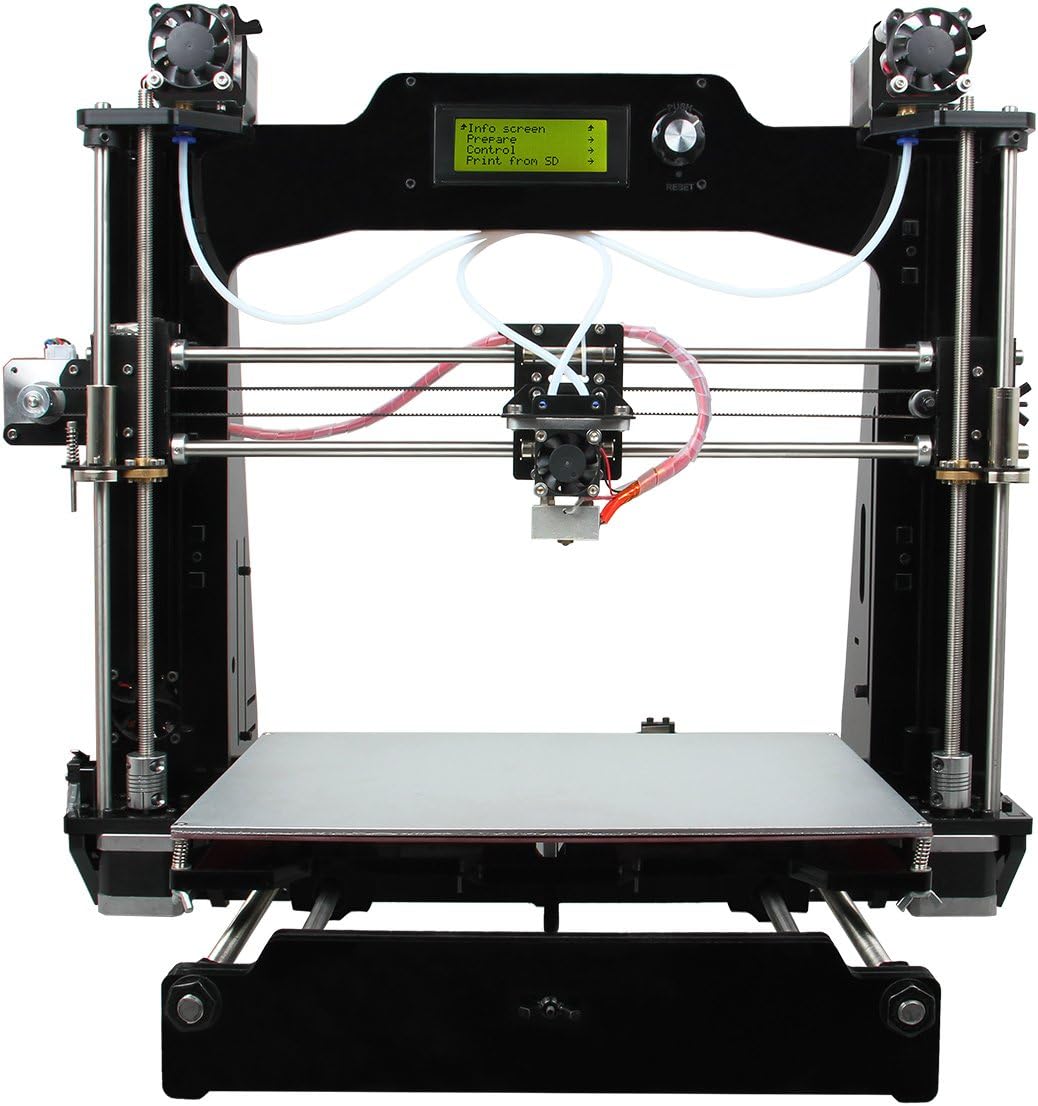
Figure 1: Front view of the Zeta Geeetech Prusa I3 M201 STM32 3D Printer, showcasing its sturdy black acrylic frame and the dual-extruder setup.
Key Features:
- STM32 Control System: Utilizes an ARM Cortex M3 processor with a 72 MHz frequency for improved printing performance.
- Optimized Firmware: Allows adjustment of feed rate ratios for two extruders, enabling mixed or gradient color prints.
- 2-in-1 Switchable Hot End: Functions as a color palette for printing items in two distinct colors or gradients.
- Large Print Volume: Offers a build volume of 280 x 210 x 200 mm.
- High Printing Precision: Achieves up to 0.1 mm printing accuracy.
Setup Guide
This section provides general guidelines for setting up your 3D printer. For detailed assembly instructions, please refer to the specific assembly manual provided with your printer or the manufacturer's official wiki.
1. Unpacking and Inspection
- Carefully remove all components from the packaging.
- Verify that all parts listed in the packing list are present and undamaged.
- Report any missing or damaged parts to the manufacturer immediately.

Figure 2: Angled view of the Geeetech Prusa I3 M201 3D Printer, showing the overall structure and components before assembly.
2. Assembly (if applicable)
If your printer is a kit or partially assembled, follow the provided assembly guide. Ensure all screws are tightened and connections are secure. Pay close attention to the wiring of stepper motors, endstops, and the hot end/heated bed.
3. Power Connection
- Ensure the power switch is in the OFF position.
- Connect the power cable to the printer's power input.
- Plug the power cable into a suitable electrical outlet. Verify the voltage setting on the power supply matches your local mains voltage (115V or 230V).

Figure 3: Close-up view of the printer's power supply unit, showing the power input, switch, and wiring connections. Note the "NOTICE" label regarding the built-in fan control circuit.
4. Software Installation
Install the necessary software on your computer. The recommended control software includes Repetier-Host and Printrun. These are compatible with Windows, Mac, and Linux operating systems. You will also need a slicing software to convert 3D models (STL files) into G-code for printing.
Operating Instructions
1. Loading Filament
- Ensure the hot end is preheated to the appropriate temperature for your filament type (e.g., 200-220°C for PLA).
- Insert the filament into the extruder's input hole.
- Push the filament through until it is gripped by the extruder gears and begins to feed through the Bowden tube towards the hot end.
- Continue feeding until molten filament extrudes from the nozzle, indicating it is properly loaded.
2. Bed Leveling
Accurate bed leveling is crucial for successful prints. Use the manual leveling screws under the print bed to adjust the distance between the nozzle and the bed at multiple points (typically 4 or 5 points). A piece of paper should slide with slight friction between the nozzle and the bed.
3. Starting a Print
- Prepare your 3D model (STL file) using slicing software to generate G-code.
- Save the G-code file to an SD card or connect the printer to your computer via USB.
- From SD Card: Insert the SD card into the printer's slot. Navigate the printer's menu to "Print from SD" and select your file.
- Via USB: Connect the printer to your computer. Use Repetier-Host or Printrun to connect to the printer and initiate the print.
- Monitor the first layer of the print to ensure proper adhesion and adjust as needed.

Figure 4: The Geeetech Prusa I3 M201 3D Printer in operation, demonstrating its capability to print objects with mixed or gradient colors, as shown by the orange and yellow vase on the print bed.
4. Color Mixing and Gradient Printing
The M201's optimized firmware (version 1.0.0 or later) allows for advanced color mixing. You can customize gradient templates to achieve various color effects. This involves setting the gradient start percentage, end percentage for two filaments, and the start and end heights. There are 6 customizable templates available under the "Mixer > Customizable" menu option. Refer to the manufacturer's wiki for detailed instructions on configuring these settings.
Maintenance
Regular maintenance ensures the longevity and optimal performance of your 3D printer.
- Clean the Print Bed: After each print, clean the print bed to remove any residue. Use isopropyl alcohol for glass beds.
- Nozzle Cleaning: Periodically clean the nozzle to prevent clogs. A brass brush can be used for external cleaning, and cold pulls or needle cleaning for internal clogs.
- Lubricate Moving Parts: Apply a small amount of lithium grease or similar lubricant to the smooth rods and lead screws every few months to ensure smooth movement.
- Check Belts and Pulleys: Ensure that the timing belts are properly tensioned and that pulleys are securely fastened.
- Inspect Wiring: Periodically check all electrical connections for any loose wires or signs of wear.
Troubleshooting
This section addresses common issues you might encounter during operation.
- Problem: Filament not extruding or inconsistent extrusion.
- Possible Causes: Clogged nozzle, tangled filament, incorrect temperature, extruder motor issue.
Solution: Clean the nozzle, check filament path, verify hot end temperature, inspect extruder gears and motor connection. - Problem: Poor first layer adhesion.
- Possible Causes: Unlevel print bed, incorrect nozzle height, dirty print surface, wrong bed temperature.
Solution: Re-level the print bed, adjust Z-offset, clean the print surface, ensure heated bed is at optimal temperature for filament type. - Problem: Prints detaching from the bed mid-print.
- Possible Causes: Similar to poor first layer adhesion, drafts, insufficient bed adhesion.
Solution: Ensure proper bed adhesion (e.g., glue stick, hairspray), avoid drafts, check bed temperature consistency. - Problem: Layer shifting.
- Possible Causes: Loose belts, motor skipping steps, obstruction in movement path.
Solution: Tighten X and Y axis belts, check motor drivers and current, ensure smooth rod movement.
Specifications
Detailed technical specifications for the Zeta Geeetech Prusa I3 M201 STM32 3D Printer.

Figure 5: Side view of the Geeetech Prusa I3 M201 3D Printer, illustrating its physical dimensions and the placement of the power supply unit.
| Feature | Detail |
|---|---|
| Printing Technology | FDM (Fused Deposition Modeling) |
| Build Volume | 280 x 210 x 200 mm |
| Printing Resolution | 0.1 – 0.3 mm |
| Printing Speed | 60-110 mm/s |
| Filament Diameter | 1.75 mm |
| Nozzle Diameter | 0.4 mm |
| Filament Type | PLA, ABS |
| Feature | Detail |
|---|---|
| Operating System | Windows/Mac/Linux |
| Control Software | Repetier-Host, Printrun |
| File Format | STL, G-code |
| Connectivity | USB, SD Card (supports standalone printing) |
| Feature | Detail |
|---|---|
| Max Heated Bed Temperature | ~110 °C |
| Max Extruder Temperature | 275 °C |
| Power Supply Input | 115 V/1.5 A or 230 V/0.75 A |
| Power Supply Output | 24 V DC, 0 – 15 A |
| Feature | Detail |
|---|---|
| Frame | 8 mm thick laser-cut acrylic plate |
| Platform | Super-flat aluminum alloy + heatbed |
| XYZ Rods | Wear-resistant, stainless steel |
| Stepper Motor | 1.8° step angle with 1/16 micro-stepping |
| Machine Dimensions | 510 x 450 x 450 mm |
| Net Weight | 9.5 kg |
Warranty and Support
For information regarding warranty coverage, technical support, and service, please refer to the official Zeta or Geeetech website, or contact their customer service directly. Keep your purchase receipt as proof of purchase for warranty claims.
Additional resources such as firmware updates, software downloads, and detailed assembly guides can often be found on the manufacturer's official wiki or support pages.
Ask a question about this manual
Ask about setup, troubleshooting, compatibility, parts, safety, or missing instructions. Manuals+ will review the question and use this page’s manual context to help answer it.