
BV-Tech POE-SW501G
BV-Tech 5 Port Gigabit PoE+ Switch (POE-SW501G) Instruction Manual
Model: POE-SW501G
1. Introduction
This manual provides detailed instructions for the installation, operation, and maintenance of your BV-Tech 5 Port Gigabit PoE+ Switch, model POE-SW501G. This unmanaged switch is designed to provide Power over Ethernet (PoE) capabilities for compatible devices, offering a reliable and efficient networking solution.
The POE-SW501G features 4 PoE+ ports and 1 Gigabit uplink port, all supporting 10/100/1000Mbps speeds. It has a total PoE power budget of 65W, with each PoE+ port capable of delivering up to 30W.
2. Package Contents
Verify that all items are present and in good condition upon opening the package:
- BV-Tech 5 Port Gigabit PoE+ Switch (POE-SW501G)
- Power Cord (US style, 3-prong grounded)
- Adhesive Stand-offs (for stacking or surface protection)

Image: The BV-Tech POE-SW501G switch shown alongside its included power cord. The switch is black with five Ethernet ports and LED indicators on the front panel.
3. Physical Features
3.1 Front Panel

Image: Top view of the switch's front panel, highlighting the 4 PoE+ ports and 1 Uplink port. The bottom view shows the AC power input on the rear.
- PoE-Ports (1-4): Four 10/100/1000Mbps ports supporting PoE+ (IEEE 802.3at/af). Each port can deliver up to 30W, with a total budget of 65W.
- Uplink Port (5): One 10/100/1000Mbps Gigabit port for connecting to a router, NVR, or main network.
- LED Indicators:
- PWR (Power): Green LED indicates the device is powered on.
- LAN (Link/Activity): Green LED for each port indicates a network link and flashes with data activity.
- PoE (Power over Ethernet): Amber LED for each PoE port indicates PoE power is being supplied to a connected device.

Image: Close-up of the LED indicators on the front panel, showing PWR, LAN, and PoE lights for each port.
3.2 Rear Panel
- AC IN (100-240V): Power input for the included power cord. The internal power supply supports a wide voltage range.
3.3 Side Panels
- Ventilation Slots: Designed for air circulation to ensure optimal operating temperature.
4. Setup and Installation
The POE-SW501G is an unmanaged switch, offering plug-and-play functionality. No complex configuration is required.
- Placement: Place the switch on a stable, flat surface. Ensure adequate ventilation around the device. If stacking, use the provided adhesive stand-offs to prevent scratching and improve airflow. The switch also features cross-hair mounts on the underside for wall mounting with screws.
- Power Connection: Connect the included power cord to the AC IN port on the rear of the switch and then to a standard electrical outlet. The PWR LED on the front panel should illuminate green.
- Network Uplink: Connect your router, NVR, or main network device to the Uplink Port (5) using a standard Ethernet cable. The LAN LED for port 5 should illuminate green.
- Connect PoE Devices: Connect your PoE-compatible devices (e.g., IP cameras, VoIP phones, wireless access points) to any of the PoE-Ports (1-4) using standard Ethernet cables. The switch will automatically detect if the connected device requires PoE power (PD detection).
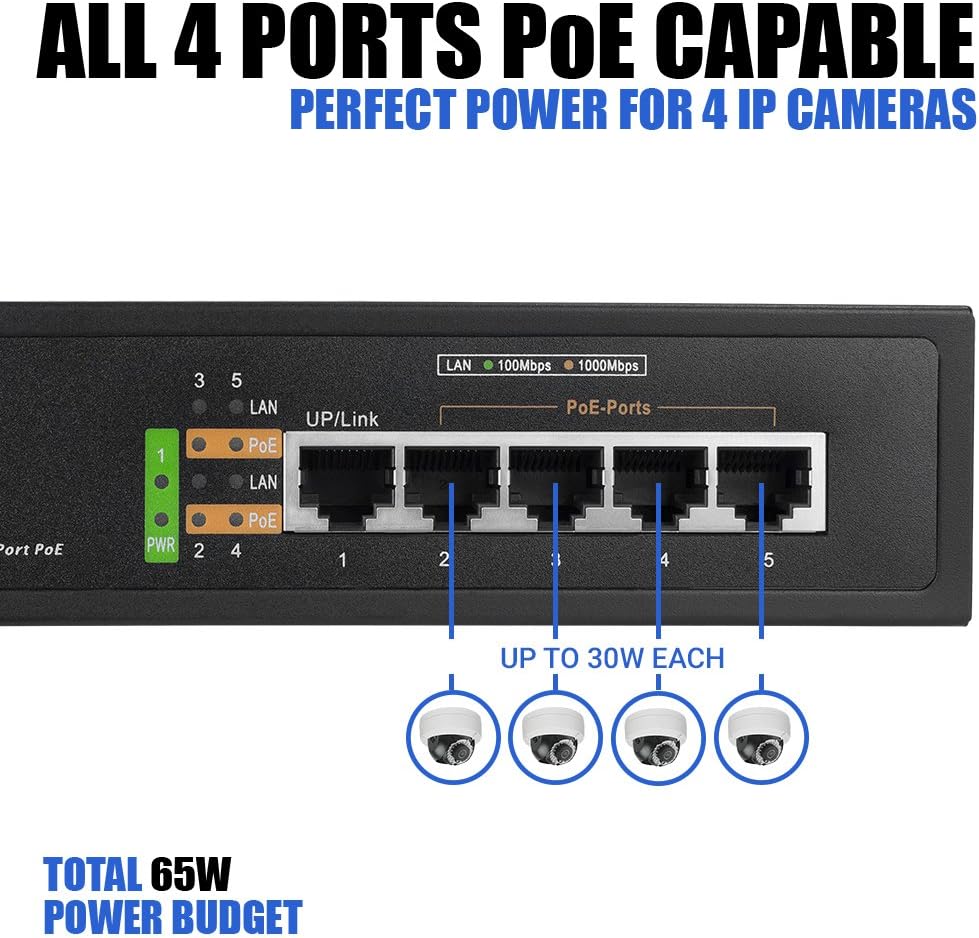
Image: The front panel of the switch with four Ethernet cables connected to the PoE ports, illustrating connections to IP cameras. Each port can supply up to 30W.

Image: A diagram showing the switch connected to both a PoE device (IP camera) and a non-PoE device (desktop computer), demonstrating its versatility.
- Verify Connection: For PoE devices, both the LAN and PoE LEDs for the respective port should illuminate. For non-PoE devices, only the LAN LED will illuminate.
5. Operating the Switch
The BV-Tech POE-SW501G operates automatically once connected. It is an unmanaged switch, meaning it does not require software configuration.
- Automatic Device Detection: The switch automatically detects whether a connected device requires PoE power. This prevents damage to non-PoE devices.
- Power Budget Management: The total power budget is 65W. While each PoE+ port can deliver up to 30W, the total power drawn by all connected devices must not exceed 65W. For example, if four PoE devices are connected, the power supplied to each will be approximately 15.4W. If only two PoE devices are connected, each can receive up to 30W.
- Data Forwarding: Supports Auto-MDI/MDI-X and non-blocking data forwarding, ensuring efficient and reliable data transmission.

Image: An illustrative diagram showing the PoE switch as a central hub connecting various network devices such as a server/router, printer, IP phone, and camera.
Video: An official product overview video from PoE Depot (BV-Tech's seller), demonstrating the unboxing and key features of the POE-SW501G switch, including its ports, power capabilities, and internal power supply.
6. Maintenance
The BV-Tech POE-SW501G is designed for minimal maintenance. Follow these guidelines to ensure optimal performance and longevity:
- Cleaning: Use a soft, dry cloth to clean the exterior of the switch. Do not use liquid or aerosol cleaners.
- Ventilation: Ensure that the ventilation slots on the sides of the switch are not blocked to allow for proper airflow and heat dissipation.
- Environment: Operate the switch within its specified environmental conditions (temperature and humidity) to prevent damage.
- Firmware: As an unmanaged switch, firmware updates are generally not required.
7. Troubleshooting
If you encounter issues with your BV-Tech POE-SW501G switch, refer to the following common problems and solutions:
| Problem | Possible Cause | Solution |
|---|---|---|
| No Power (PWR LED Off) | Power cord not properly connected; Power outlet not working. | Ensure power cord is securely plugged into the switch and the outlet. Test the outlet with another device. |
| No Link (LAN LED Off) | Ethernet cable faulty or disconnected; Connected device is off or faulty. | Check and replace Ethernet cables. Ensure the connected device is powered on and functioning correctly. |
| No PoE Power (PoE LED Off) | Connected device is not PoE-compatible; Total power budget exceeded; Faulty PoE device or cable. | Verify the device is PoE-compatible. Check the total power consumption of all PoE devices. Try a different PoE port or cable. |
| Slow Network Speed | Network congestion; Faulty cables; Device limitations. | Reduce network traffic. Replace old or damaged Ethernet cables. Ensure connected devices support Gigabit speeds. |
If issues persist after attempting these solutions, please contact BV-Tech customer support.
8. Specifications
| Feature | Description |
|---|---|
| Model | POE-SW501G |
| Ports | 4 x 10/100/1000Mbps PoE+ Ports, 1 x 10/100/1000Mbps Uplink Port |
| PoE Standard | IEEE 802.3at/af |
| Max Power per Port | 30W |
| Total PoE Power Budget | 65W |
| Data Transfer Rate | 1000 Megabytes Per Second (Gigabit) |
| Switch Type | Unmanaged |
| Power Supply | Internal, AC 100-240V |
| Case Material | Aluminum |
| Product Dimensions | 7.31 x 4.88 x 1.75 inches |
| Item Weight | 12.8 ounces |
9. Warranty and Support
For warranty information and technical support, please refer to the official BV-Tech website or contact their customer service directly. Contact details are often available on the product packaging or the seller's Amazon store page.
BV-Tech Store: Visit the BV-Tech Store on Amazon
For direct support, you may contact PoE Depot, the seller, as mentioned in the product overview video:
- Email: sales@poedepot.com
- Phone: 866-514-8998 (Monday - Friday, 9 AM - 5 PM CST)
Related documentsPOE-SW501G

Ask a question about this manual
Ask about setup, troubleshooting, compatibility, parts, safety, or missing instructions. Manuals+ will review the question and use this page’s manual context to help answer it.