
1. Introduction
This manual provides instructions for the VIZIO XRT500 dual-sided TV remote control with an integrated keyboard. It covers setup, operation, maintenance, and troubleshooting to ensure optimal use of your remote with compatible VIZIO televisions.
2. Product Overview
The VIZIO XRT500 remote is designed to enhance your television viewing experience by offering both traditional remote functions and a full QWERTY keyboard. This dual-sided design allows for easy navigation and text input on compatible VIZIO Smart TVs.

Image: Front and back view of the VIZIO XRT500 remote control, showcasing the main control buttons on one side and the full QWERTY keyboard on the reverse side.
2.1 Compatible VIZIO TV Models
The XRT500 remote is compatible with various VIZIO TV models, including but not limited to:
- M-Series: M43-C1, M49-C1, M50-C1, M55-C2, M60-C3, M65-C1, M70-C3, M75-C1, M80-C3
- M-Series (Older): M322I-B1, M422I-B1, M492I-B2, M502I-B1, M552I-B2, M602I-B3, M652I-B2, M702I-B3
- P-Series: P502UI-B1, P502UI-B1E, P552UI-B2, P602UI-B3, P652UI-B2, P702UI-B3
- Other: RS65-BL
3. Setup
3.1 Battery Installation
The remote requires two (2) AAA batteries for operation. Follow these steps to install them:
- Locate the battery compartment cover on the back of the remote.
- Slide the cover downwards or press the latch and lift to open.
- Insert two AAA batteries, ensuring the positive (+) and negative (-) terminals align with the indicators inside the compartment.
- Replace the battery compartment cover, sliding it back into place until it clicks securely.

Image: The VIZIO XRT500 remote with its battery compartment open, showing the placement for two AAA batteries.
3.2 Initial Pairing
The VIZIO XRT500 remote typically operates via infrared (IR) and should function immediately with compatible VIZIO TVs once batteries are installed. No manual pairing is usually required. If the remote does not respond, ensure there is a clear line of sight to the TV's IR receiver and that the batteries are correctly inserted and charged.
4. Operating Instructions
4.1 Front Side Controls
The primary side of the remote features standard television control buttons:
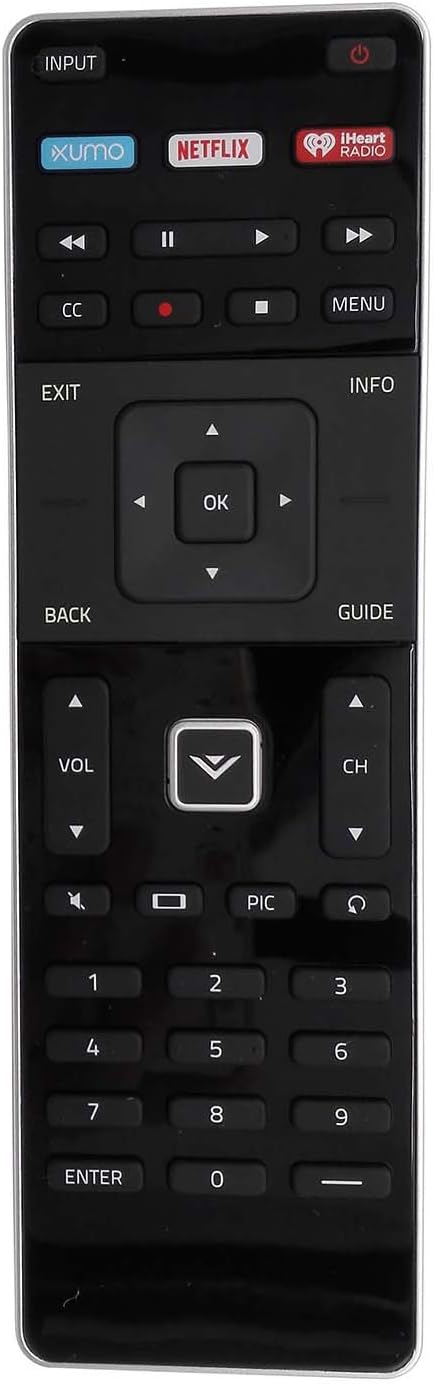
Image: Front view of the VIZIO XRT500 remote control, highlighting the main navigation, volume, channel, and dedicated app buttons.
- Power Button (U): Turns the TV on or off.
- Input Button: Cycles through available input sources (HDMI, AV, etc.).
- Dedicated App Buttons (Xumo, Netflix, iHeartRadio): Provides direct access to these streaming applications.
- Playback Controls (Rewind, Play/Pause, Fast Forward, Stop, Record): Used for media playback.
- CC (Closed Caption): Toggles closed captions on or off.
- Menu: Accesses the TV's main menu.
- Exit: Exits current menu or application.
- Info: Displays information about the current program or input.
- Navigation Pad (Up, Down, Left, Right, OK): Used to navigate menus and select options.
- Back: Returns to the previous screen or menu.
- Guide: Opens the TV program guide.
- VOL (Volume Up/Down): Adjusts the television volume.
- CH (Channel Up/Down): Changes the television channel.
- Mute: Mutes or unmutes the TV audio.
- PIC (Picture Mode): Cycles through picture modes.
- Number Pad (0-9, Enter, -): For direct channel entry or numerical input.
4.2 Rear Side Keyboard
Flip the remote over to access the full QWERTY keyboard for text input in smart TV applications, search functions, and web browsing.
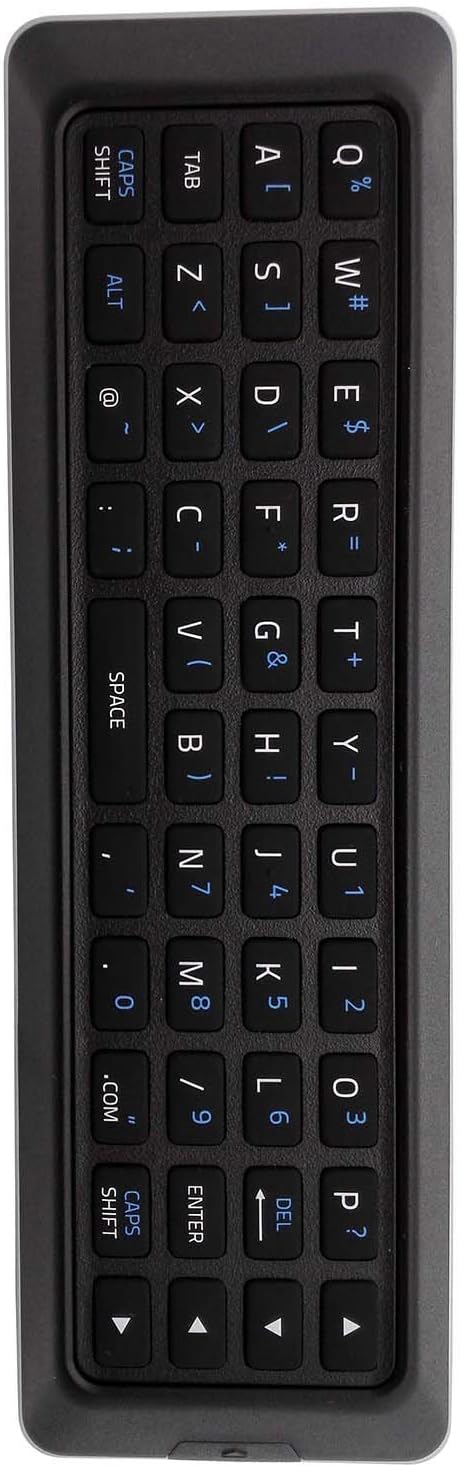
Image: Back view of the VIZIO XRT500 remote control, displaying the full QWERTY keyboard layout for text input.
- Typing: Press individual keys to input letters, numbers, and symbols.
- Caps Shift: Toggles uppercase and lowercase letters.
- Alt: Accesses alternative characters (e.g., symbols above numbers).
- Space: Inserts a space.
- Enter: Confirms input or selects an option.
- DEL (Delete): Deletes the character to the left of the cursor.
- Directional Arrows: Used for cursor movement within text fields.
5. Maintenance
5.1 Battery Replacement
Replace batteries when the remote's response becomes inconsistent or stops working. Always replace both AAA batteries simultaneously with new ones. Do not mix old and new batteries or different types of batteries.
5.2 Cleaning
To clean the remote, gently wipe its surface with a soft, dry cloth. For stubborn dirt, slightly dampen the cloth with water. Avoid using harsh chemicals, abrasive cleaners, or excessive moisture, as these can damage the remote's electronics or finish.
6. Troubleshooting
- Remote not responding:
- Ensure fresh AAA batteries are correctly installed.
- Verify there is a clear line of sight between the remote and the TV's infrared sensor. Obstructions can block the signal.
- Point the remote directly at the TV.
- Keyboard not working:
- Ensure the remote is flipped to the keyboard side. The remote typically detects which side is facing up.
- Check battery levels. Low batteries can affect keyboard functionality.
- Confirm your VIZIO TV model supports the keyboard feature. Refer to your TV's user manual for details.
- Specific buttons not working:
- Clean the remote's surface, especially around the unresponsive buttons, to remove any debris.
- If only certain buttons fail, the remote may be damaged. Consider replacing the remote.
7. Specifications
| Model Number | VIZIO XUMO XRT500-1 |
| Product Dimensions | 7 x 5 x 2 inches |
| Item Weight | 3 ounces |
| Batteries Required | 2 AAA batteries |
| Connectivity Technology | Infrared (IR) |
| Compatible Devices | VIZIO Televisions (specific models listed in Section 2.1) |
8. Warranty and Support
This VIZIO XRT500 remote control is typically covered by a manufacturer's warranty. Please refer to the warranty information provided at the time of purchase for specific terms and conditions. For further assistance or if issues persist, contact the retailer or VIZIO customer support. When contacting support, have your TV model number and the remote's model number (XRT500) available.