
1. Introduction
Thank you for choosing the LB-LINK BL-WN2210 300 Mbps Wi-Fi USB Adapter. This user manual provides detailed instructions on how to set up, operate, and maintain your new wireless adapter. Please read this manual thoroughly before using the product to ensure proper installation and optimal performance.
2. Product Overview
The LB-LINK BL-WN2210 is a compact and efficient USB Wi-Fi adapter designed to provide high-speed wireless connectivity for your desktop or laptop computer. It supports the latest wireless standards, offering a reliable and fast internet experience.
2.1. Components
- USB Connector: For connecting to your computer's USB port.
- Adapter Body: Contains the wireless chipset and internal antenna.
- Protective Cap: Covers the USB connector when not in use.
- WPS Button: For quick and secure connection to WPS-enabled routers.

Figure 2.1: Front view of the LB-LINK BL-WN2210 USB Wi-Fi Adapter with its protective cap removed, showing the USB connector.

Figure 2.2: The LB-LINK BL-WN2210 USB Wi-Fi Adapter with its protective cap in place, showing its compact form factor.
3. Features
- High-Speed Connectivity: Achieves up to 300Mbps wireless transmission rate.
- Wide Operating System Compatibility: Supports Windows 2000, XP, Vista, Win7, Win8, Win10, CE, Linux, and MAC operating systems.
- WPS Support: Features Wi-Fi Protected Setup (WPS) for easy and secure wireless connection.
- Integrated Antenna: Equipped with an internal antenna for a streamlined design.
- Standard Compliance: Complies with IEEE 802.11n, IEEE 802.11g, and IEEE 802.11b wireless standards.
- Efficient Heat Dissipation: Designed with ventilation for effective heat management.

Figure 3.1: Illustration highlighting the heat dissipation design of the LB-LINK BL-WN2210 adapter, showing ventilation holes.
4. Package Contents
Please check the package contents carefully. If any item is missing or damaged, contact your retailer.
- 1 x LB-LINK BL-WN2210 300 Mbps Wi-Fi USB Adapter
- 1 x Driver CD (may vary by package)
- 1 x Quick Installation Guide (may vary by package)
5. Setup
5.1. Driver Installation
- Insert Driver CD: If your package includes a driver CD, insert it into your computer's CD-ROM drive.
- Run Setup: Navigate to the CD drive and run the setup executable (e.g., "setup.exe" or "autorun.exe").
- Follow On-Screen Instructions: Follow the prompts to complete the driver installation. You may need to restart your computer after installation.
- Download Drivers (if no CD): If your computer does not have a CD drive or if the CD is not included, visit the official LB-LINK website to download the latest drivers for your specific operating system (Windows, Linux, Mac).
Note: For some operating systems (e.g., Windows 10), the driver may install automatically upon connecting the adapter.
5.2. Hardware Installation
- Identify an Available USB Port: Locate an unused USB port on your desktop or laptop computer.
- Insert the Adapter: Carefully insert the LB-LINK BL-WN2210 USB adapter into the USB port. Ensure it is fully seated.
- System Recognition: Your operating system should detect the new hardware. If drivers were installed correctly, the adapter should be recognized as a wireless network device.
5.3. Connecting to a Wi-Fi Network
- Access Network Settings:
- Windows: Click the Wi-Fi icon in the system tray (bottom right corner).
- macOS: Click the Wi-Fi icon in the menu bar (top right corner).
- Linux: Access network settings through your desktop environment's network manager.
- Select Network: A list of available wireless networks will appear. Select your desired network (SSID).
- Enter Password: If the network is secured, enter the Wi-Fi password (security key) when prompted.
- Connect: Click "Connect" to establish the wireless connection.
5.4. Using WPS (Wi-Fi Protected Setup)
WPS allows for a quick and secure connection to a WPS-enabled router without manually entering the password.
- Press WPS Button on Router: Locate the WPS button on your wireless router and press it. The WPS indicator light on the router may start blinking.
- Press WPS Button on Adapter: Within two minutes, press the WPS button located on the side of the LB-LINK BL-WN2210 adapter.
- Connection Established: The adapter and router will automatically establish a secure connection. The adapter's indicator light (if present) may change to solid, indicating a successful connection.

Figure 5.1: Close-up view of the LB-LINK BL-WN2210 adapter, indicating the location of the WPS button for quick setup.
6. Operating Instructions
Once connected, the LB-LINK BL-WN2210 adapter functions as your computer's primary wireless network interface.
- Internet Access: You can now browse the internet, stream media, and perform other online activities.
- Connection Status: The Wi-Fi icon in your system tray (Windows) or menu bar (macOS) will indicate the connection status and signal strength.
- Disconnecting: To disconnect from a network, click the Wi-Fi icon, select the connected network, and choose "Disconnect".
7. Maintenance
To ensure the longevity and optimal performance of your LB-LINK BL-WN2210 adapter:
- Keep the adapter clean and free from dust. Use a soft, dry cloth for cleaning.
- Avoid exposing the adapter to extreme temperatures, humidity, or direct sunlight.
- Do not attempt to disassemble or repair the adapter yourself. This will void the warranty.
- When not in use, store the adapter with its protective cap on to prevent damage to the USB connector.
8. Troubleshooting
8.1. No Wireless Connection
- Check Adapter Connection: Ensure the adapter is securely plugged into a working USB port. Try a different USB port.
- Verify Driver Installation: Confirm that the drivers are correctly installed. Check Device Manager (Windows) or System Information (macOS/Linux) to see if the adapter is recognized without errors. Reinstall drivers if necessary.
- Router Status: Ensure your wireless router is powered on and broadcasting a Wi-Fi signal.
- Correct Password: Double-check that you are entering the correct Wi-Fi password.
- Restart Devices: Restart your computer and your wireless router.
8.2. Slow Connection Speed
- Signal Strength: Check the signal strength. A weak signal can lead to slow speeds. Try moving closer to the router or reducing obstacles.
- Interference: Other electronic devices (cordless phones, microwaves) can cause interference.
- Router Settings: Ensure your router is configured for optimal performance (e.g., using 802.11n mode if supported).
- Network Congestion: Too many devices on the same network can slow down speeds.
9. Specifications
| Feature | Description |
|---|---|
| Model | BL-WN2210 |
| Brand (Manufacturer) | AKORD (LB-LINK) |
| Wireless Standards | IEEE 802.11n, IEEE 802.11g, IEEE 802.11b |
| Data Transfer Rate | Up to 300 Mbps |
| Interface | USB |
| Operating Systems | Windows 2000/XP/Vista/Win7/WIN8/10/CE, Linux, MAC |
| Compatible Devices | Laptop, Desktop |
| Dimensions (L x W x H) | 3.7 x 2 x 0.7 cm |
| Weight | 11 g |
| Color | White |
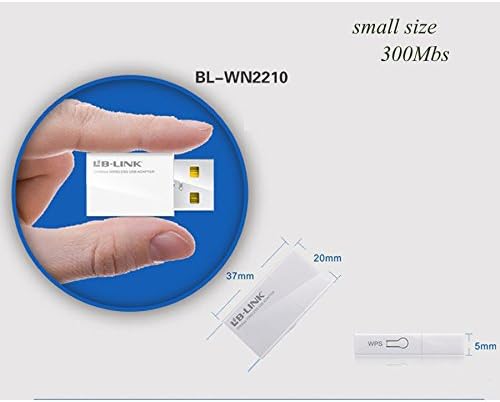
Figure 9.1: Diagram illustrating the compact dimensions of the LB-LINK BL-WN2210 USB Wi-Fi Adapter (37mm x 20mm x 5mm).
10. Warranty and Support
The LB-LINK BL-WN2210 USB Adapter comes with a standard manufacturer's warranty. Please refer to the warranty card included in your product packaging for specific terms and conditions, including warranty period and coverage.
For technical support, driver updates, or further assistance, please visit the official LB-LINK website or contact their customer support. Contact information can typically be found on the product packaging or the manufacturer's website.


