
Introduction
The Blackmagic Design Micro Converter HDMI to SDI is a compact, high-quality video converter designed to transform a single high-definition HDMI signal into two 3G-SDI signals. This device ensures compatibility within professional video environments, allowing for longer cable runs and integration with SDI-based equipment. It automatically detects input signals, adapting its output to match the resolution and format.
Safety Information
- Always ensure the converter is placed on a stable, flat surface to prevent accidental falls.
- Do not expose the device to moisture, rain, or extreme temperatures.
- Use only the provided power supply or a compatible USB power source.
- Avoid blocking ventilation openings to prevent overheating.
- Disconnect power before cleaning or when not in use for extended periods.
Package Contents
Verify that all items are present in the package:
- Blackmagic Design Micro Converter HDMI to SDI
- Power Supply with International Socket Adapters
- Instruction Manual (this document)
Product Overview
The Micro Converter HDMI to SDI features a robust metal and plastic construction, designed for durability. It includes one HDMI input, two 3G-SDI outputs, and a USB power input.

Figure 1: Overall view of the Blackmagic Design Micro Converter HDMI to SDI, highlighting its compact design and port layout.

Figure 2: Detailed view of the HDMI input and USB power port.

Figure 3: Detailed view of the two SDI output ports.
Setup
Follow these steps to set up your Micro Converter HDMI to SDI:
- Connect HDMI Source: Plug your HDMI source device (e.g., camera, computer, Blu-ray player) into the HDMI IN port on the converter using a standard HDMI cable.
- Connect SDI Destinations: Connect up to two SDI devices (e.g., monitors, switchers, recorders) to the SDI OUT ports using BNC cables. Ensure your SDI cables are appropriate for the required distance and signal type (3G-SDI).
- Power On: Connect the included power supply to the USB POWER port on the converter and then to an electrical outlet. Alternatively, you can power the unit via a USB port on a compatible device (e.g., TV, projector, computer) using a USB cable.
- Automatic Signal Detection: The converter will automatically detect the input HDMI signal's resolution and format (SD or HD) and convert it to the corresponding SDI signal. No manual configuration is typically required for basic operation.
Operating
Once connected, the Blackmagic Design Micro Converter operates automatically:
- Signal Conversion: The converter continuously monitors the HDMI input. When an active HDMI signal is detected, it is converted and output simultaneously through both SDI OUT ports.
- Supported Formats: The converter supports various SD and HD HDMI input formats. The output SDI signal will match the input format.
- Software Control: For advanced settings, such as configuring SDI Level A or B output, connect the converter to a computer via its USB port and use the Blackmagic Design Converter Utility software. This software allows for firmware updates and specific configuration adjustments.
Maintenance
To ensure the longevity and optimal performance of your converter:
- Cleaning: Use a soft, dry cloth to clean the exterior of the device. Do not use liquid cleaners or solvents.
- Storage: Store the converter in a cool, dry place away from direct sunlight and extreme temperatures when not in use.
- Firmware Updates: Periodically check the Blackmagic Design website for firmware updates. Updating the firmware can improve performance and add new features. Use the Blackmagic Design Converter Utility software for this process.
Troubleshooting
If you encounter issues with your Micro Converter, refer to the following common solutions:
- No Video Output:
- Ensure all cables (HDMI, SDI, power) are securely connected.
- Verify that the HDMI source is active and outputting a signal.
- Check that your SDI display or receiving device is powered on and correctly configured to receive an SDI signal.
- Confirm that the HDMI source resolution and frame rate are compatible with the converter and the SDI receiving device.
- Intermittent Signal:
- Inspect cables for damage. Try replacing them with known good cables.
- Ensure the power supply is stable and providing adequate power.
- Check for electromagnetic interference from other electronic devices.
- SDI Level A/B Compatibility: Some SDI devices may require a specific SDI Level (A or B). If you experience compatibility issues with your SDI receiving equipment, connect the converter to a computer via USB and use the Blackmagic Design Converter Utility to adjust the SDI output level.
- Firmware Issues: If the device is not functioning as expected, ensure its firmware is up to date using the Blackmagic Design Converter Utility software.
Specifications
| Feature | Detail |
|---|---|
| Model Number | CONVCMIC/HS |
| Interface Type | HDMI Input, SDI Output |
| Number of Channels | 2 (SDI Outputs) |
| Material | Metal, Plastic |
| Product Dimensions | 3.01 x 1.8 x 0.98 inches (76.5 x 45.8 x 24.8 mm) |
| Item Weight | 5.3 ounces (150 g) |
| Input Signal Support | SD and HD HDMI signals |
| Output Signal | 3G-SDI |
| Power | USB Power (5V) |
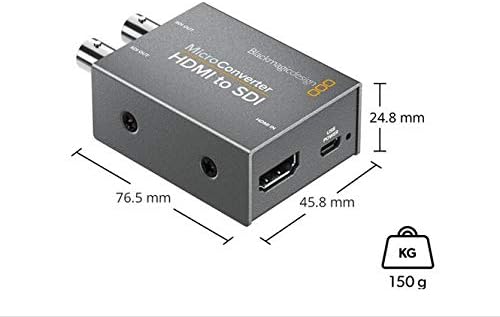
Figure 4: Physical dimensions and weight of the converter.
Warranty Information
This Blackmagic Design Micro Converter HDMI to SDI comes with a Limited 3-Year Warranty. Please retain your proof of purchase for warranty claims. For detailed warranty terms and conditions, refer to the official Blackmagic Design website or contact their customer support.
Customer Support
For technical assistance, troubleshooting beyond this manual, or warranty inquiries, please visit the official Blackmagic Design support website or contact their customer service department. Up-to-date drivers, software, and additional documentation can be found on their website.


