1. Introduction
This manual provides essential information for the installation, operation, and maintenance of the Siemens Logo 8 PLC (Programmable Logic Controller), model 6ED1052-1MD00-0BA8. The Logo 8 is a compact, easy-to-use logic module designed for small automation projects, offering integrated Ethernet, a web server, and data logging capabilities.
Please read this manual thoroughly before operating the device to ensure safe and efficient use.
2. Safety Information
WARNING: Electrical shock hazard. Only qualified personnel should install, operate, or service this equipment. Disconnect all power before working on the device.
- Ensure proper grounding to prevent electrical hazards.
- Do not operate the device in wet or damp conditions.
- Verify correct voltage and current ratings before connecting power.
- Protect the device from excessive heat, dust, and vibration.
3. Product Overview
The Siemens Logo 8 PLC is a versatile logic module featuring an integrated display, control buttons, and various input/output options. It supports 12/24V DC power supply and includes 8 digital inputs (4 of which can be used as analog inputs) and 4 relay outputs.

Figure 3.1: Angled view of the Siemens Logo 8 PLC, showing the display, control buttons, and various connection terminals.
Key features include an Ethernet port for network communication, a built-in web server for remote access, and a standard micro SD card slot for data logging and program storage. The device is designed for easy integration into existing systems and is compatible with LOGO! Soft Comfort V8 software.

Figure 3.2: Front view of the Siemens Logo 8 PLC, highlighting the integrated display and navigation buttons for direct device interaction.
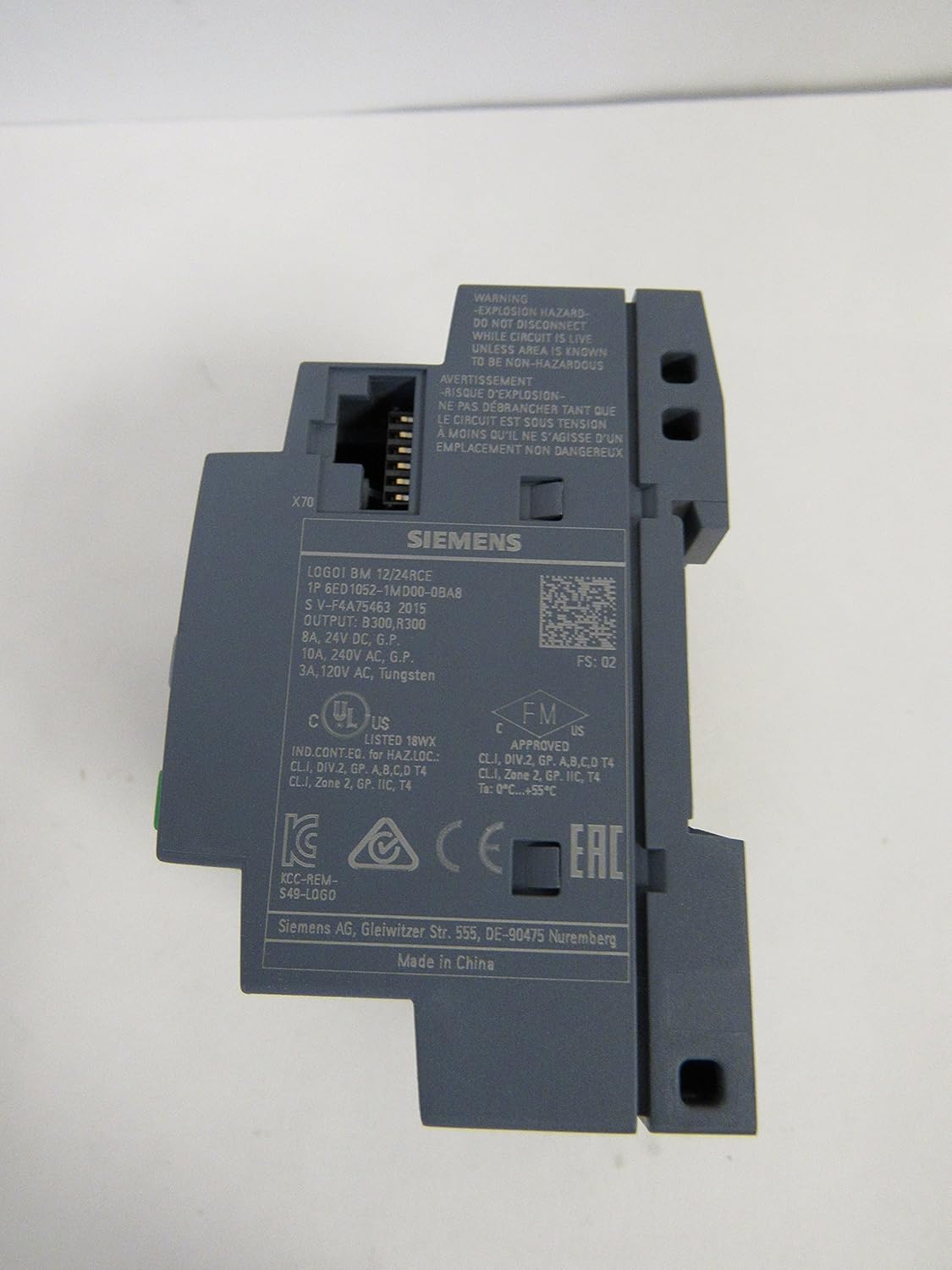
Figure 3.3: Side view of the Siemens Logo 8 PLC, showing product labels, certifications, and the Ethernet port (X70).

Figure 3.4: The packaging box for the Siemens Logo 8 PLC, displaying product information such as "Logic Module" and model details.
4. Setup
4.1 Mounting
The Logo 8 PLC is designed for DIN rail mounting. Snap the device onto a standard 35mm DIN rail in a control cabinet. Ensure adequate ventilation space around the unit.
4.2 Wiring
Connect the power supply (12/24V DC) to the L+ and M terminals. Connect digital inputs (I1-I8) and analog inputs (AI1-AI4) as required. Connect relay outputs (Q1-Q4) to your loads, observing maximum current ratings.
- Power Supply: Connect 12/24V DC to L+ and M terminals.
- Digital Inputs: Connect sensors or switches to I1-I8. Note that I1, I2, I7, I8 can also function as analog inputs.
- Analog Inputs: Use I1, I2, I7, I8 for 0-10V analog signals.
- Relay Outputs: Connect loads to Q1-Q4. Ensure loads do not exceed 10A per relay.
- Ethernet: Connect an RJ45 cable to the Ethernet port for network communication.
5. Operating
5.1 Initial Power-Up
Once wired, apply power. The integrated display will show the Siemens Logo! boot screen, followed by the main menu or the running program status.
5.2 Programming
The Logo 8 PLC is programmed using Siemens LOGO! Soft Comfort V8 software. Connect the PLC to your PC via an Ethernet cable. The software allows you to create, simulate, and download ladder logic or function block diagrams to the PLC.
5.3 Web Server Functionality
The built-in web server allows for remote monitoring and control of the PLC via a standard web browser. Access the web server by entering the PLC's IP address in your browser. Configuration of the web server is done through LOGO! Soft Comfort.
5.4 Data Logging
The Logo 8 supports data logging to a standard micro SD card inserted into the dedicated slot. Configure data logging parameters (e.g., variables to log, logging interval) within LOGO! Soft Comfort.
6. Maintenance
The Siemens Logo 8 PLC requires minimal maintenance. Regular checks can help ensure long-term reliable operation.
- Cleaning: Keep the device clean and free of dust. Use a soft, dry cloth for cleaning. Do not use liquid cleaners or solvents.
- Environmental Conditions: Ensure the operating environment remains within specified temperature and humidity ranges.
- Firmware Updates: Periodically check the Siemens support website for firmware updates for your Logo 8 model.
- Connection Integrity: Periodically inspect wiring connections for tightness and signs of corrosion.
7. Troubleshooting
This section provides solutions to common issues you might encounter with your Siemens Logo 8 PLC.
| Problem | Possible Cause | Solution |
|---|---|---|
| PLC does not power on. | No power supply; Incorrect wiring; Blown fuse. | Check power source; Verify L+ and M connections; Check external fuse. |
| Inputs not responding. | Incorrect wiring; Sensor fault; Program logic error. | Verify input wiring; Test sensor functionality; Check program logic in LOGO! Soft Comfort. |
| Outputs not activating. | Incorrect wiring; Load fault; Program logic error; Overload. | Verify output wiring; Test load; Check program logic; Check for overload on relay outputs. |
| Cannot connect via Ethernet. | Incorrect IP address; Network cable issue; Firewall blocking. | Verify PLC IP address and PC network settings; Check Ethernet cable; Disable PC firewall temporarily. |
| SD card not recognized. | Incorrectly inserted SD card; Incompatible SD card; Corrupted card. | Reinsert SD card correctly; Use a compatible micro SD card (FAT32 format); Try formatting the card (data loss). |
8. Specifications
| Attribute | Value |
|---|---|
| Model Number | 6ED1052-1MD00-0BA8 |
| Power Supply | 12/24V DC |
| Digital Inputs (DI) | 8 (4 can be Analog Inputs) |
| Analog Inputs (AI) | 4 (0-10V, shared with DI) |
| Digital Outputs (DO) | 4 (Relay, 10A) |
| Memory | 400 blocks expandable |
| Communication | Ethernet, Built-in Web Server |
| Data Logging | Standard Micro SD Card |
| Dimensions (approx.) | 9.3 x 7.9 x 6.8 cm |
| Item Weight | 4.54 g |
| Manufacturer | Siemens |
9. Warranty and Support
For warranty information, technical support, or service inquiries regarding your Siemens Logo 8 PLC, please contact Siemens customer support directly or visit their official website. Ensure you have your product model number (6ED1052-1MD00-0BA8) and serial number available when contacting support.
Siemens Official Website: www.siemens.com