
PNY P-FD512PRO-GE
PNY PRO Elite USB 3.1 Flash Drive 512GB User Manual
Model: P-FD512PRO-GE | Brand: PNY
Introduction
The PNY PRO Elite USB 3.1 Flash Drive is engineered for high-speed data transfer and expanded storage capacity. This manual provides essential information for the setup, operation, and maintenance of your 512GB flash drive, ensuring optimal performance and longevity. It is compatible with USB 3.1 Gen 1/USB 3.0 equipped PC and Mac desktop and laptop computers, and is also backwards compatible with USB 2.0 ports.
Product Overview
The PNY PRO Elite USB 3.1 Flash Drive features a premium metal design and offers exceptional performance for demanding applications. It is designed for transferring and storing large documents, high-resolution photos, and HD videos efficiently.
- High-Speed Performance: Read speeds up to 400MB/s and write speeds up to 250MB/s.
- Large Capacity: 512GB storage for extensive data.
- Durable Design: Premium metal casing for enhanced durability.
- Wide Compatibility: Compatible with USB 3.1 Gen 1/USB 3.0 and backwards compatible with USB 2.0.
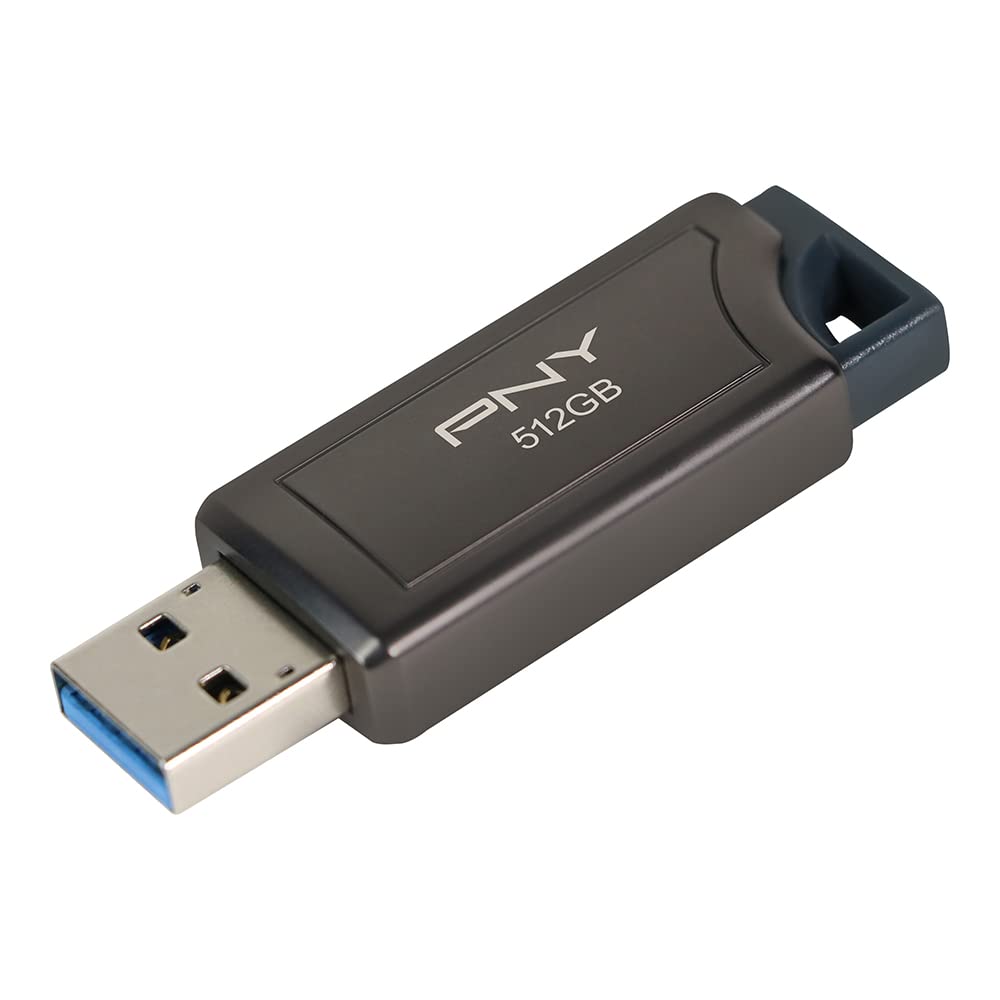
Image: The PNY PRO Elite 512GB USB 3.1 Flash Drive, showcasing its sleek metal design.
Setup
- Insert the Flash Drive: Carefully insert the PNY PRO Elite USB 3.1 Flash Drive into an available USB port on your computer. For optimal performance, use a USB 3.0 or USB 3.1 port. The drive is designed with a retractable connector, so slide it out before insertion.
- Automatic Recognition: Your operating system (Windows or macOS) should automatically detect and install the necessary drivers for the flash drive. This process usually takes a few seconds.
- Accessing the Drive:
- Windows: Open "File Explorer" (or "My Computer") and locate the drive listed under "This PC" (or "Computer") as a removable disk.
- macOS: The drive icon should appear on your desktop or in the Finder sidebar under "Locations."

Image: The PNY PRO Elite 512GB USB 3.1 Flash Drive connected to a laptop's USB port.
Operating Instructions
- Transferring Files:
- Copying to the Drive: Drag and drop files or folders from your computer to the flash drive's window. Alternatively, right-click on the desired files, select "Copy," then open the flash drive's window, right-click, and select "Paste."
- Copying from the Drive: Drag and drop files or folders from the flash drive's window to a location on your computer.
- Deleting Files: Select the files or folders you wish to remove from the flash drive and press the "Delete" key, or right-click and select "Delete." Confirm the deletion when prompted.
- Safely Ejecting the Drive: Always safely eject the flash drive before removing it from your computer to prevent data corruption.
- Windows: Click the "Safely Remove Hardware and Eject Media" icon in the system tray (bottom-right corner), then select the PNY flash drive.
- macOS: Drag the drive icon from your desktop to the Trash, or right-click the drive icon and select "Eject."

Image: The PNY PRO Elite 512GB USB 3.1 Flash Drive connected to a Windows laptop, ready for file operations.
Maintenance
- Physical Care: Keep the flash drive clean and free from dust and debris. Avoid exposing it to extreme temperatures, moisture, or direct sunlight. The metal casing provides good protection, but physical impact should be avoided.
- Data Backup: Regularly back up important data stored on the flash drive to another storage device to prevent data loss.
- Safe Ejection: Always follow the safe ejection procedure before removing the drive to prevent file system corruption.
- Formatting: If the drive experiences issues or you wish to erase all data, you can reformat it using your computer's disk utility. Be aware that formatting will erase all data on the drive. The drive comes pre-formatted, typically as exFAT, for broad compatibility.
Troubleshooting
| Problem | Possible Cause | Solution |
|---|---|---|
| Drive not recognized by computer. | Loose connection, faulty USB port, driver issue. | Try a different USB port or another computer. Ensure the drive is fully inserted. Restart your computer. |
| Slow transfer speeds. | Using a USB 2.0 port, fragmented files, background processes. | Connect to a USB 3.0 or 3.1 port. Close unnecessary applications. Defragment the drive (Windows only, not recommended for SSD-based flash drives). |
| Cannot write files to the drive. | Drive is full, write-protected, or file system error. | Check available space. Ensure the drive is not write-protected (though this model does not have a physical switch). Run disk error checking utility. |
| Data corruption. | Improper ejection, power loss during transfer. | Always safely eject the drive. Run disk error checking utility. If issues persist, reformat the drive (data will be lost). |
Specifications
| Feature | Detail |
|---|---|
| Model Name | P-FD512PRO-GE |
| Memory Storage Capacity | 512 GB |
| Read Speed | Up to 400 MB/s |
| Write Speed | Up to 250 MB/s |
| Hardware Interface | USB 3.0 (compatible with USB 3.1 Gen 1) |
| Connectivity Technology | USB |
| Hardware Platform | Mac, PC |
| Color | Black |
| Item Weight | 0.634 ounces |
| Product Dimensions (LxWxH) | 5.28 x 3.91 x 0.45 inches |
What's in the Box
The PNY PRO Elite USB 3.1 Flash Drive package includes:
- One (1) PNY PRO Elite USB 3.1 Flash Drive (Model P-FD512PRO-GE)
Official Product Video
Video: An official overview of the PNY PRO Elite USB 3.1 Flash Drive, highlighting its features and performance capabilities.
Warranty and Support
For warranty information and technical support, please refer to the official PNY website or contact PNY customer service directly. Keep your purchase receipt as proof of purchase for warranty claims.
Additional support resources may be available on the PNY Brand Store on Amazon.
Related documentsP-FD512PRO-GE


Ask a question about this manual
Ask about setup, troubleshooting, compatibility, parts, safety, or missing instructions. Manuals+ will review the question and use this page’s manual context to help answer it.