
Introduction
The Epson Workforce WF-2750 is a versatile all-in-one printer designed for home office environments, offering printing, scanning, copying, and faxing capabilities. It features wireless connectivity for convenient use with various devices and is powered by PrecisionCore printing technology for high-quality output.
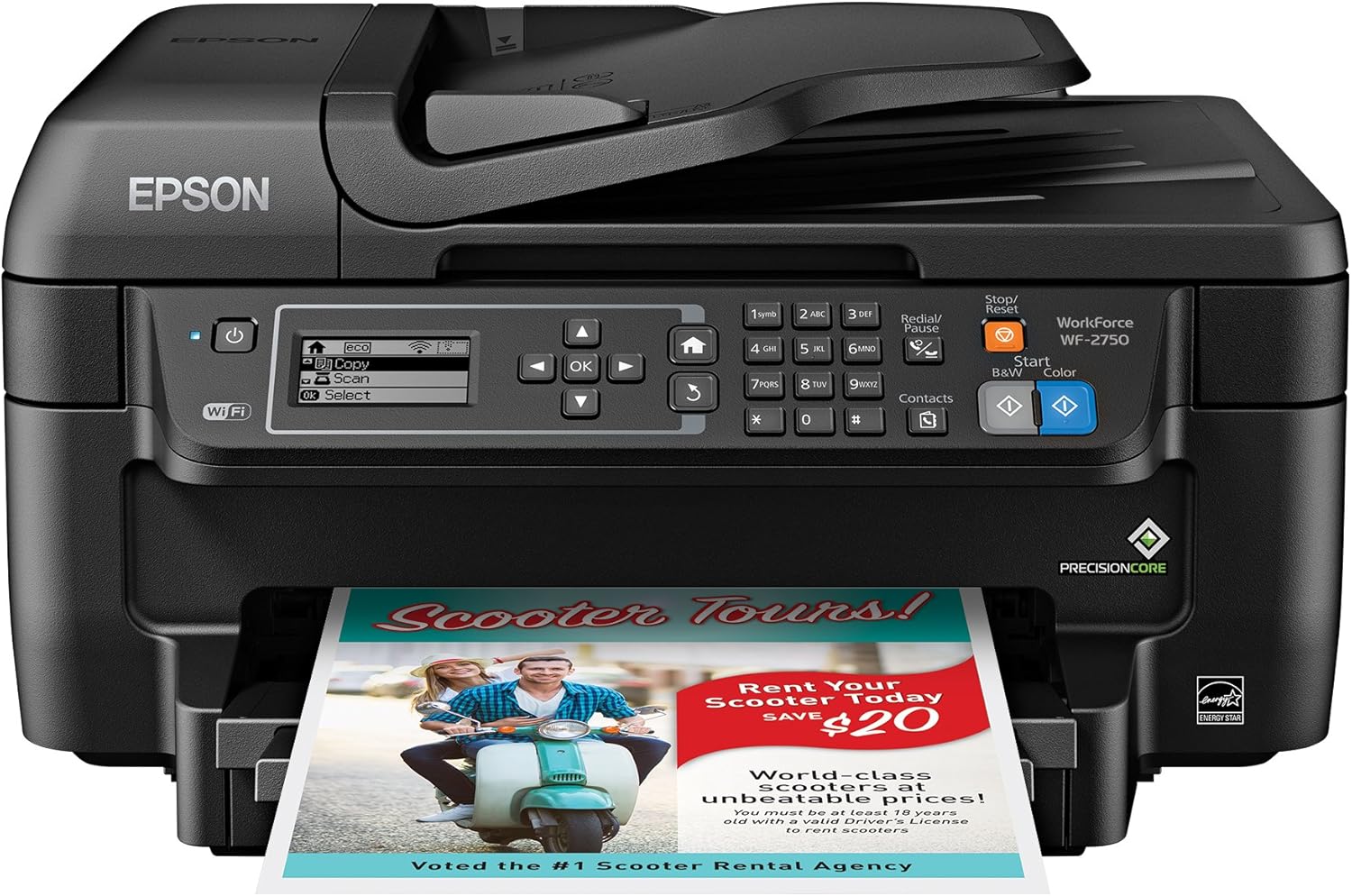
Image: Front view of the Epson Workforce WF-2750 printer, showcasing its compact design and control panel. A document is visible in the paper tray.
Key Features
- PrecisionCore Technology: Delivers laser-quality performance for sharp documents.
- Wireless Connectivity: Easy printing from computers, smartphones, and tablets via Wi-Fi and Wi-Fi Direct.
- All-in-One Functionality: Print, scan, copy, and fax from a single device.
- Automatic 2-Sided Printing: Saves time and paper by printing on both sides of the page.
- Automatic Document Feeder (ADF): 30-page capacity for efficient scanning, copying, and faxing of multi-page documents.
- High Paper Capacity: 150-sheet input tray reduces the frequency of paper reloading.
- Individual Ink Cartridges: Replace only the color that runs out, optimizing ink usage.
- 2.2" Mono Graphic Display: Simplifies navigation and operation.

Image: Infographic highlighting key features of the WorkForce WF-2750, including Wireless, Print, Copy, Scan, and Fax icons, along with additional features like PrecisionCore, ISO ppm speeds, Wi-Fi Direct, 150-sheet capacity, 30-page ADF, 2.2" mono graphic display, auto 2-sided printing, smartphone/tablet printing, and sharp documents.
Setup Guide
Unpacking and Initial Setup
Carefully remove the printer from its packaging. Ensure all protective tapes and packing materials are removed from the exterior and interior of the printer.

Image: Contents of the Epson WorkForce WF-2750 box, including the all-in-one printer, 220 Series Genuine Epson Ink cartridges (Black, Cyan, Magenta, Yellow), power cord (USB cable not included), and CD and documentation.
Included Components:
- Epson WorkForce WF-2750 All-in-One Printer
- Instruction Manual
- CD-ROM for product setup
- Power Cord
- Four 220-series DURABrite Ultra Ink cartridges (Black, Cyan, Magenta, Yellow)
Power Connection
- Connect the power cord to the printer's power input.
- Plug the other end of the power cord into a grounded electrical outlet.
- Press the power button to turn on the printer.
Ink Cartridge Installation
Open the ink cartridge cover and install the included Epson 220-series DURABrite Ultra Ink cartridges into their corresponding slots. Ensure they click into place.
Software Installation and Wireless Setup
Insert the provided CD-ROM into your computer's drive and follow the on-screen instructions to install the printer software and drivers. During the setup process, you will be prompted to connect the printer to your wireless network.
- Wi-Fi Setup: The setup wizard will guide you through connecting the printer to your home or office Wi-Fi network. You may need your network name (SSID) and password.
- Wi-Fi Direct: For direct printing from mobile devices without a router, enable Wi-Fi Direct on the printer's control panel and connect your device directly to the printer's Wi-Fi Direct network.
- Mobile Device Printing: Download the Epson iPrint app or other compatible apps for printing from your smartphone or tablet.
Operating Instructions
Loading Paper
Open the paper support and pull out the output tray. Load up to 150 sheets of plain paper (Letter size) into the rear paper feed slot. Adjust the edge guides to fit the paper width.
Printing
- From a Computer: Select "Print" from your application, choose the Epson WF-2750, and adjust print settings (e.g., paper type, quality, color/grayscale, 2-sided printing) in the printer driver before confirming the print job.
- Print Speeds: The printer can achieve speeds of approximately 13.7 ISO ppm for black and white documents and 7.3 ISO ppm for color documents.
- Automatic 2-Sided Printing: This feature is available and can be selected in your printer settings to print on both sides of the paper automatically.
- From Mobile Devices: Use the Epson iPrint app or other compatible mobile printing solutions to print documents and photos directly from your smartphone or tablet.
Scanning
- Using the Document Glass: Place a single document face-down on the scanner glass.
- Using the Automatic Document Feeder (ADF): Load up to 30 pages face-up into the ADF.
- Scanning Options: Use the printer's control panel or the Epson Scan software on your computer to initiate a scan. You can scan to a computer, email, or cloud services.
Copying
- Initiating a Copy: Place your document on the scanner glass or in the ADF.
- Control Panel: Use the printer's control panel to select copy options such as number of copies (up to 99), color or black and white, and paper size.
- Copy Speed: The maximum copy speed for black and white documents is approximately 13.7 ppm.
Faxing
- Connecting a Phone Line: Connect a phone line to the printer's LINE port and to your wall jack.
- Sending a Fax: Load your document into the ADF or onto the scanner glass. Enter the recipient's fax number using the control panel and press the Fax button.
- Modem Speed: The printer's modem speed is 33.6 Kbps.
Maintenance
Ink Cartridge Replacement
The printer uses individual ink cartridges, meaning you only need to replace the specific color that runs out. When an ink cartridge is low or empty, a message will appear on the printer's display. Always use genuine Epson-brand cartridges for optimal performance and to avoid potential issues.

Image: A graphic displaying the "Epson Genuine Ink Promise" logo, emphasizing that the printer is designed to work only with Epson Genuine Inks.
To replace a cartridge:
- Open the ink cartridge cover.
- Press the tab on the empty cartridge to release it, then lift it out.
- Unpack the new cartridge and shake it gently a few times.
- Insert the new cartridge firmly into its slot until it clicks into place.
- Close the ink cartridge cover.
Paper Handling
Ensure you use appropriate paper types and sizes for your printing needs. The printer supports plain paper up to 8.5" x 47.2" (maximum media size). Avoid overfilling the paper tray to prevent paper jams.
Cleaning the Printer
- Exterior: Wipe the exterior of the printer with a soft, damp cloth.
- Scanner Glass: Clean the scanner glass with a soft, lint-free cloth and a mild glass cleaner.
- Print Head Cleaning: If print quality declines (e.g., missing lines, streaks), perform a print head cleaning cycle through the printer's utility software on your computer or via the printer's control panel.
Troubleshooting
This section provides solutions to common issues you might encounter with your Epson Workforce WF-2750 printer.
Printer Not Responding / Offline
- Check Power: Ensure the printer is turned on and properly connected to a power outlet.
- Check Connectivity:
- For wireless connections, verify that the printer is connected to your Wi-Fi network and that your computer/device is on the same network.
- Restart your router and the printer.
- If using a USB connection, ensure the cable is securely connected to both the printer and the computer.
- Printer Sleep Mode: If the printer enters sleep mode and does not wake up, try powering it off and then on again. Ensure your computer's printer settings are configured to allow the printer to wake from sleep.
Print Quality Issues
- Streaks or Faded Prints:
- Check ink levels and replace any low or empty cartridges.
- Perform a print head cleaning and nozzle check from the printer's utility software or control panel.
- Incorrect Colors: Ensure you are using genuine Epson ink cartridges. Perform a print head alignment if colors appear misaligned.
Paper Jams
- Clear the Jam: Carefully remove any jammed paper from the paper tray, output tray, and inside the printer. Refer to the printer's display for specific jam locations.
- Load Paper Correctly: Ensure paper is loaded correctly and the paper guides are adjusted to the paper width. Do not overfill the paper tray.
- Paper Type: Use paper that meets the printer's specifications.
Scanner Not Working
- Software Installation: Ensure the scanner drivers and software are correctly installed on your computer.
- Connectivity: Verify the printer's connection to your computer (wireless or USB).
- Restart: Restart both the printer and your computer.
Specifications
Detailed technical specifications for the Epson Workforce WF-2750 printer.
| Feature | Specification |
|---|---|
| Model Name | Workforce WF 2750 |
| Printing Technology | Inkjet (PrecisionCore) |
| Functions | Print, Scan, Copy, Fax |
| Connectivity Technology | Wi-Fi, USB |
| Wireless Standard | 802.11bgn (Wi-Fi Direct capable) |
| Max Print Speed (Black) | 13.7 ISO ppm |
| Max Print Speed (Color) | 7.3 ISO ppm |
| Maximum Print Resolution | 4800 x 1200 dpi |
| Dual-sided Printing | Yes (Automatic) |
| Max Input Sheet Capacity | 150 sheets |
| Automatic Document Feeder (ADF) | 30 pages |
| Scanner Type | Sheetfed |
| Max Copy Speed (Black) | 13.7 ppm |
| Maximum Copies Per Run | 99 |
| Modem Speed (Fax) | 33.6 Kbps |
| Display Type | 2.2" Mono Graphic LCD |
| Product Dimensions (W x D x H) | 48.77 x 43.43 x 30.23 cm (19.2 x 17.1 x 11.9 inches) |
| Item Weight | 8.39 kg (18.5 lbs) |
| Power Consumption | 14 watts (operating) |
| Noise Level | 49 dB |
Warranty and Support
For detailed warranty information, product registration, and technical support, please refer to the documentation included with your printer or visit the official Epson support website.
- Official Epson Support: Access drivers, FAQs, and troubleshooting guides.
- Epson Connect: For information on Epson Connect enabled printers and compatible devices/apps, visit the official Epson website.
- Genuine Epson Cartridges: This printer is designed to work exclusively with genuine Epson ink cartridges. Use of non-Epson branded or altered cartridges may affect functionality and void warranty.
Epson periodically provides firmware updates to address security, performance, and bug fixes, ensuring the printer functions as designed. These updates are intended for use with genuine Epson ink cartridges.


