
iTOMA CKS3501BT
iTOMA CKS3501BT Radio Alarm Clock User Manual
Model: CKS3501BT
1. Introduction
Thank you for purchasing the iTOMA CKS3501BT Radio Alarm Clock. This manual provides detailed instructions for setting up and operating your device. Please read it thoroughly before use to ensure proper functionality and to maximize your user experience.
Package Contents:
- iTOMA CKS3501BT Radio Alarm Clock
- Power Adapter
- FM Wire Antenna
- User Manual (this document)
2. Product Overview
Familiarize yourself with the controls and display of your iTOMA CKS3501BT Radio Alarm Clock.
Top Panel Controls:
- VOL- / VOL+: Adjust volume.
- SET: Enter setup mode for time, date, and alarms.
- TIME ZONE: Adjust time zone.
- AL 1 / AL 2: Set Alarm 1 / Alarm 2.
- SNOOZE / DIMMER: Snooze active alarm; adjust display brightness.
- TUNE - / TUNE +: Tune FM radio frequency; navigate menu options.
- MEMORY: Save and recall FM radio presets.
- SOURCE: Select audio source (FM, Bluetooth, AUX).
- POWER: Turn unit on/off.
Front Display:
- 1.4-inch blue LED display for time, date, and status indicators.
- Indicators for Alarm 1, Alarm 2, FM frequency, Bluetooth status.

Figure 2.1: Front view of the iTOMA CKS3501BT Radio Alarm Clock, showing the large blue LED display and top panel controls.
3. Setup
3.1 Initial Power-Up
- Connect the power adapter to the DC IN jack on the back of the unit.
- Plug the power adapter into a standard wall outlet. The display will light up.
- The unit includes a pre-installed backup battery to maintain time and alarm settings during power outages.
3.2 Setting the Time and Date
- Ensure the unit is powered OFF (press POWER button if display is on).
- Press and hold the SET button until the year flashes on the display.
- Use the TUNE - / TUNE + buttons to adjust the year. Press SET to confirm.
- Repeat the process for Month, Day, Hour, and Minute.
- After setting the minute, press SET to confirm and exit time setting mode.
3.3 Automatic Daylight Saving Time (DST)
The unit is equipped with an Auto DST feature. To enable or disable:
- Ensure the unit is powered OFF.
- Press and hold the TIME ZONE button. The display will show "DST ON" or "DST OFF".
- Use the TUNE - / TUNE + buttons to toggle between "DST ON" and "DST OFF".
- Release the TIME ZONE button to confirm your selection.
4. Operating Instructions
4.1 Alarm Settings (Dual Alarm)
The CKS3501BT features two independent alarms (AL1 and AL2) that can be set to wake you with a buzzer or FM radio.
- Ensure the unit is powered OFF.
- Press and hold either AL 1 or AL 2 button until the alarm hour flashes.
- Use TUNE - / TUNE + to adjust the hour. Press the respective AL button to confirm.
- Repeat for minutes.
- Next, select the alarm source: Use TUNE - / TUNE + to choose between "Buzzer" or "FM Radio". Press the AL button to confirm.
- If FM Radio is selected, use TUNE - / TUNE + to set the desired wake-up volume. Press the AL button to confirm.
- Finally, select the alarm schedule: Use TUNE - / TUNE + to choose "Every Day", "Weekdays", or "Weekends". Press the AL button to confirm and exit alarm setting mode.
To activate/deactivate an alarm, press the corresponding AL 1 or AL 2 button briefly when the unit is powered OFF. The alarm indicator (1 or 2) will appear/disappear on the display.
4.2 Snooze Function
When an alarm sounds, press the SNOOZE / DIMMER button to temporarily silence it for 9 minutes. The alarm will sound again after the snooze period.
4.3 Sleep Timer
The sleep timer allows you to fall asleep to FM radio or Bluetooth audio, which will automatically turn off after a set duration (10 to 90 minutes).
- While the unit is playing FM radio or Bluetooth audio, press the SLEEP button (often integrated with SNOOZE or another button, refer to device markings if different).
- Repeatedly press the SLEEP button to cycle through sleep timer options (e.g., 90, 80, 70... 10 minutes, OFF).
- The unit will automatically turn off after the selected time.
4.4 FM Radio Operation

Figure 4.1: The iTOMA CKS3501BT can receive FM radio signals, indicated by the radio icon and waves.
- Ensure the FM wire antenna is properly connected to the antenna jack on the back of the unit for optimal reception.
- Press the POWER button to turn on the unit.
- Press the SOURCE button repeatedly until "FM" appears on the display.
- Manual Tuning: Press TUNE - / TUNE + briefly to adjust the frequency step by step.
- Auto Scan: Press and hold TUNE - / TUNE + for a few seconds to automatically scan for the next available station.
4.5 Saving and Recalling FM Presets
The unit can store up to 10 FM radio stations as presets.
- Tune to the desired FM station.
- Press and hold the MEMORY button until "P01" (or the next available preset number) flashes on the display.
- Use TUNE - / TUNE + to select the desired preset number (P01-P10).
- Press MEMORY again to confirm and save the station.
- To recall a preset station, briefly press the MEMORY button repeatedly to cycle through the saved stations.
4.6 Bluetooth Operation
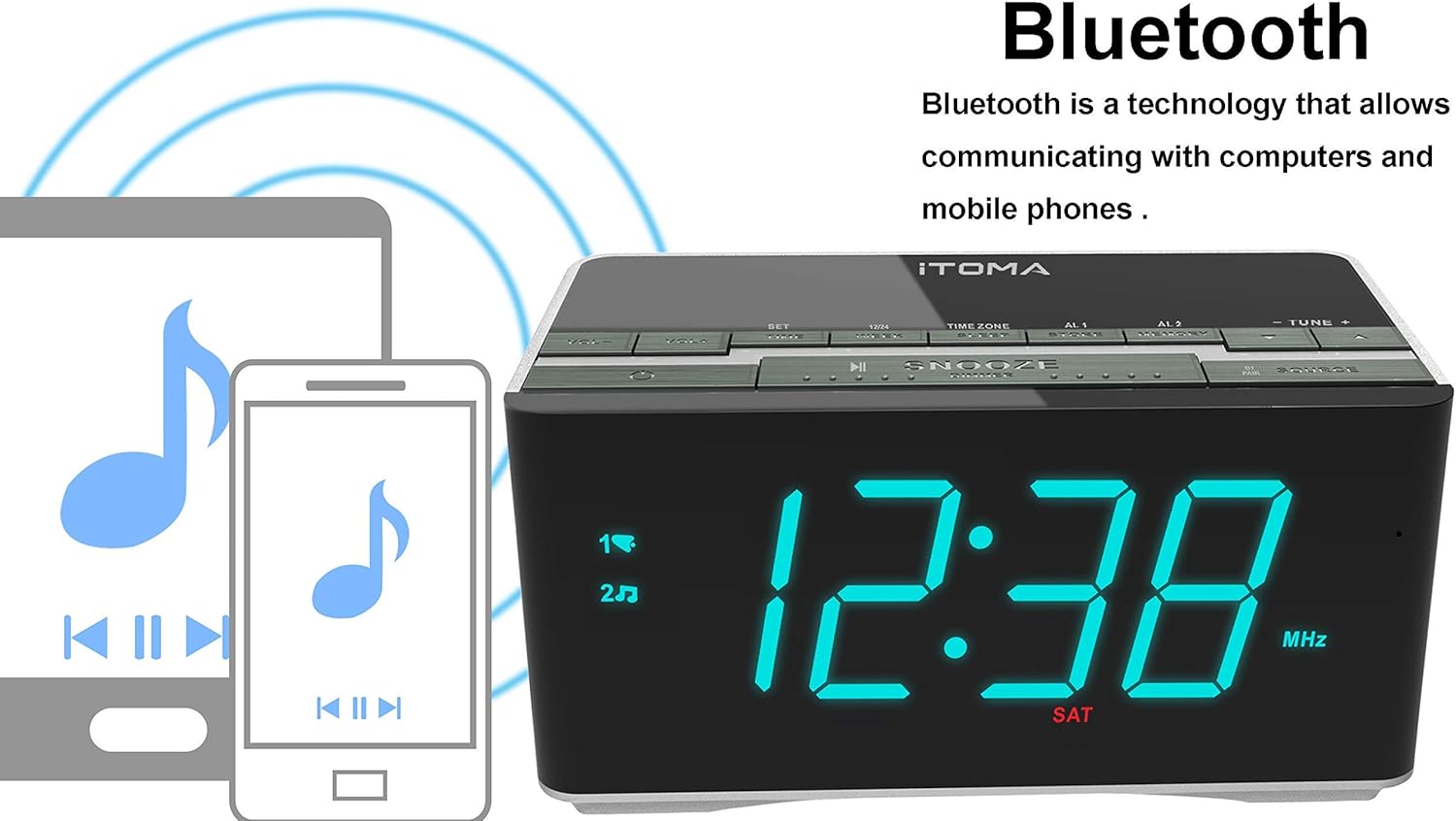
Figure 4.2: The iTOMA CKS3501BT supports Bluetooth connectivity for wireless audio streaming from compatible devices.
- Press the POWER button to turn on the unit.
- Press the SOURCE button repeatedly until "BT" appears on the display and the Bluetooth indicator flashes, indicating pairing mode.
- On your Bluetooth-enabled device (e.g., smartphone, tablet), enable Bluetooth and search for available devices.
- Select "iTOMA CKS3501BT" from the list. Once paired, the Bluetooth indicator on the alarm clock will stop flashing and remain solid.
- You can now play audio from your device through the alarm clock's speakers. Use the VOL - / VOL + buttons on the alarm clock or your device to adjust the volume.
4.7 Auxiliary Input (AUX)
Connect external audio devices (e.g., MP3 players) using a 3.5mm audio cable (not included).
- Connect one end of a 3.5mm audio cable to the AUX IN jack on the back of the unit.
- Connect the other end to the headphone jack or audio output of your external device.
- Press the POWER button to turn on the unit.
- Press the SOURCE button repeatedly until "AUX" appears on the display.
- Play audio from your external device. Adjust volume using the VOL - / VOL + buttons on the alarm clock or your external device.
4.8 USB Charging Port

Figure 4.3: The iTOMA CKS3501BT features a USB port for charging mobile devices.
The USB port on the back of the unit is for charging mobile devices only. It does not support data transfer or playing music from USB drives.
- Connect your mobile device's USB charging cable to the USB port on the alarm clock.
- Connect the other end of the cable to your mobile device.
- Your device will begin charging.
4.9 Display Brightness (Dimmer)

Figure 4.4: The iTOMA CKS3501BT offers an auto-dimmer function and manual brightness control for its display.
The display has an auto-dimmer feature that adjusts brightness based on ambient light. You can also manually adjust it.
- Press the SNOOZE / DIMMER button repeatedly to cycle through different brightness levels (e.g., High, Medium, Low, Auto).
- Select "Auto" for automatic brightness adjustment.
5. Maintenance
5.1 Cleaning
- Disconnect the power adapter before cleaning.
- Use a soft, dry cloth to wipe the exterior of the unit.
- Do not use liquid cleaners, abrasive cleaners, or sprays, as they may damage the finish.
5.2 Backup Battery
The unit contains a pre-installed lithium-metal backup battery. This battery is designed to retain time and alarm settings during brief power interruptions. It is not user-replaceable and does not power the unit for normal operation.
6. Troubleshooting
| Problem | Possible Cause | Solution |
|---|---|---|
| Unit does not power on. | Power adapter not connected or faulty. | Ensure power adapter is securely plugged into the unit and a working wall outlet. |
| No sound from FM radio. | Weak signal; volume too low; incorrect source. | Adjust FM antenna position. Increase volume. Ensure "FM" source is selected. |
| Bluetooth device cannot pair. | Unit not in pairing mode; device too far; Bluetooth already connected. | Ensure "BT" is flashing on the display. Move device closer. Disconnect from other Bluetooth devices. |
| Alarm does not sound. | Alarm not activated; volume too low; incorrect time. | Verify alarm indicator (1 or 2) is on. Check alarm volume setting. Confirm alarm time is correct. |
| USB charging not working. | Cable faulty; device not compatible; unit not powered. | Try a different USB cable. Ensure the alarm clock is powered on. |
7. Specifications
- Model: CKS3501BT
- Display: 1.4-inch Blue LED
- Power Source: AC 100-240V, 50/60Hz (via power adapter)
- Backup Battery: 1 x Lithium-metal (pre-installed)
- Radio Bands: FM
- Bluetooth Version: (Not specified, assuming standard)
- USB Charging Output: (Not specified, typically 5V/1A)
- Auxiliary Input: 3.5mm stereo jack
- Dimensions: 14.5 x 8 x 7.52 cm (5.71 x 3.15 x 2.93 inches)
- Weight: 390.09 g (0.86 lbs)
- Material: Plastic

Figure 7.1: Dimensions of the iTOMA CKS3501BT Radio Alarm Clock.
8. Warranty and Support
For warranty information or technical support, please refer to the warranty card included with your product or visit the official iTOMA website. Keep your purchase receipt as proof of purchase.
iTOMA Official Website: www.itoma.com
Related documentsCKS3501BT


Ask a question about this manual
Ask about setup, troubleshooting, compatibility, parts, safety, or missing instructions. Manuals+ will review the question and use this page’s manual context to help answer it.