
Introduction
Welcome to the world of PlayStation VR. This manual provides essential information for setting up, operating, and maintaining your PlayStation VR headset (Model 3001560). Please read this manual thoroughly before use to ensure proper functionality and a safe, enjoyable experience.
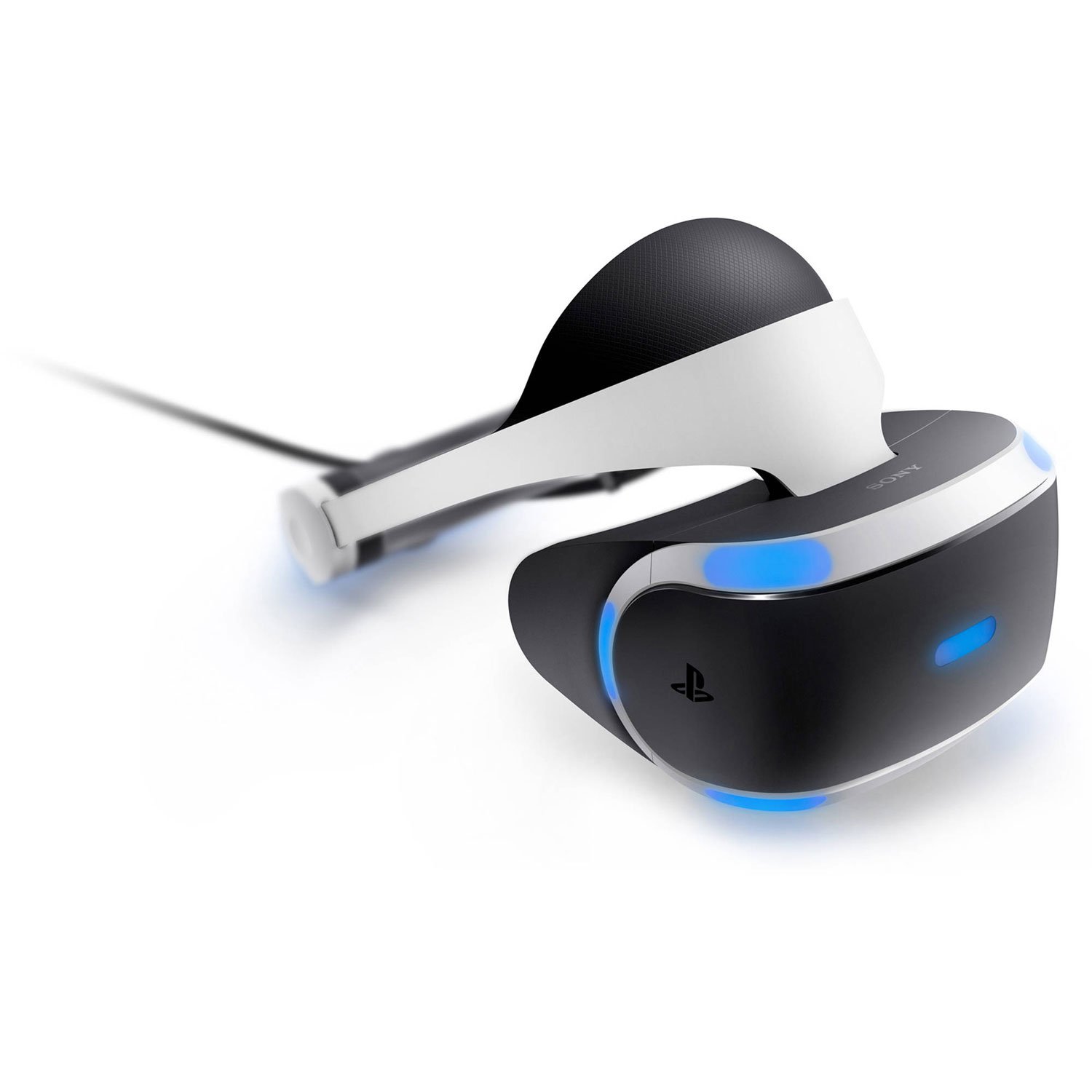
Image: The PlayStation VR headset, showcasing its ergonomic design and integrated blue lighting.
Setup Guide
Setting up your PlayStation VR system is a straightforward process. Ensure you have all necessary components before beginning.
What's in the Box:
- PlayStation VR headset
- Processor unit
- PlayStation VR headset connection cable
- HDMI cable
- USB cable
- Stereo headphones
- AC power cord
- AC adaptor
- PlayStation VR Demo Disc
Connection Steps:
- Connect the PlayStation VR Processor Unit to your PlayStation 4 system using the provided HDMI and USB cables.
- Connect the PlayStation VR headset to the Processor Unit using the headset connection cable.
- Connect the Processor Unit to a power outlet using the AC adaptor and AC power cord.
- Connect the stereo headphones to the headset's audio jack for immersive 3D audio.
- Ensure your PlayStation Camera (sold separately) is connected to your PlayStation 4 system and properly positioned for optimal tracking.

Image: A detailed front view of the PlayStation VR headset, showing the visual components.
Operating Instructions
Wearing the Headset:
The PlayStation VR headset is designed for comfort and adjustability. Press the release button on the back of the headset to expand the headband. Place the headset on your head, ensuring the front display rests comfortably over your eyes. Adjust the headband until it feels secure but not too tight. The headset's weight is distributed across your forehead for extended comfort.
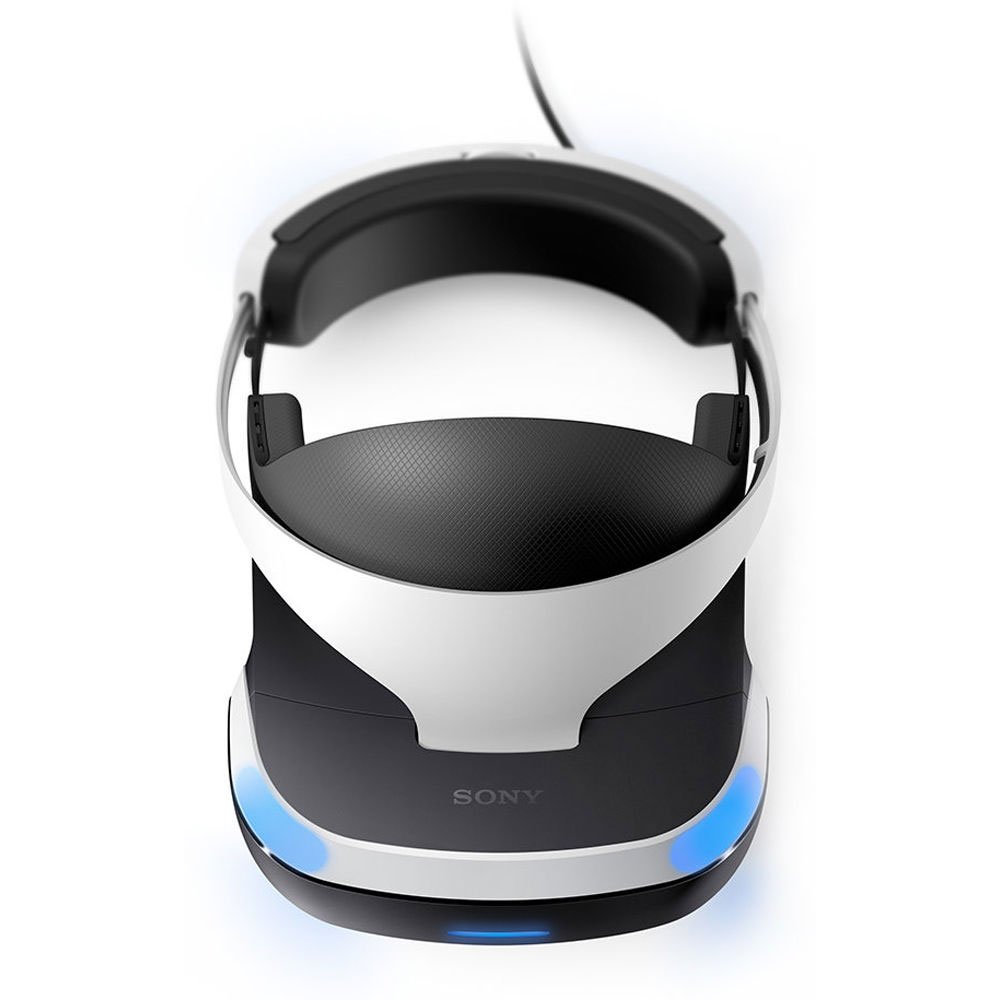
Image: Top view of the PlayStation VR headset, illustrating the padded head strap for comfortable wear.
Adjusting the Display:
Once the headset is on, use the scope adjustment button (located on the bottom right of the visor) to slide the display closer or further from your face until the image is clear and focused. Ensure there is no light leakage from the sides for optimal immersion.

Image: Internal view of the PlayStation VR headset, showing the lenses and soft face padding.
3D Audio Technology:
The integrated 3D Audio technology allows you to pinpoint sounds from all directions. This enhances immersion by providing realistic spatial audio cues. Ensure your stereo headphones are properly connected and worn for the full 3D audio experience.
Motion Tracking:
The PlayStation Camera tracks the LEDs on the VR headset, DUALSHOCK 4 wireless controller, and PlayStation Move motion controllers (if used) to capture your natural movements within the virtual space. Ensure the camera has a clear view of your play area and the tracked devices.
Video: An overview of the Sony PlayStation VR headset, demonstrating its features and design.
Maintenance
Cleaning the Headset:
- Use a soft, dry cloth to clean the exterior of the headset.
- For the lenses, use a lens cleaning cloth specifically designed for optical surfaces. Do not use abrasive materials or harsh chemicals.
- The rubber light shield can be gently wiped with a damp cloth. Ensure it is completely dry before reattaching or using the headset.
Storage:
Store the PlayStation VR headset in a cool, dry place away from direct sunlight and dust. Avoid placing heavy objects on the headset or processor unit.
Troubleshooting
No Image in Headset:
- Check all cable connections between the PlayStation 4, Processor Unit, and VR headset. Ensure they are securely plugged in.
- Verify that the Processor Unit is powered on and its indicator light is white.
- Ensure the PlayStation 4 system is turned on and displaying content.
Blurred or Unclear Image:
- Adjust the headset's scope to bring the image into focus.
- Ensure the lenses are clean and free from smudges or dust.
- Confirm the headset is worn correctly and centered on your head.
Tracking Issues:
- Ensure the PlayStation Camera has a clear, unobstructed view of your play area and the headset/controllers.
- Minimize reflective surfaces in the play area.
- Adjust lighting conditions to avoid overly bright or dim environments.
Specifications
| Feature | Detail |
|---|---|
| Model Number | 3001560 |
| Display | 5.7” OLED 1080p |
| Refresh Rate | Up to 120 frames per second |
| Audio | 3D Audio Technology |
| Tracking | PlayStation Camera (sold separately) |
| Product Dimensions | 7.36 x 7.28 x 10.91 inches |
| Item Weight | 6.85 Pounds |
| Manufacturer | Sony Computer Entertainment |
| Release Date | October 13, 2016 |
Warranty and Support
For warranty information, technical support, or further assistance, please refer to the official PlayStation support website or contact PlayStation customer service. Keep your proof of purchase for warranty claims.
Official PlayStation Support: www.playstation.com/support/