
1. Introduction
This manual provides essential information for the safe and efficient operation of the Konica Minolta Bizhub 423 multifunction device. The Bizhub 423 is designed to handle various office tasks including copying, printing, scanning, and network connectivity. It offers a print speed of 42 pages per minute for both color and monochrome documents.
The device is equipped with multiple paper drawers for diverse job sizes and includes an FS-527 staple finisher for professional document output.

Figure 1.1: Front view of the Konica Minolta Bizhub 423, showing the main unit and the attached FS-527 staple finisher.

Figure 1.2: Side view of the Bizhub 423, highlighting the integrated FS-527 staple finisher.
2. Setup
2.1 Unpacking and Placement
Carefully remove the Bizhub 423 from its packaging. Ensure all packing materials and protective tapes are removed. Place the device on a stable, level surface with adequate ventilation space around it. Avoid direct sunlight and areas with high humidity or extreme temperatures.
2.2 Power Connection
Connect the power cord securely to the power inlet on the device and then to a grounded electrical outlet. Do not use extension cords or power strips that are not rated for the device's power requirements.
2.3 Paper Loading
The Bizhub 423 features two adjustable paper drawers. To load paper:
- Pull out the paper drawer until it stops.
- Adjust the paper guides to the size of the paper being loaded.
- Fan the paper stack to prevent misfeeds, then load the paper with the print side facing down.
- Gently push the paper drawer back into the device until it clicks into place.

Figure 2.1: Close-up of the front panel and paper trays of the Bizhub 423.
2.4 Connectivity (USB and Network)
The Bizhub 423 supports both USB and network connectivity.
- USB Connection: Connect a USB cable from the device's USB port to your computer. Install the necessary drivers from the manufacturer's website or provided media.
- Network Connection: Connect an Ethernet cable to the network port on the device and to your network router or switch. Configure network settings (IP address, subnet mask, gateway) via the control panel or a web browser interface.
3. Operating Instructions
3.1 Control Panel Overview
The control panel provides access to all functions of the Bizhub 423. It features a touchscreen display and physical buttons for navigation and operation.
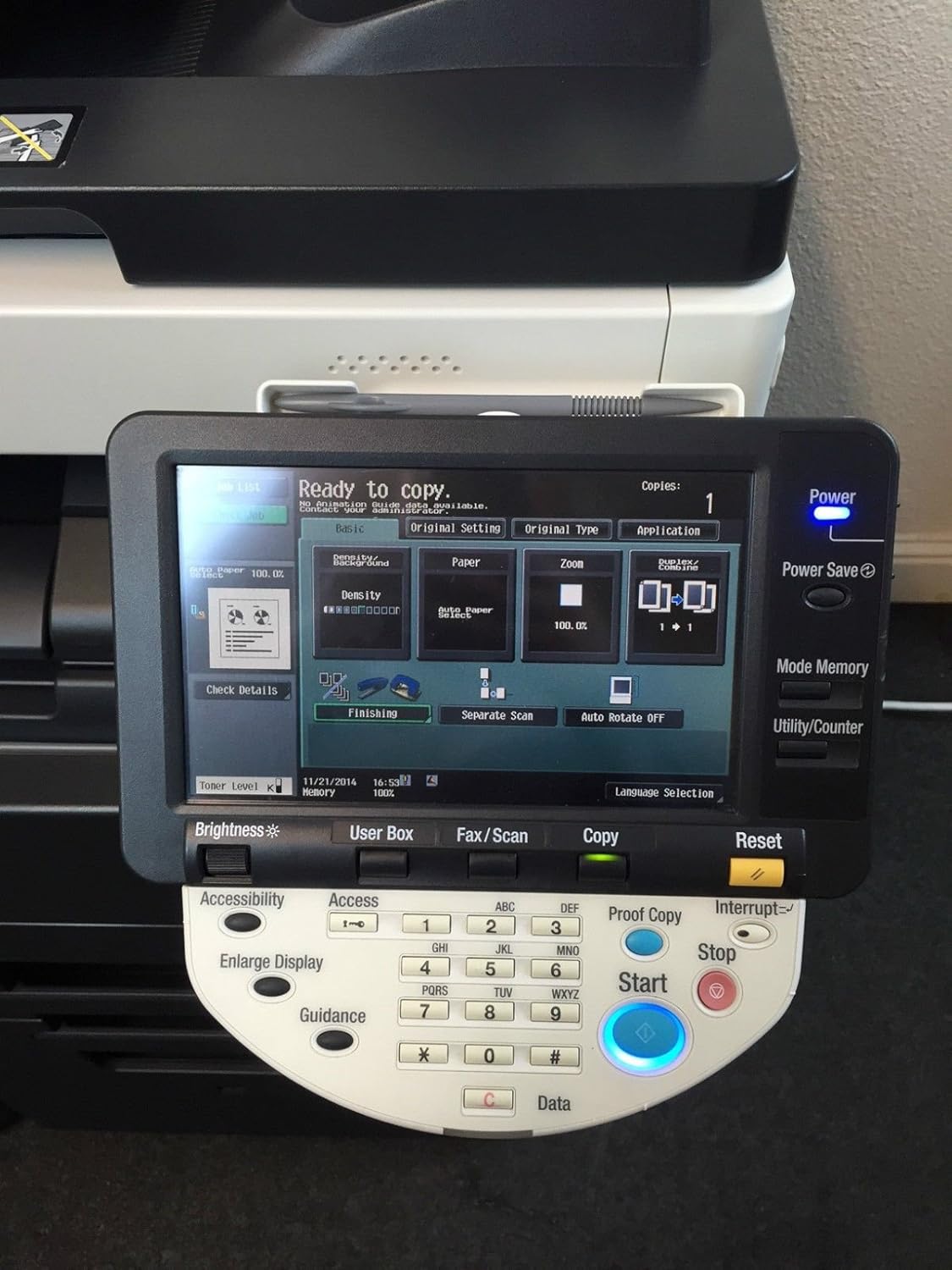
Figure 3.1: Detailed view of the Bizhub 423 control panel, showing the touchscreen and numeric keypad.
3.2 Copying Documents
- Place the original document face-up in the automatic document feeder (ADF) or face-down on the scanner glass.
- On the control panel, select the "Copy" function.
- Adjust settings such as number of copies, paper size, zoom, and finishing options (e.g., stapling, sorting).
- Press the "Start" button to begin copying.

Figure 3.2: Top view of the Bizhub 423, highlighting the automatic document feeder (ADF).
3.3 Printing Documents
To print from a computer, ensure the Bizhub 423 drivers are installed. Select the Bizhub 423 as your printer from your application's print dialog. Adjust print settings as needed (e.g., color/monochrome, duplex, paper source) and click "Print".
3.4 Scanning Documents
The Bizhub 423 supports scanning to various destinations (e.g., email, network folder, USB).
- Place the original document in the ADF or on the scanner glass.
- On the control panel, select the "Scan" function.
- Choose your desired scan destination and adjust scan settings (e.g., resolution, file format).
- Press the "Start" button to begin scanning.
4. Maintenance
4.1 Cleaning the Device
Regular cleaning helps maintain optimal performance. Use a soft, lint-free cloth dampened with a mild, non-abrasive cleaner to wipe the exterior surfaces. For the scanner glass, use a glass cleaner applied to the cloth, not directly to the glass.
4.2 Toner Replacement
The device will display a message on the control panel when toner levels are low or empty. Refer to the on-screen instructions for replacing toner cartridges. Always use genuine Konica Minolta toner for best results.
4.3 Paper Path Cleaning
If paper jams occur frequently, the paper path may need cleaning. Consult the detailed service manual or contact a qualified technician for this procedure.
5. Troubleshooting
5.1 Common Issues and Solutions
| Problem | Possible Cause | Solution |
|---|---|---|
| Paper Jam | Incorrectly loaded paper, foreign object in paper path. | Open covers as indicated on the control panel, carefully remove jammed paper. Ensure paper is loaded correctly. |
| Poor Print Quality | Low toner, dirty print head/drum, incorrect paper type. | Check toner levels and replace if necessary. Clean internal components as per maintenance instructions. Use recommended paper. |
| Device Not Responding | Power issue, connectivity problem, device error. | Check power connection. Verify USB/network cable connection. Restart the device. |
For more complex issues, refer to the detailed error codes displayed on the control panel and consult the full service manual or contact customer support.
6. Specifications
| Feature | Detail |
|---|---|
| Model | Bizhub 423 |
| Manufacturer | Konica |
| Connectivity Technology | USB, Network |
| Printing Technology | Thermal (Note: This specification is provided as per product data. Konica Minolta Bizhub series typically uses laser/LED technology.) |
| Printer Output | Color, Monochrome |
| ASIN | B01DAPPY5M |
| UPC | 612058868947 |
| Date First Available | March 22, 2016 |
7. Warranty and Support
Specific warranty details for the Konica Minolta Bizhub 423 are not available in this document. Please refer to the original purchase documentation or contact your vendor for warranty information.
For technical support, driver downloads, or service inquiries, please visit the official Konica Minolta support website or contact their authorized service providers.