Introduction
The Linksys CM3008 Cable Modem provides stable, high-speed internet connectivity for your home or office. This modem is certified for DOCSIS 3.0 and is compatible with major cable providers such as Comcast Xfinity, Spectrum, and Cox. It features 8 download and 4 upload bonded channels, designed to optimize your existing cable broadband connection. This manual provides essential information for setting up, operating, maintaining, and troubleshooting your CM3008 cable modem.
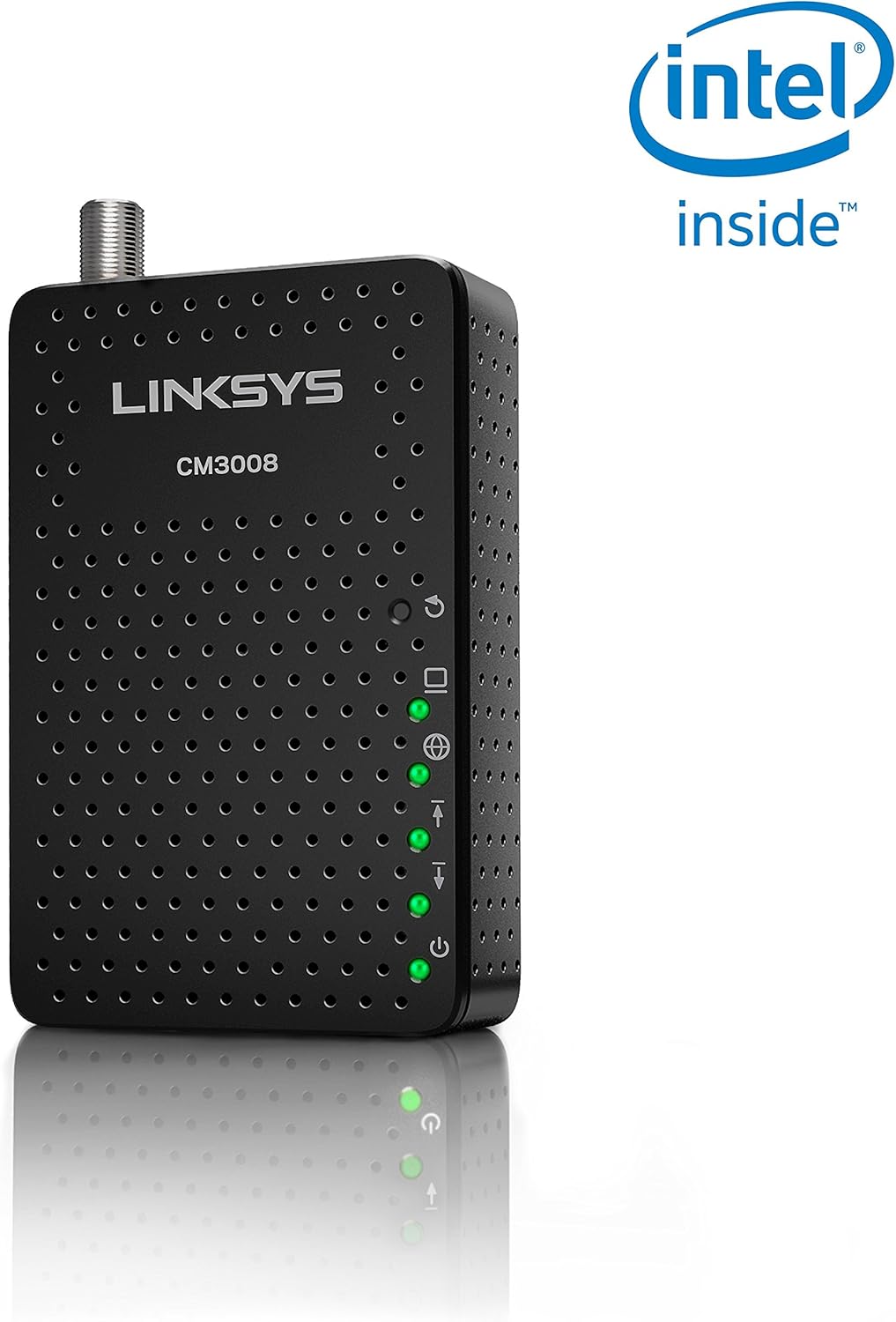
Front view of the Linksys CM3008 Cable Modem, showing its compact design and LED indicators.
Package Contents
Verify that your package contains the following items:
- Linksys CM3008 Cable Modem
- AC Power Adapter
- Ethernet Cable
- Quick Installation Guide
Physical Features and Indicators
The CM3008 modem features several LED indicators on the front panel to display its operational status, and various ports on the rear for connectivity.
Front Panel LEDs
- Power: Indicates the modem's power status. Solid green means the modem is powered on.
- Downstream: Indicates the downstream connection status. Solid green means a successful downstream connection. Blinking green indicates scanning for a downstream channel.
- Upstream: Indicates the upstream connection status. Solid green means a successful upstream connection. Blinking green indicates scanning for an upstream channel.
- Internet: Indicates internet connectivity. Solid green means the modem is online and connected to the internet.
- Ethernet: Indicates the status of the Ethernet connection to a computer or router. Solid green means a device is connected. Blinking green indicates data activity.
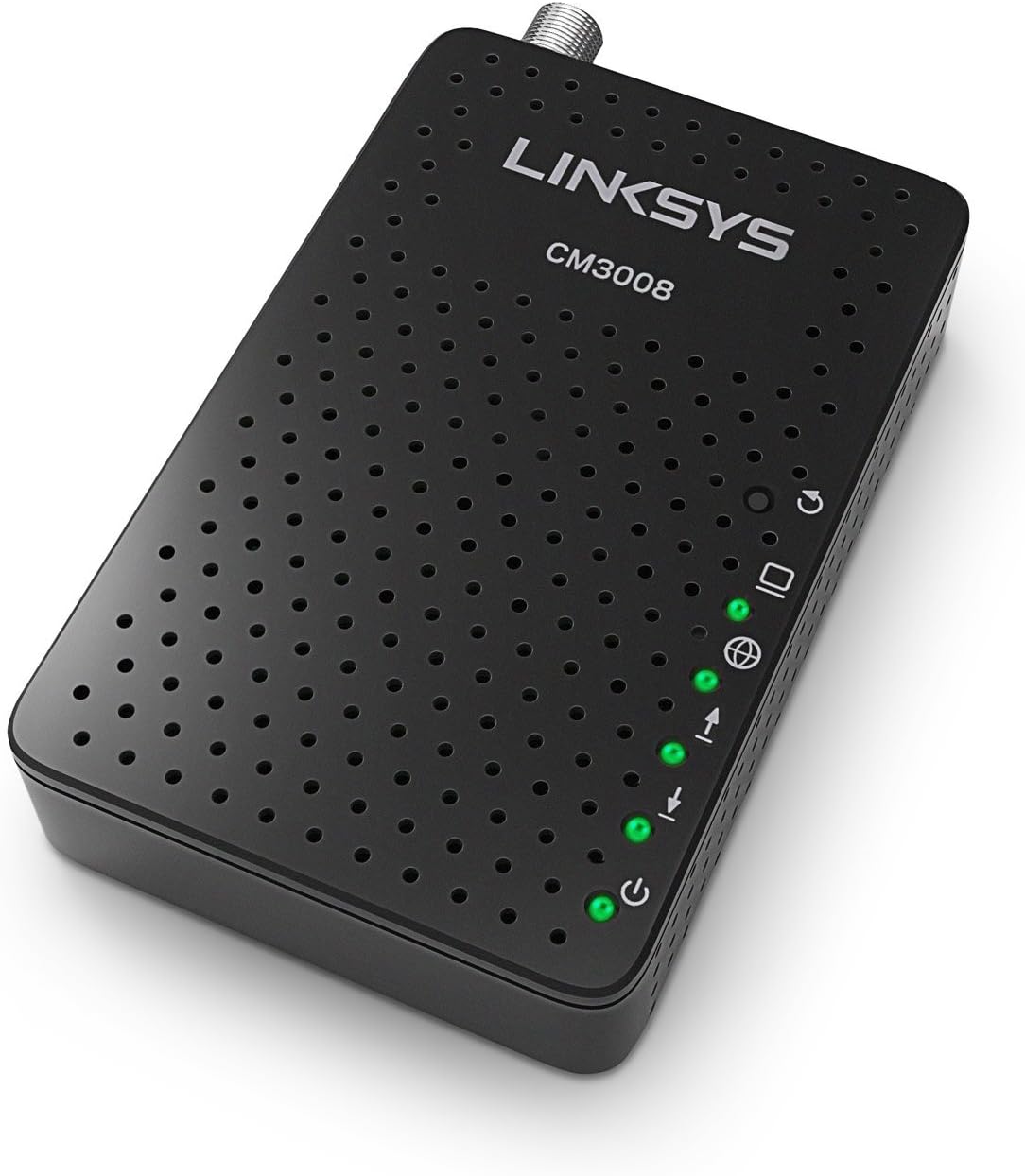
Angled view of the CM3008, highlighting the LED indicators on the front panel.
Rear Panel Ports
- 12VDC Power Input: Connects to the included AC power adapter.
- Ethernet Port (RJ-45): Connects to your computer or a Wi-Fi router using an Ethernet cable.
- Coaxial Cable Input: Connects to your cable service provider's coaxial cable.

Rear view of the CM3008, showing the power input, Ethernet port, and coaxial cable input.
Setup Instructions
Follow these steps to set up your Linksys CM3008 Cable Modem:
- Connect the Coaxial Cable: Connect one end of a coaxial cable (not included) to the cable wall outlet and the other end to the Coaxial Cable Input on the rear of your CM3008 modem.
- Connect the Ethernet Cable: Connect one end of the included Ethernet cable to the Ethernet Port on the rear of your CM3008 modem. Connect the other end to your computer's Ethernet port or to the WAN/Internet port of your Wi-Fi router.
- Connect the Power Adapter: Plug the included AC power adapter into the 12VDC Power Input on the rear of your CM3008 modem, then plug the other end into a power outlet. The Power LED on the front panel should illuminate.
- Wait for Modem to Boot: Allow the modem several minutes to power on and establish a connection. The Downstream, Upstream, and Internet LEDs should eventually turn solid green.
- Activate Your Service: Contact your cable broadband provider (e.g., Comcast Xfinity, Spectrum, Cox) to activate your new modem. You will need to provide them with the modem's MAC address, which is typically found on a label on the bottom or back of the device.

Visual guide for connecting the CM3008 to power, cable outlet, and a computer or router.
Operation
Once your Linksys CM3008 Cable Modem is successfully set up and activated, it will operate continuously to provide internet access. The front panel LEDs serve as indicators of the modem's status:
- If all LEDs (Power, Downstream, Upstream, Internet, Ethernet) are solid green, your modem is operating normally and has an active internet connection.
- If the Downstream or Upstream LEDs are blinking, the modem is attempting to establish a connection with your cable provider.
- If the Internet LED is off, there is no internet connection. Refer to the Troubleshooting section.
For optimal performance, ensure the modem is placed in an open area with good ventilation and away from other electronic devices that may cause interference.
Maintenance
Proper maintenance helps ensure the longevity and optimal performance of your CM3008 cable modem:
- Cleaning: Gently wipe the modem's exterior with a soft, dry cloth. Avoid using liquid cleaners or abrasive materials, as they can damage the device.
- Ventilation: Ensure the modem is placed in a location with adequate airflow to prevent overheating. Do not block the ventilation holes.
- Cable Connections: Periodically check all cable connections (coaxial, Ethernet, power) to ensure they are secure. Loose connections can lead to intermittent service.
- Firmware Updates: Firmware updates are typically managed by your internet service provider. Do not attempt to manually update the modem's firmware unless instructed by your provider or Linksys support.
Troubleshooting
If you encounter issues with your Linksys CM3008 Cable Modem, try the following troubleshooting steps:
- No Power: If the Power LED is off, ensure the power adapter is securely connected to the modem and a working power outlet. Try a different outlet if necessary.
- No Internet Connection (Internet LED off):
- Check all cable connections (coaxial, Ethernet) to ensure they are tight and properly connected.
- Restart the modem by unplugging the power adapter, waiting 10-15 seconds, and then plugging it back in. Allow several minutes for the modem to re-establish its connection.
- Verify that your internet service is active by contacting your cable provider.
- Slow Internet Speed:
- Restart the modem and any connected router/computer.
- Ensure your computer or router is connected directly to the modem with the included Ethernet cable to rule out Wi-Fi issues.
- Check for any background applications or devices consuming bandwidth.
- Contact your internet service provider to check for network outages or issues in your area.
- LEDs Blinking Continuously: If the Downstream or Upstream LEDs continue to blink for an extended period (more than 5 minutes) and do not turn solid, the modem is having difficulty establishing a connection with your cable provider. Ensure the coaxial cable is connected properly and contact your cable provider for assistance.
Specifications
| Brand | Linksys |
| Model Number | CM3008 |
| Connectivity Technology | Cable |
| DOCSIS Standard | DOCSIS 3.0 |
| Channels | 8 Downstream x 4 Upstream |
| Compatible Internet Service Providers | Comcast Xfinity, Spectrum, Cox, Time Warner Cable, Charter, Cablevision |
| Compatible Devices | Router, PC, Mac |
| Dimensions (LxWxH) | 0.98 x 3.94 x 2.76 inches |
| Item Weight | 3.52 ounces |
Warranty and Support
The Linksys CM3008 Cable Modem comes with a limited warranty. For specific warranty terms and conditions, please refer to the warranty card included in your product packaging or visit the official Linksys website.
For technical support, product registration, and additional resources, please visit the official Linksys support website: www.linksys.com/support.


