
Ampire DVX104
AMPIRE DVX104 DVD Player with USB Interface User Manual
Model: DVX104 | Brand: Ampire
1. Introduction
Thank you for choosing the AMPIRE DVX104 DVD Player with USB Interface. This compact 3/4 DIN unit is designed to provide versatile media playback in various installations, supporting a wide range of audio and video formats. This manual provides essential information for proper installation, operation, and maintenance of your device. Please read it thoroughly before use.
2. Safety Information
- Ensure the device is installed by a qualified professional to prevent damage or injury.
- Do not expose the unit to moisture, rain, or extreme temperatures.
- Disconnect power before performing any maintenance or installation.
- Use only the specified power supply (12V DC).
- Do not block ventilation openings.
- Keep out of reach of children.
3. Package Contents
Please check that all items are present in the package:
- AMPIRE DVX104 DVD Player Unit
- IR Remote Control
- External IR Receiver
- Mounting Brackets and Screws
- User Manual (this document)

Image: Included mounting brackets and various screws for installation.
4. Product Overview
4.1 Front Panel

Image: The AMPIRE DVX104 DVD player, showing the disc slot, USB port, and control buttons with blue illumination.
The front panel features the disc slot, a USB port, and essential control buttons for power, play/pause, stop, source selection, track navigation, and disc eject. The buttons are illuminated with a blue night design.
4.2 Remote Control
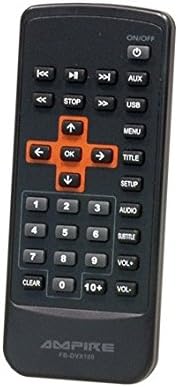
Image: The infrared remote control for the DVX104, featuring navigation, playback, volume, and menu buttons.
The included IR remote control provides full functionality, allowing you to control playback, navigate menus, adjust volume, and select input sources from a distance. Ensure the external IR receiver is positioned correctly for optimal signal reception.
5. Setup and Installation
The DVX104 is designed for flexible installation, supporting both vertical and horizontal mounting positions. It is a 3/4 DIN size unit, suitable for various integration scenarios, including automotive or home entertainment systems.

Image: Example installation of the DVX104 unit discreetly integrated into a vehicle's center console.
5.1 Mounting
- Choose a suitable location for installation, considering ventilation and accessibility for disc insertion/removal.
- Use the provided mounting brackets and screws to secure the unit. The unit can be mounted vertically or horizontally.
- Ensure the mounting surface is stable and can support the unit's weight (approx. 1.6 kg).
5.2 Wiring Connections
- Power Connection: Connect the unit to a 12V DC power source. The maximum power consumption is 15W. The unit consumes 0W when the ignition is off.
- AV Output: Connect the 1 AV output to your display device (e.g., television, monitor) using appropriate cables. The video signal is 1Vp-p, and the audio signal is 6Vss (2.1V RMS).
- External IR Receiver: Plug in the external IR receiver and position it where it has a clear line of sight to your remote control.
6. Operating Instructions
6.1 Disc Playback
- Insert a compatible disc (DVD, SVCD, MVCD, MSVCD, VCD1.0/2.0, CD-DA) into the disc slot. The unit will automatically begin playback.
- Use the remote control or front panel buttons for Play/Pause, Stop, and track navigation.
- The unit features a "last position memory" function for disc operation, allowing you to resume playback from where you left off (not applicable for MPEG4 files).
6.2 USB Media Playback
- Insert a USB stick (up to 8GB) or a 2.5-inch hard drive (up to 80GB, FAT32 formatted) into the USB port.
- If the hard drive is not recognized, it may require an external power supply.
- Use the "SRC" (Source) button on the front panel or remote to switch to USB input.
- Navigate through your media files (MPEG4, WMA, MP3, JPEG) using the remote control.
6.3 On-Screen Display (OSD) Menu
The unit features a German on-screen operating menu. Use the remote control's navigation buttons to access and adjust settings such as audio output, video settings, and system preferences.
6.4 Supported Formats
- Video: DVD, SVCD, MVCD, MSVCD, VCD1.0, VCD2.0, MPEG4 (Video encoding: MPEG-2)
- Audio: WMA, CD-DA, MP3, Dolby Digital Audio format
- Images: JPEG
7. Maintenance
- Clean the unit's exterior with a soft, dry cloth. Do not use abrasive cleaners or solvents.
- Keep the disc slot free from dust and debris.
- Ensure proper ventilation around the unit to prevent overheating.
8. Troubleshooting
| Problem | Possible Cause | Solution |
|---|---|---|
| No power | Incorrect power connection; Blown fuse | Check 12V DC power supply and connections. Verify fuse. |
| No disc playback | Disc is dirty or scratched; Incompatible disc format | Clean the disc. Ensure the disc format is supported (DVD, VCD, CD-DA). |
| USB device not recognized | Incorrect format (not FAT32); Device requires external power; USB device capacity too large | Ensure USB device is FAT32 formatted. For HDDs, try with external power. Check capacity limits (8GB for sticks, 80GB for HDDs). |
| No remote control response | Batteries are dead; IR receiver blocked or misplaced | Replace remote control batteries. Ensure IR receiver has a clear line of sight to the remote. |
| No video output | AV cable not connected properly; Incorrect input selected on display device | Check AV cable connections. Select the correct AV input on your television/monitor. |
9. Specifications
| Feature | Detail |
|---|---|
| Model | DVX104 |
| Dimensions (W x H) | 159 x 43 mm |
| Installation Depth | 164 mm |
| Weight | 1.6 kg |
| Operating Voltage | 12V DC |
| Max. Power Consumption | 15W |
| Power Consumption (Ignition Off) | 0W (0.0 Ampere) |
| Video Signal | 1Vp-p |
| Audio Signal | 6Vss (2.1V RMS) |
| Audio Output Mode | Surround (2.0 Channel) |
| USB Support | USB sticks up to 8GB, 2.5" HDDs up to 80GB (FAT32) |
| Supported Disc Formats | DVD, SVCD, MVCD, MSVCD, VCD1.0, VCD2.0, CD-DA |
| Supported Media Formats | MPEG4, WMA, MP3, JPEG |
| Compliance | RoHS compliant, E8 10R-03 1242 |
10. Warranty and Support
This product is licensed and approved. For warranty information and technical support, please refer to the documentation provided with your purchase or contact your local Ampire dealer. Keep your proof of purchase for warranty claims.
Related documentsDVX104


Ask a question about this manual
Ask about setup, troubleshooting, compatibility, parts, safety, or missing instructions. Manuals+ will review the question and use this page’s manual context to help answer it.