
MOOER REVERIE REVERB
MOOER REVERIE REVERB Digital Effects Pedal User Manual
Model: REVERIE REVERB
1. Introduction
The MOOER REVERIE REVERB is a versatile digital effects pedal designed for guitarists, offering a wide range of reverb and modulation effects. This pedal combines 5 distinct reverb types with 5 different modulation effects, allowing for extensive sound sculpting. It features stereo inputs and outputs, a tap tempo function for precise timing, and true bypass circuitry to preserve your guitar's tone when the effect is disengaged.
2. Key Features
- 5 Reverb Types: Room/Hall, Plate, Shimmer, Octave, and Modulation.
- 5 Modulation Types: Wah, Low-Pass, Flanger, Tremolo, and Water, applicable to each reverb type.
- Stereo Inputs and Outputs: For flexible connectivity with various setups.
- Tap Tempo Function: Easily adjust the speed of time-based effects.
- True Bypass: Ensures signal integrity when the pedal is off.
- Compact Design: Durable metal casing suitable for pedalboards.
3. Controls and Connections
Familiarize yourself with the pedal's layout to effectively utilize its features.
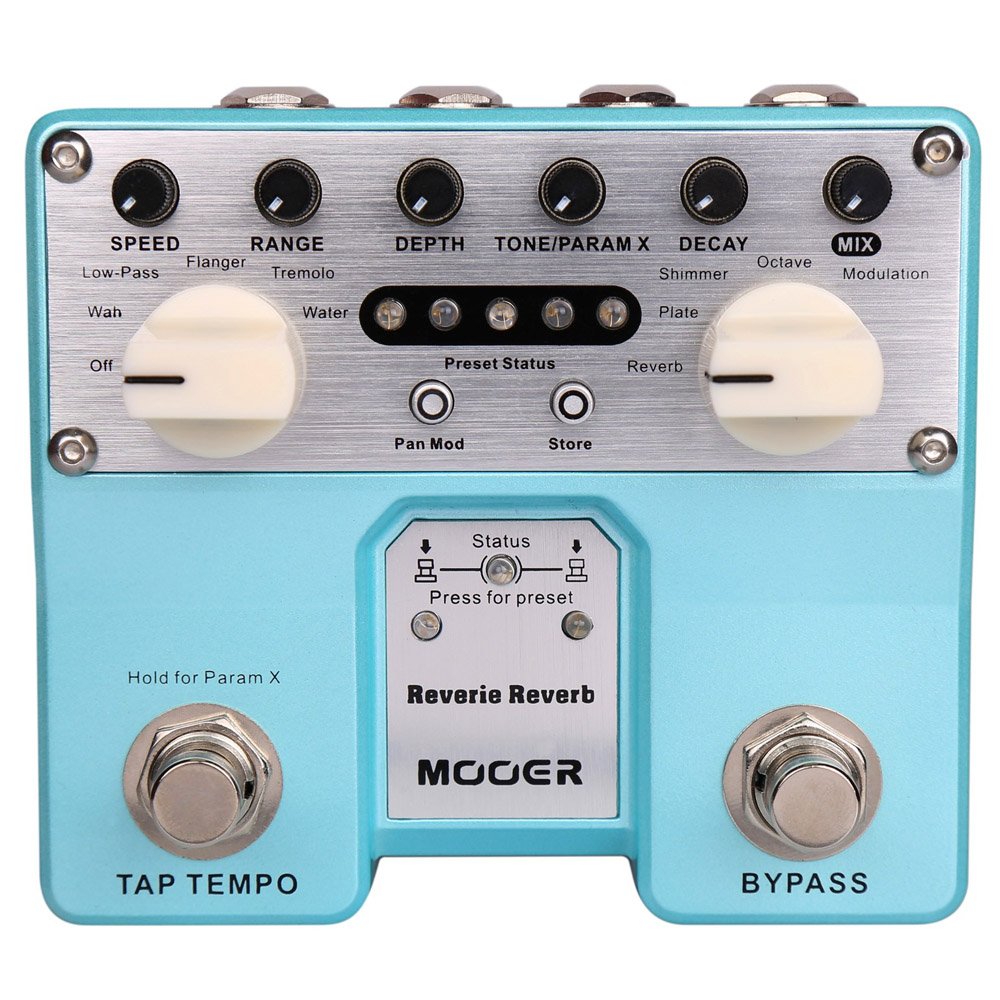
Figure 3.1: Angled view of the MOOER REVERIE REVERB pedal, showing all controls and input/output jacks.
3.1. Top Panel Controls
- SPEED Knob: Adjusts the speed of the selected modulation effect.
- RANGE Knob: Controls the range or depth of the selected modulation effect.
- DEPTH Knob: Sets the intensity or amount of the modulation effect.
- TONE/PARAM X Knob: Adjusts the tone of the reverb or acts as a parameter control for specific effects.
- DECAY Knob: Controls the length of the reverb tail.
- MIX Knob: Blends the dry signal with the wet (effected) signal.
- Reverb Type Selector: A rotary switch to select between Room/Hall, Plate, Shimmer, Octave, and Modulation reverb types.
- Modulation Type Selector: A rotary switch to select between Wah, Low-Pass, Flanger, Tremolo, and Water modulation effects.
- Preset Status LEDs: Indicate the currently active preset.
- Pan Mod Button: Engages or disengages the pan modulation.
- Store Button: Used to save custom settings as presets.
3.2. Footswitches
- TAP TEMPO Footswitch: Tap this switch multiple times to set the tempo for time-based effects. Hold for Param X function.
- BYPASS Footswitch: Engages or disengages the effect. When off, the pedal operates in true bypass mode.
3.3. Input/Output Connections

Figure 3.2: Rear view of the MOOER REVERIE REVERB pedal, highlighting the input, output, and power connections.
- LEFT (MONO) INPUT: Connect your guitar or previous effect pedal here. Use this for mono input.
- RIGHT INPUT: Connect for stereo input.
- LEFT (MONO) OUTPUT: Connect to your amplifier or next effect pedal. Use this for mono output.
- RIGHT OUTPUT: Connect for stereo output.
- DC IN: Connect a 9V DC power adapter (center negative).
4. Setup
- Power Connection: Connect a 9V DC power adapter (center negative, 130mA minimum) to the DC IN jack. The MOOER PDNW 9V2A power supply is recommended (not included).
- Audio Input: Connect your guitar or the output of a preceding effect pedal to the LEFT (MONO) INPUT jack. For stereo input, connect a second signal source to the RIGHT INPUT.
- Audio Output: Connect the LEFT (MONO) OUTPUT jack to your amplifier's input or the next effect pedal in your chain. For stereo output, connect the RIGHT OUTPUT to a second amplifier or stereo input device.
- Power On: Once all connections are secure, apply power to the pedal.
5. Operating Instructions

Figure 5.1: Top view of the MOOER REVERIE REVERB pedal, showing the control knobs and switches.
5.1. Engaging/Disengaging the Effect
Press the BYPASS footswitch to toggle the effect on or off. The status LED will indicate whether the effect is active.
5.2. Selecting Reverb and Modulation Types
Use the Reverb Type Selector rotary switch to choose your desired reverb effect (Room/Hall, Plate, Shimmer, Octave, Modulation). Then, use the Modulation Type Selector rotary switch to apply one of the five modulation effects (Wah, Low-Pass, Flanger, Tremolo, Water) to the selected reverb.
5.3. Adjusting Parameters
Utilize the control knobs (SPEED, RANGE, DEPTH, TONE/PARAM X, DECAY, MIX) to fine-tune the sound of your chosen reverb and modulation combination. Experiment with these controls to achieve a wide array of sonic textures.
5.4. Tap Tempo Function
Repeatedly tap the TAP TEMPO footswitch to set the tempo for effects that utilize time-based parameters. The tempo will synchronize to your taps.
5.5. Saving and Recalling Presets
The REVERIE REVERB allows you to save custom settings as presets.
- To Save a Preset: Adjust the controls to your desired sound. Press the Store button. The Preset Status LEDs will indicate the preset slot.
- To Recall a Preset: Simultaneously press both the TAP TEMPO and BYPASS footswitches to enter preset mode. Continue pressing both footswitches simultaneously to cycle through the saved presets.
- To Exit Preset Mode: Press and hold both the TAP TEMPO and BYPASS footswitches for approximately 3 seconds. This will return the pedal to standard operation mode, where knob settings directly control the effect.
6. Maintenance
- Cleaning: Use a soft, dry cloth to clean the pedal's surface. Avoid abrasive cleaners or solvents.
- Storage: Store the pedal in a dry environment, away from extreme temperatures and direct sunlight.
- Power: Always disconnect the power supply when the pedal is not in use for extended periods.
7. Troubleshooting
7.1. Effects Not Functioning After Exiting Preset Mode
Symptom: After exiting preset mode by holding down both footswitches, the reverb and modulation effects (Shimmer, Plate, Octave, Modulation, etc.) no longer function, even though the pedal appears to be on.
Solution: This can sometimes occur. To resolve this, disconnect the power supply from the pedal, wait a few seconds, and then reconnect it. This will reset the pedal and restore full functionality of all effects. If the issue persists, ensure your power supply meets the specified requirements (9V DC, center negative, 130mA minimum).
7.2. No Sound
- Ensure all cables are securely connected to the correct input and output jacks.
- Verify the power supply is connected and functioning correctly.
- Check that your guitar and amplifier are working properly.
- Ensure the MIX knob is not set to full dry (no effect signal).
8. Specifications
| Model | REVERIE REVERB (TRV2, MTWINRV2) |
| Dimensions | 10.7 x 4.8 x 5.8 cm (4.2 x 1.9 x 2.3 inches) |
| Weight | 181.44 g (0.4 lbs) |
| Power Requirement | 9V DC (center negative) |
| Current Draw | 130 mA |
| Audio Interface | 1/4 inch Audio Jacks |
| Signal Format | Digital |
| Bypass | True Bypass |
9. Warranty and Support
For warranty information and technical support, please refer to the official MOOER website or contact your authorized MOOER dealer. Keep your purchase receipt as proof of purchase for any warranty claims.
Related documentsREVERIE REVERB

Ask a question about this manual
Ask about setup, troubleshooting, compatibility, parts, safety, or missing instructions. Manuals+ will review the question and use this page’s manual context to help answer it.