
1. Introduction
The Denon Heos 3 HS2 is a compact, portable wireless speaker designed to deliver room-filling sound. It supports high-resolution audio and offers versatile connectivity options for streaming music from various sources.
This manual provides essential information for setting up, operating, maintaining, and troubleshooting your Denon Heos 3 HS2 speaker.
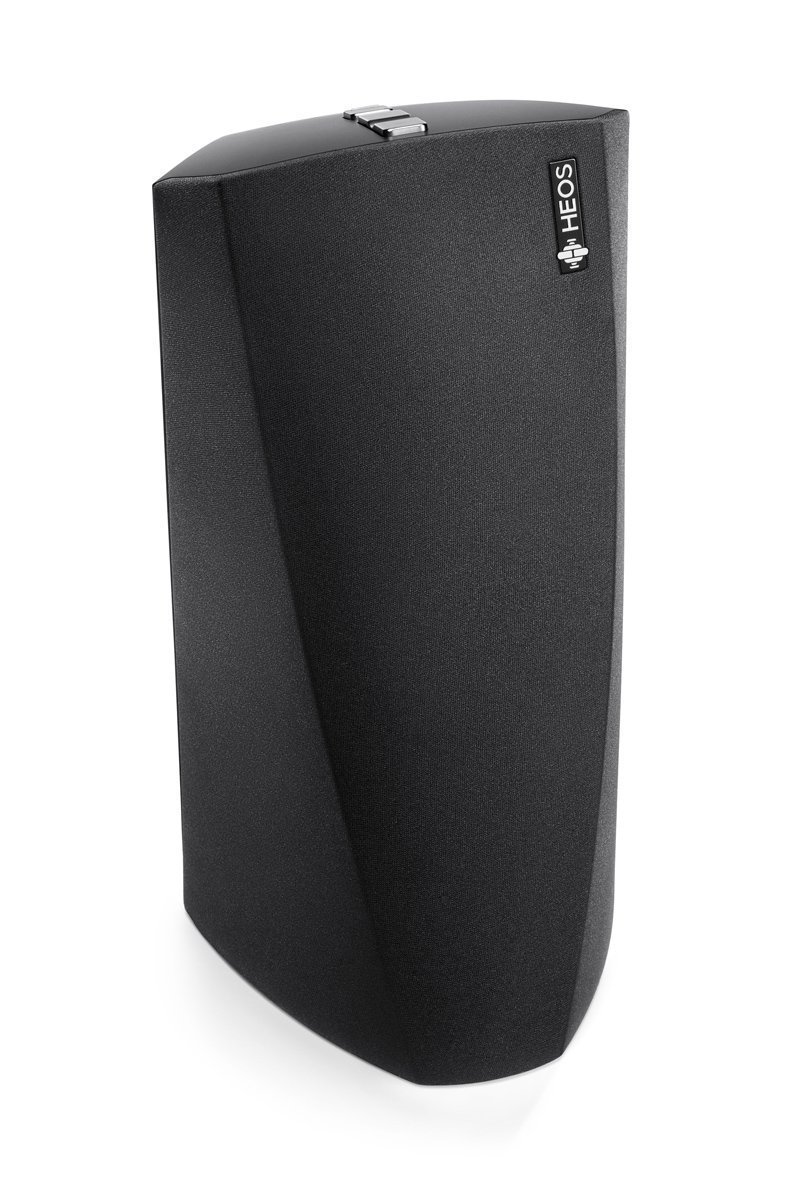
Image 1.1: Front view of the Denon Heos 3 HS2 wireless speaker.
2. What's in the Box
Carefully unpack the box and ensure all the following items are present:
- Denon Heos 3 HS2 Network Audio Speaker
- AC Power Adapter (with attached 57" DC cord)
- AC Plug Insert
- 58" Ethernet Cable
- 34" Proprietary Minijack Cable
- Quick Start Guide
- Safety Information
- Warranty Card
3. Setup
Follow these steps to set up your Denon Heos 3 HS2 speaker:
- Power Connection: Connect the AC power adapter to the speaker and then plug it into a wall outlet.
- Download the HEOS App: Download the HEOS app on your iOS, Android, or Kindle Fire device. The app is essential for initial setup and control.
- Connect to Network: Open the HEOS app and follow the on-screen instructions to connect your speaker to your wireless network. You may use the provided Ethernet cable for a wired connection if preferred.
- Optional: Auxiliary Connection: For direct audio input, connect an audio source to the AUX input using the proprietary minijack cable.
- Optional: USB Connection: Connect a USB storage device to the USB port for local music playback.

Image 3.1: Speaker ready for Wi-Fi network setup.

Image 3.2: Using the HEOS app for speaker control.
4. Operating
Once set up, you can begin enjoying music through your Denon Heos 3 HS2 speaker.
4.1 Streaming Music via Wi-Fi
Use the HEOS app to access and stream music from popular services such as Spotify, Pandora, TuneIn, Amazon Music, iHeart Radio, SiriusXM, SoundCloud, TIDAL, or Rhapsody. The app allows you to browse, select, and control playback.
4.2 Bluetooth Playback
To stream audio via Bluetooth:
- Ensure Bluetooth is enabled on your source device (smartphone, tablet, etc.).
- Select the Denon Heos 3 HS2 from the list of available Bluetooth devices.
- Once paired, audio from your device will play through the speaker.

Image 4.1: Speaker connected via Bluetooth.
4.3 Voice Control
The Denon Heos 3 HS2 is compatible with Alexa. Once connected to your home network and linked with your Alexa account, you can use voice commands to control music playback and other functions.
4.4 Multi-Room Audio
If you have multiple HEOS devices, you can group them using the HEOS app to play the same music in different rooms or different music in each room.
5. Maintenance
Proper care will ensure the longevity and performance of your Denon Heos 3 HS2 speaker.
- Cleaning: Use a soft, dry cloth to clean the exterior of the speaker. Do not use liquid cleaners, aerosols, or solvents, as these may damage the finish or internal components.
- Placement: Place the speaker on a stable, flat surface. Avoid placing it in direct sunlight, near heat sources, or in areas with high humidity.
- Ventilation: Ensure adequate ventilation around the speaker to prevent overheating. Do not block any ventilation openings.
- Power Cord: Regularly inspect the power cord for any damage. If damaged, discontinue use and contact customer support for a replacement.
6. Troubleshooting
If you encounter issues with your Denon Heos 3 HS2 speaker, refer to the following common problems and solutions:
6.1 No Sound
- Check if the speaker is powered on and the volume is not muted or set too low.
- Verify that the audio source is playing and properly connected (Wi-Fi, Bluetooth, AUX).
- If using Wi-Fi, ensure the speaker is connected to your network and the HEOS app shows it as online.
6.2 Cannot Connect to Wi-Fi
- Ensure your Wi-Fi router is on and functioning correctly.
- Move the speaker closer to your Wi-Fi router to improve signal strength.
- Restart your router and the speaker.
- Confirm you are entering the correct Wi-Fi password in the HEOS app.
6.3 Bluetooth Connectivity Issues
- Ensure the speaker is in Bluetooth pairing mode (refer to the HEOS app for instructions).
- Make sure your source device's Bluetooth is enabled and it is within range (typically 10 meters or 33 feet).
- Try unpairing and re-pairing the device.
- If issues persist, try restarting both the speaker and the Bluetooth source device.
6.4 HEOS App Not Responding
- Close and reopen the HEOS app.
- Ensure your smartphone or tablet is connected to the same Wi-Fi network as the speaker.
- Check for app updates in your device's app store.
For further assistance, please refer to the Denon support website or contact customer service.
7. Specifications
| Feature | Specification |
|---|---|
| Model Name | HEOS3HS2BK |
| Speaker Type | Bookshelf |
| Connectivity Technology | Auxiliary, Bluetooth, Ethernet, USB, Wi-Fi |
| Audio Output Mode | Stereo |
| Control Method | Voice (Alexa compatible) |
| Power Source | Corded Electric |
| Item Weight | 4.85 pounds |
| Product Dimensions | 12.6 x 9.4 x 8 inches |
| Manufacturer | Denon Electronics USA LLC |
| UPC | 883795003940 |
8. Warranty and Support
8.1 Warranty Information
The Denon Heos 3 HS2 speaker comes with a Limited Warranty. Please refer to the Warranty Card included in your product packaging for specific terms, conditions, and duration of coverage.
8.2 Customer Support
For technical support, service, or warranty claims, please contact Denon Customer Support. You can find contact information and additional resources on the official Denon website.
Manufacturer: Denon Electronics USA LLC


