
Introduction
The INIM Alien/GN is a sophisticated 7-inch touchscreen user interface designed for seamless integration with I-Bus security and automation systems. It provides intuitive control and monitoring capabilities, enhancing user interaction with the system. Key features include a built-in proximity reader for convenient access, a room temperature sensor for environmental monitoring, and integrated microphone and speaker for communication functions.
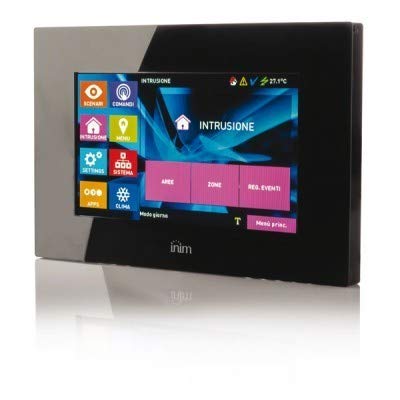
Figure 1: Front view of the INIM Alien/GN touchscreen user interface. This image shows the sleek design and the 7-inch display.
Setup and Installation
Proper installation is crucial for the optimal performance of your INIM Alien/GN touchscreen. Please follow these guidelines carefully.
1. Mounting the Device
Select a suitable indoor location, away from direct sunlight, heat sources, and areas with high humidity. Ensure the mounting surface is flat and stable. The device is designed for wall mounting.
- Carefully remove the front cover of the Alien/GN unit to expose the mounting holes.
- Position the backplate on the desired wall location and mark the drilling points.
- Drill holes using an appropriate drill bit for your wall type. Insert wall plugs if necessary.
- Secure the backplate to the wall using the provided screws.
2. Wiring and Connections
The Alien/GN connects to the I-Bus system. Ensure power is disconnected from the main control panel before making any connections.
- Connect the I-Bus communication wires to the designated terminals on the Alien/GN backplate. Observe polarity (typically + and -).
- If external power is required (check system specifications), connect the power supply wires to the appropriate terminals.
- Ensure all connections are secure and properly insulated.
3. Initial Power-Up
Once all connections are made and verified, restore power to the main control panel.
- The Alien/GN display should illuminate, and the device will begin its boot sequence.
- Follow the on-screen prompts for initial configuration, such as language selection and network settings (if applicable).
- Refer to your main I-Bus system manual for specific device enrollment procedures.
Operating Instructions
This section details the basic operation of the INIM Alien/GN touchscreen user interface.
1. Touchscreen Navigation
The 7-inch display is a capacitive touchscreen, responding to light touches. Navigate through menus and options by tapping icons and swiping across the screen.
- Home Screen: Displays system status, quick access icons, and current time/date.
- Menu Access: Tap the menu icon (usually three horizontal lines or a gear) to access system settings and advanced functions.
- Back Button: A dedicated back arrow icon allows you to return to the previous screen.
2. Proximity Reader Functionality
The integrated proximity reader allows for quick arming/disarming of the system or access control using compatible RFID tags or cards.
- To use, present your registered RFID tag or card within a few centimeters of the designated proximity reader area on the touchscreen.
- The device will emit an audible confirmation tone and display a visual indicator upon successful reading.
- Ensure your RFID credentials are properly enrolled in the I-Bus system for them to be recognized.
3. Room Temperature Sensor
The Alien/GN includes an ambient room temperature sensor. The current temperature is typically displayed on the home screen or within a dedicated environmental monitoring section.
- The temperature reading provides local environmental data.
- This data can be used by the I-Bus system for automation rules (e.g., activating heating/cooling based on temperature thresholds).
4. Microphone and Speaker
The built-in microphone and speaker facilitate two-way audio communication, often used for intercom functions or voice prompts from the security system.
- Intercom: If configured, tap the intercom icon to initiate communication with other connected devices or the central monitoring station.
- Voice Prompts: The speaker will play system alerts, status confirmations, and other audio notifications.
- Adjust speaker volume through the system settings menu.
Maintenance
Regular maintenance ensures the longevity and reliable operation of your INIM Alien/GN touchscreen.
1. Cleaning the Touchscreen
To maintain screen clarity and responsiveness:
- Power off the device or put it into cleaning mode (if available in settings) before cleaning.
- Use a soft, lint-free cloth, slightly dampened with water or a screen-specific cleaning solution.
- Do not use abrasive cleaners, alcohol, ammonia, or spray cleaners directly onto the screen.
- Gently wipe the screen to remove dust, fingerprints, and smudges.
2. Software Updates
Periodically check for software updates for your I-Bus system and connected devices, including the Alien/GN. Updates can provide new features, performance improvements, and security enhancements. Consult your system integrator or the INIM website for update procedures.
3. Environmental Considerations
Ensure the device remains within its specified operating temperature and humidity ranges. Avoid exposing it to extreme conditions, direct water spray, or excessive dust.
Troubleshooting
This section provides solutions to common issues you might encounter with your INIM Alien/GN touchscreen.
| Problem | Possible Cause | Solution |
|---|---|---|
| Display is blank or unresponsive. | No power, loose I-Bus connection, device malfunction. |
|
| Touchscreen is unresponsive or inaccurate. | Dirty screen, temporary software glitch, physical damage. |
|
| Proximity reader not recognizing tags. | Tag not enrolled, tag damaged, reader malfunction. |
|
| Incorrect temperature readings. | Device location, sensor obstruction, calibration issue. |
|
Specifications
Key technical specifications for the INIM Alien/GN touchscreen user interface:
| Feature | Detail |
|---|---|
| Manufacturer | INIM ELECTRONICS |
| Model | Alien/GN |
| Interface Type | 7-inch Touch Screen |
| Bus Compatibility | I-Bus |
| Integrated Features | Proximity Reader, Room Temperature Sensor, Microphone, Speaker |
| Batteries Included | No |
| Batteries Required | No |
| ASIN | B01CNOYI6M |
| First Available Date | October 15, 2022 |
Warranty Information
The INIM Alien/GN touchscreen user interface is covered by a manufacturer's limited warranty. The specific terms and duration of the warranty may vary by region and point of purchase. Please retain your proof of purchase for warranty claims.
For detailed warranty information, please refer to the documentation provided with your product or visit the official INIM ELECTRONICS website.
Technical Support
Should you encounter any issues not covered in the troubleshooting section or require further assistance, please contact your authorized INIM ELECTRONICS dealer or system installer. They possess the expertise to provide specialized support for your I-Bus system and connected devices.
You may also visit the official INIM ELECTRONICS website for additional resources, FAQs, and contact information for technical support.