
1. Introduction
This manual provides detailed instructions for the installation, operation, and maintenance of your Swann SWNVW-GUAEYE-CL 1080p Wireless Monitoring System. This system is designed to provide reliable surveillance for your home or business with high-definition video recording and remote viewing capabilities.
Package Contents
Before beginning installation, please verify that all items listed below are present in your package:
- GuardianEye Video Recorder with 500GB Hard Drive (Installed)
- Day/Night Cameras x 2
- Power Extension Cable 60ft/18m
- Mouse
- Power Adapters x 2
- Network Cable
- HDMI Cable
- Quick Start Guide
- Theft Deterrent Stickers

Image 1.1: Overview of the Swann SWNVW-GUAEYE-CL Wireless Monitoring System, showing the Network Video Recorder (NVR) and two wireless cameras.
2. System Setup
Follow these steps to set up your Swann Wireless Monitoring System.
2.1 Connecting the NVR
- Connect the Mouse: Plug the included USB mouse into an available USB port on the NVR.
- Connect to a Display: Use the HDMI cable to connect the NVR to a monitor or TV. Ensure your display is set to the correct input source.
- Network Connection (Optional for initial setup, required for remote viewing): Connect one end of the network cable to the NVR's Ethernet port and the other end to your router or network switch. This enables remote access and software updates.
- Power On: Connect the NVR's power adapter to the NVR and then to a power outlet. The NVR will power on automatically.
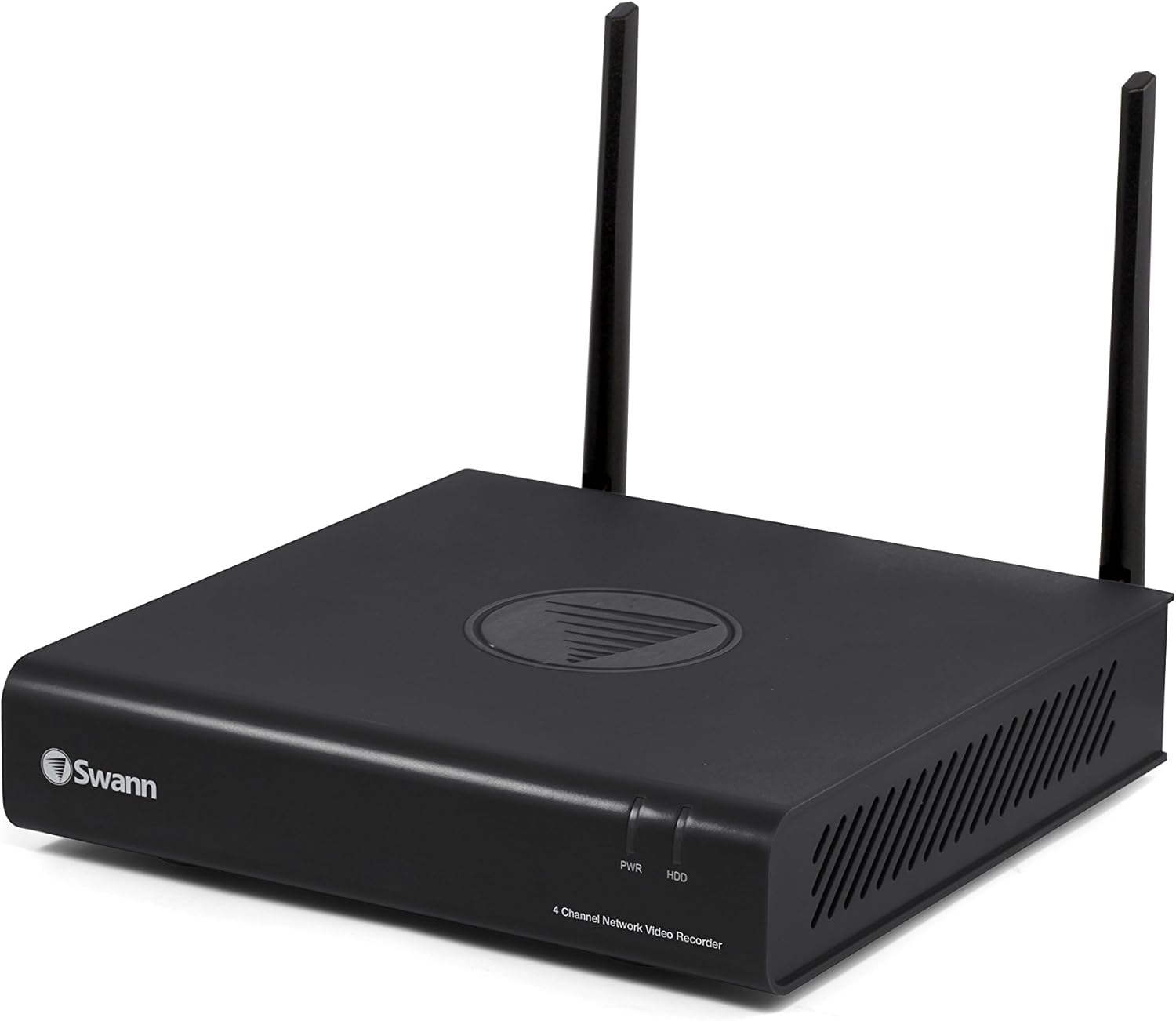
Image 2.1: The Swann Network Video Recorder (NVR) unit, featuring two external antennas for wireless camera connectivity.
2.2 Camera Installation and Pairing
The cameras and NVR are designed for wireless connection. Ensure cameras are within range of the NVR's wireless signal.
- Mounting Location: Choose suitable indoor or outdoor locations for your cameras. Consider factors like viewing angle, proximity to power outlets, and wireless signal strength.
- Powering Cameras: Connect each camera to its respective power adapter and plug into a power outlet. Use the 60ft/18m power extension cable if needed.
- Automatic Pairing: The cameras are typically pre-paired with the NVR. Once powered on, they should automatically connect and display video on the connected monitor. If not, refer to the "Troubleshooting" section for manual pairing instructions.
- Adjusting Camera Angle: Securely mount the cameras and adjust their angles to cover the desired surveillance areas.
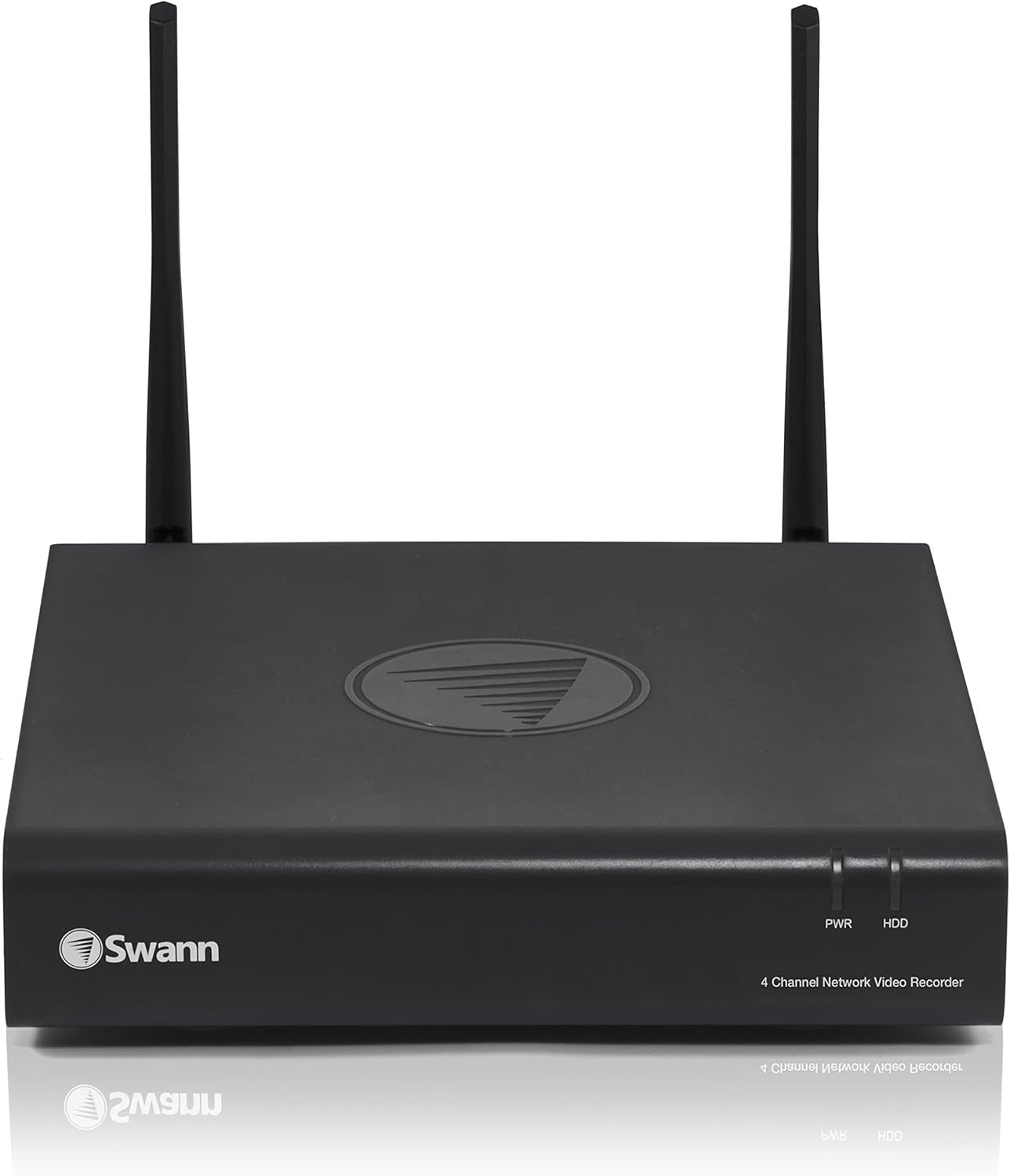
Image 2.2: A detailed view of a Swann wireless security camera, highlighting its lens and infrared LEDs for night vision.
3. Operating the System
This section covers the basic functions and features of your monitoring system.
3.1 Live View and Recording
- Live View: Once cameras are connected, the NVR will display live video feeds on the connected monitor. You can switch between single-camera view and multi-camera grid view using the NVR's interface (controlled by mouse).
- Recording: The system is configured for motion-triggered recording to the pre-installed 500GB hard drive. This optimizes storage space by only recording when activity is detected. Continuous recording can be configured via the NVR settings.
- 1080p HD Video: Cameras capture crystal clear 1080p full HD video, ensuring detailed footage.
- Night Vision: Equipped with IR cut filters, the cameras provide powerful night vision up to 66ft/20m, allowing clear visibility in low-light conditions.
- Audio Monitoring: Built-in microphones in the cameras allow for audio recording up to 16ft/5m, providing additional situational awareness.
3.2 Remote Access
To view your cameras remotely on a smartphone, tablet, or computer, you will need to:
- Connect NVR to Internet: Ensure the NVR is connected to your home network via the Ethernet cable.
- Download Swann App: Download the official Swann security app from your device's app store.
- Register and Add Device: Follow the in-app instructions to create an account and add your NVR using its unique ID or QR code.
- View Live Feeds: Once configured, you can access live video, review recordings, and adjust settings from anywhere with an internet connection.
4. Maintenance
Regular maintenance ensures optimal performance and longevity of your security system.
4.1 Cleaning
- Camera Lenses: Periodically clean camera lenses with a soft, damp cloth to remove dust, dirt, or water spots that may obstruct the view. Avoid abrasive cleaners.
- NVR Unit: Keep the NVR unit free from dust. Ensure ventilation openings are not blocked to prevent overheating.
4.2 Software Updates
Swann may release firmware updates to improve system performance, add features, or address security vulnerabilities. It is recommended to:
- Check for Updates: Regularly check for available firmware updates through the NVR's system settings or the Swann support website.
- Apply Updates: Follow the on-screen instructions carefully when applying updates. Ensure the NVR remains powered during the entire update process.
5. Troubleshooting
This section addresses common issues you might encounter with your Swann Wireless Monitoring System.
| Problem | Possible Cause | Solution |
|---|---|---|
| No video displayed from camera. |
|
|
| NVR not displaying on monitor. |
|
|
| Cannot access system remotely. |
|
|
| Poor video quality or intermittent signal. |
|
|
6. Specifications
Key technical specifications for the Swann SWNVW-GUAEYE-CL Wireless Monitoring System:
| Feature | Detail |
|---|---|
| Brand | Swann |
| Model Number | SWNVW-GUAEYE-CL |
| Connectivity Technology | Wireless |
| Video Capture Resolution | 1080p Full HD |
| Special Features | Motion Sensor, Night Vision |
| Number of Channels | 4 (supports up to 4 cameras) |
| Memory Storage Capacity | 500 GB (pre-installed HDD) |
| Color | Black |
| Power Source | AC Powered |
| Item Dimensions (L x W x H) | 8.27 x 10.83 x 11.61 inches |
| Recommended Uses | Security |
| Compatible Devices | Cameras, Smartphones, Tablets |
| Low Light Technology | Day/Night |
| Night Vision Range | 66 Feet (20 meters) |
| Frame Rate | Up to 60 FPS |
| Recording Mode | 1080p video, audio |
| Item Weight | 2.5 pounds |
7. Warranty Information
Swann products typically come with a limited warranty. For specific details regarding the warranty period, coverage, and terms for your SWNVW-GUAEYE-CL system, please refer to the warranty card included in your product packaging or visit the official Swann website.
Please retain your proof of purchase for warranty claims.
8. Customer Support
If you encounter any issues or have questions not covered in this manual, please contact Swann customer support:
- Online Support: Visit the official Swann support website for FAQs, troubleshooting guides, and software downloads.
- Technical Assistance: Contact Swann's technical support team via phone or email. Contact details are usually available on their website or in the Quick Start Guide.
For the most up-to-date support information, please visit: www.swann.com