
1. Introduction
This manual provides essential information for the safe and effective operation of your DJI Avata 2 Fly More Combo. It covers the drone, DJI Goggles 3, and DJI RC Motion 3, along with accessories. Please read this manual thoroughly before first use and retain it for future reference.
2. What's in the Box
The DJI Avata 2 Fly More Combo includes the following components:
- DJI Avata 2 Drone
- 3 x Avata 2 Intelligent Flight Batteries
- 1 x DJI RC Motion 3
- 1 x DJI Goggles 3
- 1 x DJI Avata 2 Two-Way Charging Hub
- 1 x DJI Sling Bag
- 2 x Spare Propellers (Pair)
- 8 x Spare Screws
- 1 x DJI Avata 2 Gimbal Protector
- 1 x Type-C to Type-C PD Cable
- 1 x Screwdriver
- 1 x USB Type-C PD Cable
- 1 x Gimbal Protector
- 1 x OTG Cable
- Lanyard
- 1 x DJI RC Motion 3 Lanyard
- 1 x DJI Goggles 3 Foam Padding
- 1 x DJI Goggles 3 Additional Forehead Pad
- 1 x DJI Goggles 3 -2.0D Corrective Lenses
- 1 x 128GB Micro SD Card
- 1 x Landing Pad
- 1 x Waterproof Backpack
- 1 x USB Card Reader 3.0
- 1 x Micro Fiber Cleaning Cloth

Image 2.1: Overview of all items included in the DJI Avata 2 Fly More Combo package.
3. Product Overview
The DJI Avata 2 is a compact FPV drone designed for immersive flight experiences. It features a built-in propeller guard for enhanced safety and durability.
3.1 DJI Avata 2 Drone
The drone integrates a 4K camera with a 155° FOV, capable of capturing high-quality aerial footage. Its robust design includes integrated propeller guards, making it suitable for various flying environments.

Image 3.1: The DJI Avata 2 drone, showcasing its compact design and integrated propeller guards.
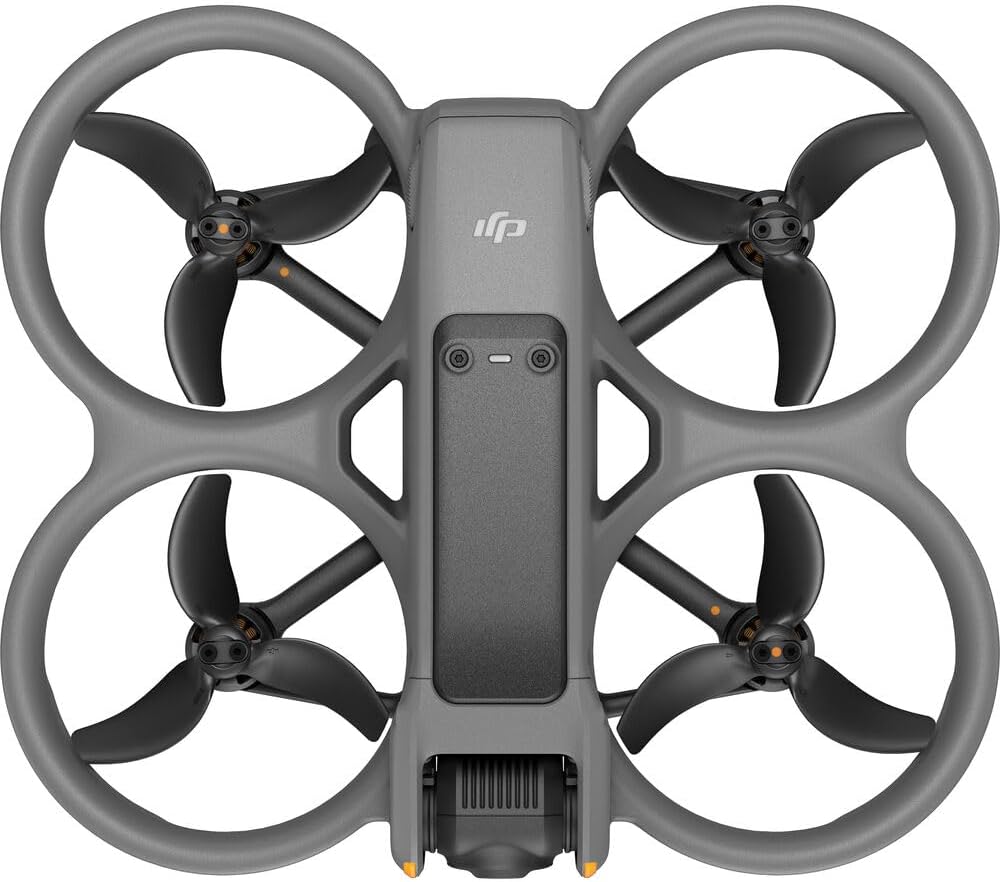
Image 3.2: Top-down perspective of the DJI Avata 2 drone, highlighting its propeller layout.
3.2 DJI Goggles 3
The Goggles 3 provide an immersive first-person view experience, allowing you to see what the drone sees in real-time. They are designed for comfort and clear visual feedback.
3.3 DJI RC Motion 3
The RC Motion 3 offers intuitive motion control, enabling users to direct the drone's movement with natural hand gestures, simplifying the flight experience for beginners and experienced pilots alike.

Image 3.3: The core components of the Avata 2 system: drone, goggles, motion controller, and charging hub.
4. Setup
4.1 Charging Batteries
Before first use, fully charge all Intelligent Flight Batteries and the DJI RC Motion 3. Use the provided Two-Way Charging Hub to charge multiple drone batteries efficiently. Connect the USB Type-C PD Cable to the charging hub and a compatible power adapter.
4.2 Initial Activation
To activate the DJI Avata 2, DJI Goggles 3, and DJI RC Motion 3, connect them to the DJI Fly app on your mobile device. Follow the on-screen instructions for activation and any necessary firmware updates. Ensure a stable internet connection during this process.
4.3 Assembling Components
The DJI Avata 2 features built-in propeller guards, requiring no assembly for this component. Ensure the gimbal protector is removed before flight. For the DJI Goggles 3, attach the foam padding and additional forehead pad for comfortable fit. The RC Motion 3 comes ready for use, but ensure the lanyard is securely attached for safety during flight.
5. Operating
5.1 Basic Flight Controls with RC Motion 3
The DJI RC Motion 3 allows for intuitive control. Push the joystick forward to ascend, pull back to descend. Tilt the controller to move the drone left, right, forward, or backward. The large trigger button controls acceleration. Practice in an open, safe area before attempting complex maneuvers.

Image 5.1: Demonstrating the intuitive motion control of the DJI RC Motion 3.
5.2 Immersive Flight Experience
Wear the DJI Goggles 3 to experience the drone's flight from a first-person perspective. This immersive view enhances the sense of speed and control, making flight more engaging.

Image 5.2: A user experiencing immersive flight with the DJI Avata 2 and Goggles 3.
5.3 Acrobatics
The Avata 2 supports one-push acrobatics, including Flips, Rolls, and 180° Drifts. Refer to the DJI Fly app for specific instructions on how to activate and perform these maneuvers safely.

Image 5.3: Visual representation of the one-push acrobatic maneuvers: Flip, Roll, and 180° Drift.
5.4 Camera Operation
The integrated camera captures 4K/60fps video with a 155° FOV. Use the DJI Fly app to adjust camera settings, switch between photo and video modes, and review captured footage. The 1/1.3-inch image sensor ensures high-quality low-altitude shots.
6. Maintenance
6.1 Cleaning
Regularly clean the drone, especially the propellers, camera lens, and sensors, using a soft, dry cloth. For the camera lens, use the provided micro fiber cleaning cloth. Avoid using liquid cleaners directly on electronic components.
6.2 Battery Care
Store Intelligent Flight Batteries in a cool, dry place. Do not fully discharge batteries before storing them for extended periods. It is recommended to charge them to approximately 50-60% for long-term storage to maintain battery health.
6.3 Firmware Updates
Periodically check for firmware updates via the DJI Fly app. Keeping your drone, goggles, and controller updated ensures optimal performance, new features, and improved stability. Perform updates when batteries are sufficiently charged and in a stable environment.
7. Troubleshooting
7.1 Drone Not Powering On / Batteries Not Charging
- Ensure batteries are properly inserted into the drone or charging hub.
- Verify the charging cable and power adapter are functioning correctly. Try a different cable or adapter if available.
- Check for any visible damage to the battery terminals or charging ports.
7.2 Camera Not Functioning / Video Feed Issues
- Ensure the gimbal protector is removed before powering on the drone.
- Check the connection between the drone and Goggles 3.
- Restart both the drone and Goggles 3.
- Verify that the firmware for both the drone and goggles is up to date.
- If the issue persists, contact DJI Support.
7.3 Difficulty Connecting to DJI Fly App
- Ensure Wi-Fi is enabled on your mobile device and you are connected to the drone's Wi-Fi network.
- Restart the DJI Fly app and your mobile device.
- Ensure the app is the latest version.
7.4 Drone Not Responding to Controls
- Ensure the RC Motion 3 is fully charged and properly linked to the drone.
- Check for any interference in the flying environment.
- Perform IMU calibration if recommended by the DJI Fly app.
8. Specifications
| Feature | Specification |
|---|---|
| Brand | DJI |
| Model Name | Avata 2 |
| Video Capture Resolution | 4K |
| Connectivity Technology | Wi-Fi |
| Item Weight | 5 Pounds (approx. 2.27 kg) |
| Maximum Range | 10 Kilometers |
| Material | Reinforced Plastic or Fiberglass |
| Battery Cell Composition | Lithium Ion |
| Supported Image Format | JPEG |
| Optical Sensor Technology | CMOS, Optical Flow |
| Product Dimensions | 8"L x 8"W x 8"H (approx. 20.32cm x 20.32cm x 20.32cm) |
| Date First Available | March 7, 2016 |
9. Safety Guidelines
Always operate the DJI Avata 2 responsibly and in accordance with local laws and regulations, including those set by the FAA (Federal Aviation Administration) regarding Remote ID. Fly in open areas, away from people, buildings, and obstacles. Maintain visual line of sight with the drone at all times. Do not fly in adverse weather conditions or near airports.
The built-in propeller guard enhances safety, but caution should still be exercised to avoid contact with rotating propellers. Ensure all pre-flight checks are completed before each flight.
10. Warranty and Support
For warranty information and technical support, please refer to the official DJI website or contact DJI customer service directly. Keep your proof of purchase for warranty claims. For common issues, the DJI support website and community forums can provide valuable resources.
Protection plans are available for purchase separately to extend coverage beyond the standard warranty. Refer to your retailer for details on available protection plans.


