
Introduction
The Logitech G440 Hard Gaming Mouse Pad is engineered for high-DPI gaming, providing a low-friction, hard polymer surface that enhances mouse control and cursor precision. This manual provides essential information for setting up, operating, maintaining, and troubleshooting your G440 mouse pad.
Package Contents
- Logitech G440 Hard Gaming Mouse Pad
Setup
Setting up your Logitech G440 mouse pad is straightforward. Follow these steps for optimal placement and use:
- Unpack: Carefully remove the G440 mouse pad from its packaging.
- Choose Location: Select a flat, stable surface on your desk where you typically use your mouse. Ensure the area is clean and free of debris.
- Position: Place the mouse pad on the chosen surface. The rubberized base is designed to keep the pad firmly in place during use.
- Optimize: For Logitech G series mice, consider using the Logitech G HUB software to calibrate your mouse sensor to the G440's surface for enhanced tracking accuracy.
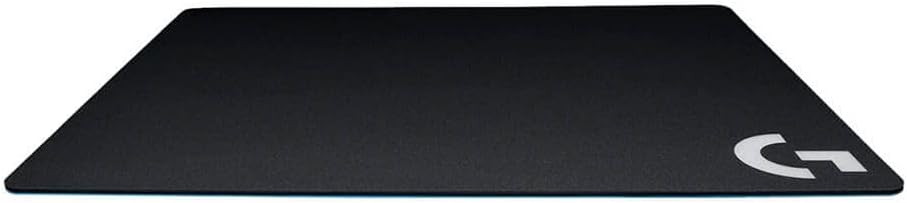
Image 1: The Logitech G440 Hard Gaming Mouse Pad, showcasing its sleek black design and durable surface.
Operating Instructions
The G440 mouse pad is designed to provide a consistent and low-friction surface for your gaming mouse. Its hard polymer surface is optimized for high-DPI mouse movements, allowing for quick and precise cursor control.
- Smooth Gliding: The hard surface allows your mouse to glide effortlessly, reducing the effort required for large movements.
- Precision Tracking: The consistent surface texture ensures accurate sensor tracking, crucial for competitive gaming.
- Stability: The rubber base prevents the mouse pad from shifting, even during intense gaming sessions.

Image 2: The Logitech G440 mouse pad in use with a gaming mouse, demonstrating its functional surface.
Maintenance
To ensure the longevity and optimal performance of your Logitech G440 Hard Gaming Mouse Pad, follow these maintenance guidelines:
- Cleaning the Surface: Use a soft, damp cloth to wipe down the hard polymer surface. For stubborn dirt, a mild soap solution can be used, followed by wiping with a clean, damp cloth. Avoid harsh chemicals or abrasive cleaners.
- Drying: Allow the mouse pad to air dry completely before use. Do not expose it to direct sunlight or high heat.
- Storage: When not in use, store the mouse pad flat to prevent warping or damage to the surface.
- Avoid Bending: Do not bend or fold the mouse pad, as this can permanently damage the hard surface.
Troubleshooting
If you encounter issues with your G440 mouse pad, consider the following common solutions:
- Mouse Tracking Issues:
- Ensure the mouse pad surface is clean and free of dust or debris.
- Clean the optical sensor of your mouse.
- If using a Logitech G mouse, recalibrate the sensor to the G440 surface using Logitech G HUB software.
- Mouse Pad Slipping:
- Ensure the desk surface beneath the mouse pad is clean and dry.
- Verify the mouse pad is placed on a flat, even surface.
- Rough Edges: Some users report sharp edges initially. This can often be smoothed gently with a fine-grit emery board or sandpaper, focusing only on the very edge where contact is made. Proceed with caution to avoid damaging the surface.
Specifications
| Feature | Detail |
|---|---|
| Model Number | 943-000098 |
| Surface Material | Hard Polymer |
| Base Material | Rubber |
| Dimensions (L x W x H) | 13.39 x 11.02 x 0.12 inches (340 x 280 x 3 mm) |
| Item Weight | 8 ounces (226.8 grams) |
| Optimized For | High DPI Gaming |

Image 3: Detailed dimensions of the Logitech G440 Hard Gaming Mouse Pad.
Warranty and Support
Logitech products are manufactured to high quality standards. For specific warranty information and customer support, please refer to the warranty card included with your product or visit the official Logitech support website. Keep your purchase receipt as proof of purchase for warranty claims.
For additional assistance, you may visit the Logitech Store on Amazon.