
1. Introduction
The DNP DS620A is a professional dye-sublimation photo printer designed for high-quality, rapid photo production. It is capable of producing up to 400 prints per hour, with a print speed of approximately 8.3 seconds for a 4x6 inch print. This printer supports various print formats, including 2x6 inch photobooth strips, 4x6 inch, 5x7 inch, and 6x8 inch enlargements. It also features a unique watermark option for the back of photos and produces prints with high gloss and vivid colors. The DS620A incorporates energy-saving features, including a standby mode, and is compatible with Hot Folder Print (HFP) Utility version 2.1 and mini photobook software. Mac users can utilize a specific driver for square photo prints (6x6 inch and 5x5 inch).
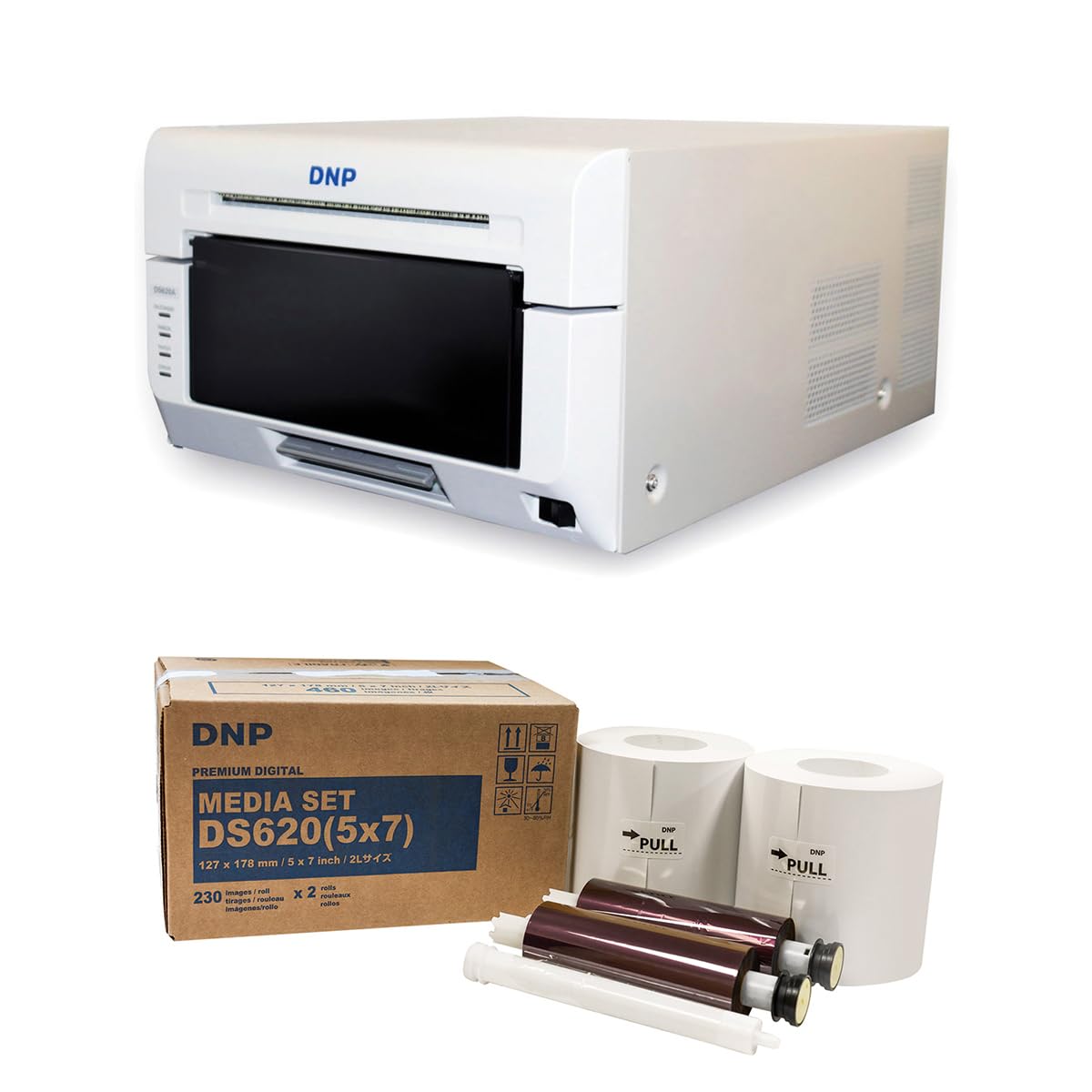
Image 1.1: Front view of the DNP DS620A Professional Photo Printer. The printer is white with a black front panel where prints exit.
2. Package Contents
Verify that all items listed below are included in your package:
- DNP DS620A Printer Unit
- 4x6 inch Print Catcher
- 5x7 inch Spacer
- USB Cable
- Power Cord
- Driver CD
- DNP 5x7 inch Dye Sub Media (for initial use)

Image 2.1: DNP 5x7 inch Dye Sub Media Set, including paper rolls and ribbon cartridges, packaged in a brown box.
3. Setup
3.1 Unpacking and Placement
- Carefully remove the printer and all accessories from the packaging.
- Place the printer on a stable, level surface with adequate ventilation. Ensure sufficient space around the printer for media loading and print output.
3.2 Connecting Power
- Connect the power cord to the printer's power input and then to a grounded electrical outlet.
- Do not power on the printer until all other connections are made.
3.3 Connecting to a Computer
- Connect the provided USB cable from the printer to an available USB port on your computer.
3.4 Driver Installation
- Insert the Driver CD into your computer's optical drive and follow the on-screen instructions to install the printer drivers.
- Alternatively, download the latest drivers from the official DNP website for your operating system.
- For Mac users, ensure you install the specific Mac driver to enable features like square photo prints.
3.5 Loading Media
- Open the printer's front cover.
- Carefully load the DNP dye-sublimation paper roll and ribbon cartridge according to the instructions provided inside the printer or in the quick start guide.
- Ensure the media is correctly seated to prevent jams or print errors.
4. Operating Instructions
4.1 Powering On and Off
- To power on, press the power button located on the printer. The indicator light will illuminate.
- To power off, press and hold the power button until the printer shuts down.
4.2 Printing Photos
- Ensure the printer is powered on and connected to your computer.
- Open the image you wish to print using your preferred photo editing or printing software.
- Select the DNP DS620A as your printer.
- In the printer settings, choose your desired print size (e.g., 4x6 inch, 5x7 inch, 6x8 inch, 2x6 inch strips).
- For square prints (6x6 inch or 5x5 inch), ensure you are using the appropriate media pack (6x8 inch for 6x6 inch, 5x7 inch for 5x5 inch) and that the Mac driver is correctly configured.
- Initiate the print command. The printer will process and output the photo.

Image 4.1: The DNP DS620A printer in operation, with a photo emerging from the output slot.
4.3 Advanced Features
- Watermark Feature: The printer can apply a unique watermark to the back of your photos. Refer to the driver settings for configuration.
- Hot Folder Print (HFP) Utility: Utilize HFP Utility version 2.1 for multi-cut support for 4x6 inch and additional sizes.
- Mini Photobook Software: The printer supports the mini photobook software application for creative projects.
- Standby Mode: The printer features a standby mode to reduce energy consumption when not actively printing.
5. Maintenance
5.1 Cleaning the Printer
- Regularly clean the exterior of the printer with a soft, dry cloth.
- Avoid using abrasive cleaners or solvents.
- Refer to the detailed cleaning instructions in the full manual for internal components.
5.2 Media Handling and Storage
- Store dye-sublimation media in a cool, dry place away from direct sunlight.
- Handle media by the edges to avoid fingerprints or damage to the printing surface.
- Replace media rolls and ribbon cartridges as instructed by the printer or when print quality degrades.
6. Troubleshooting
This section provides general guidance for common issues. For detailed troubleshooting, consult the comprehensive DNP DS620A service manual or contact customer support.
6.1 Printer Not Responding
- Ensure the printer is powered on and the power cord is securely connected.
- Verify the USB cable is firmly connected to both the printer and the computer.
- Check the printer's status lights for any error indicators.
- Restart both the printer and the computer.
6.2 Print Quality Issues
- Ensure the correct media type is loaded and that it is not damaged or expired.
- Check for any dust or debris inside the printer that might affect print quality.
- Verify that the printer drivers are up to date.
- Perform a test print to diagnose specific quality issues.
6.3 Media Jams
- Power off the printer immediately.
- Carefully open the printer cover and remove any jammed media following the instructions in the full manual. Avoid tearing the paper.
- Ensure media is loaded correctly and not overfilled.
7. Specifications
| Feature | Specification |
|---|---|
| Brand | DNP |
| Model Name | DS620A |
| Printing Technology | Dye Sublimation |
| Connectivity Technology | USB |
| Printer Output | Color |
| Maximum Print Speed (Color) | 1 ppm (approx. 8.3 seconds for 4x6") |
| Resolution | 300 x 300 dpi |
| Ink Color | CMYK |
| Print Media | Glossy photo paper |
| Paper Sizes Supported | 3.5x5, 4x6, 5x7, 6x8, 8x10 inches (and multi-cut options like 2x6, 5x5, 6x6) |
| Maximum Sheet Capacity | 400 (4x6 inch prints per roll) |
| Item Weight | 37.65 Pounds |
| Special Feature | Wireless (via optional accessory), Standby Mode |
| Controller Type | iOS (via App) |
8. Warranty and Support
8.1 Warranty Information
The DNP DS620A Professional Photo Printer typically includes a 3-Year Limited Warranty. This warranty covers defects in materials and workmanship under normal use. Please refer to the warranty card included with your product or visit the official DNP website for complete terms and conditions.

Image 8.1: The DNP DS620A printer alongside a badge indicating a 3-Year Advance Exchange Extended Warranty.
8.2 Customer Support
For technical assistance, troubleshooting beyond this manual, or warranty claims, please contact DNP customer support. Contact information can typically be found on the DNP official website or in the documentation included with your printer.


