
Brydge BRY5103
Brydge 7.9 Keyboard User Manual for iPad Mini (2019) and iPad Mini 4
Model: BRY5103
1. Introduction
The Brydge 7.9 Keyboard is designed to enhance the functionality of your iPad Mini (2019) or iPad Mini 4, transforming it into a versatile laptop-like device. This keyboard features a full QWERTY layout with backlit keys and dedicated iOS function keys, providing a comfortable and efficient typing experience. Constructed from 100% high-grade aluminum, it offers durability and a premium aesthetic that complements your iPad.
The patented hinges allow for a 180-degree viewing angle, securing your iPad in various positions. The keyboard connects wirelessly via Bluetooth and can be easily detached when not needed. Its slim and lightweight design ensures portability without compromising on build quality.

This manual provides detailed instructions for setting up, operating, and maintaining your Brydge 7.9 Keyboard.
2. Safety Information
- Do not expose the keyboard to liquids or extreme temperatures.
- Avoid dropping or subjecting the keyboard to severe impacts.
- Keep out of reach of children.
- Use only the provided charging cable or a certified equivalent.
- Do not attempt to disassemble or repair the keyboard yourself. This may void the warranty.
3. What's in the Box
- Brydge 7.9 Keyboard
- USB Charging Cable
- User Manual (this document)
4. Setup
4.1 Attaching Your iPad
- Ensure your iPad Mini (2019) or iPad Mini 4 is clean and free of debris.
- Gently align the iPad with the hinges of the Brydge keyboard.
- Carefully slide the iPad into the hinges until it is securely seated. The hinges are designed to hold the iPad firmly.

4.2 Charging the Keyboard
Before initial use, fully charge your Brydge keyboard. Connect the provided USB charging cable to the charging port on the keyboard and the other end to a USB power adapter (not included) or a computer's USB port. The charging indicator light will show the charging status.
4.3 Bluetooth Pairing
- Turn on the Brydge keyboard by pressing the power button.
- On your iPad, go to Settings > Bluetooth.
- Ensure Bluetooth is enabled on your iPad.
- On the Brydge keyboard, press and hold the Bluetooth key (often indicated by a Bluetooth symbol) for a few seconds until the Bluetooth indicator light flashes.
- On your iPad, select 'Brydge Keyboard' from the list of available devices.
- Follow any on-screen prompts to complete the pairing process. The indicator light on the keyboard will turn solid to confirm a successful connection.
5. Operating the Keyboard
5.1 General Typing
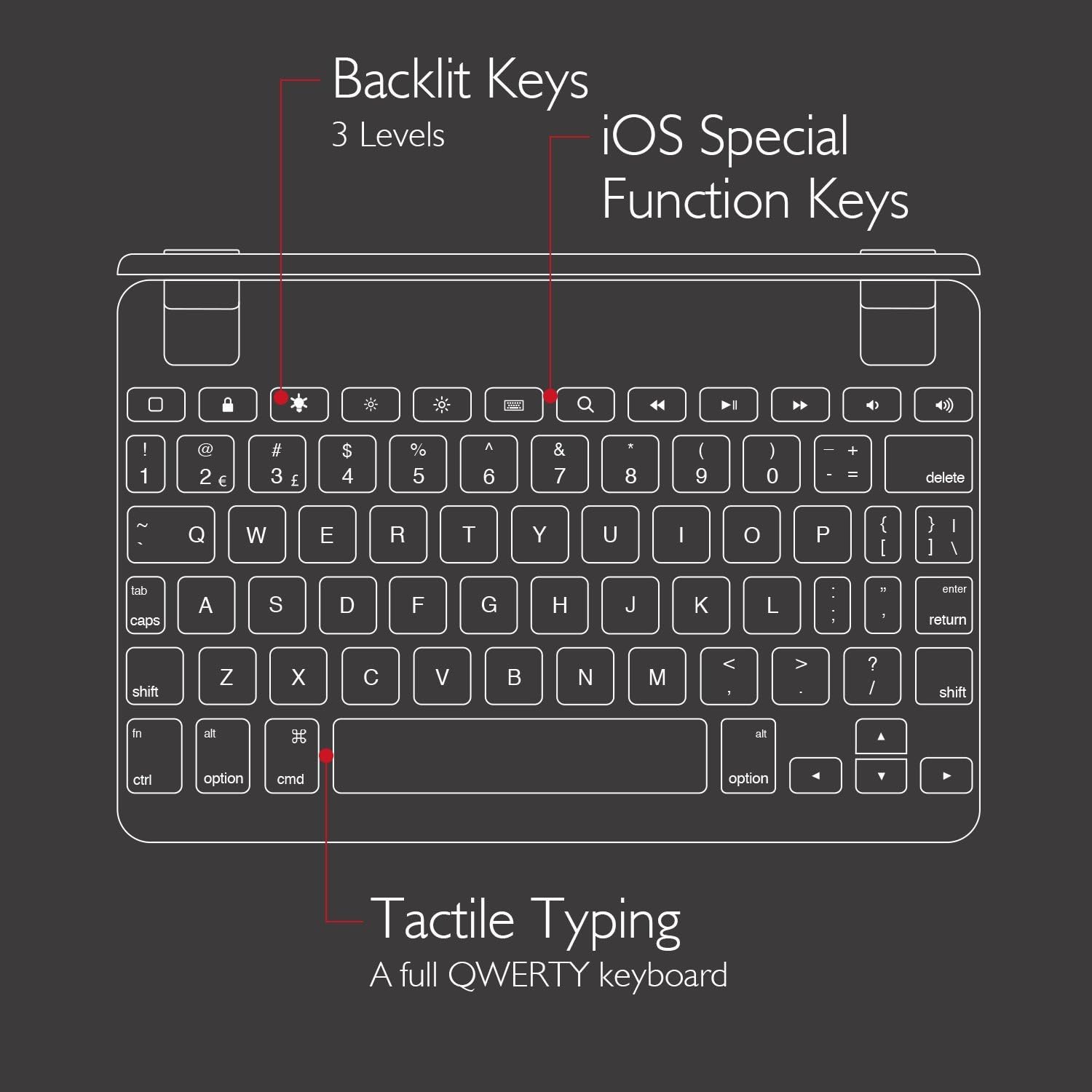
The Brydge 7.9 Keyboard provides a full QWERTY layout for comfortable and efficient typing. Keys offer a responsive tactile feedback.
5.2 Backlit Keys
The keyboard features backlit keys with three adjustable brightness levels. To adjust the backlight, press the dedicated backlight key (often indicated by a sun or light bulb icon) repeatedly to cycle through the brightness settings or turn the backlight off.
5.3 iOS Special Function Keys
The top row of the keyboard includes dedicated iOS special function keys for quick access to common iPad features, such as:
- Home screen
- Screen brightness adjustment
- Search
- Media playback controls (play/pause, next/previous track)
- Volume control
- Lock screen

5.4 180-Degree Viewing and Detachable Design
The keyboard's patented hinges allow the iPad to rotate up to 180 degrees, offering various viewing angles for typing, watching media, or presenting. The iPad can also be easily removed from the hinges if you prefer to use it as a standalone tablet.

6. Maintenance
6.1 Cleaning
- To clean the keyboard, use a soft, lint-free cloth.
- For stubborn marks, slightly dampen the cloth with water or a mild, non-abrasive cleaner.
- Avoid spraying cleaners directly onto the keyboard.
- Ensure the keyboard is completely dry before use or charging.
6.2 Storage
When not in use, store the keyboard in a cool, dry place away from direct sunlight and extreme temperatures. If storing for an extended period, ensure the keyboard has a partial charge (around 50%) to preserve battery health.
7. Troubleshooting
7.1 Keyboard Not Connecting via Bluetooth
- Ensure the keyboard is powered on and fully charged.
- Verify Bluetooth is enabled on your iPad.
- Try unpairing and re-pairing the keyboard from your iPad's Bluetooth settings.
- Restart both your iPad and the Brydge keyboard.
- Move the keyboard closer to your iPad to rule out interference.
7.2 Keys Not Responding
- Check if the keyboard is properly connected via Bluetooth.
- Ensure the keyboard is charged.
- If specific keys are not working, try cleaning around the keys to remove any debris.
- Perform a hard reset on the keyboard (refer to manufacturer's website for specific instructions if needed, as this model may not have a dedicated reset button).
7.3 Backlight Not Working
- Ensure the keyboard is sufficiently charged, as low battery can disable backlighting.
- Press the backlight key to cycle through brightness levels.
8. Specifications
| Brand | Brydge |
| Model Number | BRY5103 |
| Compatible Devices | iPad Mini (2019), iPad Mini 4 |
| Connectivity Technology | Bluetooth |
| Keyboard Description | Wireless |
| Special Features | Backlit, Rechargeable, 180-degree rotating hinges, Detachable |
| Material | 100% High-Grade Aluminum |
| Color | Gold (as per product listing, other colors may vary) |
| Item Weight | Approximately 11 ounces (312 grams) |
| Product Dimensions (LxWxH) | 7.9 x 5.3 x 0.3 inches (20.07 x 13.46 x 0.76 cm) |
| Power Source | Battery Powered (1 Lithium Ion battery included) |

9. Warranty and Support
9.1 Warranty Information
Specific warranty details for your Brydge 7.9 Keyboard may vary by region and retailer. Please refer to the warranty card included with your product or visit the official Brydge website for the most up-to-date warranty information.
9.2 Customer Support
For technical assistance, troubleshooting, or general inquiries, please contact Brydge customer support through their official website. You may also find additional resources, FAQs, and support articles online.
Ask a question about this manual
Ask about setup, troubleshooting, compatibility, parts, safety, or missing instructions. Manuals+ will review the question and use this page’s manual context to help answer it.