
Imperial 22-231-00
Imperial DABMAN i200 User Manual
Model: 22-231-00
Introduction
The Imperial DABMAN i200 is a versatile multifunctional stereo radio designed for comprehensive audio entertainment. It supports DAB+, FM, and internet radio reception, offering access to a vast array of stations worldwide. With integrated Wi-Fi and Ethernet connectivity, DLNA/UPnP compatibility, and app remote control, the DABMAN i200 provides a modern and user-friendly listening experience. Key features include a clear TFT color display, powerful stereo speakers, and a convenient weather forecast function.
Important Safety Information
- Power Source: Use only the provided power adapter. Ensure the voltage matches the requirements specified on the device.
- Ventilation: Do not block any ventilation openings. Maintain adequate space around the unit for proper airflow to prevent overheating.
- Water and Moisture: Do not expose the device to rain, moisture, dripping, or splashing. Do not place objects filled with liquids, such as vases, on the apparatus.
- Cleaning: Unplug the device before cleaning. Use a soft, dry cloth. Do not use liquid cleaners or aerosol cleaners.
- Servicing: Do not attempt to service this product yourself. Refer all servicing to qualified service personnel.
- Placement: Place the unit on a stable, flat surface. Avoid placing it near heat sources or in direct sunlight.
Package Contents
Please check that all items are present and in good condition:
- Imperial DABMAN i200 Radio Unit
- Remote Control (including batteries)
- Power Adapter
- Audio Cable (AUX)
- User Manual (this document)
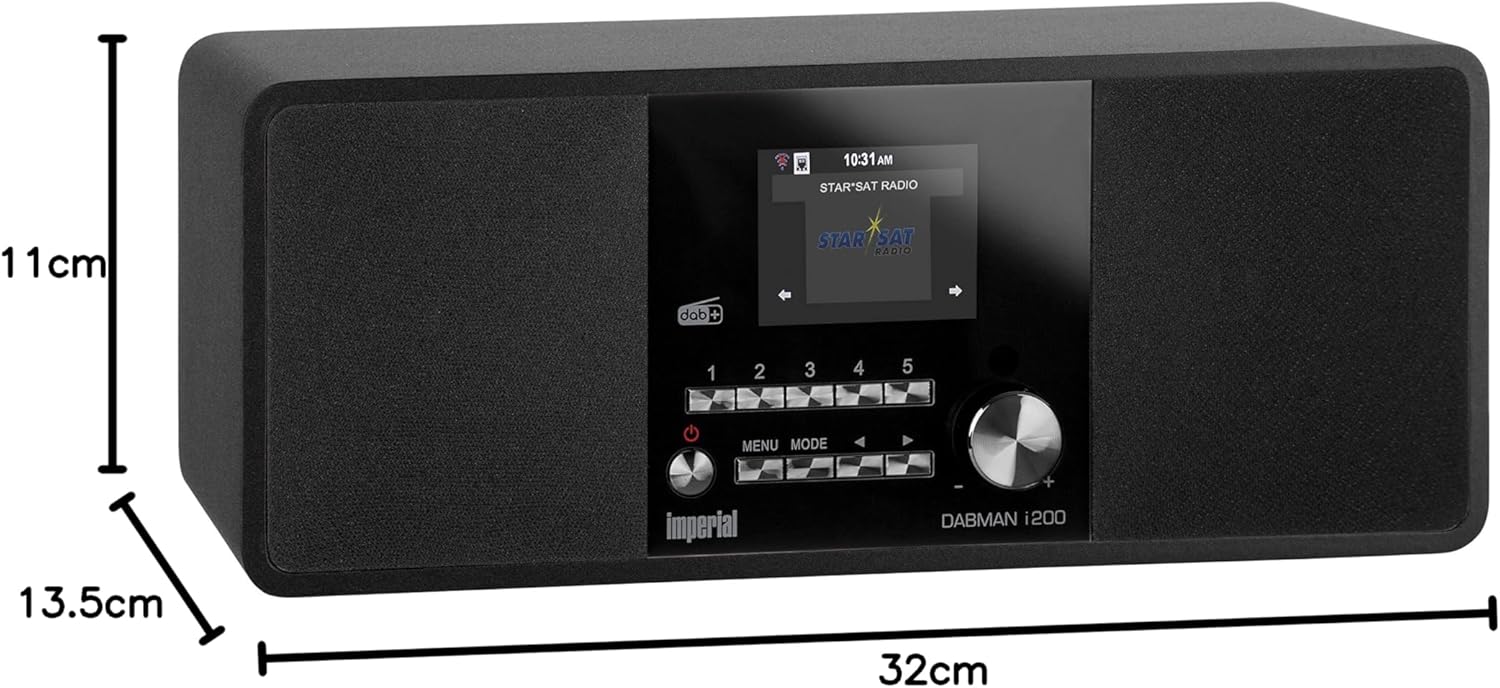
Image: Contents of the Imperial DABMAN i200 package, including the radio, remote, power adapter, and cables.
Product Overview
Front Panel

Image: Front view of the DABMAN i200, highlighting the central display, five preset buttons, power/volume knob, menu/mode buttons, and navigation controls.
- Display: 2.8-inch (7.2cm) TFT color display for showing station information, menus, and settings.
- Preset Buttons (1-5): Quickly access your favorite radio stations.
- Power/Volume Knob: Turn the unit on/off and adjust the volume.
- Menu Button: Access the main menu.
- Mode Button: Switch between different operating modes (Internet Radio, DAB+, FM, Media Player, AUX).
- Navigation Buttons (Left/Right/Up/Down/OK): Navigate through menus and select options.
Rear Panel

Image: Rear view of the DABMAN i200, detailing the connectivity ports: DC 12V/3A power input, USB 5V/1A port, LAN (Ethernet) port, AUX IN, Line OUT, and Headphone OUT. Also visible is the ON/OFF switch and the telescopic antenna.
- ON/OFF Switch: Main power switch for the unit.
- DC 12V/3A Input: Connect the provided power adapter here.
- USB 5V/1A Port: For media playback from USB storage devices.
- LAN Port (Ethernet): For wired network connection.
- AUX IN: 3.5mm audio input for connecting external audio sources.
- Line OUT: Audio output for connecting to external amplifiers or speakers.
- Headphone OUT: 3.5mm jack for connecting headphones.
- Telescopic Antenna: For DAB+ and FM radio reception.
Setup
1. Power Connection
- Connect the power adapter to the DC 12V/3A input on the rear of the DABMAN i200.
- Plug the power adapter into a wall outlet.
- Flip the ON/OFF switch on the rear panel to the 'ON' position.
- Press the Power/Volume knob on the front panel to turn on the unit.
2. Antenna Connection
For optimal DAB+ and FM radio reception, fully extend the telescopic antenna located on the rear of the unit.
3. Network Connection (Internet Radio & Updates)
The DABMAN i200 supports both Wi-Fi and wired Ethernet connections.
Wi-Fi Connection:
- Upon first power-on, the unit will guide you through the initial setup wizard. Select your preferred language.
- When prompted for network setup, select "Wireless Network".
- The radio will scan for available Wi-Fi networks. Select your network from the list.
- Enter your Wi-Fi password using the navigation buttons and the 'OK' button.
- Confirm the connection. The radio will display "Connected" once successful.
Ethernet Connection:
- Connect an Ethernet cable from your router to the LAN port on the rear of the DABMAN i200.
- The radio will automatically detect the wired connection and obtain an IP address via DHCP.
4. Initial Setup Wizard
After connecting to power and network for the first time, the DABMAN i200 will guide you through a setup wizard. Follow the on-screen instructions to:
- Select Language
- Set Date and Time (can be synchronized via network)
- Configure Network (as described above)
- Perform a DAB+ scan (optional, can be done later)
Operating Instructions
Basic Navigation
- Power On/Off: Press the Power/Volume knob.
- Volume Control: Rotate the Power/Volume knob.
- Change Mode: Press the MODE button to cycle through Internet Radio, DAB+, FM, Media Player, and AUX.
- Menu Access: Press the MENU button to enter the main menu for the current mode or system settings.
- Navigation: Use the Left/Right/Up/Down buttons to move through options. Press OK to confirm a selection.
- Back: Use the Left navigation button to go back to the previous screen.
Internet Radio
Access thousands of radio stations from around the world via your internet connection.
- Press MODE until "Internet Radio" is selected.
- Navigate through categories such as "Location", "Genre", "Popular Stations", or "Search".
- Select a station using the navigation buttons and OK.
- Saving Presets: While a station is playing, press and hold one of the preset buttons (1-5) until "Preset Saved" appears. To recall, simply press the corresponding preset button.
- Spotify Connect: If you have a Spotify Premium account, you can stream music directly to your DABMAN i200. Ensure both your radio and Spotify device are on the same network. Select the DABMAN i200 as the playback device within the Spotify app.
DAB+ Radio
Enjoy high-quality digital radio broadcasts.
- Press MODE until "DAB+" is selected.
- If this is the first time, or if you want to rescan, go to Menu > Scan to find available DAB+ stations.
- Use the navigation buttons to browse the list of found stations. Press OK to select.
- Saving Presets: Similar to Internet Radio, press and hold a preset button (1-5) to save the current station.
FM Radio
Tune into traditional analog FM broadcasts.
- Press MODE until "FM" is selected.
- Use the navigation buttons to manually tune the frequency, or go to Menu > Auto Scan to find stations automatically.
- Saving Presets: Similar to other modes, press and hold a preset button (1-5) to save the current station.
Media Playback (USB / DLNA/UPnP)
Play your own music files from a USB drive or network-connected devices.
USB Playback:
- Insert a USB flash drive into the USB port on the rear panel.
- Press MODE and select "Media Player".
- Navigate to "USB Playback" and browse your music files.
DLNA/UPnP Playback:
- Ensure your DLNA/UPnP server (e.g., a computer with media sharing enabled, or a NAS) is active on the same network as the DABMAN i200.
- Press MODE and select "Media Player".
- Navigate to "DLNA/UPnP" and select your server. Browse and play your media.
Alarm Clock and Sleep Timer
- Alarm Clock: Set up to two independent alarms. Go to Menu > System Settings > Alarm. Configure alarm time, source (buzzer, Internet Radio, DAB+, FM), volume, and recurrence.
- Sleep Timer: Set the radio to turn off automatically after a specified period. Go to Menu > System Settings > Sleep Timer and select the desired duration.
App Control (AirMusic Control)
Control your DABMAN i200 conveniently from your smartphone or tablet using the free AirMusic Control app (available for iOS and Android).
- Download and install the "AirMusic Control" app from your device's app store.
- Ensure your smartphone/tablet is connected to the same Wi-Fi network as your DABMAN i200.
- Open the app. It should automatically detect your radio.
- You can now control modes, volume, browse stations, and manage settings directly from the app.
Weather Forecast
The DABMAN i200 can display a 5-day weather forecast for your selected location.
- Access this feature via Menu > Weather.
- You may need to set your location in the system settings for accurate forecasts.
- The weather forecast can also be displayed alternately with the clock in standby mode.
Maintenance
- Cleaning: Gently wipe the unit with a soft, dry, lint-free cloth. Do not use abrasive cleaners, waxes, or solvents.
- Software Updates: Periodically check for software updates to ensure optimal performance and access to new features. Go to Menu > System Settings > Software Update. If an update is available, follow the on-screen instructions. Do not power off the unit during an update.
- Storage: If storing the unit for an extended period, disconnect it from power and store it in a cool, dry place.
Troubleshooting
| Problem | Possible Cause / Solution |
|---|---|
| No power / Unit does not turn on. |
|
| No sound. |
|
| Cannot connect to Wi-Fi. |
|
| Poor DAB+ or FM reception. |
|
| Internet radio buffering or disconnecting. |
|
| Remote control not working. |
|
Specifications
| Model Number | 22-231-00 |
| Brand | Imperial |
| Tuner Technology | Internet radio, DAB+, DAB, FM, FM/AM |
| Connectivity | Wi-Fi, Ethernet, AUX input, USB 2.0, Headphone Out, Line Out |
| Display | 2.8-inch (7.2cm) TFT Color Display |
| Audio Output | 2 x 10W Stereo Speakers |
| Power Source | Corded Electric (DC 12V/3A) |
| Product Dimensions (L x W x H) | 32.3 x 11 x 13.6 cm |
| Weight | 1.9 kg |
| Special Features | Integrated clock, Spotify Connect, App control (AirMusic Control), DLNA/UPnP compatible, 5-day weather forecast |
| Included Components | Remote Control, Audio Cable, Power Adapter, User Manual |

Image: Dimensions of the Imperial DABMAN i200 radio.
Warranty and Support
For warranty information and technical support, please refer to the contact details provided by the manufacturer, IMPERIAL. Typically, products come with a standard manufacturer's warranty. Please retain your proof of purchase for any warranty claims.
Manufacturer: IMPERIAL
Country of Origin: Germany
For further assistance, you may visit the official Imperial website or contact their customer service. Specific contact details are usually found in the packaging or on the manufacturer's website.
Related documents22-231-00


Ask a question about this manual
Ask about setup, troubleshooting, compatibility, parts, safety, or missing instructions. Manuals+ will review the question and use this page’s manual context to help answer it.