
Logitech Z906
Logitech Z906 Surround Sound Speaker System and Bluetooth Audio Adapter User Manual
Introduction
This manual provides comprehensive instructions for the setup, operation, and maintenance of your Logitech Z906 Surround Sound Speaker System, bundled with a Bluetooth Audio Adapter. This system is designed to deliver theater-quality 5.1 sound, enhancing your audio experience for movies, music, and games.
What's in the Box
Verify that all components are present before proceeding with setup.
- Logitech Z906 Control Console
- Subwoofer
- Five Satellite Speakers (Front Left, Front Right, Center, Rear Left, Rear Right)
- Speaker Cables
- Remote Control with Batteries
- Logitech Bluetooth Audio Adapter
- RCA to 3.5mm Audio Cable (for Bluetooth Adapter)
- Power Cable

Image: The complete Logitech Z906 system, including the subwoofer, five satellite speakers, control console, and remote control, alongside the Bluetooth Audio Adapter.

Image: The Logitech Bluetooth Audio Adapter shown with its included RCA to 3.5mm audio cable and power adapter.
Setup
1. Speaker Placement
Optimal placement of the 5.1 speakers is crucial for an immersive surround sound experience. Position the speakers as follows:
- Front Left and Front Right Speakers: Place these on either side of your display, equidistant from your listening position.
- Center Speaker: Position directly above or below your display, centered.
- Rear Left and Rear Right Speakers: Place these behind your listening position, ideally slightly to the sides.
- Subwoofer: Can be placed anywhere in the room, typically on the floor near the front speakers. Experiment with placement for the best bass response.

Image: An example setup illustrating the placement of the five satellite speakers and subwoofer for a 5.1 surround sound configuration around a television.
2. Connecting the Speakers
- Connect each satellite speaker to the corresponding port on the subwoofer using the provided speaker cables. Ensure correct polarity (+ to + and - to -).
- Connect the control console to the subwoofer using the multi-pin cable.
- Connect your audio sources (e.g., TV, game console, PC) to the control console using appropriate audio cables (optical, coaxial, RCA, or 3.5mm). The system supports up to six devices.
- Connect the power cable from the subwoofer to a wall outlet.
3. Setting up the Bluetooth Audio Adapter
- Connect the Bluetooth Audio Adapter to an available audio input on the Z906 control console (e.g., RCA or 3.5mm AUX input) using the provided RCA to 3.5mm audio cable.
- Connect the Bluetooth Audio Adapter to a power source using its power adapter.
- On the Bluetooth Audio Adapter, press the pairing button. The indicator light will begin to blink, indicating it is in pairing mode.
- On your Bluetooth-enabled device (smartphone, tablet, etc.), go to the Bluetooth settings and select the Logitech Bluetooth Audio Adapter from the list of available devices to pair.
- Once paired, the indicator light on the adapter will turn solid.
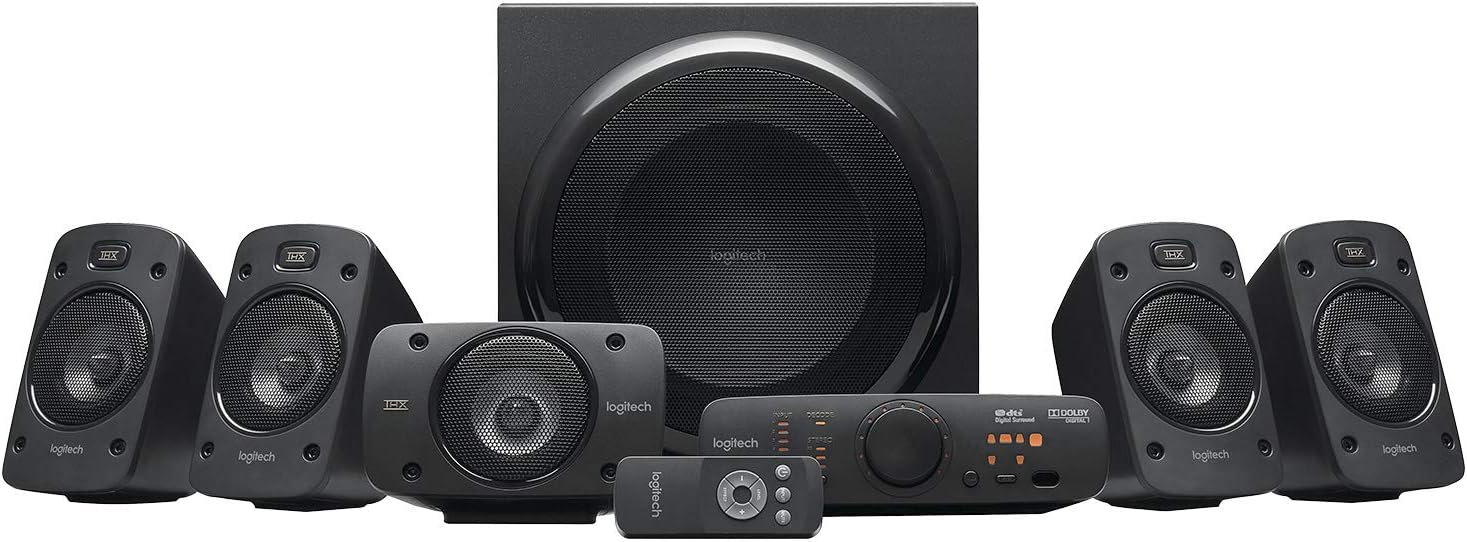
Image: A detailed view of the Logitech Z906 speaker system components, including the subwoofer, satellite speakers, control console, and remote control, ready for connection.
Operating the System
Power On/Off
Press the Power button on the control console or the remote control to turn the system on or off.
Input Selection
Use the Input button on the control console or remote to cycle through the available audio inputs (Digital Optical 1, Digital Optical 2, Digital Coaxial, Six-Channel Direct, RCA, 3.5mm AUX).
Volume Control
Adjust the master volume using the large dial on the control console or the Volume Up/Down buttons on the remote. Individual speaker levels (front, rear, center, subwoofer) can be adjusted via the control console's menu.
Sound Modes
The Z906 supports various sound modes, including 5.1 surround sound for Dolby Digital and DTS soundtracks, as well as 2.1 and 4.1 stereo modes. Select your preferred mode using the corresponding buttons on the control console or remote.
Bluetooth Streaming
Once the Bluetooth Audio Adapter is paired and selected as the input on the Z906, you can stream audio wirelessly from your paired device. Ensure your device's volume is also adjusted.
Maintenance
To ensure the longevity and optimal performance of your Logitech Z906 system:
- Cleaning: Use a soft, dry cloth to clean the surfaces of the speakers, subwoofer, and control console. Avoid abrasive cleaners or solvents.
- Ventilation: Ensure the subwoofer and control console have adequate ventilation to prevent overheating. Do not block vents.
- Environment: Avoid exposing the system to extreme temperatures, humidity, or direct sunlight.
- Cables: Periodically check all cable connections to ensure they are secure.
Troubleshooting
No Sound
- Ensure the system is powered on and not muted.
- Verify that the correct input source is selected on the control console.
- Check all speaker and audio source connections for proper seating.
- Increase the master volume and the volume on your audio source device.
Bluetooth Connectivity Issues
- Ensure the Bluetooth Audio Adapter is powered on and connected to the Z906 system.
- Confirm the Z906 input is set to the input connected to the Bluetooth adapter.
- Make sure the Bluetooth adapter is in pairing mode (blinking light) if you are trying to connect a new device.
- Unpair and re-pair the adapter with your device.
- Ensure your Bluetooth device is within the 15-meter (50-foot) range of the adapter.
Audio Delays (e.g., with music production)
While the Bluetooth Audio Adapter provides convenient wireless streaming, some applications, particularly those requiring precise timing like music production software (e.g., Ableton Live, MPC Beats), may experience slight audio delays (latency). For critical audio tasks, it is recommended to use a direct wired connection (e.g., 3.5mm or RCA) or an external sound card to minimize latency.
Specifications
| Model Name | Z906 |
| Speaker Type | Surround Sound, Satellite, Subwoofer, Computer, Coaxial |
| Surround Sound Channel Configuration | 5.1 |
| Speaker Maximum Output Power | 1000 Watts (Peak) |
| Connectivity Technology | Wired (Optical, Coaxial, RCA, 3.5mm), Bluetooth (via adapter) |
| Bluetooth Range | 15 Meters (50 Feet) |
| Signal-to-Noise Ratio | 74 dB |
| Compatible Devices | Desktop, Laptop, MP3 Player, Projector, Smartphone, Tablet, Television |
| Product Dimensions | 3.7 x 6.6 x 4 inches (Control Console) |
| Manufacturer | Logitech |
Warranty and Support
The Logitech Z906 Surround Sound Speaker System comes with a Limited Warranty. For detailed warranty information, technical support, or to access additional resources, please visit the official Logitech support website. You can find contact information and FAQs there.
Manufacturer: Logitech
Warranty Type: Limited
For further assistance, please refer to the official Logitech support channels.
Related documentsZ906


Ask a question about this manual
Ask about setup, troubleshooting, compatibility, parts, safety, or missing instructions. Manuals+ will review the question and use this page’s manual context to help answer it.