
1. Introduction
This manual provides detailed instructions for the installation, operation, and maintenance of your Planet Audio PNV9650 in-dash navigation touchscreen DVD receiver. Please read this manual thoroughly before using the product to ensure proper operation and to prevent damage.
The PNV9650 is a versatile car entertainment system featuring a 6.5-inch touchscreen, built-in navigation, Bluetooth connectivity for hands-free calling and audio streaming, DVD/CD playback, USB/SD media support, and AM/FM radio.
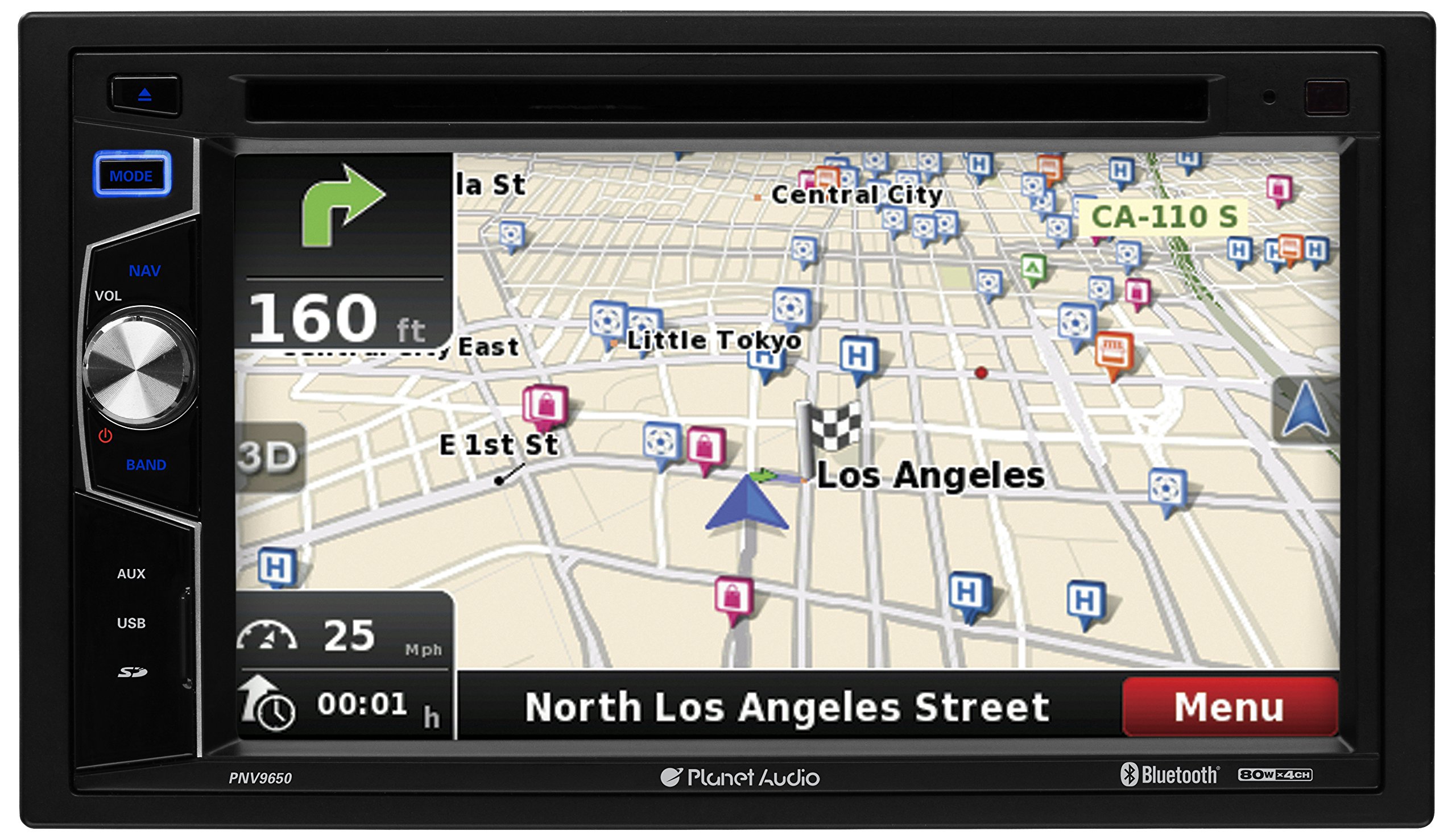
Figure 1.1: Planet Audio PNV9650 Main Unit
This image displays the front view of the Planet Audio PNV9650 in-dash receiver, showcasing its 6.5-inch touchscreen display, control knobs, and media slots. The screen shows a navigation map interface.
2. Setup and Installation
2.1 Unpacking and Contents
Carefully unpack the unit and verify that all items are present. The package should include:
- PNV9650 Main Unit
- Wiring Harness
- GPS Antenna
- Remote Control
- Mounting Hardware
- User Manual (this document)

Figure 2.1: Included Accessories
This image shows the various components included with the PNV9650 unit, such as the GPS antenna, wiring harness, mounting brackets, screws, and a stylus.
2.2 Installation Guidelines
The PNV9650 is a double-DIN unit designed for in-dash installation. Professional installation is highly recommended to ensure correct wiring and functionality. Incorrect installation can lead to damage to the unit or vehicle electrical system.
- Ensure the vehicle's battery is disconnected before starting installation.
- Mount the unit securely in the dashboard opening.
- Connect all wiring according to the wiring diagram provided in this section.
- Ensure proper grounding to the vehicle chassis.
2.3 Wiring Diagram
Refer to the following image for the wiring connections. Each wire is labeled for its specific function.

Figure 2.2: Rear Panel Wiring
This image displays the rear panel of the PNV9650 unit, showing the various input and output ports, including the main wiring harness connector, RCA audio/video jacks, and the GPS antenna input. Each wire in the harness is color-coded and labeled for specific functions like power, ground, speaker outputs, and accessory connections.
Key Connections:
- Power (Yellow): Constant 12V+
- Accessory (Red): Switched 12V+ (Ignition)
- Ground (Black): Connect to vehicle chassis
- Speaker Wires: Connect to corresponding vehicle speakers (e.g., White/White-Black for Front Left, Gray/Gray-Black for Front Right, Green/Green-Black for Rear Left, Purple/Purple-Black for Rear Right).
- Rear Camera Input: Connect to a compatible rear-view camera.
- GPS Antenna: Connect the provided GPS antenna and mount it in a location with a clear view of the sky.
- Steering Wheel Control (SWC): Connect to a compatible steering wheel control interface (sold separately).
2.4 Initial Power On
After installation, reconnect the vehicle battery. Press the power button on the unit or remote control to turn on the device. Follow any on-screen prompts for initial setup, such as language selection or time zone settings.
3. Operating Instructions
3.1 Basic Controls
The PNV9650 can be controlled via the touchscreen, front panel buttons, or the included wireless remote control.

Figure 3.1: Wireless Remote Control
This image displays the wireless remote control for the PNV9650 unit. It features buttons for power, mute, volume control, mode selection, navigation, audio settings, track/chapter skipping, and a numeric keypad for direct input.
- Power Button: Press to turn the unit on/off.
- Volume Knob/Buttons: Adjust audio output level.
- Mode Button: Cycle through available sources (Radio, DVD, USB, SD, Bluetooth, AUX, Navigation).
- Menu Button: Access main menu or settings.
- EQ Button: Access equalizer settings.
3.2 Bluetooth Operation
The PNV9650 supports Bluetooth for hands-free calling and audio streaming.
- Pairing:
- Go to the Bluetooth menu on the PNV9650.
- Enable Bluetooth on your mobile device and search for available devices.
- Select "PNV9650" from the list. Enter the PIN (usually "0000") if prompted.
- Once paired, the unit will display a confirmation.
- Hands-Free Calling:
- Use the touchscreen or remote to dial numbers, answer, or end calls.
- Your phonebook may sync automatically after pairing.
- Audio Streaming (A2DP):
- Select Bluetooth Audio as the source.
- Play music from your paired device. You can control playback (play/pause, skip tracks) from the PNV9650.
3.3 Navigation System
The PNV9650 features built-in navigation with map coverage of all 50 states and pre-loaded points of interest.

Figure 3.2: Navigation Interface
This image shows the PNV9650's display screen featuring its integrated navigation system. A detailed map is visible, indicating current location, route, and points of interest. Speed and estimated time of arrival are also displayed.
- Accessing Navigation: Press the NAV button on the front panel or select Navigation from the main menu.
- Entering Destinations: Use the touchscreen keyboard to input addresses, search for points of interest, or select from recent destinations.
- Route Guidance: The system provides turn-by-turn voice prompts (Text-to-Speech) and visual guidance.
- Map Updates: Map data may require periodic updates. Refer to the manufacturer's website for information on obtaining map updates.
3.4 DVD/CD Playback
Insert a DVD or CD into the disc slot. The unit will automatically switch to DVD/CD mode and begin playback. Use the on-screen controls or remote for playback functions (play, pause, skip, stop).
3.5 USB/SD Media Playback
Insert a USB drive into the USB port or an SD card into the SD card slot. The unit supports MP3 and WMA audio files. Select USB or SD as the source to browse and play media files.
3.6 AM/FM Radio
Select Radio as the source. Use the touchscreen or tuning buttons to scan for stations. You can save your favorite stations as presets for quick access.
4. Maintenance
4.1 Cleaning the Unit
- Use a soft, dry cloth to clean the unit's exterior.
- For the touchscreen, use a soft, lint-free cloth slightly dampened with water or a screen cleaning solution. Do not use abrasive cleaners or solvents.
- Avoid spraying liquids directly onto the unit.
4.2 General Care
- Keep the unit free from dust and debris.
- Avoid exposing the unit to extreme temperatures or direct sunlight for extended periods.
- Ensure proper ventilation around the unit to prevent overheating.
5. Troubleshooting
If you encounter problems with your PNV9650, refer to the following common issues and solutions before contacting support.
| Problem | Possible Cause | Solution |
|---|---|---|
| Unit does not power on. | No power, blown fuse, incorrect wiring. | Check power connections (Yellow, Red, Black wires). Verify vehicle fuse and unit's inline fuse. Ensure proper grounding. |
| No sound or distorted sound. | Incorrect speaker wiring, volume too low, mute activated, EQ settings. | Check all speaker wire connections. Increase volume. Deactivate mute. Adjust EQ settings. |
| Bluetooth not connecting or dropping. | Device out of range, pairing issue, interference. | Ensure device is within range. Delete previous pairing and re-pair. Restart both devices. |
| Navigation not working or inaccurate. | GPS antenna not connected, poor satellite signal, outdated maps. | Ensure GPS antenna is securely connected and mounted with a clear view of the sky. Check for map updates. |
| DVD/CD not playing. | Disc dirty or damaged, incorrect disc format, disc inserted incorrectly. | Clean the disc. Ensure disc is inserted correctly. Verify disc format is supported. |
| Remote control not working. | Dead battery, obstruction, incorrect angle. | Replace remote battery. Ensure no obstruction between remote and unit. Point remote directly at the unit's IR sensor. |
6. Specifications
The following are key technical specifications for the Planet Audio PNV9650:
- Chassis Size: Double-DIN
- Display Type: TFT Touchscreen
- Max Power Output: 80 Watts x 4 Channels
- Preamp Voltage: 1 Volt
- Media Playback: DVD, CD, USB, SD, MP3, WMA, AM/FM
- Bluetooth: Hands-Free Calling, Audio Streaming (A2DP)
- Navigation: Built-in with map coverage of all 50 states, Pre-Loaded Points of Interest, Text-to-Speech
- Inputs: USB/Video, USB Charging, SD, AUX, Rear Camera, Steering Wheel Control Interface (Interface Sold Separately)
- Outputs: Video, Front, Rear & Subwoofer Preamp Outputs
- Tuner: RDS Tuner, Switchable US & Europe Frequencies
- Equalizer: Balance/Fader/Bass/Treble and Preset built-in EQ
- Item Weight: Approximately 1 pound
- Product Dimensions: Approximately 1 x 1 x 1 inches (Note: Actual dimensions for double-DIN unit will vary, this is a general reference)
7. Warranty Information
The Planet Audio PNV9650 comes with a 3 Year Platinum Online Dealer Warranty. Please retain your proof of purchase for warranty claims. For specific terms and conditions, refer to the warranty card included with your product or visit the Planet Audio official website.
8. Support
For further assistance, technical support, or service inquiries regarding your Planet Audio PNV9650, please contact Planet Audio customer support. Contact information can typically be found on the official Planet Audio website or in the documentation included with your product.
When contacting support, please have your product model number (PNV9650) and proof of purchase readily available.


