
1. Introduction
The AULA F2010 Unicorn Backlit Mechanical Gaming Keyboard is designed for an enhanced gaming and typing experience. It features a durable construction, multi-color LED illumination, and responsive mechanical switches. This manual provides detailed instructions for setting up, operating, and maintaining your keyboard.
2. Package Contents
- AULA F2010 Mechanical Gaming Keyboard
- User Manual
- Keycap Puller
3. Setup Guide
3.1 System Requirements
- Operating System: Windows Vista / 7 / 8 / 10 / Mac OS
- Available USB Port
3.2 Connecting the Keyboard
- Locate an available USB port on your computer.
- Plug the USB connector of the AULA F2010 keyboard into the USB port.
- The keyboard will automatically install the necessary drivers. This may take a few moments.
- Once installation is complete, the keyboard's backlighting will illuminate, indicating it is ready for use.
4. Operating Instructions
4.1 Backlighting Control
The AULA F2010 features multi-color LED backlighting with adjustable brightness and various lighting effects.
- Adjusting Brightness: Press FN + PGUP to increase brightness. Press FN + PGDN to decrease brightness.
- Changing Lighting Modes: Press FN + INS to cycle through different lighting effects (e.g., strobe, glow, pulse).
- Customizing Lighting: Use FN + HOME to enter custom lighting mode. Specific keys can be lit according to user preference.
- Adjusting Effect Speed: Use FN + Left Arrow or FN + Right Arrow to adjust the speed of dynamic lighting effects.
4.2 Anti-Ghosting and Key Rollover
The keyboard features 100% Anti-Ghosting with 104 Key Roll-over on USB, ensuring that every key press is registered accurately, even during rapid, simultaneous inputs common in gaming.
4.3 Sleep Mode
To conserve energy, the keyboard will enter sleep mode and turn off all LEDs after 10 minutes of inactivity. Press any key to resume the LED backlight and normal operation.
4.4 Multimedia Shortcut Keys
The keyboard includes user-friendly shortcut function keys that can be activated in conjunction with the FN key for quick access to multimedia controls and other functions.
5. Product Features
- Elegant Design: Minimalist styled mechanical gaming keyboard with 6-color backlighting.
- Durable Construction: Features a brushed aluminum chassis for rugged, lifelong durability.
- Advanced Keycaps: AULA Armor Technology with highly durable Double-shot injection molding keycaps, suitable for all gaming circumstances.
- Environmental Resistance: Water resistant, dust-proof, and static-free design.
- Mechanical Switches: Equipped with Blue mechanical switches for a tactile and audible typing experience.

Image: Top-down view of the AULA F2010 keyboard, showcasing its full layout and vibrant multi-color backlighting.

Image: Angled view of the AULA F2010 keyboard, displaying the multi-color LED backlighting across the keys.
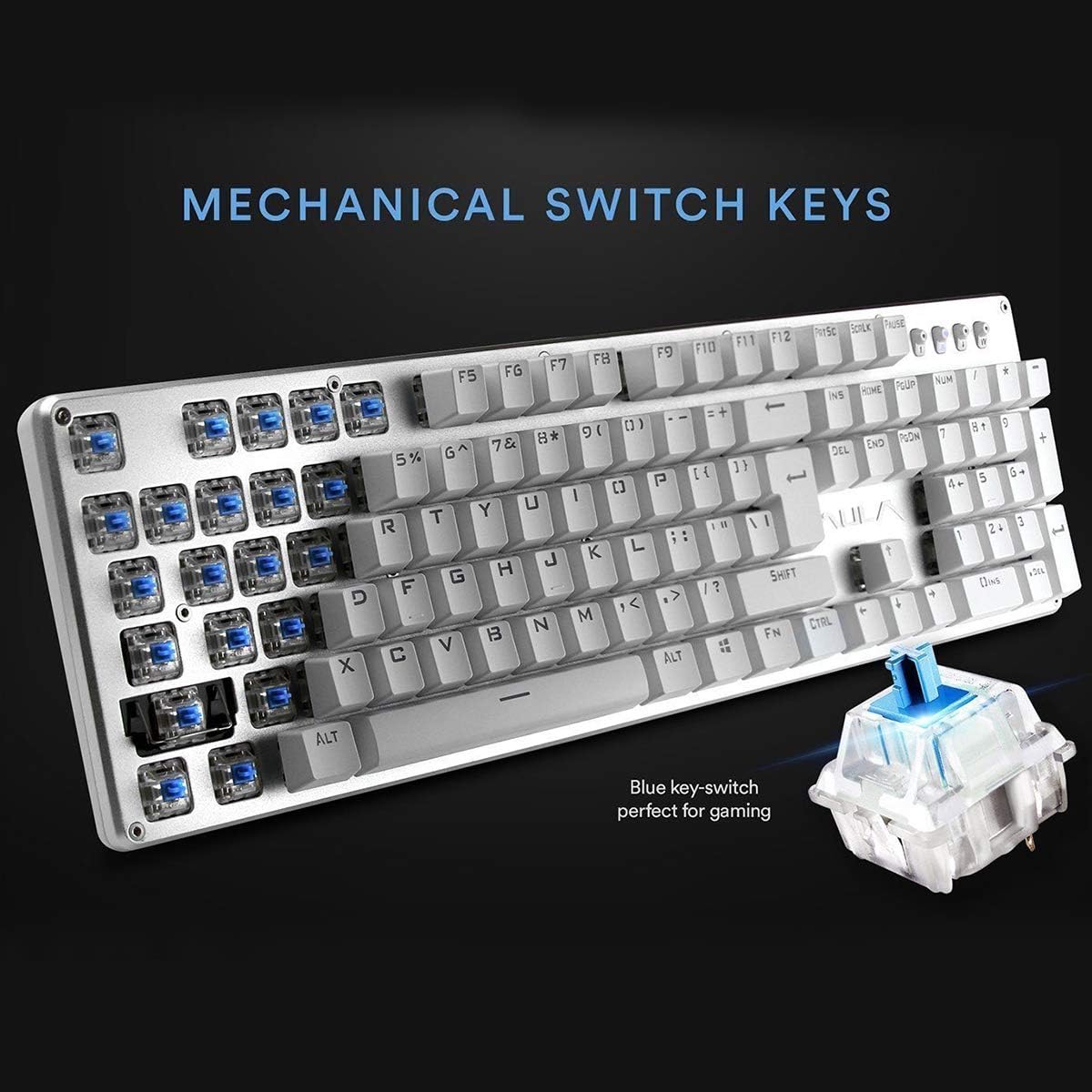
Image: A close-up view highlighting the mechanical blue switches, which provide tactile feedback and a distinct click sound.
6. Maintenance and Care
Proper maintenance ensures the longevity and optimal performance of your AULA F2010 keyboard.
- Cleaning: Regularly clean the keyboard with a soft, dry cloth. For deeper cleaning, use a keycap puller to remove keycaps and clean dust and debris with compressed air or a small brush.
- Liquid Spills: Due to its water-resistant design, minor spills may not cause damage. However, it is recommended to immediately unplug the keyboard, dry it thoroughly, and allow it to air dry completely before reconnecting.
- Storage: Store the keyboard in a cool, dry place away from direct sunlight and extreme temperatures.
7. Troubleshooting
If you encounter issues with your keyboard, refer to the following common solutions:
- Keyboard Not Responding:
- Ensure the USB cable is securely plugged into both the keyboard and the computer.
- Try plugging the keyboard into a different USB port.
- Restart your computer.
- Check if the keyboard is in sleep mode (press any key to wake it).
- Backlighting Not Working:
- Ensure the brightness is not set to the lowest level (use FN + PGUP to increase).
- Verify that the keyboard is not in sleep mode.
- Keys Not Registering or Doubling:
- Clean around and under the affected keycaps for any debris.
- If the issue persists, it may indicate a switch malfunction. Contact customer support if the product is under warranty.
8. Specifications
| Feature | Detail |
|---|---|
| Brand | AULA |
| Model Number | F2010 |
| Connectivity Technology | Wired (USB) |
| Number of Keys | 104 |
| Key Switch Type | Mechanical (Blue Switch) |
| Backlighting | Multi-color LED (RGB) with adjustable brightness and modes |
| Anti-Ghosting | 100% Anti-Ghosting with 104 Key Roll-over |
| Material | Brushed Aluminum Chassis, Double-shot Injection Molding Keycaps |
| Operating System Compatibility | Windows Vista / 7 / 8 / 10 / Mac OS |
| Item Weight | 2.87 lbs (1.3 kg) |
| Product Dimensions (L x W x H) | 17.2 x 5.1 x 0.83 inches (43.7 x 13 x 2.1 cm) |
| Special Features | Water Resistant, Dust-proof, Static-free, Sleep Mode |
9. Warranty and Support
For warranty information, technical support, or service inquiries, please refer to the warranty card included with your product or visit the official AULA website. Keep your purchase receipt as proof of purchase for warranty claims.