
1. Product Overview
The Rii Mini Wireless 2.4GHz Keyboard (mini X1) is a compact and versatile input device designed for various platforms including PCs, gaming consoles, smart TVs, and Android TV boxes. It combines a full QWERTY keyboard with a multi-touch touchpad, offering convenient control in a portable form factor.
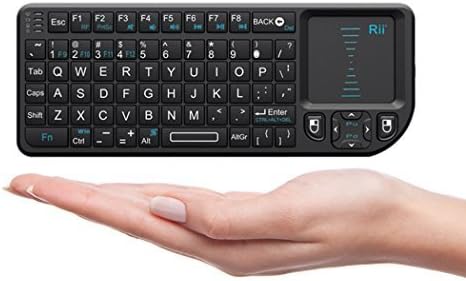
Image: The Rii Mini Wireless Keyboard (mini X1) demonstrating its compact size when held in a hand.
Key features include 2.4GHz wireless connectivity via a USB receiver, an integrated touchpad for mouse functionality, and a rechargeable battery for extended use. Its ergonomic design ensures comfortable handling.
2. Package Contents
Please check the package carefully to ensure all items are present:
- Rii Mini Wireless Keyboard (mini X1)
- USB Charging Cable
- 2.4GHz USB Receiver

Image: Contents of the Rii Mini Wireless Keyboard package, including the keyboard, USB receiver, and charging cable.
3. Setup Guide
3.1 Charging the Device
Before first use, it is recommended to fully charge the keyboard. This device adopts a built-in Polymer Lithium-ion battery.
- Connect the smaller end of the USB charging cable to the charging port on the keyboard.
- Connect the larger end of the USB charging cable to a USB power supply or a computer's USB port.
- The charging indicator light will illuminate. A full charge typically takes about 1 hour.
- When the charging indicator turns off or changes color (depending on model), the device is fully charged.
Note: If the battery is completely exhausted, the charging indicator may not light up immediately. Allow it to charge for a few minutes before the indicator appears.
3.2 Connecting to Your Device
The Rii Mini Wireless Keyboard uses a 2.4GHz wireless connection via a USB receiver.
- Locate the 2.4GHz USB receiver. It is typically stored in a compartment on the keyboard itself (often near the battery compartment).
- Plug the USB receiver into an available USB port on your PC, Smart TV, Android TV Box, or other compatible device.
- Turn on the Rii Mini Wireless Keyboard using the power switch (usually located on the side or back of the device).
- The device should automatically connect. No additional drivers are usually required for most operating systems.

Image: Side view of the Rii Mini Wireless Keyboard, highlighting the USB charging port and power switch location.
4. Operating Instructions
4.1 Keyboard Functionality
The keyboard features a full QWERTY layout with 92 keys, including function keys (F1-F12) and multimedia controls accessible via the 'Fn' key.
- Typing: Use the standard QWERTY keys for text input.
- Function Keys (Fn): Press and hold the Fn key, then press the desired function key (e.g., F1-F12) or multimedia key (e.g., volume up/down, play/pause) to activate its secondary function.
- Caps Lock: Press the Caps key to toggle uppercase typing.
4.2 Touchpad Functionality
The integrated touchpad supports multi-touch gestures for intuitive navigation.
- Single Finger Tap: Left-click.
- Two Finger Tap: Right-click.
- Single Finger Drag: Move the cursor.
- Two Finger Scroll: Scroll up or down in documents or web pages.
- Left/Right Click Buttons: Dedicated left and right click buttons are located near the touchpad for traditional mouse clicks.
4.3 Power Saving Features
To conserve battery life, the keyboard features automatic sleep and wake-up functions.
- Sleep Mode: If there is no operation for a few minutes, the device will enter sleep mode.
- Wake Up: To wake the device from sleep mode, simply press any key or tap the touchpad.

Image: Detailed view of the Rii Mini Wireless Keyboard's QWERTY layout and integrated touchpad.
5. Maintenance and Care
Proper care will extend the life of your Rii Mini Wireless Keyboard:
- Cleaning: Use a soft, dry cloth to clean the surface of the keyboard. For stubborn dirt, a slightly damp cloth can be used, but ensure no moisture enters the device.
- Storage: Store the keyboard in a cool, dry place away from direct sunlight and extreme temperatures.
- Battery Care: Avoid fully discharging the battery frequently. Charge the device regularly, even if not in constant use, to maintain battery health.
- Avoid Drops: Protect the device from drops and impacts, which can damage internal components.
6. Troubleshooting
If you encounter issues with your Rii Mini Wireless Keyboard, try the following solutions:
| Problem | Solution |
|---|---|
| Keyboard not responding |
|
| Cursor erratic or unresponsive |
|
| Short battery life |
|
7. Technical Specifications
| Feature | Detail |
|---|---|
| Brand | Rii |
| Model | mini X1 |
| Connectivity Technology | 2.4GHz Wireless (via USB Receiver) |
| Compatible Devices | PC, Gaming Console, Television, Android TV Box, Tablet (with USB port) |
| Keyboard Description | QWERTY, Mini |
| Special Feature | Ergonomic, Rechargeable, Integrated Touchpad |
| Color | Black |
| Number of Keys | 92 |
| Power Source | Battery Powered (Built-in Polymer Lithium-ion) |
| Country of Origin | China |
8. Warranty and Support
This Rii product is covered by a standard manufacturer's warranty against defects in materials and workmanship. Please refer to the warranty card included in your package or contact your retailer for specific warranty terms and conditions.
For technical support, troubleshooting assistance, or warranty claims, please contact the Rii customer service or the retailer from whom you purchased the product. Keep your proof of purchase for warranty validation.
For more information, you may visit the official Rii store page: Rii Store on Amazon