1. Introduction
The Verbatim Store 'n' Go Dual OTG USB 3.2 Gen 1 Flash Drive is designed for convenient and fast data transfer between various devices. Featuring both USB-C and USB-A connectors, this drive offers versatile compatibility with smartphones, tablets, laptops, and desktop computers. Its compact and lightweight design makes it ideal for on-the-go use, allowing you to store and access files without needing an internet connection.
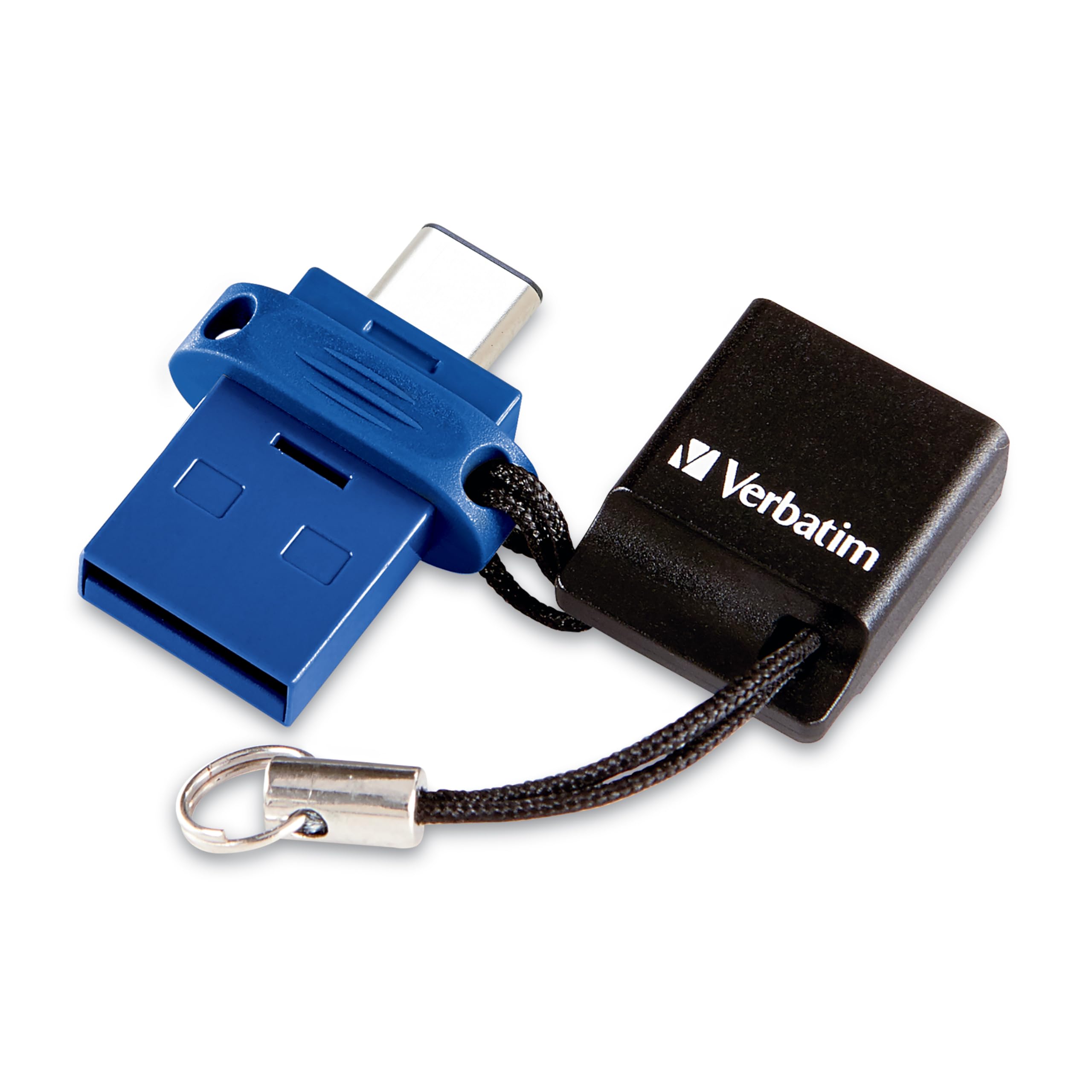
Image 1: The Verbatim Store 'n' Go Dual OTG USB 3.2 Gen 1 Flash Drive, showcasing its compact design.
2. Setup and Compatibility
This flash drive is designed for plug-and-play functionality, requiring no special drivers or software installation for basic use. It is compatible with Mac and Windows platforms.
2.1 Device Compatibility
- USB-C Devices: Connect directly to USB-C equipped mobile devices (smartphones, tablets) and laptops.
- USB-A Devices: Connect to standard USB-A ports on PCs and laptops.
2.2 System Requirements
- USB 3.0 host device for optimal USB 3.2 Gen 1 performance.
- USB 2.0 compatibility for older devices.
- USB-C transfer speed is dependent on the connected device.

Image 2: The dual connector design of the flash drive, featuring both USB-C and USB-A ports for broad compatibility.
3. Operating Instructions
3.1 Connecting to a USB-C Device (Smartphone/Tablet)
- Remove the cap from the USB-C connector.
- Insert the USB-C connector into the USB-C port of your mobile device.
- Your device should recognize the flash drive automatically. You can then access files directly from the drive using your device's file manager.
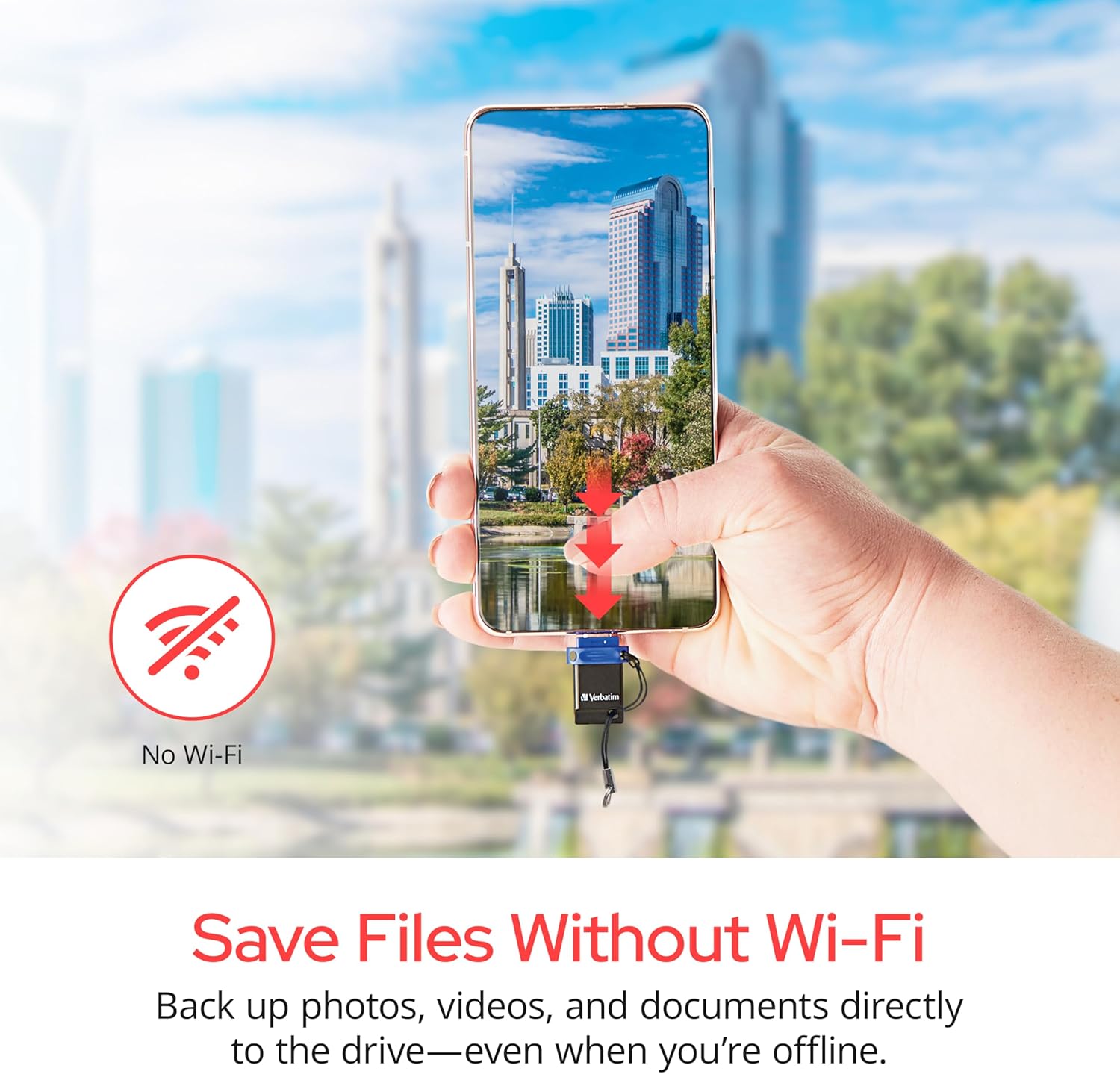
Image 3: Connecting the flash drive to a smartphone for direct file access, eliminating the need for Wi-Fi.
3.2 Connecting to a USB-A Device (PC/Laptop)
- Ensure the USB-A connector is exposed (if the cap is on the USB-C side, the USB-A side is ready).
- Insert the USB-A connector into an available USB-A port on your PC or laptop.
- The computer will detect the drive as a removable storage device. You can then drag and drop files to and from the drive.

Image 4: The flash drive positioned next to a laptop, ready for file transfer via its USB-A connector.
3.3 File Transfer
To transfer files, simply drag and drop them between your device's storage and the flash drive's folder. The USB 3.2 Gen 1 interface ensures fast transfer speeds when connected to a compatible USB 3.0 host device.
3.4 Lanyard Feature
The convenient lanyard attached to the drive helps keep the protective cap tethered, preventing loss when one of the connectors is in use.
4. Maintenance
- Keep the flash drive clean and free from dust and debris.
- Always use the protective cap when the drive is not in use to protect the connectors.
- Avoid exposing the drive to extreme temperatures or moisture.
- Safely eject the drive from your computer or mobile device before removing it to prevent data corruption.
5. Troubleshooting
5.1 Drive Not Recognized
- Ensure the drive is fully inserted into the USB port.
- Try connecting the drive to a different USB port on your device or computer.
- Restart your computer or mobile device.
- For mobile devices, ensure OTG (On-The-Go) functionality is enabled in your device settings, if applicable.
5.2 Slow Transfer Speeds
- For optimal performance, connect the drive to a USB 3.0 or USB 3.2 Gen 1 compatible port. Connecting to a USB 2.0 port will result in slower speeds.
- Ensure your device's drivers are up to date.
- Large numbers of small files can transfer slower than a few large files of the same total size.
6. Specifications
| Feature | Detail |
|---|---|
| Brand | Verbatim |
| Memory Storage Capacity | 32 GB |
| Hardware Interface | USB 3.2 Gen 1 (Type C and Type A) |
| Special Feature | Lightweight, Dual Connector (USB-C & USB-A) |
| Estimated Write Speed | 100-150 MB/s |
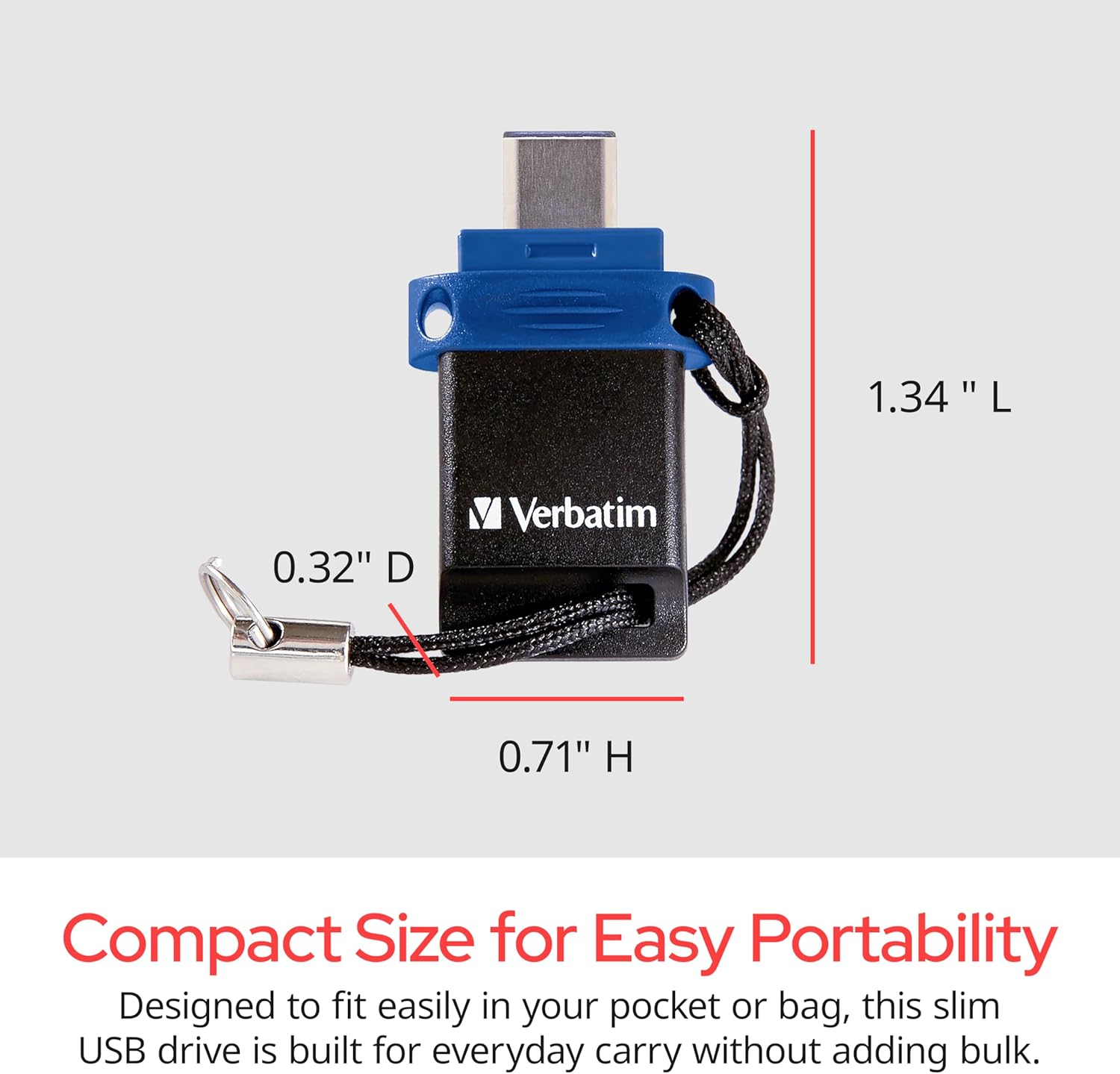
Image 5: Dimensions of the Verbatim Store 'n' Go Dual OTG USB Flash Drive.
7. Warranty and Support
Verbatim stands by the quality of its products. This Verbatim Store 'n' Go Dual OTG USB 3.2 Gen 1 Flash Drive comes with a limited lifetime warranty. For technical support or warranty claims, please refer to the official Verbatim website or contact their customer service.
For further assistance, please visit the Verbatim Store on Amazon.
8. Product Videos
No official seller videos were found in the provided product data to embed in this manual.


