
Introduction
This manual provides instructions for setting up, operating, and maintaining your HP Business T6L04UT Slim Wireless Keyboard and Mouse. Please read this manual thoroughly before using the product to ensure proper functionality and longevity.
Package Contents
- HP Slim Wireless Keyboard
- HP Wireless Mouse
- USB Wireless Receiver
- Batteries (pre-installed or included separately)
Setup
- Insert Batteries: Open the battery compartments on both the keyboard and the mouse. Insert the included batteries, ensuring correct polarity (+/-). Close the compartments securely.
- Connect USB Wireless Receiver: Locate an available USB port on your computer (laptop or desktop). Insert the USB wireless receiver firmly into the USB port. Your computer should automatically detect and install the necessary drivers.
- Power On: Ensure the keyboard and mouse are powered on. The mouse typically has an on/off switch on its underside. The keyboard may not have a separate power switch and will activate once batteries are inserted and the receiver is connected.
- Test Connection: Move the mouse and type on the keyboard to confirm they are working. If they do not respond, ensure the receiver is properly connected and batteries are correctly installed.

Image: The HP Slim Wireless Keyboard, Mouse, and the compact USB receiver. This image shows the complete set ready for connection to a computer.
Operating the Keyboard
The HP Slim Wireless Keyboard features a standard QWERTY layout with 104 keys, including a numeric keypad and function keys. It is designed for comfortable and efficient typing.
- Function Keys: Utilize the F1-F12 keys for various system functions, often in combination with the 'Fn' key, depending on your operating system and computer settings.
- Numeric Keypad: The dedicated numeric keypad on the right provides quick data entry.
- Indicator Lights: Please note that this keyboard does not feature dedicated indicator lights for Caps Lock, Num Lock, or Scroll Lock.
Operating the Mouse
The HP Wireless Mouse uses optical or laser movement detection for precise tracking. Its ambidextrous design ensures comfortable use for both left and right-handed users.
- Left and Right Click: Standard buttons for primary and secondary actions.
- Scroll Wheel: Use the scroll wheel for vertical navigation within documents and web pages. The scroll wheel may also function as a middle-click button.
- Movement: Ensure the mouse is used on a suitable surface for optimal tracking performance.
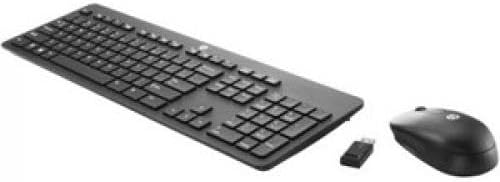
Image: A view of the HP Slim Wireless Keyboard and Mouse, showcasing their compact and ergonomic design from an elevated perspective.
Maintenance
- Cleaning: Use a soft, dry cloth to clean the surfaces of the keyboard and mouse. For stubborn dirt, a slightly damp cloth with mild soap can be used, ensuring no liquid enters the device.
- Battery Replacement: When performance degrades, replace the batteries in both the keyboard and mouse with new ones of the same type. Dispose of old batteries responsibly.
- Storage: Store the devices in a cool, dry place away from direct sunlight and extreme temperatures when not in use for extended periods.
Troubleshooting
| Problem | Possible Cause | Solution |
|---|---|---|
| Keyboard/Mouse not responding | Low or dead batteries; USB receiver disconnected; device not powered on. | Replace batteries; ensure USB receiver is securely plugged into a working USB port; turn on the mouse power switch. |
| Intermittent connection | Interference from other wireless devices; receiver too far from devices. | Move the receiver closer to the keyboard and mouse; avoid placing other wireless devices or large metal objects between the devices and receiver. |
| Mouse cursor erratic or not moving smoothly | Dirty optical sensor; unsuitable surface. | Clean the optical sensor on the underside of the mouse; use the mouse on a clean, non-reflective, opaque surface or a mouse pad. |
| No Caps Lock indicator light | This model does not include a physical Caps Lock indicator light. | This is normal operation for this product. Some operating systems may provide an on-screen indicator. |
Specifications
- Brand: HEWLETT PACKARD
- Model: T6L04UT
- Connectivity Technology: Wireless (USB Receiver)
- Keyboard Layout: QWERTY, 104 Keys
- Mouse Movement Detection: Optical, Laser
- Hand Orientation: Ambidextrous
- Compatible Devices: Laptop, Netbook (and other devices with USB support)
- Operating System Compatibility: Windows Vista (and newer operating systems)
- Power Source: Battery Powered
- Color: Black
- Item Weight: Approximately 0.45 Pounds (for the set)
- Manufacturer: Hewlett Packard Office
- UPC/GTIN: 889894647825
Warranty and Support
For warranty information and technical support, please refer to the documentation provided with your purchase or visit the official HP support website. Keep your proof of purchase for warranty claims.