
1. Introduction
This manual provides instructions for the safe and effective use of your Disney Frozen Bluetooth Speaker. This portable wireless speaker allows you to stream audio from Bluetooth-enabled devices or connect via a 3.5mm audio cable. It features a built-in microphone for speakerphone functionality and a rechargeable battery for portability.
2. Package Contents
Please ensure all items are present in the package:
- Disney Frozen Bluetooth Speaker
- USB Charging Cable
- 3.5mm Audio Cable
3. Product Features
- Wireless audio streaming via Bluetooth
- Wired audio connection via 3.5mm headphone port
- Integrated microphone for speakerphone calls
- Built-in rechargeable battery
- USB chargeable
4. Controls and Ports

Image 1: Front view of the speaker with control buttons on the top panel.
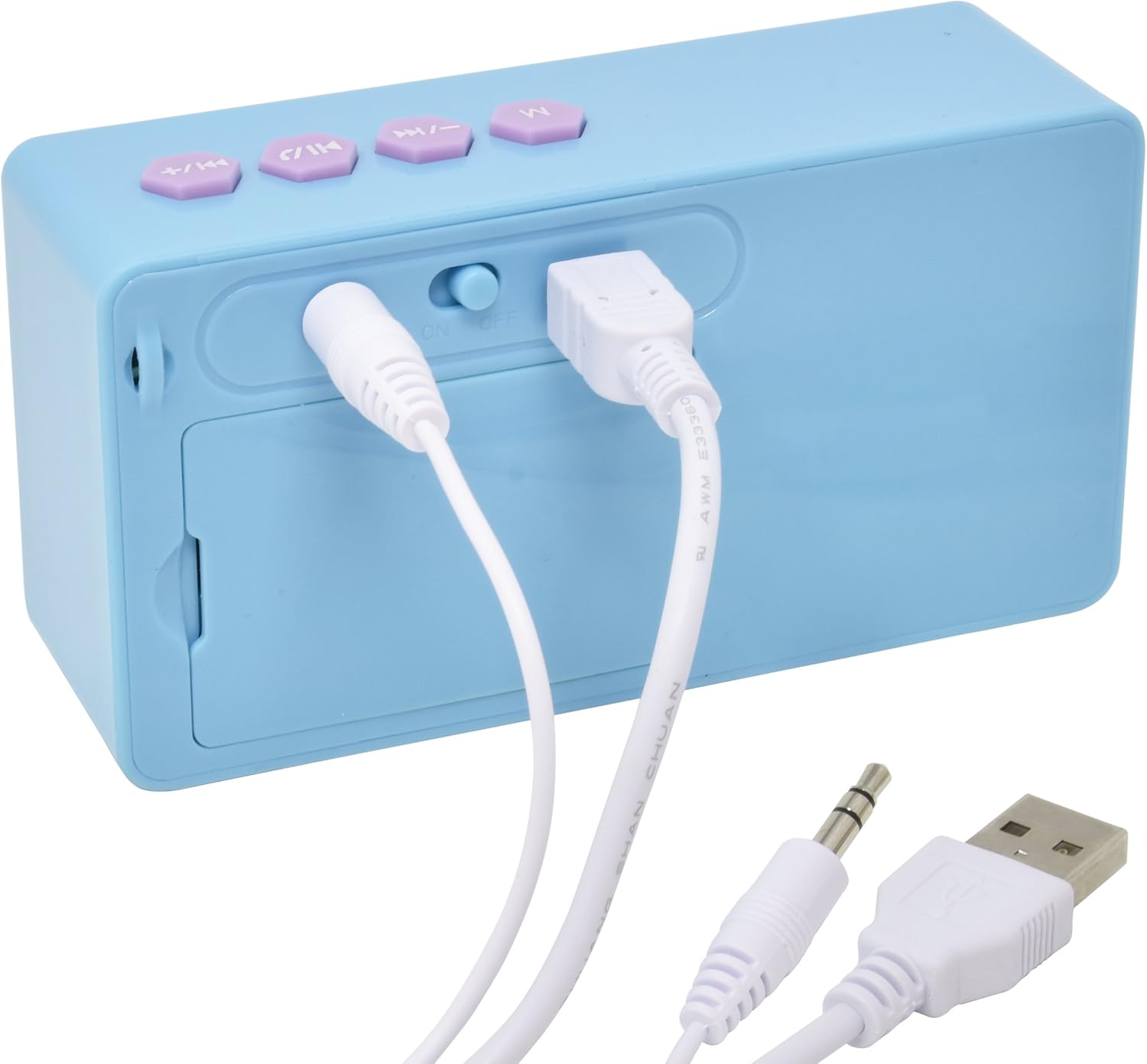
Image 2: Rear view of the speaker showing the power switch and connection ports.
Top Panel Controls:
- M Button: Mode selection (Bluetooth/AUX).
- Previous Track / Volume Down Button: Press once for previous track, press and hold to decrease volume.
- Play/Pause / Call Button: Press once to play/pause music, press to answer/end calls.
- Next Track / Volume Up Button: Press once for next track, press and hold to increase volume.
Rear Panel Ports:
- ON/OFF Switch: Powers the speaker on or off.
- USB Charging Port: Connect the USB cable for charging.
- 3.5mm AUX Input: Connect the 3.5mm audio cable for wired playback.
5. Charging the Speaker
Before first use, fully charge the speaker. The speaker charges quickly when connected to a USB port.
- Locate the USB Charging Port on the rear of the speaker (refer to Image 2).
- Connect the small end of the included USB charging cable to the speaker's USB port.
- Connect the larger end of the USB charging cable to a powered USB port (e.g., computer, USB wall adapter).
- The charging indicator light will illuminate. Once charging is complete, the light may change color or turn off.
Note: Do not use damaged cables or chargers. Ensure the charging port is dry before connecting the cable.
6. Bluetooth Connection
To connect your speaker wirelessly to a Bluetooth-enabled device:
- Ensure the speaker is charged.
- Slide the ON/OFF Switch on the rear of the speaker to the 'ON' position. The speaker will power on and enter Bluetooth pairing mode, indicated by a flashing LED light and an audible prompt.
- On your Bluetooth-enabled device (smartphone, tablet, computer), go to the Bluetooth settings menu.
- Search for available devices. The speaker will appear as "Disney Frozen Speaker" or a similar name.
- Select the speaker from the list to pair. Once successfully paired, the LED indicator will stop flashing, and you will hear a confirmation tone.
- You can now play audio from your device through the speaker.
Note: If prompted for a password, enter "0000". The speaker will automatically attempt to reconnect to the last paired device when powered on.
7. Wired Connection (AUX)
To connect your speaker using the 3.5mm audio cable:
- Ensure the speaker is powered on.
- Connect one end of the included 3.5mm audio cable to the 3.5mm AUX Input port on the rear of the speaker (refer to Image 2).
- Connect the other end of the 3.5mm audio cable to the headphone jack or AUX output of your audio device.
- Press the M Button on the top panel to switch to AUX mode if the speaker does not automatically detect the wired connection.
- Play audio from your device.
Note: When using the AUX connection, playback controls (play/pause, track skip) on the speaker may not function, and you will need to control playback directly from your connected device.
8. Using as a Speakerphone
When connected via Bluetooth to a smartphone, the speaker can be used to handle phone calls.
- Answering a Call: When a call comes in, press the Play/Pause / Call Button once to answer.
- Ending a Call: During a call, press the Play/Pause / Call Button once to end the call.
- Rejecting a Call: Press and hold the Play/Pause / Call Button for approximately 2 seconds to reject an incoming call.
Audio will be routed through the speaker, and the built-in microphone will capture your voice.
9. Maintenance
- Clean the speaker with a soft, dry cloth. Do not use abrasive cleaners or solvents.
- Keep the speaker away from water, moisture, and extreme temperatures.
- Do not attempt to disassemble or repair the speaker yourself. This will void the warranty.
- Store the speaker in a cool, dry place when not in use for extended periods.
10. Troubleshooting
| Problem | Possible Solution |
|---|---|
| Speaker does not turn on. | Ensure the speaker is charged. Connect to a power source using the USB cable. Check the ON/OFF switch. |
| Cannot pair via Bluetooth. | Ensure the speaker is in pairing mode (flashing LED). Make sure Bluetooth is enabled on your device. Move the speaker closer to your device. Forget the device from your Bluetooth list and try pairing again. |
| No sound or low volume. | Increase the volume on both the speaker and your connected device. Ensure the correct input mode (Bluetooth or AUX) is selected. Check if the audio cable is fully inserted for wired connections. |
| Bluetooth connection drops frequently. | Ensure there are no obstructions between the speaker and your device. Move closer to the speaker. Avoid interference from other wireless devices. |
| Microphone not working during calls. | Ensure the speaker is connected via Bluetooth and not AUX. Check your phone's audio output settings during a call to ensure it's routed to the Bluetooth speaker. |
11. Specifications
| Feature | Detail |
|---|---|
| Model Number | 057-00-3417 |
| Connectivity Technology | Bluetooth, USB (for charging) |
| Special Feature | Portable, Built-in Microphone |
| Power Source | Battery Powered (Rechargeable) |
| Speaker Maximum Output Power | 3 Watts |
| Product Dimensions | 6.2 x 6.1 x 2.3 inches |
| Item Weight | 9.1 ounces |
| UPC | 092298925264 |
12. Warranty Information
This product is covered by a 1 YEAR FACTORY WARRANTY. Please retain your proof of purchase for warranty claims. For support or warranty inquiries, please refer to the contact information provided with your purchase documentation.


