
1. Introduction
Thank you for purchasing the Vivitar 4-Device Jumbo Universal Remote Control. This remote is designed to simplify your home entertainment experience by controlling up to four different audio/video devices from a single unit. It is compatible with most major brands of televisions, Blu-Ray players, DVD players, VCRs, cable boxes, satellite receivers, and home theater systems. Please read this manual thoroughly to ensure proper setup and operation.
2. Setup
2.1 Battery Installation
The Vivitar Jumbo Universal Remote requires two (2) AAA batteries (not included).
- Locate the battery compartment cover on the back of the remote control.
- Press down on the tab and slide the cover off.
- Insert two new AAA batteries, ensuring the positive (+) and negative (-) terminals match the diagrams inside the compartment.
- Slide the battery compartment cover back into place until it clicks securely.
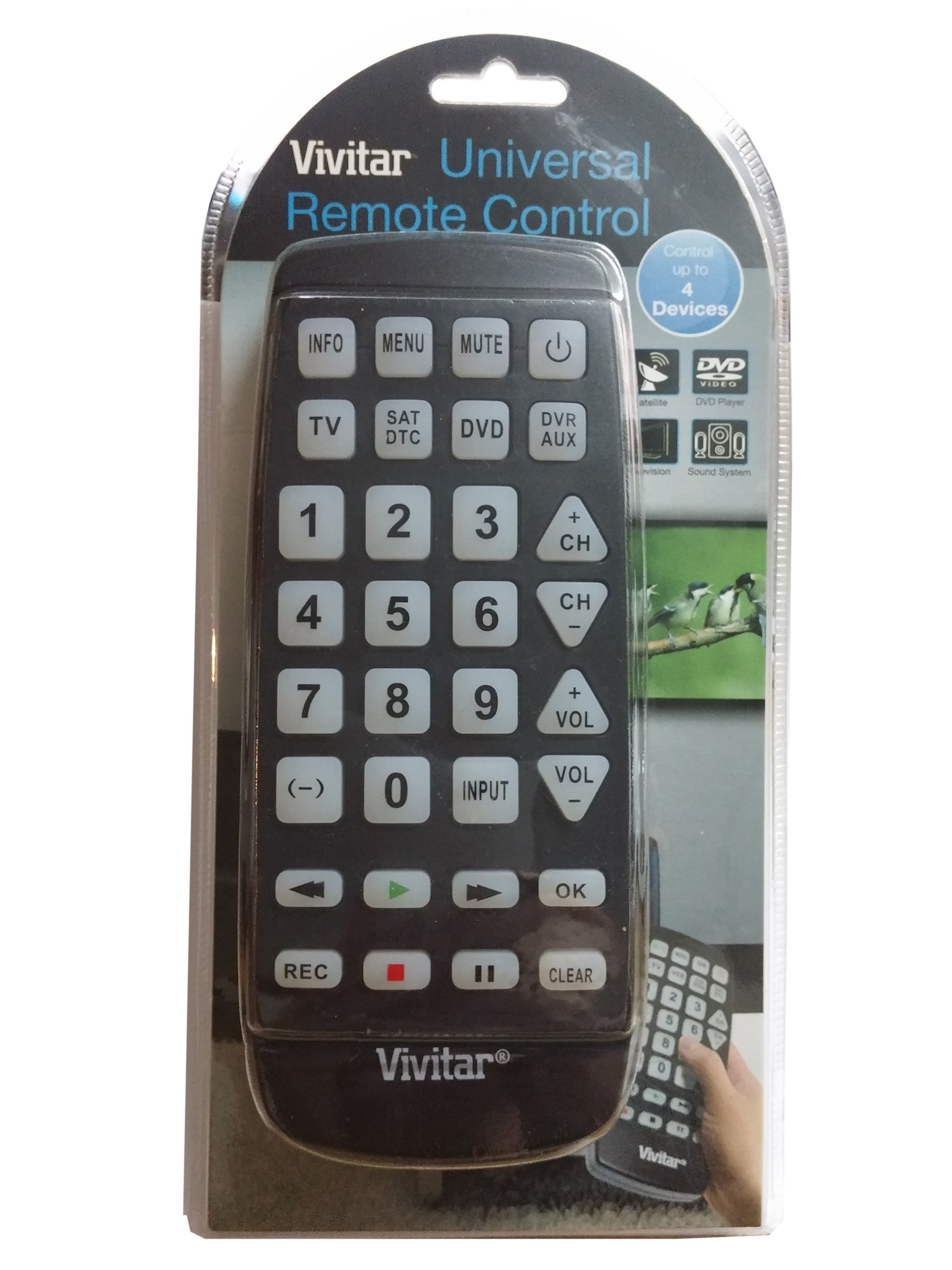
Image: Front view of the Vivitar 4-Device Jumbo Universal Remote Control, showing its large buttons and ergonomic design. The battery compartment is located on the rear.
2.2 Programming Your Remote (Code Entry Method)
To program the remote for your specific device, you will need to enter a 3-digit code corresponding to your device's brand. A list of common codes is usually provided in a separate code booklet (not included in this digital manual).
- Turn on the device you wish to control (e.g., TV, DVD player).
- Press and hold the SET button on the remote until the red indicator light illuminates.
- While holding SET, press the desired device button (e.g., TV, DVD, CBL) once. The red indicator light will blink once and then remain lit.
- Release the SET button.
- Enter the 3-digit code for your device brand using the number buttons. After entering the third digit, the red indicator light should turn off.
- Test the remote by pressing the POWER button. If the device turns off, the code was accepted. If not, repeat the process with the next code listed for your brand.
Note: If your device does not respond after trying all codes for its brand, proceed to the Auto Code Search method.
2.3 Auto Code Search
If you cannot find a working code for your device, the remote can search for it automatically.
- Turn on the device you wish to control.
- Press and hold the SET button until the red indicator light illuminates.
- While holding SET, press the desired device button (e.g., TV, DVD, CBL) once. The red indicator light will blink once and then remain lit.
- Release the SET button.
- Point the remote at the device and repeatedly press the POWER button (or CH+ for TV/VCR, PLAY for DVD/VCR) slowly, pausing briefly after each press. The remote is sending different codes with each press.
- As soon as your device turns off (or performs the desired function), immediately press the SET button once to save the code. The red indicator light will turn off.
- Test the remote's functions (Volume, Channel, Playback) to ensure all controls work correctly. If not, repeat the auto code search.
3. Operating Your Remote
Once programmed, operating your Vivitar Jumbo Universal Remote is straightforward.
3.1 Device Selection
To control a specific device, press the corresponding device button at the top of the remote (TV, DVD, CBL, AUX). The remote will then send commands only to the selected device.
3.2 Basic Functions
- POWER: Turns the selected device on or off.
- VOL+/VOL-: Increases or decreases the volume of the selected device.
- CH+/CH-: Changes the channel up or down on the selected device.
- MUTE: Mutes or unmutes the audio.
- NUMBER BUTTONS (0-9): Used for direct channel entry or code programming.
- PLAY/PAUSE/STOP/REW/FF: Controls playback functions for DVD, Blu-Ray, or VCR devices.
- MENU: Accesses the menu of the selected device.
- GUIDE: Displays the program guide (for Cable/Satellite boxes).
- INPUT/SOURCE: Changes the input source on your TV.
4. Maintenance
4.1 Cleaning
To clean your remote control, use a soft, slightly damp cloth. Do not use abrasive cleaners, solvents, or harsh chemicals, as these can damage the remote's finish or internal components. Ensure no liquid enters the remote.
4.2 Battery Replacement
Replace batteries when the remote's performance degrades or the indicator light fails to illuminate. Always replace both batteries at the same time with new AAA batteries. Do not mix old and new batteries, or different types of batteries. Remove batteries if the remote will not be used for an extended period to prevent leakage.
4.3 Storage
Store the remote in a cool, dry place away from direct sunlight and extreme temperatures.
5. Troubleshooting
5.1 Remote Not Working
- Check Batteries: Ensure batteries are inserted correctly with the correct polarity (+/-) and are not depleted. Replace with fresh AAA batteries if necessary.
- Line of Sight: Make sure there is a clear line of sight between the remote and the device you are trying to control. Obstructions can block the infrared signal.
- Device Selection: Confirm you have pressed the correct device button (TV, DVD, CBL, AUX) for the device you intend to control.
5.2 Device Not Responding to Commands
- Incorrect Code: The remote may be programmed with an incorrect code. Try reprogramming the remote using a different code from the code list for your device's brand, or use the Auto Code Search method.
- Device Compatibility: While this remote is universal, some older or very new devices may not be compatible.
5.3 Indicator Light Not Illuminating
- This usually indicates dead or incorrectly inserted batteries. Replace batteries and check polarity.
5.4 Resetting the Remote
If you encounter persistent issues, you can try resetting the remote to its factory default settings. Remove the batteries, wait for 30 seconds, then reinsert them. You will need to reprogram all your devices after a reset.
6. Specifications
| Model Number: | 4330255290 |
| Brand: | Vivitar |
| Product Dimensions: | 11.3 x 1.8 x 5.6 inches |
| Item Weight: | 13.1 ounces |
| Battery Type: | 2 x AAA (not included) |
| Number of Devices: | 4 (TV, DVD, Cable/Satellite, AUX) |
| Special Feature: | Universal Compatibility |
| Controller Type: | Button Control |
7. Warranty and Support
7.1 Limited Warranty
Vivitar warrants this product against defects in materials and workmanship for a period of one (1) year from the original date of purchase. This warranty does not cover damage caused by misuse, abuse, accident, unauthorized modification, or normal wear and tear. Proof of purchase is required for all warranty claims.
7.2 Customer Support
For technical assistance, troubleshooting, or warranty inquiries, please contact Vivitar Customer Support. Refer to the Vivitar official website for the most current contact information, including phone numbers and email addresses.