
HEWLETT PACKARD 803181
HP USB Slim Business Keyboard User Manual
Model: 803181 | Brand: HEWLETT PACKARD
1. Introduction
The HP USB Slim Business Keyboard is designed to provide efficient data entry and seamless connectivity for your HP Business PCs. This full-sized keyboard offers a comfortable and productive typing experience, optimized for use across multiple operating systems.
Key features include:
- 3 indicator lights for Caps Lock, Num Lock, and Scroll Lock.
- Integrated number pad for quick data entry.
- Spill-resistant construction for enhanced durability.
- Adjustable legs for customizable typing angles.
- Full-size 104-key layout, including Windows, Function, and Page Keys.
- Quiet key strokes to minimize typing noise.
- Plug-and-play USB connectivity for instant setup.

Figure 1.1: Angled view of the HP USB Slim Business Keyboard, showcasing its slim profile and full layout with the attached USB cable.
2. Setup Guide
Setting up your HP USB Slim Business Keyboard is a straightforward process due to its plug-and-play design.
2.1 Connecting the Keyboard
- Locate an available USB port on your computer.
- Insert the USB connector of the keyboard firmly into the USB port.
- Your operating system will automatically detect and install the necessary drivers. This process typically takes a few seconds.
- Once installed, the keyboard is ready for immediate use.
2.2 Adjusting Keyboard Angle
For optimal comfort, you can adjust the typing angle of your keyboard:
- Flip the keyboard over to reveal the two adjustable legs located at the top corners of the underside.
- Gently pull out the legs to raise the back of the keyboard, providing a slight incline.
- Push the legs back in to return the keyboard to a flat position.

Figure 2.1: Side view of the keyboard illustrating its slim profile and the adjustable leg extended for an inclined typing position.
3. Operating the Keyboard
The HP USB Slim Business Keyboard provides a standard 104-key layout for efficient and familiar typing.
3.1 Key Layout and Functions
The keyboard features a full QWERTY layout, a dedicated numeric keypad, and function keys (F1-F12) that may have secondary functions depending on your operating system and installed software.
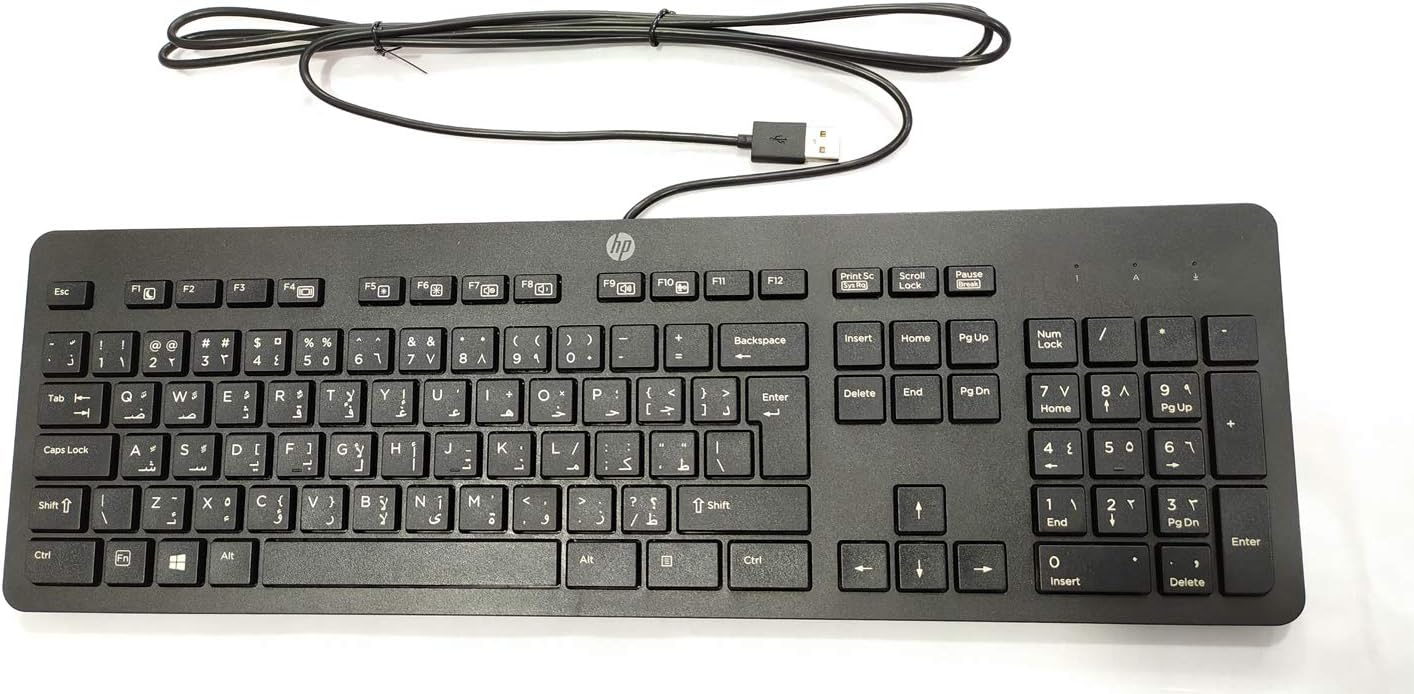
Figure 3.1: Top-down view of the keyboard, highlighting the full 104-key layout including the numeric keypad and function keys.
3.2 Indicator Lights
Three LED indicator lights are located above the numeric keypad:
- Num Lock: Illuminates when the numeric keypad is active. Press the "Num Lock" key to toggle on/off.
- Caps Lock: Illuminates when Caps Lock is active, indicating that all typed letters will be uppercase. Press the "Caps Lock" key to toggle on/off.
- Scroll Lock: Illuminates when Scroll Lock is active. Its function varies by application but is rarely used in modern operating systems.
3.3 Multi-OS Compatibility
This keyboard is designed to interact seamlessly with various operating systems, including Windows 10 and other compatible systems. Standard keyboard functions will operate without additional software installation.
4. Maintenance and Care
Proper care will extend the life and maintain the performance of your HP USB Slim Business Keyboard.
4.1 Cleaning Instructions
- Disconnect the keyboard from your computer before cleaning.
- Use a soft, lint-free cloth lightly dampened with water or a mild, non-abrasive cleaning solution.
- Wipe the keycaps and keyboard surface gently. Avoid excessive moisture.
- For dust and debris between keys, use compressed air.
- Ensure the keyboard is completely dry before reconnecting it to your computer.
4.2 Spill Resistance
The keyboard features spill-resistant construction. While designed to withstand minor spills, it is not waterproof. In case of a liquid spill:
- Immediately disconnect the keyboard from your computer.
- Invert the keyboard to allow liquid to drain.
- Wipe the surface dry with a clean cloth.
- Allow the keyboard to air dry completely for several hours (or overnight) before reconnecting.
5. Troubleshooting
If you encounter issues with your keyboard, refer to the following common troubleshooting steps:
| Problem | Possible Cause / Solution |
|---|---|
| Keyboard is not responding. |
|
| Certain keys are not working. |
|
| Indicator lights (Num Lock, Caps Lock) are not working. |
|
| Keyboard input is delayed or erratic. |
|
6. Specifications
| Brand | HEWLETT PACKARD |
| Model Number | 803181 |
| Connectivity Technology | USB (Wired) |
| Device Type | Keyboard |
| Color | Black |
| Item Weight | 7.2 ounces (approx. 204 grams) |
| Product Dimensions (LxWxH) | 18 x 6.6 x 1.1 inches (approx. 45.7 x 16.8 x 2.8 cm) |
| Number of Keys | 104 |
| Operating System Compatibility | Windows 10 (optimized for multiple operating systems) |
| Special Feature | Ergonomic, Spill-resistant |
| What's in the Box | HP USB Slim Business Keyboard, USB Cable (integrated) |
7. Warranty and Support
7.1 Limited Warranty
The HP USB Slim Business Keyboard comes with a one-year limited warranty. This warranty covers defects in materials and workmanship under normal use. Please retain your proof of purchase for warranty claims.
7.2 Customer Support
For technical assistance, warranty service, or additional product information, please visit the official HP support website or contact HP customer service. Refer to your product packaging or HP's official website for the most current contact information and support resources.
Note: Specific support contact details may vary by region.
Related documents803181


Ask a question about this manual
Ask about setup, troubleshooting, compatibility, parts, safety, or missing instructions. Manuals+ will review the question and use this page’s manual context to help answer it.