
1. Introduction
This manual provides essential information for the safe and efficient use of your ASUS M32CD Desktop PC. Please read this manual thoroughly before operating the device and retain it for future reference. The ASUS M32CD is a mainstream tower desktop designed for various computing tasks, featuring an Intel Core i5 processor, 8GB DDR4 RAM, and a 1TB HDD, running Windows 10 Home.
2. Safety Information
- Power Supply: Use only the power adapter supplied with your device. Ensure the power outlet is properly grounded.
- Ventilation: Do not block ventilation openings. Maintain adequate space around the computer for proper airflow to prevent overheating.
- Liquid Exposure: Keep the device away from liquids. Do not operate with wet hands.
- Cleaning: Disconnect the power cord before cleaning. Use a soft, dry cloth. Avoid liquid or aerosol cleaners.
- Servicing: Do not attempt to service the device yourself. Refer all servicing to qualified service personnel.
- Operating Environment: Operate the computer in a stable environment, away from direct sunlight, excessive heat, humidity, or dust.
3. Package Contents
Verify that all items are present in your package:
- ASUS M32CD Desktop PC
- User E-Manual (digital)
- Warranty Card
- Wired Keyboard
- Wired Mouse
- Power Cord
4. Product Overview
The ASUS M32CD is a tower desktop computer featuring a sleek black design. It is equipped with essential ports for connectivity and expansion.
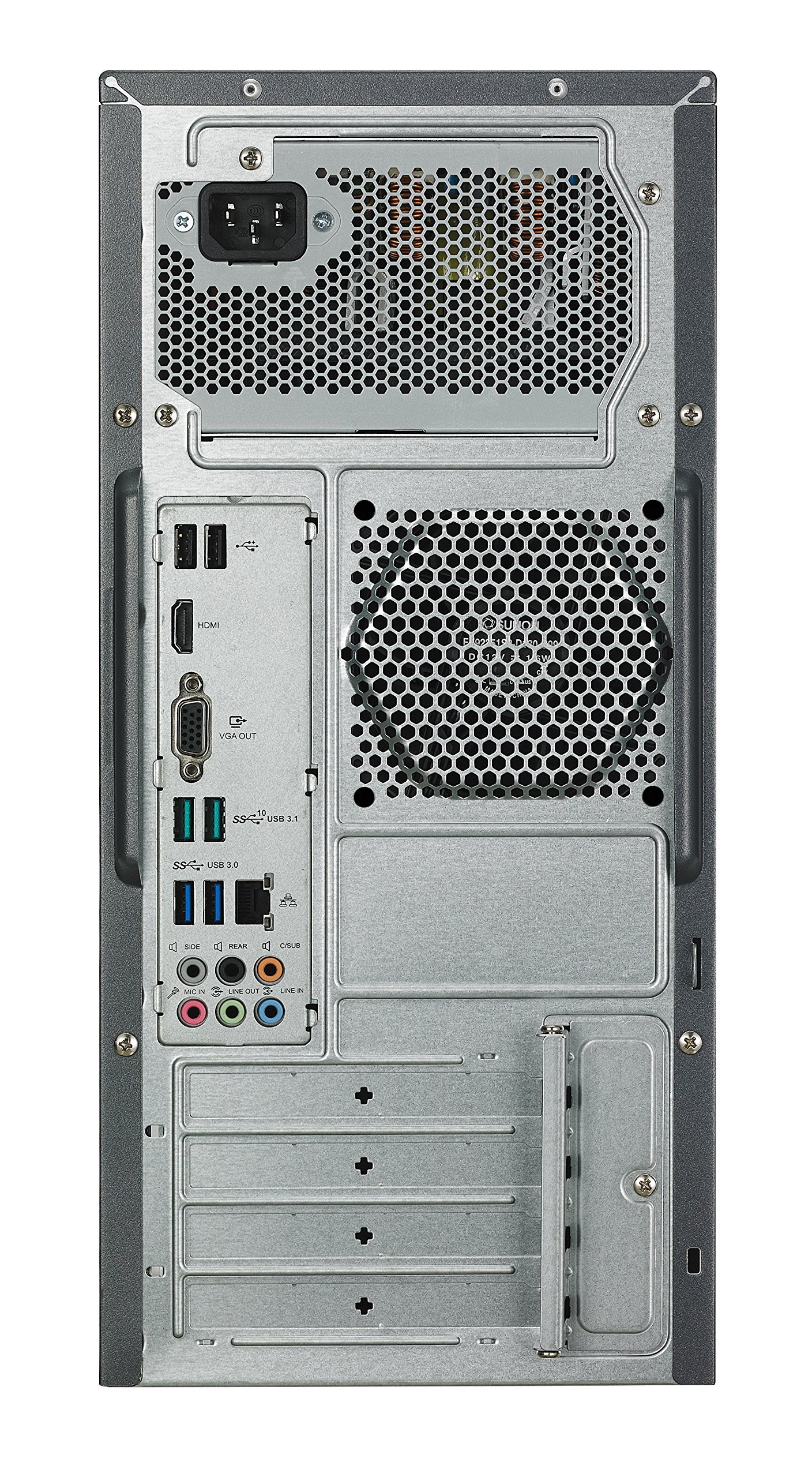
Figure 1: Front view of the ASUS M32CD Desktop PC tower. This image displays the optical drive bay, front panel USB ports, card reader, audio jacks, the circular power button, and the ASUS logo at the bottom.
Front Panel Features:
- Optical Drive: For reading and writing CDs/DVDs.
- USB 3.0 Ports: For high-speed data transfer with compatible devices.
- Multi-Card Reader: For accessing data from various memory card formats.
- Headphone Jack: For connecting headphones or external speakers.
- Microphone Jack: For connecting a microphone.
- Power Button: To turn the computer on or off.
Rear Panel Features (Common Desktop Configuration):
- USB Ports: Typically includes USB 3.1, USB 3.0, and USB 2.0 ports for connecting peripherals.
- HDMI Port: For connecting to a monitor or TV.
- VGA/DVI Port: (May vary by model) For connecting to a monitor.
- Ethernet Port: For wired network connection.
- Audio Jacks: Line-in, Line-out, Microphone for audio input/output.
- Power Connector: For connecting the power cord.
5. Setup
5.1 Connecting Peripherals
- Connect Monitor: Connect your monitor to the HDMI port on the rear panel. If your monitor uses a different connection (e.g., VGA, DVI), use the appropriate port.
- Connect Keyboard and Mouse: Plug the wired keyboard and mouse into the available USB ports on the rear panel. For initial Windows setup, it is recommended to use USB 2.0 ports for keyboard and mouse if available, as USB 3.0 drivers may not be fully loaded until after installation.
- Connect Network (Optional): For a wired internet connection, connect an Ethernet cable from your router or modem to the Ethernet port on the rear panel.
- Connect Power: Plug the power cord into the power connector on the rear panel of the desktop, then plug the other end into a grounded electrical outlet.
5.2 Powering On and Initial Setup
- Press the power button on the front panel of the desktop.
- The computer will boot up and guide you through the initial Windows 10 Home setup process. Follow the on-screen instructions to configure your language, region, network, and user account.
- Ensure all drivers are updated after the initial setup for optimal performance and stability. This can often resolve issues like system freezing.
6. Operating Instructions
6.1 Windows 10 Home Basics
- Start Menu: Click the Windows icon in the bottom-left corner to access applications, settings, and power options.
- Desktop: The main workspace where you can place shortcuts and open programs.
- Taskbar: Located at the bottom of the screen, it displays open applications and system icons.
- File Explorer: Access your files and folders by clicking the folder icon on the taskbar or searching for "File Explorer."
6.2 Network and Connectivity
- Wi-Fi: To connect to a wireless network, click the Wi-Fi icon in the system tray (bottom-right corner), select your network, and enter the password. The M32CD supports 802.11 AC WiFi.
- Bluetooth: To pair Bluetooth devices, go to Settings > Devices > Bluetooth & other devices. Ensure Bluetooth is enabled and your device is in pairing mode. The M32CD supports Bluetooth 4.0.
7. Maintenance
7.1 Driver Updates
Regularly update your system drivers, especially graphics drivers, to ensure optimal performance and stability. Visit the official ASUS support website for your M32CD model to download the latest drivers. You can also check for updates through Windows Update (Settings > Update & Security > Windows Update) and Device Manager (right-click Start button).
7.2 Physical Cleaning
- Exterior: Use a soft, lint-free cloth to wipe the exterior surfaces. For stubborn marks, slightly dampen the cloth with water.
- Ventilation: Periodically clean dust from the ventilation openings using compressed air. Ensure the computer is powered off and unplugged before cleaning.
- Ports: Use compressed air to clear dust from USB, audio, and other ports.
8. Troubleshooting
| Problem | Possible Solution |
|---|---|
| System Freezing or Unresponsive |
|
| No Display on Monitor |
|
| No Internet Connection |
|
| Peripherals (Keyboard/Mouse) Not Working |
|
9. Specifications
| Feature | Detail |
|---|---|
| Brand | ASUS |
| Model Number | M32CD-AS51 |
| Operating System | Windows 10 Home |
| CPU Model | Intel Core i5-6400 Quad-Core |
| CPU Speed | 2.7 GHz (Turbo up to 3.3 GHz) |
| Graphics | Intel Integrated HD 530 Graphics |
| RAM Memory | 8GB DDR4 (Max Memory: 16 GB, 4 slots available) |
| Storage | 1TB 3.5" 7200RPM HDD, SATA |
| Wireless Connectivity | 802.11AC Wi-Fi, Bluetooth 4.0 |
| Optical Drive | DVD-RW |
| USB Ports | Multiple (USB 3.1, USB 3.0, USB 2.0) |
| Video Output | HDMI (Max Resolution: 3840x2160) |
| Human-Interface Input | Keyboard, Mouse |
| Dimensions (Item) | 9.25 x 19.52 x 23 inches (Shipping dimensions; actual tower is approximately 7" W x 15.5" H x 16" D) |
| Item Weight | 24.8 Pounds |
| Color | Black |
10. Warranty and Support
10.1 Warranty Information
Your ASUS M32CD Desktop PC comes with a 1-YEAR limited warranty. Please refer to the included Warranty Card for detailed terms and conditions. Keep your proof of purchase for warranty claims.
10.2 Customer Support
For technical assistance, driver downloads, or further support, please visit the official ASUS support website or the ASUS Store:
Visit the ASUS Store for Support
You can also find additional resources and FAQs on the ASUS official website.