
JOINUS JS-82MS-A
JOINUS Scientific Calculator User Manual
Model: JS-82MS-A
1. Introduction
Thank you for choosing the JOINUS Scientific Calculator JS-82MS-A. This calculator is designed for a wide range of mathematical operations, including scientific notation, percentage calculations, and fraction calculations. It features a 10+2 digit, two-line display for enhanced readability and comes with a protective slide-on hard case.
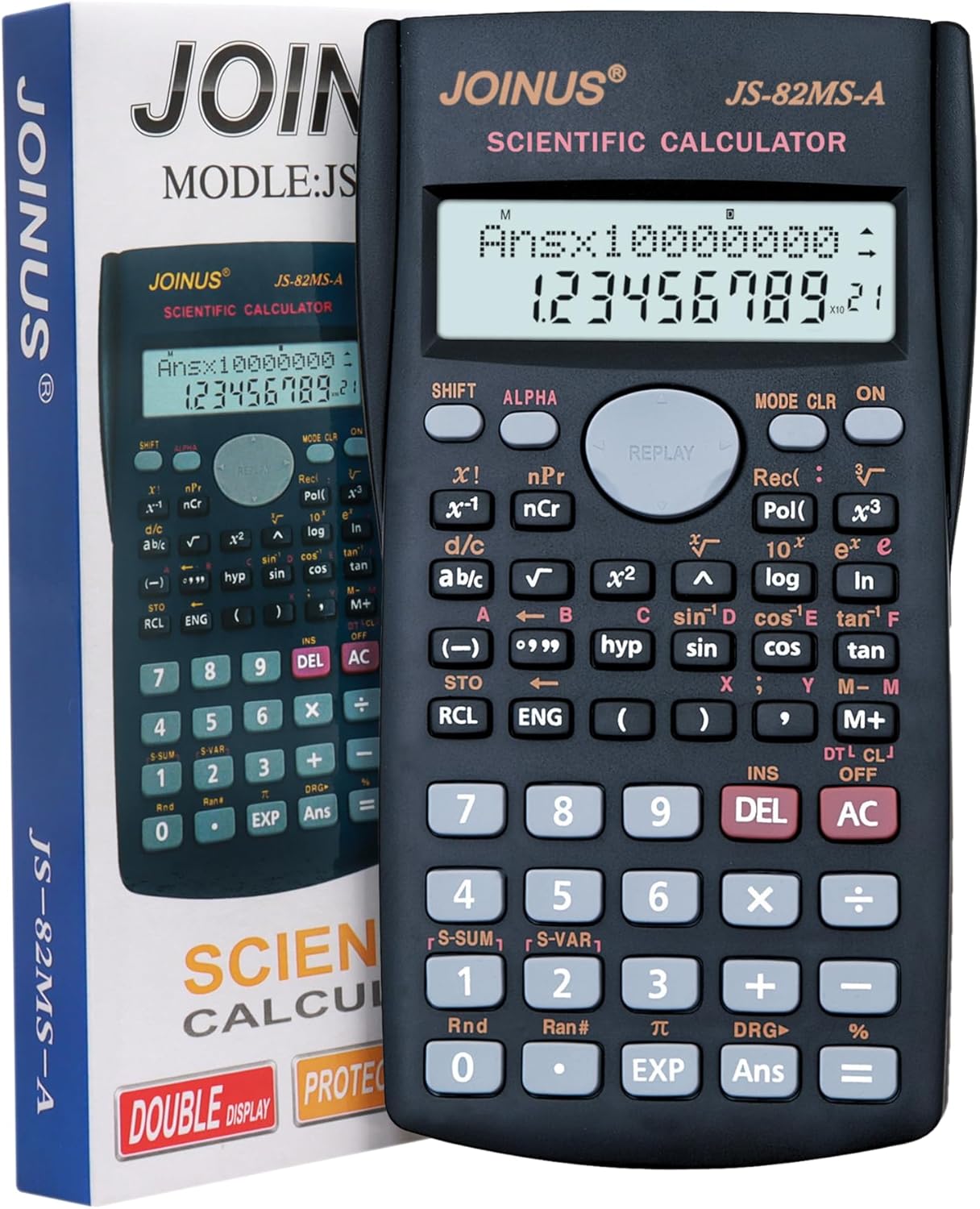
Figure 1.1: JOINUS Scientific Calculator JS-82MS-A with its retail packaging.
2. Setup
2.1. Battery Installation
The calculator requires two AAA batteries (not included) for operation. Follow these steps to install the batteries:
- Ensure the calculator is turned off.
- Locate the battery compartment cover on the back of the calculator.
- Slide the cover off in the direction indicated by the arrow.
- Insert two AAA batteries, ensuring the positive (+) and negative (-) terminals are aligned correctly as shown inside the compartment.
- Replace the battery compartment cover by sliding it back into place until it clicks securely.
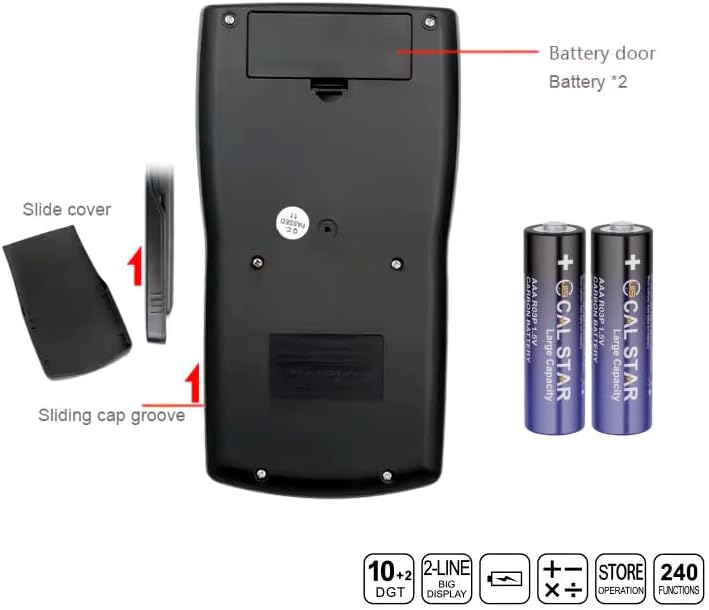
Figure 2.1: Illustration of the battery compartment and battery insertion.
2.2. Initial Power On
After installing the batteries, press the ON button to turn on the calculator. The display should light up, indicating it is ready for use.
3. Operating Instructions
3.1. Key Functions Overview
The calculator features a comprehensive set of keys for various mathematical and scientific functions. Familiarize yourself with the layout:

Figure 3.1: Key functions and display features of the calculator.
- Large Screen Dual Line Display: Shows input and results simultaneously.
- SHIFT / ALPHA: Access secondary and alpha functions printed above keys.
- MODE CLR ON: Mode setting, clear functions, and power on.
- REPLAY: Allows reviewing and editing previous calculations.
- DEL: Deletes the last entered character.
- AC: All Clear, clears all entries and calculations.
- Memory Functions (STO, RCL, M+, M-): Store, recall, add to, or subtract from memory.
- Trigonometric Functions (sin, cos, tan): Standard trigonometric calculations.
- Logarithmic Functions (log, ln): Logarithm and natural logarithm.
- Fraction Calculations (d/c, a b/c): Input and calculate fractions.
- Percentage (%): Calculate percentages.
3.2. Basic Calculations
To perform basic arithmetic operations (addition, subtraction, multiplication, division), simply input the numbers and operators as you would on a standard calculator. Press = to get the result.
3.3. Scientific Notation
To enter a number in scientific notation, use the EXP key. For example, to enter 6.02 x 10²³, type 6.02 EXP 23.
3.4. Fraction Calculations
Use the d/c or a b/c key to input fractions. For example, to enter 1/2, type 1 d/c 2. To convert between mixed numbers and improper fractions, use SHIFT then a b/c.
3.5. Percentage Calculations
To calculate a percentage, input the number, then the multiplication or division operator, the percentage value, and finally the % key. For example, to calculate 15% of 200, type 200 x 15 %.
3.6. Auto Power Off
The calculator features an auto power-off function to conserve battery life. If left idle for a certain period, it will automatically turn off. Press ON to turn it back on.
4. Maintenance
4.1. Cleaning
To clean the calculator, use a soft, dry cloth. For stubborn dirt, slightly dampen the cloth with water and a mild detergent, then wipe dry immediately. Do not use abrasive cleaners, solvents, or immerse the calculator in water.
4.2. Storage
When not in use, store the calculator in its protective slide-on hard case to prevent scratches and damage. Keep it in a cool, dry place away from direct sunlight, extreme temperatures, and high humidity.

Figure 4.1: The calculator with its protective hard case.
4.3. Battery Replacement
If the display becomes dim or the calculator functions erratically, it may be time to replace the batteries. Refer to Section 2.1 for battery installation instructions.
5. Troubleshooting
| Problem | Possible Cause | Solution |
|---|---|---|
| Calculator does not turn on. | Batteries are dead or incorrectly installed. | Replace batteries with new AAA batteries, ensuring correct polarity. |
| Display is dim or flickering. | Low battery power. | Replace batteries. |
| Incorrect calculation results. | Incorrect mode setting or input error. | Press AC to clear all entries. Check the current mode setting (e.g., DEG/RAD). Re-enter the calculation carefully. |
| Calculator freezes or becomes unresponsive. | Temporary software glitch. | Press ON to turn off, then ON again to restart. If problem persists, remove and reinsert batteries. |
6. Specifications
- Model Number: JS-82MS-A
- Functions: 240 Calculation Functions
- Display: 10+2 Digit, Double (Two) Line Display
- Power Source: 2 x AAA Batteries (Not Included)
- Dimensions: 158 x 84 x 19 mm (6.22 x 3.3 x 0.75 inches)
- Item Weight: 4.2 ounces (approx. 119 grams)
- Color: Black
- Features: Auto Power Off, Protective Cover Case Included
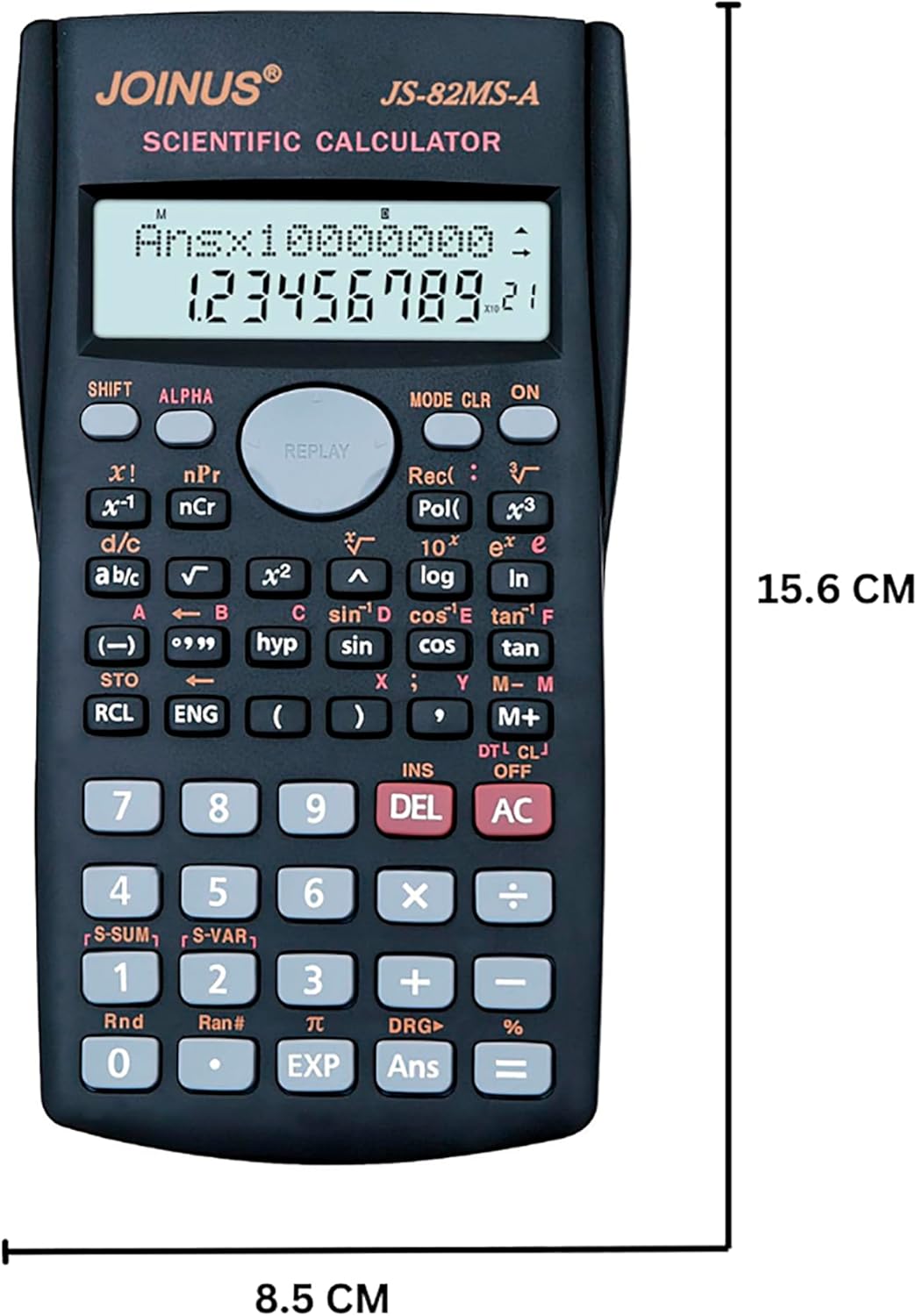
Figure 6.1: Calculator dimensions.
7. Warranty and Support
For warranty information and customer support, please refer to the contact details provided with your purchase or visit the official JOINUS website. Keep your purchase receipt as proof of purchase for any warranty claims.
Related Documents - JS-82MS-A
 |
British Council Exam Calculator Regulations and Guidelines Official guidelines from the British Council on the permitted use of calculators in examinations, detailing prohibited features, requirements for allowed calculators, and recommended models for specific syllabi. |
 |
Jackery Solar Generator Connection Guide Comprehensive connection guide for Jackery SolarSaga solar panels and Explorer portable power stations, detailing adapter requirements and setup methods. |
 |
Panasonic POS Workstation JS-960WS Series Operating Instructions Operating instructions for the Panasonic POS Workstation, JS-960WS Series. This manual provides detailed information on installation, usage, maintenance, and troubleshooting. |
 |
JS Innovations Product Warranty, Repair, and Maintenance Information Official warranty, replacement parts availability, repair services, and maintenance guidelines for JS Innovations products including Dash Cameras, Air Purifiers, Humidifiers, Kitchen Appliances, Heating & Cooling, and Vacuums. Details on obtaining support and important warranty notes. |
 |
Jackery Solar Generator Connection Guide A comprehensive connection guide for Jackery SolarSaga solar panels and Explorer portable power stations. Learn how to connect your solar generator equipment safely and efficiently. |
Ask a question about this manual
Ask about setup, troubleshooting, compatibility, parts, safety, or missing instructions. Manuals+ will review the question and use this page’s manual context to help answer it.