
Introduction
This manual provides instructions for the installation, operation, maintenance, and troubleshooting of the EDUP EP-N1528 300Mbps Wireless USB Adapter. This device is designed to provide high-speed wireless internet access to any USB-compatible computer, utilizing 802.11n/g/b wireless standards.
Setup
1. Package Contents
- EDUP EP-N1528 Wireless USB Adapter
- Driver CD (may vary by package)
- User Manual (this document)
2. Driver Installation
Before connecting the adapter to your computer, it is recommended to install the necessary drivers. Insert the provided driver CD into your computer's CD-ROM drive and follow the on-screen instructions. If a CD is not provided or your computer lacks a CD-ROM drive, download the latest drivers from the official EDUP support website.
3. Physical Connection
Once the drivers are installed, or if your operating system supports plug-and-play for this device, proceed with the physical connection:
- Locate an available USB 2.0 port on your computer.
- Carefully insert the EDUP EP-N1528 Wireless USB Adapter into the USB port. Ensure it is fully seated.
- The operating system should detect the new hardware and complete the installation process. A notification may appear indicating that the device is ready for use.
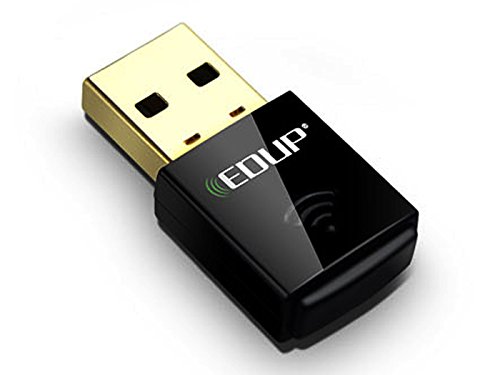
Image of the EDUP EP-N1528 Wireless USB Adapter, showing its compact design and USB connector.
Operating
1. Connecting to a Wireless Network
After successful installation, you can connect to a wireless network:
- Locate the wireless network icon in your computer's system tray (usually in the bottom-right corner for Windows, or top-right for macOS/Linux).
- Click on the icon to view available wireless networks.
- Select your desired network (SSID) from the list.
- If prompted, enter the network security key (password) and click 'Connect'.
- Once connected, the icon will indicate a successful connection, and you can access the internet.
2. Supported Modes
The EDUP EP-N1528 adapter supports both Ad Hoc and Infrastructure modes. Infrastructure mode is used for connecting to a wireless router or access point, while Ad Hoc mode allows direct communication between wireless devices without a central access point.
3. WiFi Protected Setup (WPS)
The adapter supports WPS for simplified and secure wireless network setup. If your router also supports WPS, you can establish a secure connection by pressing the WPS button on both the adapter (if available, or through software utility) and the router.
Maintenance
1. Driver Updates
Periodically check the EDUP official website for updated drivers. Keeping your drivers current can improve performance, stability, and security.
2. General Care
- Keep the adapter clean and free from dust. Use a soft, dry cloth for cleaning.
- Avoid exposing the adapter to extreme temperatures, humidity, or direct sunlight.
- Do not attempt to disassemble or modify the adapter, as this will void the warranty.
Troubleshooting
1. No Wireless Connection
- Check Physical Connection: Ensure the adapter is securely plugged into a USB port. Try a different USB port.
- Driver Installation: Verify that the drivers are correctly installed. Check Device Manager (Windows) or System Information (macOS/Linux) to see if the adapter is recognized without errors. Reinstall drivers if necessary.
- Wireless Network Availability: Ensure your wireless router is powered on and broadcasting a signal. Check if other devices can connect to the network.
- Network Settings: Confirm that your network name (SSID) and password are correct.
2. Slow Connection Speed
- Signal Strength: Move closer to your wireless router or access point to improve signal strength. Obstacles like walls and furniture can degrade signal quality.
- Interference: Other electronic devices (e.g., microwaves, cordless phones) operating on the 2.4 GHz band can cause interference. Try changing your router's Wi-Fi channel.
- Driver Updates: Ensure you have the latest drivers installed.
- Network Congestion: If many devices are using the network simultaneously, speed may decrease.
3. Adapter Not Recognized
- Restart Computer: A simple restart can often resolve recognition issues.
- USB Port: Test the adapter in a different USB port. Ensure the USB port is functional.
- Driver Reinstallation: Uninstall existing drivers and perform a clean reinstallation.
Specifications
| Brand | EDUP |
| Model | EP-N1528 |
| Data Transfer Rate | Up to 300 Mbps |
| Wireless Standards | IEEE 802.11n, 802.11g, 802.11b, 802.11e |
| Interface | USB 2.0 (backward compatible with USB 1.1, 1.2) |
| Frequency Band | 2.400 GHz ISM |
| Modulation Method | QPSK / BPSK / 16-QAM / 64-QAM |
| Wireless Security | 64-bit/128-bit WEP, TKIP, AES, WPA, WPS |
| Operating Distance | Up to 91.4m (indoors), Up to 274.3m (open space) |
| Operating System Support | Windows 2000, XP, Vista, Linux, Mac OS X |
| Compatible Devices | Computer |
Warranty and Support
For warranty information and technical support, please refer to the documentation included with your purchase or visit the official EDUP website. Keep your proof of purchase for warranty claims.


