
1. Introduction
This instruction manual provides detailed guidance for the installation, operation, and maintenance of your Incipio CommandKit Wireless Smart Outlet Adapter (Model CMNDKT-004-WHT). This device allows you to control connected appliances and monitor energy usage through your Apple HomeKit ecosystem.
Please read this manual thoroughly before using the product to ensure proper function and safety.
2. Product Overview
The Incipio CommandKit Smart Outlet Adapter is a Wi-Fi enabled device designed to integrate seamlessly with Apple HomeKit. It allows for remote control of any plugged-in device and provides energy metering capabilities.
2.1 Package Contents
- Incipio CommandKit Wireless Smart Outlet Adapter (CMNDKT-004-WHT)
- Quick Start Guide (not included in this digital manual)
2.2 Device Components

Figure 1: Front view of the smart outlet, displaying the standard US power outlet, Incipio branding, and the Wi-Fi/HomeKit indicator icon.

Figure 2: Side view of the smart outlet, highlighting the manual power button for direct control.
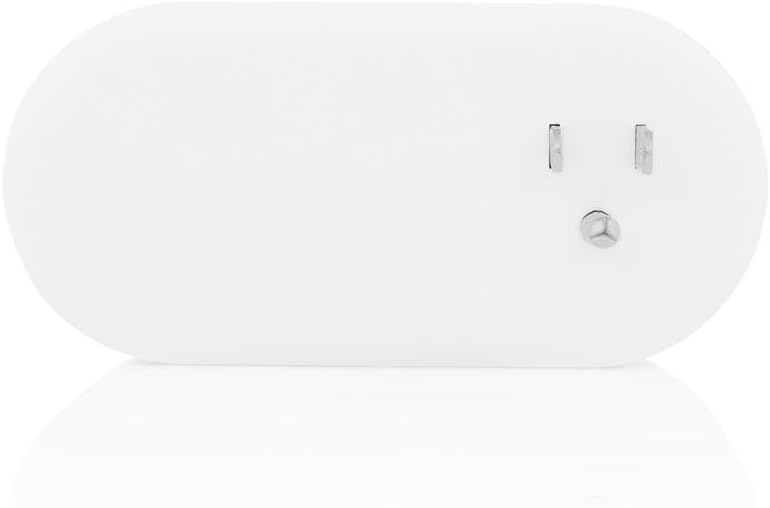
Figure 3: Back view of the smart outlet, showing the standard three-prong plug for insertion into a wall outlet.
- Power Outlet: Standard Type B (US) outlet for connecting your appliance.
- Power Button: Located on the side, this button allows for manual on/off control of the connected device.
- Status Indicator: An LED light (often integrated with the Wi-Fi/HomeKit icon) indicates the device's status and connectivity.
- Reset Button: A small, recessed button (requires a paperclip) for factory resetting the device.
- Plug: Standard three-prong plug for connecting the smart outlet to a wall receptacle.
3. Setup Instructions
Follow these steps to set up your Incipio CommandKit Smart Outlet Adapter with Apple HomeKit.
- Plug In the Device: Insert the Incipio CommandKit Smart Outlet Adapter into a standard wall outlet. Ensure it is securely plugged in. The power indicator LED may light up briefly.
- Download the App: Download the "Incipio CommandKit" app from the Apple App Store on your iOS device. You will also use the built-in Apple Home app.
- Open the CommandKit App: Launch the Incipio CommandKit app. It should guide you through the initial setup process.
- Add Accessory to HomeKit:
- In the CommandKit app or Apple Home app, select the option to "Add Accessory" or scan a code.
- Locate the 8-digit HomeKit setup code on the smart outlet adapter itself or its packaging.
- Use your iOS device's camera to scan the HomeKit code. If scanning fails, you may manually enter the code.
- Follow the on-screen prompts to assign the outlet to a room and give it a name (e.g., "Living Room Lamp").
- Troubleshooting Pairing (if needed): If the device is not discovered or pairing fails, try the following:
- Unplug the smart outlet, wait 10 seconds, and plug it back in.
- Perform a factory reset: With the device plugged in, use a paperclip to press and hold the recessed reset button for approximately 5-10 seconds until the status indicator flashes. Release the button and attempt pairing again.
- Remote Access and Automation (Optional but Recommended): To control your smart outlet when away from home or to set up advanced automations, an Apple HomeKit hub is required.
- An Apple TV (3rd generation or later with tvOS 7.0+) or an iPad (with iOS 10+ and always powered on and connected to your home Wi-Fi) can serve as a HomeKit hub.
- Ensure your chosen device is signed into iCloud with the same Apple ID as your other HomeKit devices and has "Home" enabled in iCloud settings.
- In the Apple Home app settings, verify that your Apple TV or iPad is set as the Home Hub.
4. Operating Instructions
Once set up, you can control your Incipio CommandKit Smart Outlet using various methods.
4.1 Manual Control
Press the physical power button on the side of the smart outlet to manually turn the connected appliance on or off. The status indicator will change accordingly.
4.2 App Control (Apple Home App / Incipio CommandKit App)
- On/Off Control: Open the Apple Home app or Incipio CommandKit app. Tap on the icon for your smart outlet to toggle its power state. The change should be nearly instantaneous when on the same Wi-Fi network.
- Siri Voice Control: Use Siri on your iOS device or HomePod to control the outlet. For example, say "Hey Siri, turn on the Living Room Lamp" (using the name you assigned during setup).
- Metering Function: The Incipio CommandKit app provides a metering feature. Within the app, select your smart outlet to view real-time data such as voltage, wattage, and current consumption of the connected device.
4.3 Automation and Scenes
Leverage the Apple Home app to create custom automations and scenes:
- Scenes: Group multiple HomeKit accessories to control them with a single command or tap. For example, a "Good Night" scene could turn off all lights and the smart outlet.
- Automations: Set up actions to occur automatically based on time of day, location, or other accessory states. For example, turn on a lamp when you arrive home after sunset.
5. Maintenance
The Incipio CommandKit Smart Outlet Adapter requires minimal maintenance.
- Cleaning: Ensure the device is unplugged before cleaning. Use a soft, dry cloth to wipe the exterior. Do not use liquid cleaners or abrasive materials.
- Firmware Updates: Periodically check the Incipio CommandKit app or Apple Home app for available firmware updates. Keeping the firmware updated ensures optimal performance and security.
- Connectivity: Ensure your Wi-Fi network is stable and the smart outlet is within a reasonable range of your Wi-Fi router for consistent performance.
6. Troubleshooting
If you encounter issues with your Incipio CommandKit Smart Outlet, refer to the following common solutions.
| Problem | Possible Cause | Solution |
|---|---|---|
| Device is unresponsive or offline. |
|
|
| Cannot control the device remotely (away from home). |
|
|
| Device not found during initial setup. |
|
|
| Siri commands are not working. |
|
|
7. Specifications
| Model Number | CMNDKT-004-WHT |
| Brand | Incipio |
| Connectivity Protocol | Wi-Fi |
| Control Method | App, Voice (Siri) |
| Operation Mode | Automatically, Off, Toggle |
| Dimensions (L x W x H) | 3.7 x 5.24 x 3 inches |
| Item Weight | 8 ounces |
| Material | Plastic (housing), Copper (contacts) |
| Mounting Type | Tabletop (plugs into wall outlet) |
| International Protection Rating | IP00 |
| UPC | 840076158553 |
| Date First Available | January 15, 2016 |
8. Warranty and Support
For warranty information and technical support, please refer to the official Incipio website or contact their customer service directly. Keep your purchase receipt as proof of purchase for warranty claims.
Incipio Official Website: www.incipio.com
Note: Specific warranty terms may vary by region and retailer.