
1. Introduction and Overview
This manual provides essential information for the safe and effective use of your Genuine Dell 180W AC Adapter. This power adapter is designed to provide reliable power to compatible Dell Precision mobile workstations, ensuring optimal performance and charging capabilities. Please read this manual thoroughly before using the product.
Compatible Dell Precision Models: M2800, M4600, M4700, M4800, M6600, M6700, M6800.
2. Package Contents
Your Dell 180W AC Adapter package should contain the following items:
- Dell 180W AC Adapter (Model: FA180PM111)
- Power Cord (3.3 ft)

Image: The Dell 180W AC Adapter unit with its attached DC output cable and the separate AC input power cord. The adapter's label, showing specifications and certifications, is clearly visible.
3. Setup Instructions
Follow these steps to properly set up your Dell 180W AC Adapter:
- Verify Compatibility: Before connecting, ensure that your laptop requires a 180W adapter and has a compatible 7.4mm x 5.0mm barrel connector. Using an incompatible adapter can damage your device.
- Connect the Power Cord: Insert the three-prong end of the AC power cord into the AC input port on the adapter unit. Ensure it is firmly seated.
- Connect to Power Outlet: Plug the other end of the AC power cord into a grounded electrical wall outlet.
- Connect to Laptop: Insert the barrel connector (DC output plug) from the adapter into the power input port on your Dell Precision laptop.

Image: A visual guide illustrating how to confirm the correct connector tip size (7.4mm x 5.0mm) for Dell laptops, differentiating it from smaller 4.5mm x 3.0mm tips and USB-C connectors.

Image: The Dell 180W AC Adapter showing the three-pin AC input port where the power cord connects.
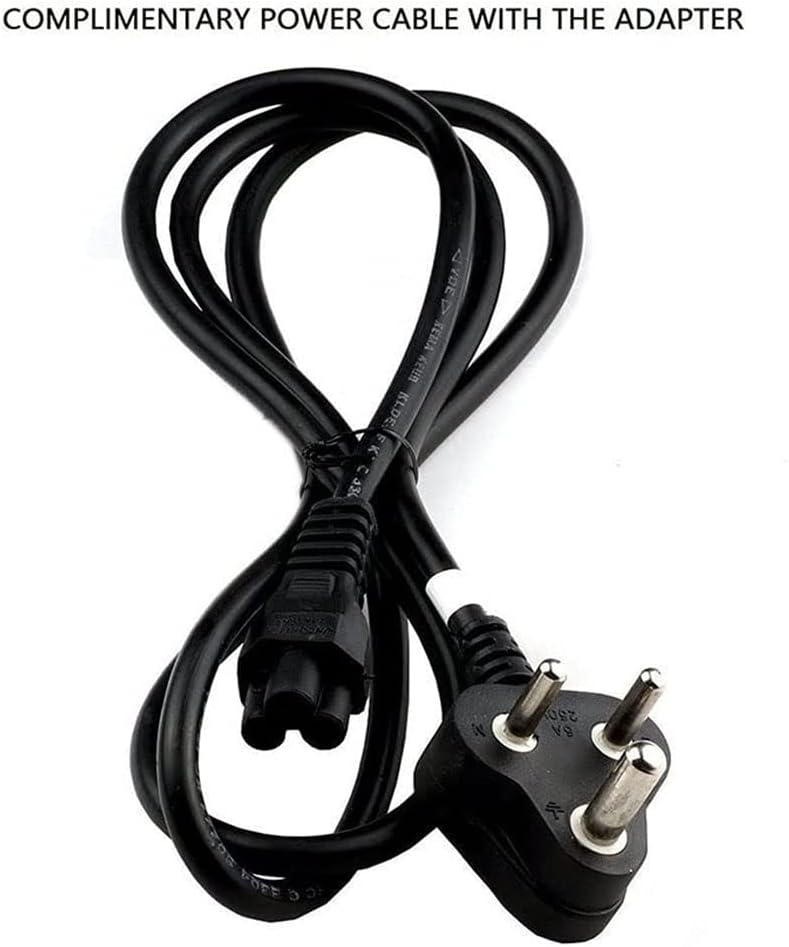
Image: The three-prong AC power cord included with the adapter, ready to be connected to a wall outlet.
4. Operating Instructions
Once connected, the adapter will automatically begin to power your laptop and charge its battery. Observe the charging indicator light on your laptop (if available) to confirm that it is receiving power.
- Powering On: You can power on your laptop while it is connected to the AC adapter.
- Battery Charging: The adapter will charge your laptop's battery when the laptop is off, in sleep mode, or operating.
- Disconnection: To disconnect, first unplug the barrel connector from the laptop, then unplug the AC power cord from the wall outlet, and finally disconnect the power cord from the adapter.
Safety Precautions:
- Use only with compatible Dell laptops as specified.
- Do not expose the adapter to water or excessive moisture.
- Avoid dropping or subjecting the adapter to severe impacts.
- Ensure adequate ventilation around the adapter during use to prevent overheating.
- Do not attempt to open or repair the adapter. Refer to qualified service personnel.
5. Maintenance
Proper maintenance ensures the longevity and safe operation of your AC adapter:
- Cleaning: Use a soft, dry cloth to clean the adapter. Do not use liquid cleaners or aerosols.
- Storage: When not in use, store the adapter in a cool, dry place. Avoid tightly wrapping the cables to prevent damage.
- Cable Care: Regularly inspect the power cord and adapter cables for any signs of fraying, cuts, or damage. If damage is found, discontinue use immediately and replace the adapter.

Image: A top-down view of the Dell 180W AC Adapter, illustrating its compact design for easy handling and storage.
6. Troubleshooting
If you encounter issues with your Dell 180W AC Adapter, try the following steps:
- No Power/Charging:
- Ensure all cables are securely connected to the adapter, wall outlet, and laptop.
- Try plugging the power cord into a different wall outlet to rule out a faulty outlet.
- Verify that the adapter's specifications (voltage, wattage) match your laptop's requirements.
- Check for any visible damage to the adapter or cables.
- Adapter Overheating:
- Ensure the adapter is placed in a well-ventilated area and not covered by objects.
- If overheating persists, discontinue use and contact support.
- Laptop Not Recognizing Adapter:
- Some Dell laptops require genuine Dell adapters for full functionality. Ensure you are using a genuine Dell product.
- Restart your laptop with the adapter connected.
If troubleshooting steps do not resolve the issue, please contact Dell Support for further assistance.
7. Specifications
| Feature | Detail |
|---|---|
| Brand | Dell |
| Model Number | FA180PM111 |
| Manufacturer | Dell Computers |
| Max Output Power | 180 Watts |
| Input Voltage | 240 Volts (compatible with standard AC inputs) |
| Output Current | 9.23 Amps |
| Connector Type | Barrel Connector (7.4mm x 5.0mm) |
| Included Components | Power cord (3.3 ft) |
| Special Feature | Short Circuit Protection |
| Item Weight | 1.48 pounds |
| Package Dimensions | 8.07 x 6.3 x 3.31 inches |
8. Warranty and Support
This Dell 180W AC Adapter is a genuine Dell product. For information regarding warranty coverage, terms, and conditions, please refer to the documentation provided with your original Dell laptop or visit the official Dell support website.
For technical assistance or to report issues, please contact Dell Customer Support. You can find contact information and resources on the official Dell website:
You can also visit the Dell Store on Amazon for more product information.


