
1. Introduction
Thank you for choosing the ORICO 3588C3 3.5-inch External Hard Drive Enclosure. This device provides a convenient and efficient solution for converting your 3.5-inch SATA hard disk drive (HDD) into an external storage device, connecting via USB 3.1 Type-C. It supports tool-free installation, UASP protocol for enhanced performance, and capacities up to 20TB. This manual will guide you through the setup, operation, and maintenance of your enclosure.

Image 1.1: The ORICO 3588C3 enclosure connected and ready for use.
2. Package Contents
Please verify that all items are present in your package:
- 1 x ORICO 3.5-inch Hard Drive Enclosure (Model: 3588C3)
- 1 x 12V US Power Adapter
- 1 x USB Type-A to Type-C Cable
- 1 x User Manual (this document)
- 1 x Service Card
3. Features
- Compatibility: Supports 3.5-inch SATA HDDs up to 20TB. Compatible with Windows, macOS, Android, and Linux operating systems.
- High Performance: USB 3.1 Type-C to SATA III interface with a maximum data transfer rate of 5Gbps. UASP protocol enhances speed by up to 20% compared to traditional USB 3.0.
- Tool-Free Installation: Simple plug-and-play design requires no tools, reboots, or driver installation.
- Stable Power Supply: Includes a 12V power adapter to ensure stable operation for your hard drive.
- Safety and Protection: Features a shock-proof sponge/foam material for reinforced hard drive protection. Built-in intelligent chip provides over-voltage, short-circuit, over-current, and over-temperature protection.
- LED Indicator: A blue LED light indicates power and standby status, while a flashing red light signifies data reading and writing activity.
- Auto Sleep Mode: Automatically enters sleep mode after 10 minutes of inactivity to conserve energy and extend drive lifespan.
4. Setup Guide
Follow these steps to install your 3.5-inch SATA HDD into the ORICO 3588C3 enclosure:
- Open the Enclosure: Gently slide the top cover of the enclosure horizontally to open it. Do not pull upwards.
- Insert the Hard Drive: Align your 3.5-inch SATA HDD with the SATA connector inside the enclosure and gently push it in until it is firmly seated. Ensure the drive is oriented correctly.
- Secure the Enclosure: Slide the top cover back into place until it clicks securely.
- Apply Foam Pads (Optional): If your hard drive feels loose inside the enclosure, use the provided shock-proof sponge/foam material. Peel off the adhesive backing and place it inside the enclosure cover to create a snug fit and enhance protection.
- Connect Power: Connect the 12V power adapter to the DC IN port on the enclosure, then plug the adapter into a power outlet.
- Connect to Computer: Use the provided USB Type-A to Type-C cable to connect the enclosure's USB Type-C port to an available USB port on your computer.
- Power On: Press the power button on the enclosure. The blue LED indicator will light up.

Image 4.1: Opening the ORICO 3588C3 enclosure.

Image 4.2: Inserting a 3.5-inch HDD into the enclosure.

Image 4.3: Anti-fall design with soft EVA foams for enhanced protection.

Image 4.4: Connecting the independent 12V power adapter.
5. Operating Instructions
5.1 Initializing and Formatting the Drive
For a new hard drive, it must be initialized and formatted before use. For drives with existing data, this step is not necessary unless you wish to erase all data.
- Connect the enclosure to your computer and power it on.
- For Windows: Right-click "This PC" (or "My Computer") and select "Manage" > "Disk Management." Locate your new drive, right-click it, and select "Initialize Disk." Choose MBR or GPT (GPT is recommended for drives larger than 2TB), then create a new simple volume and format it (NTFS recommended).
- For macOS: Open "Disk Utility" (Applications > Utilities). Select your new drive, click "Erase," choose a format (e.g., APFS or Mac OS Extended), and click "Erase."
- For Linux: Use a disk utility like GParted or command-line tools (fdisk, mkfs) to partition and format the drive.
5.2 Data Transfer
Once the drive is recognized and formatted, it will appear as a removable storage device. You can drag and drop files, or use copy/paste functions to transfer data to and from the enclosure.

Image 5.1: High-speed data transfer capabilities.
5.3 LED Indicator Status
- Solid Blue Light: Indicates the enclosure is powered on and in standby mode.
- Flashing Red Light: Indicates data is being read from or written to the hard drive.

Image 5.2: LED indicator on the enclosure.
5.4 Universal Compatibility
The ORICO 3588C3 is designed for broad compatibility with various devices and operating systems.

Image 5.3: Universal compatibility with various operating systems.
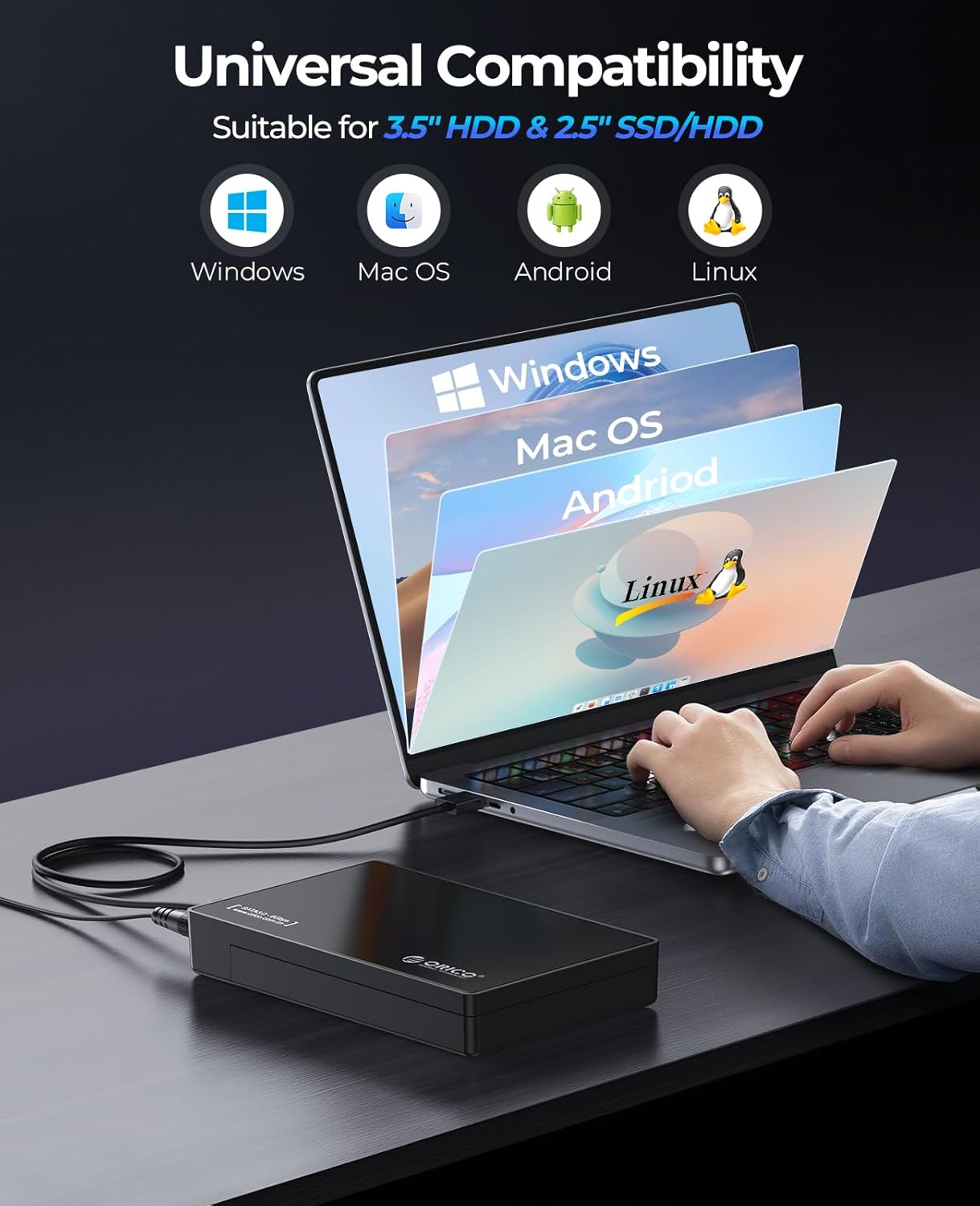
Image 5.4: Application scenes for the ORICO 3588C3.
6. Maintenance
Proper maintenance ensures the longevity and optimal performance of your ORICO 3588C3 enclosure and the installed hard drive.
- Safe Ejection: Always safely eject the hard drive from your operating system before disconnecting the USB cable or power. This prevents data corruption.
- Power Management: The enclosure features a 10-minute auto-sleep mode to reduce power consumption and extend the lifespan of the hard drive when not in use.
- Physical Protection: The enclosure's design, including optional foam pads, helps protect the internal hard drive from shocks and vibrations. Avoid dropping the device.
- Cleaning: Use a soft, dry cloth to clean the exterior of the enclosure. Do not use liquid cleaners or solvents.
- Ventilation: Ensure the enclosure is placed in a well-ventilated area to prevent overheating, especially during prolonged use.

Image 6.1: Auto Sleep Mode for power saving.
7. Troubleshooting
If you encounter issues with your ORICO 3588C3 enclosure, please refer to the following common problems and solutions:
- Drive Not Detected:
- Ensure the power adapter is securely connected and the enclosure is powered on (blue LED should be solid).
- Verify the USB cable is firmly connected to both the enclosure and your computer. Try a different USB port or cable.
- Check "Disk Management" (Windows) or "Disk Utility" (macOS) to see if the drive is recognized but uninitialized or unformatted. Follow the steps in Section 5.1 if necessary.
- Ensure the hard drive is correctly seated within the enclosure's SATA connector.
- Test the enclosure with a different hard drive, or test the hard drive in another enclosure/computer to isolate the issue.
- Slow Data Transfer Speeds:
- Ensure you are connected to a USB 3.0/3.1 port on your computer. USB 2.0 ports will result in significantly slower speeds.
- Verify your operating system and drivers support UASP. Most modern OS versions do.
- The actual speed may be limited by the hard drive's performance.
- Enclosure Disconnects Randomly:
- Ensure the power adapter is providing stable power.
- Check for loose USB cable connections.
- Avoid placing the enclosure near strong electromagnetic interference sources.
- Ensure the enclosure is not overheating.
- Power Button Immediately Shuts Off Drive:
- The power button on this enclosure performs an immediate power cut. Always safely eject the drive from your operating system before pressing the power button to prevent data loss.
8. Specifications
| Feature | Specification |
|---|---|
| Model Number | ORICO 3588C3 |
| Compatible Drive Type | 3.5-inch SATA HDD |
| Max Capacity Support | Up to 20 TB |
| Hardware Interface | USB 3.1 Type-C |
| Data Transfer Rate | Up to 5 Gbps (USB 3.1 Gen 1) |
| Protocol Support | UASP (USB Attached SCSI Protocol) |
| Power Supply | 12V Power Adapter |
| Compatible Operating Systems | Windows, macOS, Android, Linux |
| Material | Acrylonitrile Butadiene Styrene (ABS), Metal |
| Product Dimensions | 7.64 x 4.65 x 1.22 inches (19.4 x 11.8 x 3.1 cm) |
| Item Weight | 8.5 ounces (240 grams) |
9. Warranty and Support
ORICO products come with a standard manufacturer's warranty. For specific warranty terms and conditions, please refer to the service card included in your package or visit the official ORICO website.
For technical support, product inquiries, or warranty claims, please contact ORICO customer service through their official channels. You can find more information and support resources on the ORICO Brand Store.


