Introduction
The Dell Wyse 8JD4W 3020 Mini Desktop is an enterprise-class thin client designed for efficient operation in various environments, including web-based applications and services. This manual provides essential information for the proper setup, operation, and maintenance of your device, ensuring you can utilize its full functionality, including support for dual digital displays and robust connectivity options.
What's in the Box
Carefully unpack your Dell Wyse 8JD4W 3020 Mini Desktop and verify that all components listed below are present:
- Zero client - desktop slimline
- Mouse
- Keyboard
- Horizontal feet
- VESA mounting kit
- DVI-VGA adapter
- Power adapter

Figure 1: All included components of the Dell Wyse 3020 Mini Desktop.
Setup
1. Connecting Peripherals
Connect your keyboard, mouse, and monitor(s) to the appropriate ports on the thin client.
- Keyboard and Mouse: Connect the USB keyboard and mouse to any of the available USB 2.0 ports.
- Monitor(s): Connect your display(s) to the DVI ports. The device supports up to two digital displays. Use the provided DVI-VGA adapter if your monitor requires a VGA connection.

Figure 2: Rear ports for connecting peripherals and power.
2. Connecting Power
Connect the power adapter to the thin client's power input port, then plug the power cable into a wall outlet.
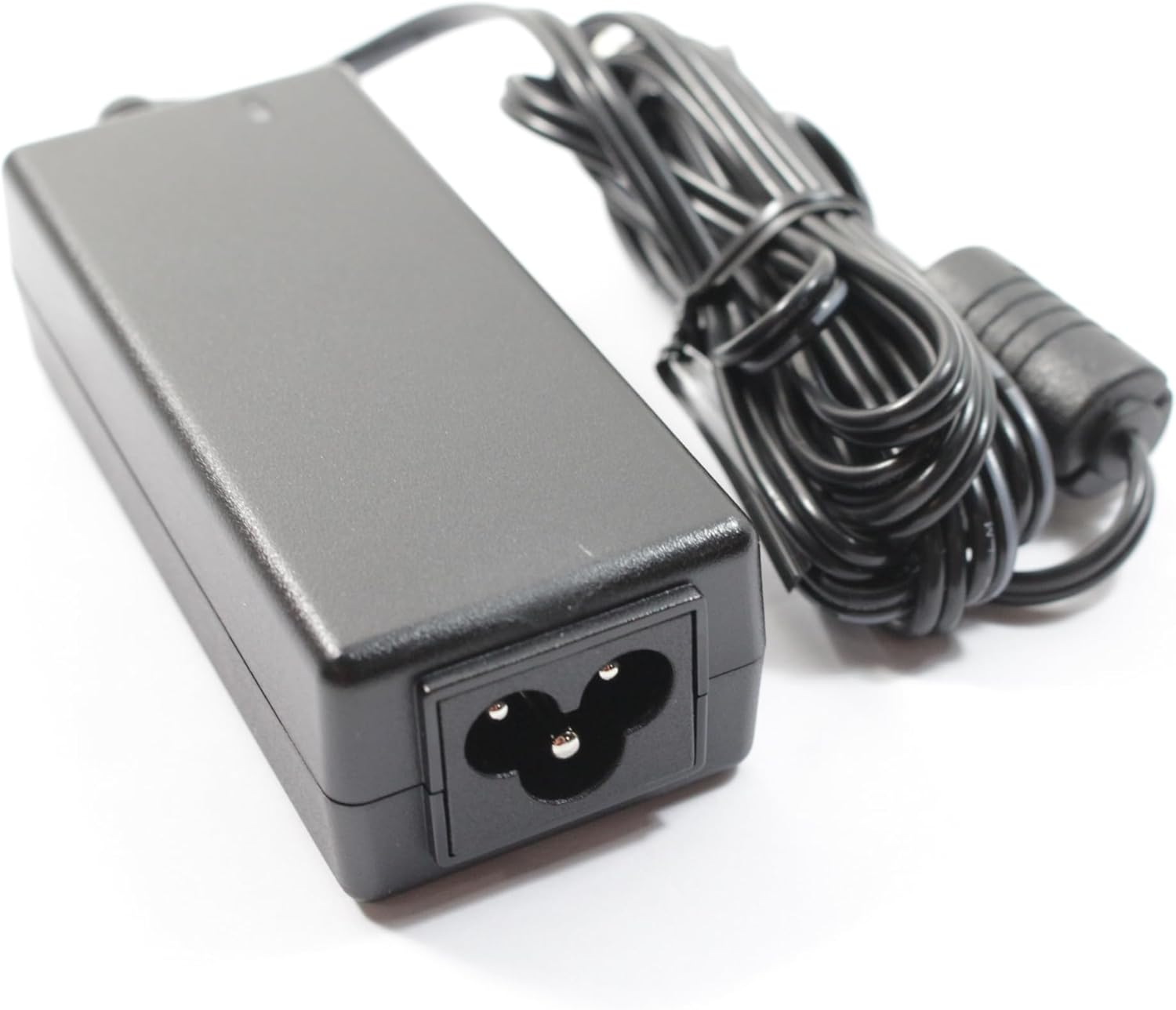
Figure 3: Power adapter for the Dell Wyse 3020.
3. Initial Boot-Up
Press the power button located on the front of the device. The thin client will initiate its boot sequence. Follow any on-screen prompts for initial configuration, which may include network settings and connection to your cloud environment.
4. VESA Mounting (Optional)
The included VESA mounting kit allows you to attach the thin client to the back of a compatible monitor or to a wall mount. Refer to the VESA kit instructions for detailed installation steps.
Operating Instructions
Power On/Off
To power on the device, press the power button. To power off, use the shutdown option within the operating system or press and hold the power button for a few seconds if the system is unresponsive.
Network Connectivity
The Dell Wyse 3020 supports both wired and wireless network connections.
- Wired Ethernet: Connect an Ethernet cable from your network router or switch to the RJ-45 port on the thin client.
- Dual-Band Wi-Fi: If your model includes the Dual-Band Wi-Fi option, configure your wireless connection through the operating system's network settings.
Connecting to Cloud Environments
The Dell Wyse 3020 is designed to connect to various cloud-based applications and services. Configuration details will depend on your specific IT infrastructure and the cloud environment you are accessing. Consult your system administrator for specific connection parameters and credentials.
Display Configuration
With support for up to two digital displays, you can extend your desktop or duplicate displays. Adjust display settings through the operating system's display configuration utility.
Maintenance
Cleaning
To clean the exterior of the thin client, use a soft, dry cloth. For stubborn marks, a slightly damp cloth with a mild cleaning solution can be used, ensuring no liquid enters the device. Avoid abrasive cleaners or solvents.
Environmental Considerations
Ensure the thin client is operated in a well-ventilated area, free from excessive dust, moisture, and extreme temperatures. Do not block ventilation openings.
Software Updates
Regularly check for and apply any available software or firmware updates provided by Dell or your IT department to ensure optimal performance and security.
Troubleshooting
If you encounter issues with your Dell Wyse 3020, refer to the following common troubleshooting steps:
- No Power: Ensure the power adapter is securely connected to both the thin client and a working power outlet. Check the power cable for damage.
- No Display: Verify that the monitor is powered on and correctly connected to the thin client's DVI port. Try a different monitor or cable if available.
- Network Connectivity Issues: For wired connections, check the Ethernet cable and router/switch status. For Wi-Fi, ensure the wireless adapter is enabled and you are connecting to the correct network with the correct password.
- Peripheral Not Responding: Try connecting the keyboard or mouse to a different USB port. Ensure the peripheral is functioning correctly on another device if possible.
- System Unresponsive: If the system freezes, press and hold the power button for approximately 5-10 seconds to force a shutdown. Wait a few moments, then power it back on.
For persistent issues, contact your IT support or Dell technical support.
Specifications
| Feature | Specification |
|---|---|
| Model | Dell Wyse 8JD4W 3020 |
| Processor | 1.2 GHz Marvell Pentium (2 Processors) |
| RAM | 2 GB DDR3 |
| Storage | 4 GB Flash (Solid State) |
| Operating System | Dell Wyse Zero Engine |
| Graphics Coprocessor | Integrated Graphics |
| Max Screen Resolution | 1366x768 |
| USB Ports | 4 x USB 2.0 |
| Product Dimensions (LxWxH) | 17.5 x 1.9 x 6.25 inches |
| Item Weight | 4.2 pounds |
| Color | Black/White |
Warranty and Support
For warranty information and technical support, please refer to the documentation included with your product or visit the official Dell support website. You can find detailed support resources, drivers, and contact information there.
Dell Support Website: www.dell.com/support


