
Introduction
This manual provides comprehensive instructions for the safe and effective use of your Canon VIXIA HF R700 Camcorder. Please read this manual thoroughly before using the camcorder and retain it for future reference. The Canon VIXIA HF R700 is designed for capturing high-quality Full HD video with ease, featuring advanced zoom capabilities, image stabilization, and intuitive controls.
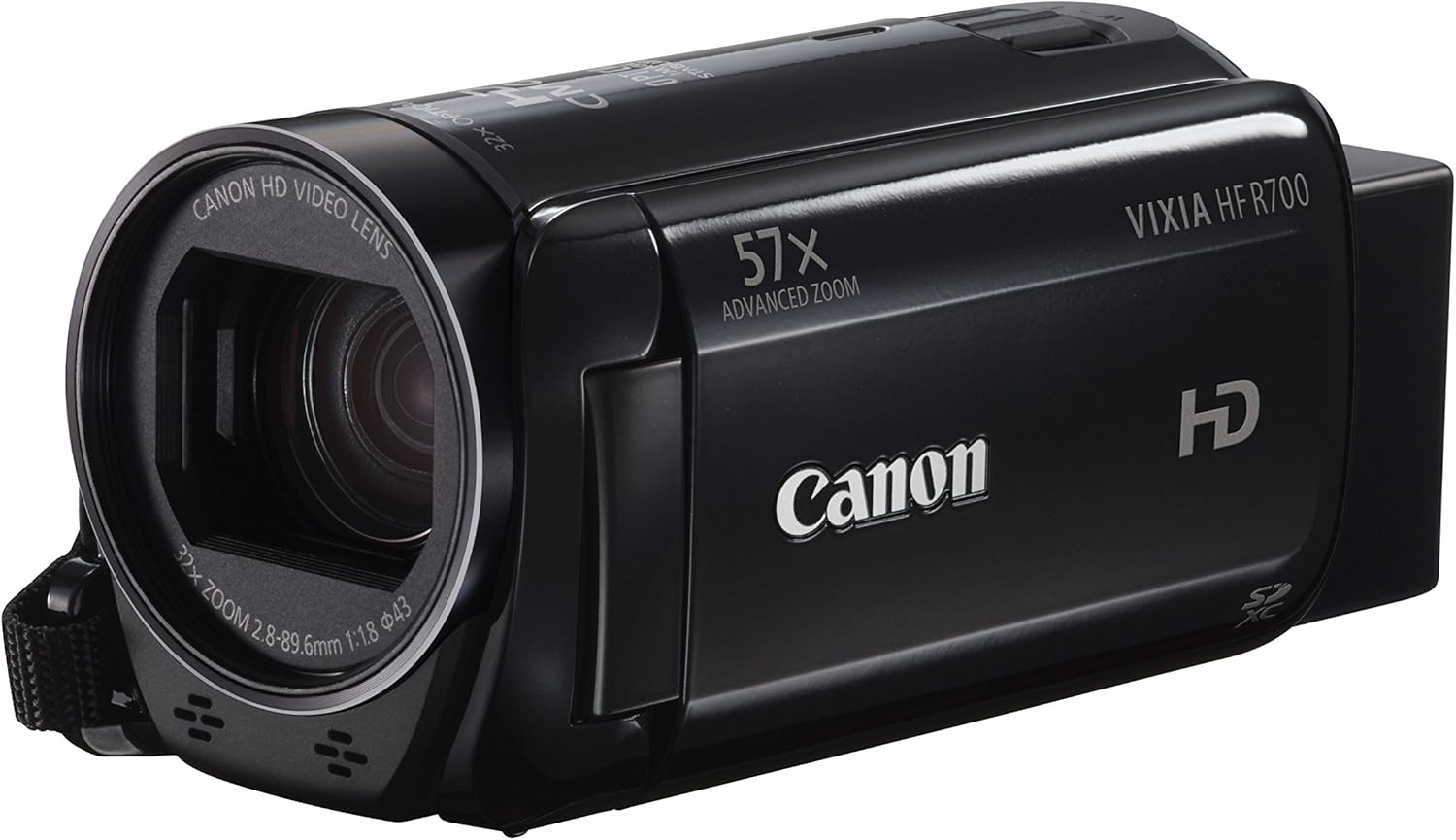
Figure 1: Front-side view of the Canon VIXIA HF R700 Camcorder.
What's in the Box
Verify that all items listed below are included in your package:
- VIXIA HF R700 Camcorder Body (Black)
- Battery Pack BP-727
- Compact Power Adapter (CA-110)
- High Speed HDMI Cable (HTC-100/S)
- Interface Cable (IFC-300PCU/S)
Setup
1. Charging the Battery
- Insert the Battery Pack BP-727 into the camcorder's battery compartment.
- Connect the Compact Power Adapter (CA-110) to the camcorder and then to a power outlet.
- The charging indicator will illuminate. Charging is complete when the indicator turns off.
The high-capacity BP-727 battery pack supports extended shooting times.
2. Inserting an SD Memory Card
- Open the SD card slot cover.
- Insert an SD, SDHC, or SDXC memory card into the slot with the label facing the correct direction until it clicks into place.
- Close the SD card slot cover.
The camcorder records Full HD video directly to a removable SD memory card. For 1080/60p recording, Class 6 or higher memory cards are recommended. For high-image-quality and Full HD standard modes, Class 4 or higher-speed memory cards are recommended.
3. Initial Power On and Basic Settings
- Open the 3.0-inch capacitive touch panel LCD screen. The camcorder will power on automatically.
- Follow the on-screen prompts to set the date, time, and language.

Figure 2: The camcorder with its LCD screen open, ready for use.
Operating the Camcorder
1. Basic Recording
To begin recording, press the START/STOP button. Press it again to stop recording. The camcorder features a 3.28 Megapixel Full HD CMOS Image Sensor and the powerful DIGIC DV 4 Image Processor for capturing video at 1920 x 1080 resolution.

Figure 3: Top view of the camcorder, highlighting the START/STOP button and zoom lever.
2. Zoom Functionality
Utilize the zoom lever to adjust the 57x Advanced Zoom (32.5–1853mm) or 32x Optical Zoom. The camcorder offers continually variable Zoom Speed settings with 15 levels.
- Zoom Framing Assist: This feature helps you keep faraway subjects in view. If you lose your subject at high zoom, press the Zoom Framing Assist icon on the touch screen to temporarily decrease magnification, allowing you to re-locate and re-zoom on the subject. Available in both Auto and Manual modes.
3. Image Stabilization (Intelligent IS)
The SuperRange Optical Image Stabilizer corrects camera shake. Intelligent IS automatically selects the optimal stabilization method from four modes:
- Dynamic IS: Corrects minor movement and shaking during walking.
- Macro IS: Provides steady close-up shots.
- Powered IS: Corrects shake during powerful telephoto zoom shots.
- Tripod Mode: Stops IS when the camcorder is stationary.
4. Audio Scene Select
Choose from five audio modes to optimize sound capture based on your shooting situation: Standard, Music, Speech, Forest and Birds, and Noise Suppression. Each mode has pre-determined settings for realistic, immersive audio.
5. Smart AUTO
Smart AUTO intelligently selects the proper settings for the camcorder by recognizing 38 shooting situations. This ensures clear, bright, and well-focused video without manual adjustments.
6. Special Recording Modes
- Slow & Fast Motion: Record fast motion at up to 1200x or slow motion at 0.5x for creative effects.
- Cinema-Look Filters: Apply seven varied built-in adjustable filters (e.g., Cinema Standard, Vivid, Cool, Sepia, Old Movies) during or after shooting to give your video a cinematic feel.
- Highlight Priority Mode: Helps deliver an expansive range of colors and tones consistent with how they’re seen by the naked eye, reducing loss of detail in high brightness areas.
- Baby Mode: Optimizes camcorder settings for capturing a baby's daily growth. Videos are automatically saved to a dedicated Baby Album. The Pre-Record (Pre REC) function is always on in this mode, capturing three seconds of video before you press record. Touch Decoration options are also available.
Maintenance
1. General Care
Keep the camcorder clean and free from dust and moisture. Avoid exposing it to extreme temperatures or direct sunlight for prolonged periods.
2. Battery Care
To prolong battery life, avoid fully discharging the battery frequently. Store the battery in a cool, dry place when not in use. The intelligent technology of the BP-727 battery pack accurately indicates remaining battery time.
3. Cleaning the Lens and LCD Screen
Use a soft, lint-free cloth specifically designed for optical surfaces to clean the lens. For the LCD screen, gently wipe with a soft, dry cloth. Avoid using abrasive cleaners or solvents.
Troubleshooting
- Problem: Video appears shaky or unstable.
Solution: Ensure Intelligent IS is enabled. For handheld shooting, Dynamic IS is recommended. For telephoto shots, Powered IS is effective. - Problem: Difficulty keeping a distant subject in frame during zoom.
Solution: Utilize the Zoom Framing Assist feature by pressing its icon on the touch screen. - Problem: Poor audio quality.
Solution: Adjust settings using Audio Scene Select to match your recording environment (e.g., Music, Speech, Noise Suppression). - Problem: Video is too dark or lacks detail in bright areas.
Solution: Consider enabling Highlight Priority Mode to preserve detail in high-brightness areas. - Problem: Camcorder does not power on.
Solution: Check if the battery is charged and correctly inserted. Ensure the Compact Power Adapter is properly connected if using AC power. - Problem: Cannot record video.
Solution: Verify that an SD memory card is inserted and has sufficient free space. Check the recording mode settings.
Specifications
| Feature | Detail |
|---|---|
| Brand | Canon |
| Model Number | HF R700 |
| Photo Sensor Technology | CMOS |
| Video Capture Resolution | 1080p |
| Maximum Focal Length | 1853 Millimeters (Advanced Zoom) |
| Optical Zoom | 32x |
| Digital Zoom | 1140x |
| Maximum Aperture | f/1.8–4.5 |
| Flash Memory Type | SD, SDHC, SDXC |
| Video Capture Format | MP4, AVCHD |
| Supported Audio Format | MP4, Dolby Digital (2ch) for AVCHD |
| Screen Size | 3.0 Inches (capacitive touch panel LCD) |
| Connectivity Technology | USB, HDMI |
| Image Stabilization | Optical (SuperRange Optical Image Stabilizer, Intelligent IS) |
| Item Weight | 0.52 Pounds (Body only) |
| Dimensions (Approx.) | 2.1 x 2.3 x 4.6 in. / 53 x 58 x 116mm (Not including grip belt) |
| Operating Temperature | 23° to 113°F (-5° to 45°C) |
| Effective Still Resolution | 3.28 MP |
| Image Capture Speed | 60 fps |
| Exposure Control Type | Program (P) mode, Smart AUTO, SCN modes |
Warranty and Support
For detailed warranty information, please refer to the warranty card included with your product or visit the official Canon website. Canon offers various support resources, including online FAQs, driver downloads, and customer service contact options.
Optional CarePAK PLUS plans are available for extended protection against accidental damage and normal wear and tear. These plans may include image recovery, priority repair service, and genuine Canon parts.