
1. Overview
The Lenovo ThinkPad X1 Carbon 3rd Generation is a high-performance business ultrabook designed for productivity and portability. This manual provides essential information for setting up, operating, maintaining, and troubleshooting your device.

2. Package Contents
Verify that all items are present in your product package:
- Lenovo ThinkPad X1 Carbon 3rd Generation Ultrabook
- AC Power Adapter and Power Cord
- Quick Start Guide and Warranty Information (if applicable)
3. Physical Features and Ports
Familiarize yourself with the various ports and features of your ThinkPad X1 Carbon.
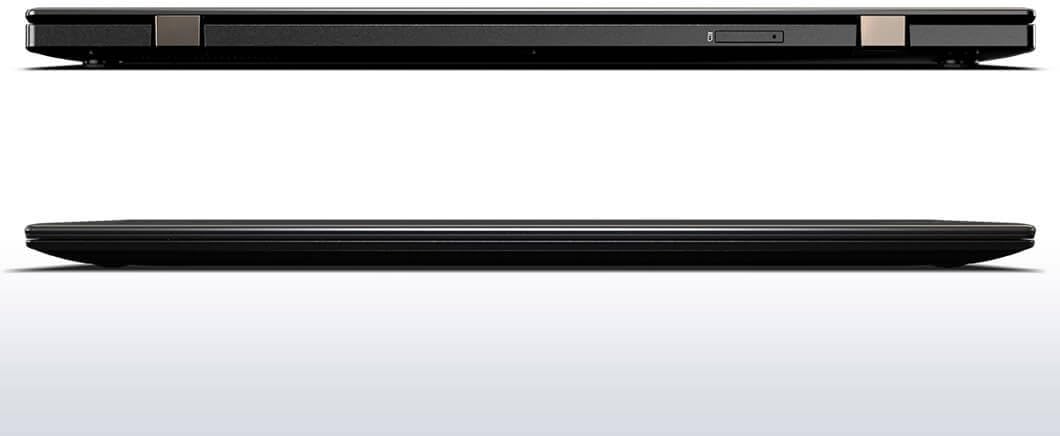
The ultrabook features a slim profile, with essential connectivity options distributed on its sides. These include USB 3.0 ports for high-speed data transfer, an HDMI port for external display connectivity, and a Mini DisplayPort for additional video output.

4. Setup
4.1 Initial Power On
- Unpack your ThinkPad X1 Carbon and place it on a stable surface.
- Connect the AC power adapter to the laptop's power port and then to a power outlet.
- Open the laptop lid and press the power button, typically located near the keyboard.
- Follow the on-screen instructions to complete the initial Windows 8.1 Pro setup.
4.2 Operating System Setup
During the first boot, Windows 8.1 Pro will guide you through setting up your user account, network connections, and basic preferences. Ensure you have an active internet connection for updates and software activation.
5. Operating the ThinkPad X1 Carbon
5.1 Keyboard and TrackPoint/Touchpad
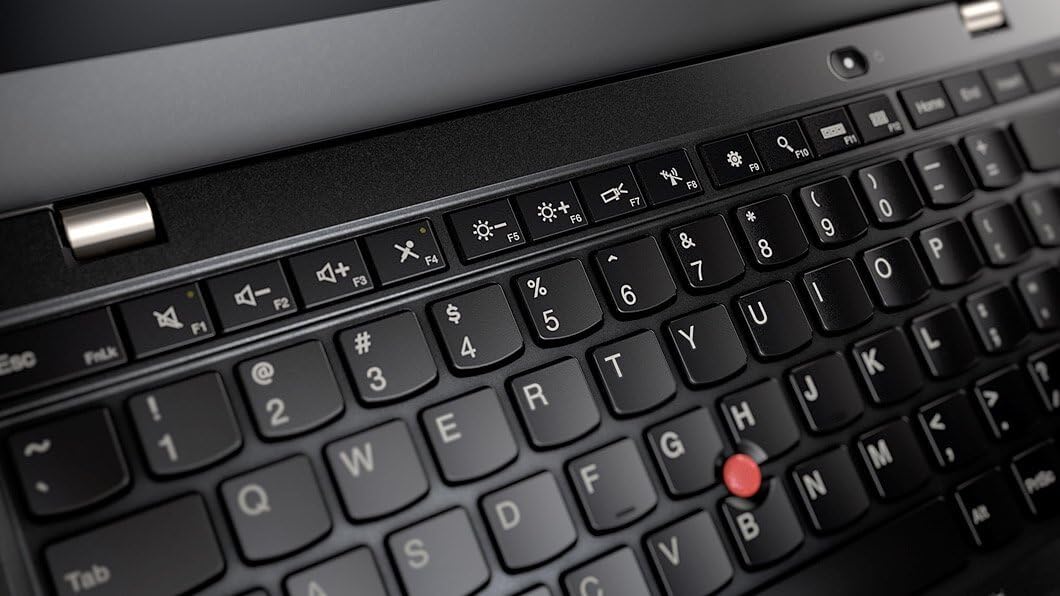
Your ThinkPad X1 Carbon features a backlit keyboard, a TrackPoint pointing device, and a multi-touch touchpad for navigation.
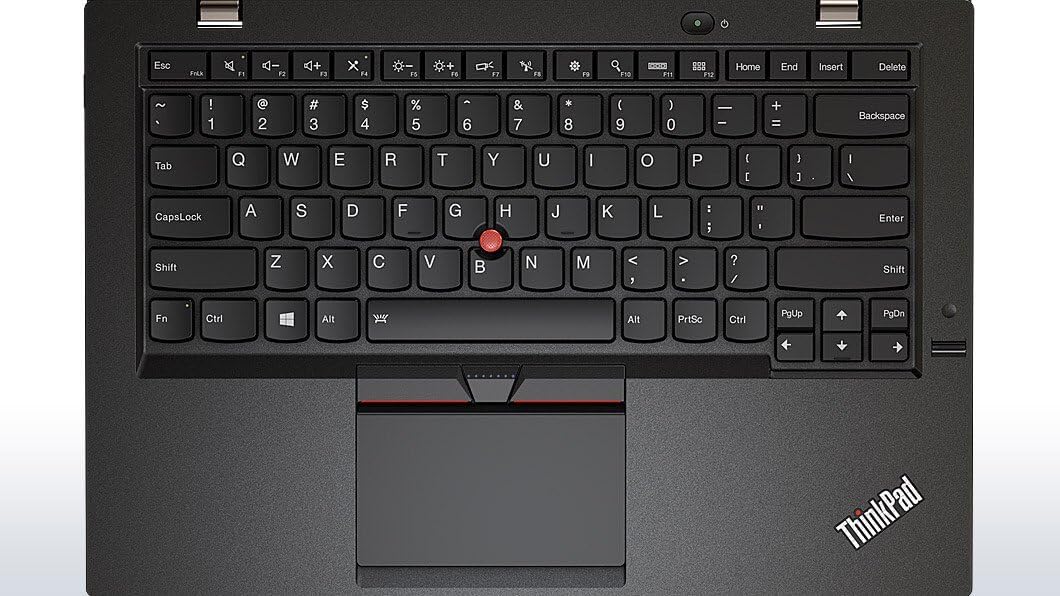
The TrackPoint, located in the center of the keyboard, allows for precise cursor control without moving your hands from the typing position. The touchpad supports multi-finger gestures for scrolling, zooming, and other functions.
5.2 Touchscreen Functionality
The 14-inch WQHD (2560x1440) IPS display supports multi-touch input. You can interact with the operating system and applications directly on the screen using gestures similar to those on a tablet.
5.3 Wireless Connectivity
To connect to a Wi-Fi network:
- Click the network icon in the system tray.
- Select your desired Wi-Fi network from the list.
- Enter the network security key if prompted.
Bluetooth devices can be paired via the Windows 'PC settings' or 'Control Panel' under 'Devices'.
5.4 Using External Displays
Connect an external monitor or projector using the HDMI or Mini DisplayPort. Press Windows Key + P to cycle through display modes (e.g., Duplicate, Extend, Second screen only).
6. Maintenance
6.1 Cleaning
- Screen: Use a soft, lint-free cloth lightly dampened with water or a screen cleaner. Avoid harsh chemicals.
- Keyboard and Chassis: Use a soft cloth. For stubborn dirt, a slightly damp cloth can be used, ensuring no liquid enters openings.
6.2 Battery Care
- Avoid extreme temperatures.
- For long-term storage, charge the battery to approximately 50-60%.
- Regularly allow the battery to discharge and recharge to maintain calibration.
6.3 Software Updates
Regularly check for and install Windows updates and Lenovo driver updates to ensure optimal performance, security, and compatibility. These can typically be found through Windows Update and the Lenovo Support website.
7. Troubleshooting
7.1 Common Issues
- No Power: Ensure the AC adapter is securely connected and the power outlet is functional. Try a different outlet.
- Display Issues: If the screen is blank, try connecting an external monitor to check if the issue is with the internal display. Adjust screen resolution in Windows settings.
- Connectivity Problems (Wi-Fi/Bluetooth): Verify that wireless features are enabled. Check device drivers in Device Manager. Restart your router/modem.
- System Slowdown: Close unnecessary applications. Check Task Manager for resource-intensive processes. Ensure sufficient free space on the SSD.
For persistent issues, a system restart often resolves minor glitches. If problems continue, consult the Lenovo support website or contact technical support.
8. Specifications
| Feature | Specification |
|---|---|
| Model Name | Lenovo ThinkPad X1 Carbon 3rd Generation |
| Processor | Intel Core i7-5600U |
| RAM | 8 GB DDR3 |
| Storage | 500 GB SSD |
| Screen Size | 14 Inches |
| Screen Resolution | 2560 x 1440 pixels (WQHD IPS Touchscreen) |
| Operating System | Windows 8.1 Pro |
| Wireless Type | Wi-Fi, Bluetooth |
| Item Weight | 2.99 pounds |
| Product Dimensions | 13 x 9 x 0.71 inches |
9. Warranty and Support
Your Lenovo ThinkPad X1 Carbon 3rd Generation is covered by a limited warranty. For detailed warranty terms, conditions, and registration, please refer to the documentation included with your product or visit the official Lenovo support website. Technical support, driver downloads, and additional resources are also available on the Lenovo support portal.
For assistance, visit: www.lenovo.com/support