Introduction
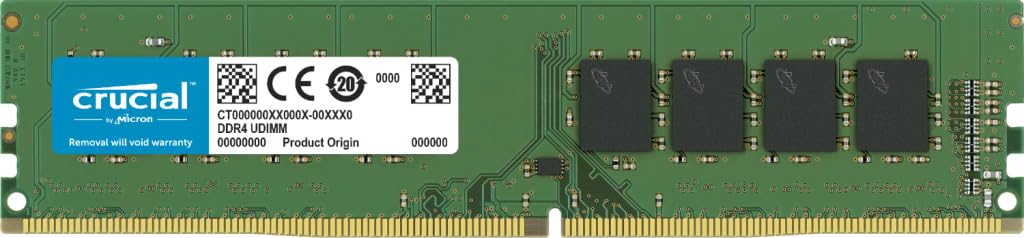
The Crucial CT16G4DFD824A is a 16GB DDR4 desktop module designed to enhance your computer's performance. It operates at speeds up to 2400 MT/s (PC4-19200) and features a CL17 latency. This Unbuffered DIMM conforms to the industry standard DDR4 ECC UDIMM layout of 288 pins and is compatible with systems that support DDR4 2400MT/s UDIMM memory. Installing additional memory can significantly improve your computer's speed, responsiveness, and multitasking capabilities.
What's in the Box
- DDR4 Unbuffered UDIMM Internal Memory DRAM Module
Installation Guide
This section provides step-by-step instructions for installing your new Crucial desktop memory module. Always ensure your system is powered off and unplugged before beginning any installation. Refer to your computer's owner's manual for specific details regarding your system's internal layout and memory slot configuration.
Official Installation Video
Official video guide from Crucial demonstrating the step-by-step process of installing Crucial desktop memory modules into a computer system.
Step-by-Step Instructions
- Gather Supplies: Clear your workspace and gather the necessary items: your desktop computer, a screwdriver, your system's owner's manual, and your new Crucial desktop memory module(s).
An image showing the Crucial 16GB DDR4 memory module alongside a desktop computer, monitor, keyboard, mouse, and a screwdriver, representing the tools needed for installation.
- Shut Down Your System: Properly shut down your computer through the operating system.
- Unplug the Power Cable: Once the system is completely off, unplug the power cable from the back of the computer.
- Discharge Residual Electricity: Hold down the power button on your computer for five seconds to discharge any residual electricity from the system.
- Open the Case: Open your computer's case. Consult your system's owner's manual for specific instructions on how to open your particular computer model.
- Ground Yourself: Before touching any internal components, ground yourself by touching an unpainted metal surface inside your computer case. This helps prevent electrostatic discharge (ESD) which can damage components.
- Remove Existing Memory Modules (if applicable): If you are replacing existing memory, locate the memory slots. Press down on the clips at both ends of the memory module slot to release the module, then gently pull it out.
- Install Crucial Memory: Hold your new Crucial memory module by its side edges, avoiding contact with the gold pins. Align the notch on the module with the ridge in the memory slot. Apply even pressure to both ends of the module until it firmly seats into the slot and the clips snap into place. Some desktops require memory modules to be installed in matched pairs or specific memory banks; refer to your owner's manual for the optimal configuration.
- Close Your Case: Once all memory modules are securely installed, close your computer's case.
- Plug the Power Cable Back In: Reconnect the power cable to your computer.
- Power On and Verify: Power on your computer. The system should automatically detect the new memory. You can verify the installed memory amount through your operating system's system information or BIOS settings.
Operating Instructions
Once installed, the Crucial DDR4 memory module operates automatically with your computer's motherboard and operating system. No specific user interaction is required for its daily function. The system will utilize the installed memory to run applications and processes more efficiently.
Maintenance
Memory modules generally require minimal maintenance. To ensure optimal performance and longevity:
- Keep your computer's internal components clean by periodically removing dust with compressed air.
- Ensure proper airflow within your computer case to prevent overheating.
- Avoid touching the gold contacts on the memory modules to prevent damage from oils or static electricity.
Troubleshooting
If you encounter issues after installing your new memory, consider the following:
- System Not Booting: Ensure the memory modules are fully seated in their slots. Re-seat them by pressing firmly until the clips lock.
- Memory Not Recognized: Check your system's owner's manual for specific memory configuration requirements (e.g., specific slots for single modules, matched pairs). Ensure the memory is compatible with your motherboard.
- System Instability: If your system experiences crashes or errors, try running a memory diagnostic tool (often available in your operating system or BIOS) to check for faulty modules.
- Incorrect Memory Speed: Your system's BIOS/UEFI settings might need to be adjusted to ensure the memory is running at its advertised speed. Consult your motherboard manual.
Specifications
| Feature | Detail |
|---|---|
| Brand | Crucial |
| Model Number | CT16G4DFD824A |
| Memory Type | DDR4 DIMM |
| Capacity | 16 GB |
| Pin Count | 288-pin |
| Speed | PC4-19200 (2400 MT/s) |
| Latency | CL17 |
| Form Factor | Unbuffered DIMM |
| Voltage | 1.2 Volts |
| Compatible Devices | Desktop |
| Product Dimensions (LxWxH) | 0.52 x 0.03 x 0.12 inches |
Warranty and Support
Crucial memory products are backed by a limited lifetime warranty. For detailed warranty information, technical support, or further assistance, please visit the official Crucial website or contact their customer service. Keep your proof of purchase for warranty claims.


