
1. Introduction
This manual provides essential information for the installation, configuration, operation, and maintenance of your SonicWall TZ300 Network Security Appliance. The TZ300 is designed to deliver comprehensive security for small to medium-sized businesses, offering advanced threat protection, secure wireless connectivity, and flexible network management. Please read this manual thoroughly before operating the device.
2. Setup and Installation
2.1 Package Contents
Verify that your package contains the following items:
- SonicWall TZ300 Network Security Appliance
- Power Adapter
- Ethernet Cable
- Quick Start Guide (refer to this manual for detailed instructions)
2.2 Physical Installation
- Choose a Location: Place the appliance in a cool, dry, and well-ventilated area, away from direct sunlight and heat sources. Ensure adequate space for cable connections and airflow.
- Connect Power: Connect the power adapter to the appliance's power input and then to a suitable power outlet. The power LED should illuminate.
- Connect Network Cables:
- Connect your Internet Service Provider's (ISP) modem or router to the WAN port (typically labeled X1) on the TZ300 using an Ethernet cable.
- Connect your internal network switch or a computer directly to one of the LAN ports (e.g., X0) on the TZ300 using an Ethernet cable.

Image: Front view of the SonicWall TZ300 Series Firewall, showing ports and indicator lights.

Image: Rear view of the SonicWall TZ300, illustrating the various connectivity ports including Ethernet and power input.
2.3 Initial Configuration
After physical connections are made, access the SonicWall management interface via a web browser.
- Ensure your computer is connected to a LAN port of the TZ300.
- Open a web browser and navigate to the default IP address (e.g., http://192.168.168.168).
- Follow the on-screen wizard to set up basic network settings, administrator password, and time zone.
- Register your device with SonicWall to enable full features and receive updates.
3. Operation
3.1 Management Interface
The SonicOS web interface provides comprehensive control over your network security appliance.
- Dashboard: View real-time network status, security threats, and system performance.
- Network Settings: Configure WAN, LAN, WLAN, and VPN settings.
- Security Services: Manage features like Intrusion Prevention, Gateway Anti-Virus, Anti-Spyware, and Content Filtering.
- Users and Zones: Define user access policies and network zones for granular control.
3.2 Key Features
The TZ300 offers a range of features to secure your network:
- Deep Packet Inspection (DPI): Inspects traffic for threats regardless of port or protocol.
- VPN Support: Secure remote access and site-to-site connectivity.
- Wireless Security: Integrated wireless capabilities (if applicable to your model) with robust security protocols.
- Application Control: Manage and prioritize network applications.
4. Maintenance
4.1 Firmware Updates
Regularly update the SonicOS firmware to ensure optimal performance and the latest security patches.
- Log in to the SonicWall management interface.
- Navigate to System > Firmware & Backups.
- Check for new firmware versions and follow the on-screen instructions to download and apply updates.
- Note: Firmware updates may require a device reboot.
4.2 Configuration Backup and Restore
Regularly back up your configuration settings to prevent data loss.
- From the management interface, go to System > Firmware & Backups.
- Save your current configuration to a local file.
- In case of issues, you can restore a previous configuration from this section.
4.3 Physical Cleaning
Keep the appliance free from dust and obstructions to ensure proper ventilation. Use a soft, dry cloth for cleaning. Do not use liquid cleaners.
5. Troubleshooting
5.1 Common Issues and Solutions
- No Internet Access:
- Check all cable connections (WAN, LAN, power).
- Verify ISP modem/router status.
- Ensure WAN interface is configured correctly in SonicOS.
- Reboot the TZ300 and your ISP equipment.
- Cannot Access Management Interface:
- Confirm your computer is connected to a LAN port.
- Verify your computer's IP address is in the same subnet as the TZ300's LAN interface.
- Try http://192.168.168.168 or the custom IP if changed.
- Clear browser cache or try a different browser.
- Slow Network Performance:
- Check network utilization on the SonicOS dashboard.
- Review security service logs for high threat activity.
- Ensure firmware is up to date.
- Consider adjusting security policies if they are overly restrictive.
5.2 Factory Reset
A factory reset will revert all settings to their default state. This should be a last resort for troubleshooting.
- Locate the reset button on the device (often recessed).
- Using a paperclip or similar pointed object, press and hold the reset button for approximately 10-15 seconds until the TEST LED begins to flash.
- Release the button. The device will reboot with factory default settings.
6. Specifications
Key technical specifications for the SonicWall TZ300 Network Security Appliance:
| Feature | Detail |
|---|---|
| Brand | Sonicwall |
| Model Name | TZ300 |
| Part Number | 01-SSC-0215 |
| Connectivity Technology | Ethernet, Wi-Fi |
| Operating System | SonicOS |
| Number of Ports | 8 |
| LAN Port Bandwidth | 10/100 megabits per second |
| Wireless Communication Standard | 802.11ac |
| Frequency Band Class | Dual-Band |
| Security Protocol | WPS |
| Recommended Uses | Security |
| Color | Grey |
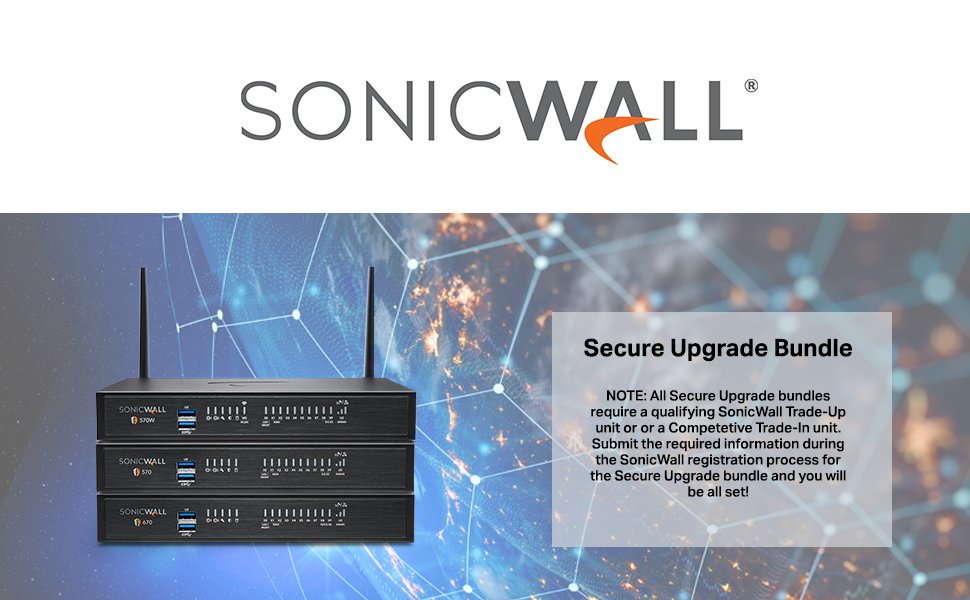
Image: Illustration of a SonicWall Secure Upgrade Bundle, showing multiple devices and a text box explaining the upgrade process.

Image: A bundle featuring Next-Gen Firewalls, SonicWall Security Suite Service, and a Rackmount Kit, demonstrating a comprehensive security solution.
7. Warranty and Support
7.1 Product Warranty
For detailed information regarding the product warranty, please refer to the official SonicWall website or the warranty documentation included with your purchase. Warranty terms typically cover manufacturing defects for a specified period.
7.2 Technical Support
If you encounter issues that cannot be resolved using this manual, please contact SonicWall Technical Support. Ensure you have your product serial number and registration details available when contacting support.
- Online Support: Visit the official SonicWall support portal for knowledge base articles, FAQs, and support ticket submission.
- Phone Support: Refer to the SonicWall website for regional support contact numbers.
For additional resources and product information, visit the SonicWall Store on Amazon.


