
Introduction
The AULA Wings of Liberty RGB Mechanical Gaming Keyboard is engineered for durability, responsiveness, and extensive customization. It features 100% blue RGB mechanical key switches, providing a tactile and clicky feedback ideal for typing and gaming. This keyboard offers multicolor per-key backlighting with numerous lighting combinations and effects, ensuring a personalized user experience. Built with a robust metal chassis and double-shot injection molded keycaps, it is designed for long-term performance.
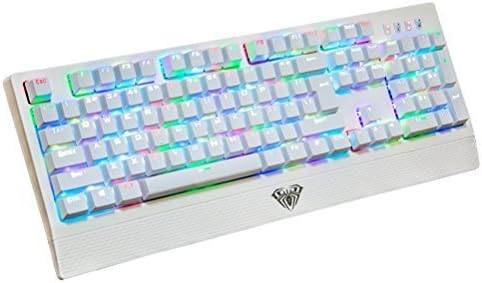
Image: The AULA Wings of Liberty RGB Mechanical Gaming Keyboard showcasing its vibrant, customizable backlighting.
Setup
Setting up your AULA Wings of Liberty keyboard is a straightforward process. The keyboard is designed for plug-and-play functionality, requiring no additional driver installation for basic operation on most compatible systems.
System Requirements:
- Operating System: Windows 2000, Windows XP, Windows Vista, Windows 7, Windows 8, Windows 10, or Mac OS.
- Available USB 2.0 port.
Connection Steps:
- Locate an available USB 2.0 port on your computer.
- Plug the USB connector of the AULA Wings of Liberty keyboard into the USB port.
- The operating system will automatically detect and configure the keyboard. The default backlighting will activate upon successful connection.

Image: The AULA Wings of Liberty keyboard shown with its detachable wrist rest, ready for connection.
Operating Instructions
The AULA Wings of Liberty keyboard offers a range of functions and customizable RGB lighting effects. Familiarize yourself with the key combinations to unlock its full potential.
Basic Key Functions:
- Standard 104-Key Layout: The keyboard features a full-size 104-key layout for comprehensive input.
- FN Key: The Function (FN) key is used in combination with other keys to access special features and lighting controls.
RGB Lighting Customization:
The keyboard supports multicolor per-key backlighting with 7 individual colors per key and 15 preset unique lighting effects. Additionally, 3 macro lighting effects can be configured.
- Changing Preset Effects: Use the FN key in combination with designated keys (refer to keyboard legends) to cycle through the 15 preset lighting modes.
- Customizing Per-Key Color:
- Press FN + PRT SCR to enter customization mode.
- Tap individual keys to cycle through the available 7 colors for that specific key.
- To save your custom color scheme, press FN + 1, FN + 2, or FN + 3. These combinations correspond to three user-definable macro lighting profiles.
- Adjusting Brightness: Use the FN key with the Up/Down arrow keys (or other designated keys, refer to keyboard legends) to increase or decrease the backlight brightness.

Image: An angled view of the AULA Wings of Liberty keyboard demonstrating a multi-color lighting pattern.
Maintenance
Proper maintenance ensures the longevity and optimal performance of your AULA Wings of Liberty keyboard.
Cleaning Instructions:
- General Cleaning: Use a soft, lint-free cloth slightly dampened with water or a mild cleaning solution to wipe down the surface of the keyboard. Avoid excessive moisture.
- Dust Removal: Use compressed air to remove dust and debris from between the keycaps.
- Keycap Cleaning: For deeper cleaning, keycaps can be removed. Use the included key puller to carefully lift keycaps. Clean them with a mild soap and water solution, rinse thoroughly, and ensure they are completely dry before reattaching.
Keycap Removal and Switch Access:
The keyboard comes with a key puller tool to facilitate safe keycap removal. This allows for cleaning underneath the keycaps or inspecting the mechanical switches.

Image: A detailed view of the AULA keyboard's blue mechanical switches with several keycaps removed, illustrating the switch mechanism.
Troubleshooting
If you encounter issues with your AULA Wings of Liberty keyboard, refer to the following common problems and solutions.
Common Issues and Solutions:
- Keyboard Not Responding:
- Ensure the USB cable is securely plugged into both the keyboard and the computer's USB port.
- Try plugging the keyboard into a different USB port on your computer.
- Test the keyboard on another computer to determine if the issue is with the keyboard or the original computer's setup.
- Backlighting Not Working or Incorrect:
- Check if the brightness is set too low. Adjust using FN + Up/Down arrow keys.
- If custom profiles are behaving unexpectedly, try resetting them or re-saving your desired configuration using FN + PRT SCR and FN + 1/2/3.
- Ensure no software conflicts are interfering with the keyboard's lighting controls.
- Specific Keys Not Registering Input:
- Remove the keycap using the key puller and inspect the switch for any visible obstructions or damage.
- Clean around the switch mechanism with compressed air.
- If the issue persists, it may indicate a faulty switch. Contact support for further assistance.
Specifications
| Model | BC82708 |
| Keyboard Type | Mechanical Gaming Keyboard |
| Switch Type | Blue RGB Mechanical Switches |
| Actuation Force | 60g |
| Key Rollover | Full N-Key Rollover (NKRO) on USB |
| Anti-Ghosting | 100% Anti-Ghosting |
| Keycap Material | Double-shot Injection Molded |
| Backlighting | RGB LED, Multicolor Per-Key, 7 Colors, 15 Preset Effects, 3 Macro Effects |
| Lifespan | 60 Million Clicks |
| Connectivity | USB 2.0 |
| Material | Metal Chassis |
| Approximate Dimensions (L x W x H) | 445 mm x 172 mm x 40 mm (17.51" x 6.77" x 1.57") |
| Approximate Weight | 1300 g (2.87 lbs) |
| Operating System Support | Windows 2000/XP/Vista/7/8/10, Mac OS |
Manufacturer's Guarantee
AULA provides a manufacturer's guarantee for this product. For specific details regarding the terms, duration, and claim process of the guarantee, please refer to the documentation included with your purchase or visit the official AULA website. Some retailers may offer additional return or money-back policies.
Support
For further assistance, technical support, or inquiries not covered in this manual, please contact AULA customer support through their official website or the retailer from whom you purchased the product. Please have your product model number (BC82708) and purchase information ready when contacting support.