
Introduction
Thank you for choosing the Celly ANY5 Portable Speakerphone. This device is designed to provide convenient hands-free communication and audio playback for your mobile phone. Featuring both wired and wireless connectivity options, the ANY5 offers a compact and lightweight solution for your audio needs. This manual provides essential information for setting up, operating, maintaining, and troubleshooting your speakerphone.
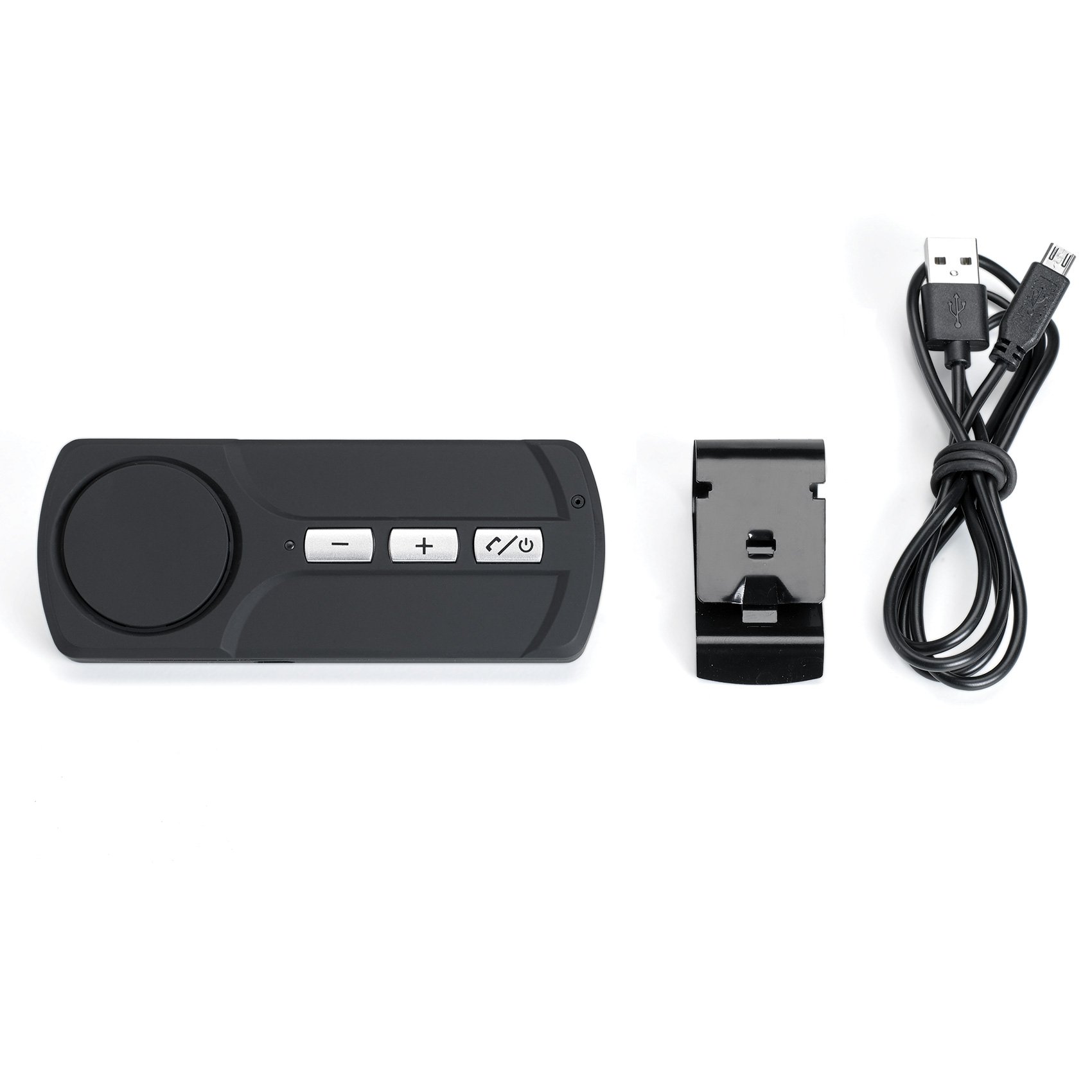
Image of the Celly ANY5 portable speakerphone, showcasing its compact design and black finish.
Setup
1. Unboxing and Initial Charge
Carefully remove all components from the packaging. The package should contain the Celly ANY5 speakerphone and a charging cable. Before first use, it is recommended to fully charge the device. Connect the charging cable to the speakerphone's charging port and plug the other end into a compatible USB power source (e.g., computer USB port, USB wall adapter). The charging indicator light will typically show the charging status and turn off or change color when fully charged.
2. Bluetooth Pairing
The Celly ANY5 speakerphone connects wirelessly to your smartphone via Bluetooth technology.
- Ensure the Celly ANY5 speakerphone is charged and powered off.
- Press and hold the Power button on the speakerphone until the indicator light begins to flash, indicating it is in pairing mode.
- On your smartphone, navigate to the Bluetooth settings menu.
- Enable Bluetooth and search for available devices.
- Select "Celly ANY5" from the list of found devices.
- If prompted for a passcode, enter "0000" (four zeros).
- Once paired, the speakerphone's indicator light will typically stop flashing and remain solid, and your phone will confirm the connection.
Operating Instructions
1. Power On/Off
- To Power On: Press and hold the Power button for approximately 3 seconds until the indicator light illuminates.
- To Power Off: Press and hold the Power button for approximately 3 seconds until the indicator light turns off.
2. Making and Receiving Calls
- Answering a Call: When a call comes in, press the Call/Answer button once.
- Ending a Call: During a call, press the Call/Answer button once.
- Rejecting a Call: Press and hold the Call/Answer button for approximately 2 seconds.
- Redialing Last Number: In standby mode, double-press the Call/Answer button.
3. Audio Playback
Once paired with your smartphone, the Celly ANY5 can play audio from your device.
- Play/Pause: Press the Play/Pause button (often integrated with the Call/Answer button) once to play or pause music.
- Volume Control: Use the Volume Up (+) and Volume Down (-) buttons to adjust the speakerphone's volume. You may also need to adjust the volume on your smartphone.
- Next/Previous Track: Some models may have dedicated buttons or require a long press of the Volume Up/Down buttons to skip tracks. Refer to your device's specific button layout.
Maintenance
1. Cleaning
To maintain the appearance and functionality of your Celly ANY5 speakerphone:
- Wipe the device with a soft, dry, lint-free cloth.
- Do not use abrasive cleaners, solvents, or strong chemicals, as these can damage the surface.
- Avoid getting moisture into any openings.
2. Storage
When not in use for extended periods, store the speakerphone in a cool, dry place away from direct sunlight and extreme temperatures.
3. Battery Care
Although the product description indicates that rechargeable batteries are not included, the device itself likely contains an internal rechargeable battery. To prolong battery life:
- Avoid fully discharging the battery frequently.
- Charge the device regularly, even if not in constant use.
- Do not expose the device to extreme heat or cold.
Troubleshooting
1. Device Will Not Turn On
- Ensure the device is fully charged. Connect it to a power source and allow it to charge for at least 30 minutes before attempting to power it on again.
- Check the charging cable and power adapter for damage.
2. Cannot Pair with Smartphone
- Make sure the speakerphone is in pairing mode (indicator light flashing).
- Ensure Bluetooth is enabled on your smartphone and it is discoverable.
- Move the speakerphone closer to your smartphone (within 1 meter).
- Turn off and then turn on Bluetooth on your smartphone.
- If previously paired, try deleting "Celly ANY5" from your smartphone's Bluetooth device list and re-pairing.
- Restart both your smartphone and the speakerphone.
3. No Sound or Poor Audio Quality
- Ensure the speakerphone is properly paired and connected to your smartphone.
- Check the volume levels on both the speakerphone and your smartphone.
- Move closer to your smartphone to ensure you are within Bluetooth range.
- Ensure there are no obstructions between the speakerphone and your smartphone that could interfere with the Bluetooth signal.
- Test with a different audio source or application on your smartphone.
Specifications
| Brand | Celly |
| Model Name | ANY5 |
| Connectivity Technology | Bluetooth (Wireless & Wired) |
| Color | Black |
| Item Weight | 31 Grams |
| Compatible Devices | Smartphone |
| Hardware Interface | Bluetooth |
| Input Method | Buttons |
| Number of Channels | 2 |
Warranty and Support
For warranty information and technical support, please refer to the documentation included with your product packaging or visit the official Celly website. Keep your purchase receipt as proof of purchase for any warranty claims.
If you encounter issues not covered in this manual, please contact Celly customer support for assistance.