
PlayStation CECH-2501A
PlayStation 3 Super Slim User Manual
Model: CECH-2501A
Introduction
This manual provides essential information for setting up, operating, maintaining, and troubleshooting your PlayStation 3 Super Slim console. Please read this manual thoroughly before using your system to ensure proper operation and to maximize your gaming experience.
Package Contents
Verify that all items listed below are included in your package:
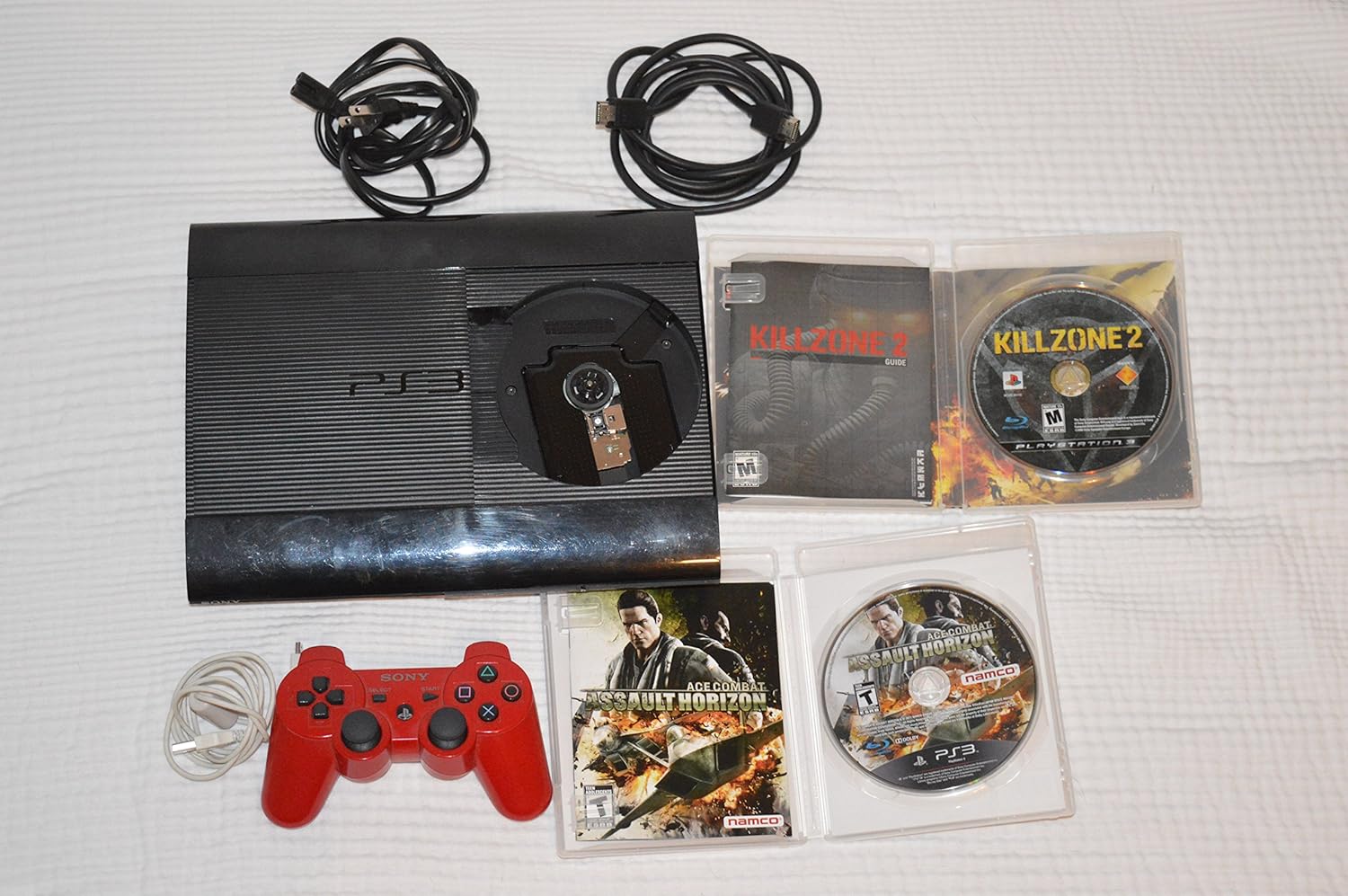
- PlayStation 3 Super Slim 500GB Console
- Wireless Controller
- Power Cord
- HDMI Cable
- USB Charging Cable for Controller
- Four Assorted Game Titles (titles may vary)

Setup Guide
1. Connecting the Console
- Power Connection: Insert the power cord into the AC IN port on the back of the PS3 console, then plug the other end into a wall outlet.
- Video/Audio Connection (HDMI): Connect one end of the HDMI cable to the HDMI OUT port on the PS3 console and the other end to an HDMI input on your TV or display. This provides both high-definition video and audio.
- Controller Connection: Connect the wireless controller to one of the USB ports on the front of the PS3 console using the supplied USB charging cable. This will pair the controller and charge its battery.

2. Initial System Setup
After connecting all cables, turn on your TV and select the correct HDMI input. Press the power button on the PS3 console. Follow the on-screen instructions to complete the initial setup, which includes setting the date and time, and configuring network settings if desired.
Operating Instructions
Powering On/Off
- To Power On: Press the power button on the front of the console or the PS button on the connected controller.
- To Power Off: Hold the PS button on the controller, select "Turn Off System" from the XMB (XrossMediaBar) menu, or press and hold the power button on the console until it powers down.
Inserting and Ejecting Discs
The PlayStation 3 Super Slim features a sliding disc cover. To insert a disc, slide the cover to the right to reveal the disc tray. Place the disc with the label side facing up onto the spindle, ensuring it clicks into place. Slide the cover back to the left to close. To eject, slide the cover to the right and lift the disc out.
Using the Wireless Controller
The included wireless controller connects via Bluetooth. Ensure it is charged by connecting it to the console via the USB cable. Once charged and paired, it can be used wirelessly. The PS button in the center of the controller provides quick access to the XMB menu and power options.
Maintenance
- Cleaning: Use a soft, dry cloth to clean the console and controller. Do not use liquid cleaners or abrasive materials.
- Ventilation: Ensure the console is placed in a well-ventilated area, away from direct sunlight or heat sources, to prevent overheating. Do not block the ventilation openings.
- Software Updates: Periodically check for system software updates via the internet connection. Updates improve system performance and add new features.
Troubleshooting
| Problem | Possible Cause | Solution |
|---|---|---|
| No power | Power cord not connected properly; power outlet issue. | Ensure power cord is securely connected to console and outlet. Try a different outlet. |
| No video/audio output | HDMI cable loose; incorrect TV input selected. | Check HDMI cable connections. Select the correct HDMI input on your TV. |
| Controller not responding | Controller not paired or battery low. | Connect controller to console with USB cable to pair and charge. Reset controller by pressing the small button on the back with a pin. |
| Disc not reading | Disc dirty or scratched; disc inserted incorrectly. | Clean disc with a soft cloth. Ensure disc is inserted correctly, label side up. |
Specifications
- Model Number: CECH-2501A
- Storage: 500GB Hard Disk Drive
- Dimensions (Approx.): 17.5 x 14.2 x 8.9 inches (Package Dimensions)
- Weight (Approx.): 8.73 pounds (Item Weight)
- Connectivity: HDMI, USB, Ethernet, Wi-Fi, Bluetooth
- Disc Drive: Blu-ray Disc / DVD / CD
Support and Warranty Information
For detailed warranty information, technical support, and service inquiries, please refer to the official PlayStation support website or contact PlayStation customer service. Keep your proof of purchase for warranty claims.
Official PlayStation Support: www.playstation.com/support
Related documentsCECH-2501A


Ask a question about this manual
Ask about setup, troubleshooting, compatibility, parts, safety, or missing instructions. Manuals+ will review the question and use this page’s manual context to help answer it.