
Introduction
This manual provides detailed instructions for setting up, operating, and maintaining your Logitech M275 Wireless USB Mouse. Please read this guide thoroughly to ensure optimal performance and longevity of your device. The Logitech M275 mouse is designed for comfortable use with its contoured shape and offers reliable wireless connectivity.

Image: Top-down view of the Logitech M275 Wireless Mouse, showcasing its black finish and central scroll wheel.
Setup
Follow these steps to set up your Logitech M275 Wireless USB Mouse:
- Install the Battery:
- Locate the battery compartment on the underside of the mouse.
- Open the battery compartment cover.
- Insert one AA battery, ensuring correct polarity (+/-). The mouse includes one AA battery.
- Close the battery compartment cover securely.
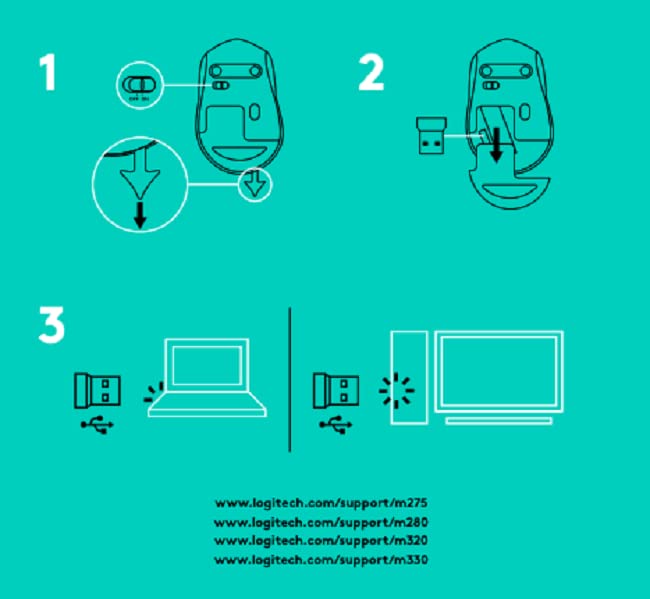
Image: Bottom view of the Logitech M275 Wireless Mouse, showing the ON/OFF switch, battery compartment, and optical sensor.
- Connect the USB Receiver:
- Locate the tiny USB Nano Receiver, typically stored inside the battery compartment or packaged separately.
- Plug the USB Nano Receiver into an available USB port on your computer.
- Your computer should automatically detect and install the necessary drivers.

Image: Close-up of the Logitech Nano Receiver plugged into a laptop's USB port, indicating successful connection.
- Power On the Mouse:
- Slide the ON/OFF switch on the underside of the mouse to the 'ON' position.
- The mouse is now ready for use.

Image: A diagram showing the three steps for setting up the mouse: 1) Insert battery, 2) Insert receiver into mouse for storage, 3) Plug receiver into computer's USB port.
Operating Instructions
The Logitech M275 Wireless USB Mouse offers intuitive control for your computer:
- Basic Functions:
- Left Click: Primary button for selecting items, opening links, etc.
- Right Click: Secondary button for context menus and additional options.
- Scroll Wheel: Roll up or down to navigate documents and web pages. The scroll wheel also functions as a clickable middle button.
- Advanced Optical Sensor: The mouse utilizes a Logitech Advanced Optical Sensor for smooth and precise cursor control on various surfaces.
- Battery Life Indicator: A small LED light on the mouse indicates battery status. It typically glows green briefly when powered on if the battery is good. A red light indicates that the battery is low and needs replacement. The mouse is designed for an 18-month battery life, which may vary based on usage.

Image: Top view of the Logitech M275 Wireless Mouse, highlighting its ergonomic design and indicating an 18-month battery life.
Maintenance
Proper maintenance ensures the longevity and performance of your mouse:
- Battery Replacement: When the battery indicator light turns red, replace the AA battery. Follow the steps outlined in the 'Install the Battery' section under Setup.
- Cleaning the Mouse:
- Turn off the mouse before cleaning.
- Use a soft, lint-free cloth slightly dampened with water or a mild cleaning solution to wipe the surface of the mouse.
- Avoid using harsh chemicals or abrasive materials.
- Do not allow liquids to enter the mouse's internal components.
Troubleshooting
If you encounter issues with your Logitech M275 mouse, refer to the following common solutions:
- No Cursor Movement or Intermittent Connection:
- Ensure the mouse is turned ON.
- Check the battery. Replace it if the indicator light is red or if the mouse is unresponsive.
- Ensure the USB Nano Receiver is securely plugged into a working USB port on your computer. Try a different USB port.
- Move the mouse closer to the USB receiver to rule out range issues.
- Avoid using the mouse on highly reflective or transparent surfaces. A mouse pad is recommended for optimal tracking.
- Lagging or Unresponsive Cursor:
- Interference from other wireless devices can affect performance. Try moving other wireless devices away from the mouse and receiver.
- Ensure your computer's operating system is up to date.
- Mouse Not Detected by Computer:
- Restart your computer.
- Try plugging the USB Nano Receiver into a different USB port.
- If you have other Logitech devices, ensure the M275 receiver is the correct one for this mouse, as it is not a Unifying receiver.
Specifications
| Feature | Detail |
|---|---|
| Brand | Logitech |
| Model Number | M275 |
| Connectivity Technology | USB Wireless |
| Movement Detection Technology | Optical |
| Colour | Black |
| Power Source | Battery Powered (1 AA battery) |
| Average Battery Life | 18 Months |
| Hardware Platform | PC |
| Operating System Compatibility | Linux, Windows 7, Windows XP |
| Item Weight | 100 g |
| Product Dimensions | 21 x 7.6 x 15.2 cm |
| Included Components | Wireless Mouse, Nano Receiver, 1 AA battery, User Documentation |
Warranty and Support
- Warranty: The Logitech M275 Wireless USB Mouse comes with a 1-year warranty. Please retain your proof of purchase for warranty claims.
- Customer Support: For technical assistance or warranty inquiries, please contact Logitech Customer Care.
- Logitech India Customer Care:
- Toll Free Number: 1800 572 4730
- Opening Time: 9:00 AM to 6:00 PM (Monday to Friday)
- Note: Weekends & National Holidays closed.


