
1. Product Overview
The Bose RC-PWS III is an infrared (IR) universal remote control designed to consolidate control of various home entertainment devices. It is compatible with Bose Solo TV Sound Systems and CineMate Home Theater Speaker Systems, as well as other components such as televisions, cable boxes, and Blu-ray players. This remote aims to simplify your entertainment experience by replacing multiple remote controls with a single, ergonomic device.
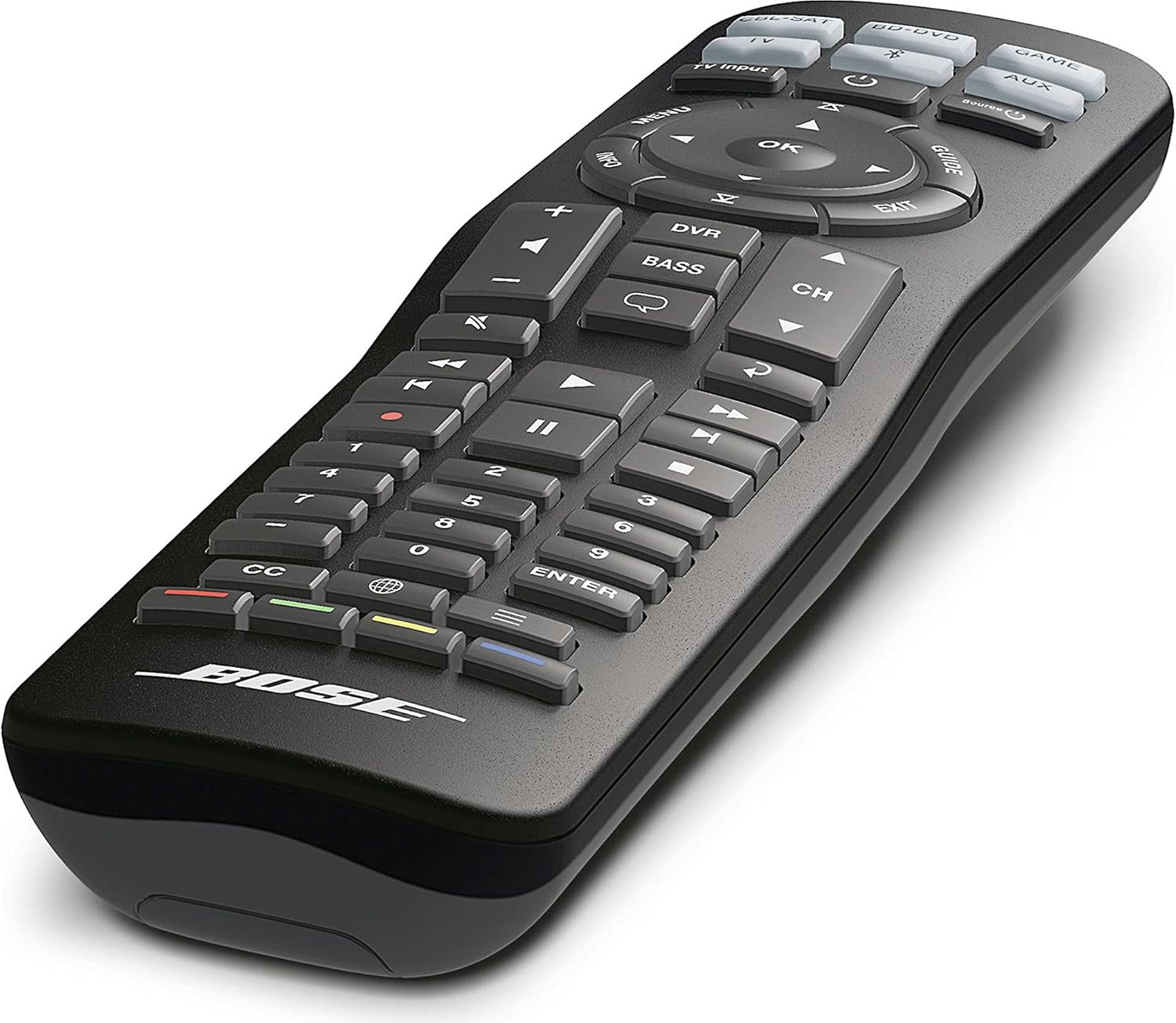
Image 1: Front view of the Bose RC-PWS III Universal Remote Control, displaying its array of buttons for various functions.
2. Setup and Programming
2.1. Battery Installation
The remote requires two AAA batteries for operation. To install or replace batteries:
- Locate the battery compartment cover on the back of the remote control.
- Slide the cover off in the direction indicated by the arrow.
- Insert two AAA batteries, ensuring the positive (+) and negative (-) terminals align correctly with the markings inside the compartment.
- Replace the battery compartment cover until it clicks securely into place.
2.2. Programming the Remote
The Bose RC-PWS III remote can be programmed to control various devices. Programming typically involves entering specific codes for your devices or using an auto-search function. Refer to the detailed programming instructions provided with your Bose sound system or visit the official Bose support website for specific codes and procedures for your TV, cable box, Blu-ray player, and other components.
- Initial Setup: For first-time use, the remote may require pairing with your Bose sound system. Follow the instructions specific to your sound system model.
- Device Codes: A list of device codes for common brands is usually available in the full product manual or online.
- Auto-Search: If a direct code is not found, the remote may have an auto-search feature to scan for compatible codes.
- Troubleshooting Programming: If the first setting does not work, there is often a shortcut to advance to the next option during programming. Consult the full manual for these advanced steps.
3. Operating the Remote Control
Once programmed, the remote allows control over your connected devices. The buttons are logically grouped for ease of use.
3.1. Button Functions
- Source Buttons (CBL-SAT, TV, BD-DVD, GAME, AUX): Select the input source for your sound system or TV. The "Source" button cycles through available inputs.
- Power Button: Turns the selected device on or off.
- TV Input: Switches the input on your television.
- Menu, Info, Guide, Exit: Navigation and information display buttons for connected devices like cable boxes or Blu-ray players.
- Directional Pad and OK: Used for navigating menus and confirming selections.
- Volume (+/-): Adjusts the volume level of your sound system or TV.
- Mute: Silences the audio output.
- Channel (CH +/-): Changes channels on your cable/satellite box or TV tuner.
- DVR: Accesses DVR functions.
- BASS: Adjusts bass levels on compatible Bose sound systems.
- Number Pad (0-9): For direct channel entry or other numerical inputs.
- CC (Closed Captioning): Toggles closed captioning on/off.
- ENTER: Confirms selections.
- Transport Controls (Play, Pause, Stop, Rewind, Fast Forward, Skip): Control media playback on compatible devices.
- Colored Buttons (Red, Green, Yellow, Blue): Often used for special functions within menus or applications, depending on the device.
The remote operates using infrared (IR) technology. Ensure a clear line of sight between the remote and the device you wish to control. The maximum effective range is approximately 30 feet (9 meters).
4. Maintenance
4.1. Cleaning
To clean the remote control, use a soft, dry cloth. Do not use liquid cleaners, solvents, or abrasive materials, as these can damage the remote's finish or internal components.
4.2. Battery Care
If the remote will not be used for an extended period, remove the batteries to prevent potential leakage and damage. Dispose of used batteries according to local regulations.
5. Troubleshooting
- Remote not responding:
- Check if the batteries are correctly installed and have sufficient charge. Replace them if necessary.
- Ensure there is a clear line of sight between the remote's IR emitter and the device's IR receiver.
- Verify that the correct source button (e.g., TV, CBL-SAT) is selected for the device you are trying to control.
- Device not controlling after programming:
- Re-attempt the programming process for the specific device.
- Try alternative device codes if the initial code does not work.
- Ensure the remote is pointed directly at the device during programming and operation.
- Intermittent control:
- Weak batteries may cause intermittent control. Replace them.
- Obstructions between the remote and the device can interfere with the IR signal.
- Ensure you are within the effective operating range (approximately 30 feet).
6. Specifications
| Brand | Bose |
| Model Name | Bose RC-PWS III |
| Model Number | RC-PWS III IR 714924-0020 |
| Connectivity Technology | Infrared (IR) |
| Maximum Number of Supported Devices | 1 (Universal control for multiple devices via programming) |
| Compatible Devices | Home Theater (Bose Solo TV Sound Systems, CineMate Home Theater Speaker Systems, TV, Cable Box, Blu-ray Player) |
| Color | Black |
| Maximum Range | 30 Feet (approximately 9 meters) |
| Battery Type | AAA |
| Number of Batteries Required | 2 |
| Item Weight | 15.2 ounces (approximately 431 grams) |
| UPC | 017817707367 |
| ASIN | B0183T5TPU |
7. Warranty and Support
Specific warranty information for the Bose RC-PWS III Universal Remote Control is not provided within this manual. For details regarding warranty coverage, product registration, or technical support, please refer to the documentation included with your original Bose sound system, visit the official Bose website, or contact Bose customer service directly.
You can find additional support and resources on the Bose Store on Amazon or the main Bose website.
