1. Introduction
This manual provides comprehensive instructions for the installation, operation, and maintenance of your Dell Intel Dual Band Wireless-AC 7260 Wi-Fi + Bluetooth 4.0 Mini-PCI Express Card (Model NMTXR). This card is designed to enhance your computer's wireless connectivity, offering high-speed Wi-Fi and reliable Bluetooth capabilities. Please read this manual thoroughly before installation and use to ensure proper function and safety.
2. Safety Information
When handling internal computer components, observe the following safety precautions:
- Always disconnect the computer from the power source and remove the battery (for laptops) before opening the chassis.
- Discharge any static electricity from your body by touching a grounded metal object (e.g., the computer chassis) before handling components. Consider using an anti-static wrist strap.
- Handle the card by its edges to avoid touching sensitive components.
- Keep small parts (screws, connectors) away from children.
- If you are unsure about any step, consult a qualified technician.
3. Product Overview
3.1 Features
- Dual Band: Operates on both 2.4GHz and 5GHz frequencies for versatile connectivity.
- Max Speed: Up to 300/867 Mbps for fast data transfer.
- WiFi Certified: Supports 802.11 ac/a/b/g/n standards.
- Interface: PCI-e (Mini-PCI Express) for internal integration.
- Bluetooth: Integrated Bluetooth 4.0 + HS for connecting peripherals.
3.2 Compatibility
This card is compatible with various Dell computer models, including but not limited to:
- XPS One 2720, XPS 8700, XPS 17 (L702X)
- Optiplex 9020
- Inspiron 2350, Inspiron 17 (3721)
- Alienware 18 R1, Alienware 17 R1, Alienware 14 R1
- Precision M2800, Precision M4800, Precision M6800
- Latitude E7240, Latitude E7440, Latitude E6540, Latitude E6440, Latitude E5440, Latitude E5540
- Latitude 14 Rugged Extreme (7404), Latitude 12 Rugged Extreme (7204)
Please verify your system's compatibility and available Mini-PCI Express slot before installation.
4. Setup and Installation
This section outlines the general steps for installing the Mini-PCI Express card. Specific steps may vary slightly depending on your computer model. Refer to your computer's service manual for detailed instructions on opening the chassis and accessing the Mini-PCI Express slot.
4.1 Required Tools
- Small Phillips head screwdriver
- Anti-static wrist strap (recommended)
4.2 Installation Steps
- Prepare Your Computer: Power off your computer completely, disconnect the power adapter, and remove the battery (if applicable).
- Open the Chassis: Carefully open your computer's chassis to access the internal components. Consult your computer's service manual for specific instructions.
- Locate the Mini-PCI Express Slot: Identify an available Mini-PCI Express slot. If you are replacing an existing wireless card, carefully disconnect its antenna cables and remove the retaining screw before gently sliding it out.
- Install the New Card:
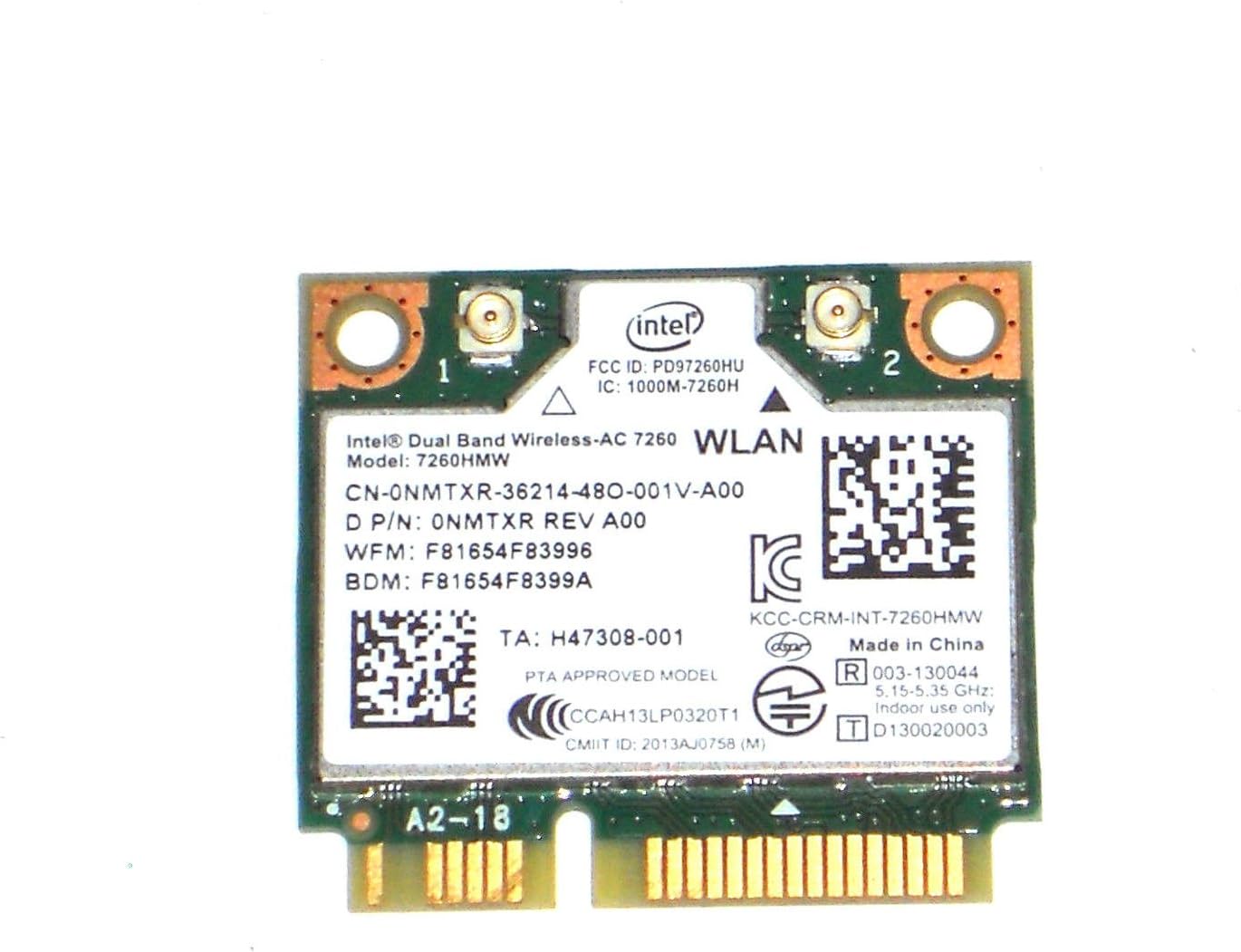
Figure 1: Front view of the Intel Dual Band Wireless-AC 7260 card. This image displays the primary side of the card with its components and identification labels.
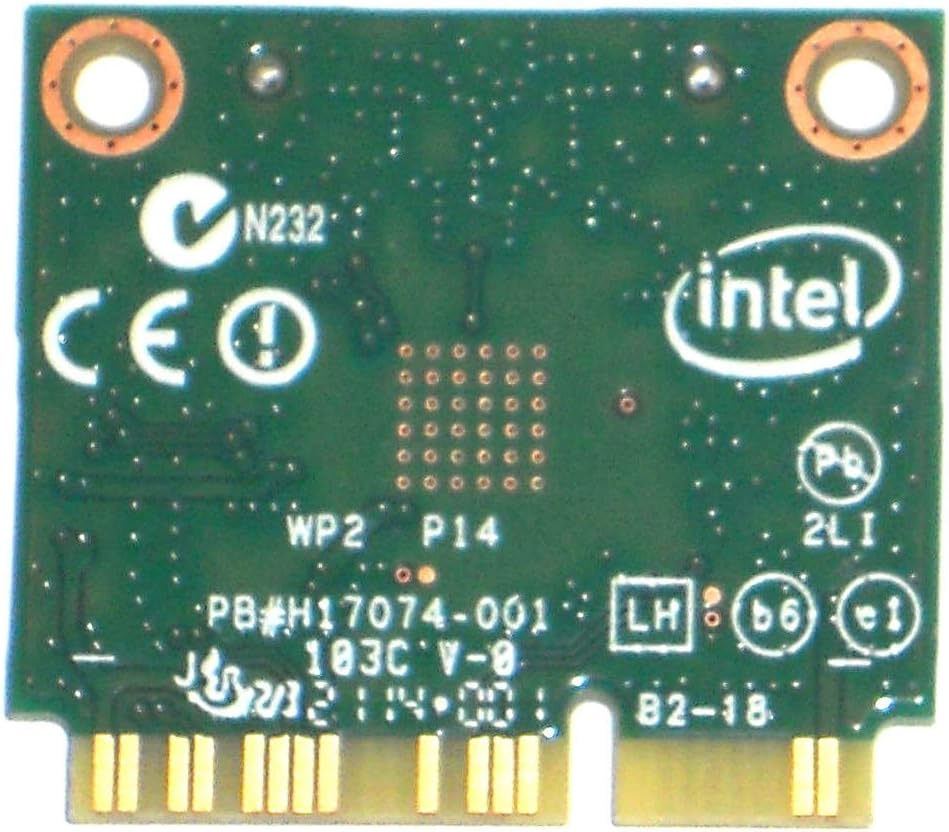
Figure 2: Rear view of the Intel Dual Band Wireless-AC 7260 card. This image shows the underside of the circuit board.
Align the new Dell Intel Dual Band Wireless-AC 7260 card with the Mini-PCI Express slot. Gently slide the card into the slot at an angle until it is fully seated. Press down on the card until it clicks into place, then secure it with the retaining screw.
- Connect Antenna Cables: Carefully connect the antenna cables to the corresponding connectors on the card. Typically, the main antenna connects to connector '1' and the auxiliary antenna to connector '2'. Ensure a secure connection.
- Close the Chassis: Reassemble your computer, ensuring all screws are tightened and panels are securely closed.
- Power On and Install Drivers: Reconnect the power adapter and battery, then power on your computer. The operating system may automatically detect and install basic drivers. If not, you will need to download the latest drivers for the Intel Wireless-AC 7260 and Bluetooth 4.0 from the Dell support website or Intel's website.
5. Operating Instructions
5.1 Connecting to a Wi-Fi Network
- Ensure Wi-Fi is enabled in your operating system settings.
- Click on the Wi-Fi icon in your system tray (Windows) or menu bar (macOS).
- Select your desired Wi-Fi network from the list of available networks.
- Enter the network security key (password) if prompted, then click "Connect".
- Once connected, the Wi-Fi icon will indicate an active connection.
5.2 Using Bluetooth
- Ensure Bluetooth is enabled in your operating system settings.
- Put your Bluetooth device (e.g., headphones, mouse) into pairing mode.
- On your computer, go to Bluetooth settings and search for new devices.
- Select your device from the list and follow any on-screen prompts to complete the pairing process.
6. Maintenance
- Driver Updates: Regularly check the Dell support website or Intel's official website for updated Wi-Fi and Bluetooth drivers. Keeping drivers current can improve performance and stability.
- Physical Cleaning: If your computer is opened for other maintenance, gently use compressed air to remove any dust accumulation around the wireless card to ensure optimal airflow.
7. Troubleshooting
| Problem | Possible Solution |
|---|---|
| No Wi-Fi or Bluetooth connectivity. |
|
| Slow Wi-Fi speeds or intermittent connection. |
|
| Bluetooth device not pairing. |
|
8. Specifications
- Model: NMTXR (Intel Dual Band Wireless-AC 7260)
- Wireless Standards: 802.11ac, 802.11a/b/g/n
- Frequency Bands: 2.4 GHz, 5 GHz
- Max Data Rate: 867 Mbps (5GHz), 300 Mbps (2.4GHz)
- Bluetooth Version: 4.0 + HS
- Interface: Mini-PCI Express (PCI-e)
- Manufacturer: Intel
- Brand (for compatible systems): Dell
- Item Weight: Approximately 16 ounces (0.45 kg)
- Package Dimensions: 7.75 x 4.75 x 0.01 inches
9. Warranty and Support
This product is typically offered with a 30-day guarantee by the seller. For specific warranty details, please refer to your purchase documentation or contact your retailer. For technical support, driver downloads, and further assistance, please visit the official Dell support website or Intel's support resources.
Dell Support: https://www.dell.com/support


